You've upgraded to a fast UK broadband package, but the bedroom still buffers, video calls freeze when someone starts streaming, and the laptop beside the router seems to perform better than the one upstairs. The line into your property may be working perfectly. The weak point is often the wireless network inside it.
That's why router settings for WiFi deserve more attention than a simple speed test. Modern homes and small offices use several bands, mesh nodes, older smart devices, work laptops, cameras and phones at the same time. The right changes can improve stability, coverage and security. The wrong ones can create compatibility problems, double-NAT, or a network that looks fast on paper but behaves badly in daily use.
Table of Contents
- Why Router Settings Matter More Than Your Broadband Speed
- Before You Change Anything What to Prepare
- How to Access Your Router Admin Safely
- Essential WiFi Security Settings to Configure First
- Tuning Performance With Bands Channels and Smart Features
- Guest Networks QoS and Final Optimisation Checklist
Why Router Settings Matter More Than Your Broadband Speed
A busy household can expose the difference quickly. One person is on a work call, another is watching high-definition video, a games console is downloading an update and smart devices are sending traffic in the background. A gigabit-capable connection doesn't guarantee that every wireless device will receive a fast or consistent service, because WiFi depends on distance, interference, device capability, channel use and router configuration.
UK homes are increasingly connected to gigabit-capable networks. Ofcom reported availability to 25.9 million UK homes, or 86%, by spring 2025, compared with 25.0 million homes, or 83%, in July 2024, in its Connected Nations spring 2025 update. That makes the in-home wireless network more important, not less. If the access connection is fast but the router uses poor defaults, the last few metres can become the bottleneck.
Practical rule: Fix the wireless conditions before blaming the broadband package.
Router settings can't overcome a thick wall, a badly placed access point or an old device with limited WiFi support. They can, however, select a safer encryption method, reduce unnecessary congestion, separate guests from business equipment and help capable devices use the band that suits them.
Security and performance also overlap. A router left with factory settings may use an obvious network name, an outdated wireless security mode or weak administrative credentials. The Information Commissioner's Office WiFi security guidance recommends changing the default wireless network name, enabling encryption and using a strong password. Those changes reduce exposure while giving you a cleaner foundation for later tuning.
The useful objective isn't to change every advanced option. It's to identify the settings that affect your real environment, test one meaningful change at a time and leave stable features alone.
Before You Change Anything What to Prepare
A few minutes of preparation prevents most router-admin mistakes. Find the router model and record its current configuration before changing anything. The model number is usually printed on the underside or rear label, while ISP equipment may identify the provider rather than the underlying manufacturer.
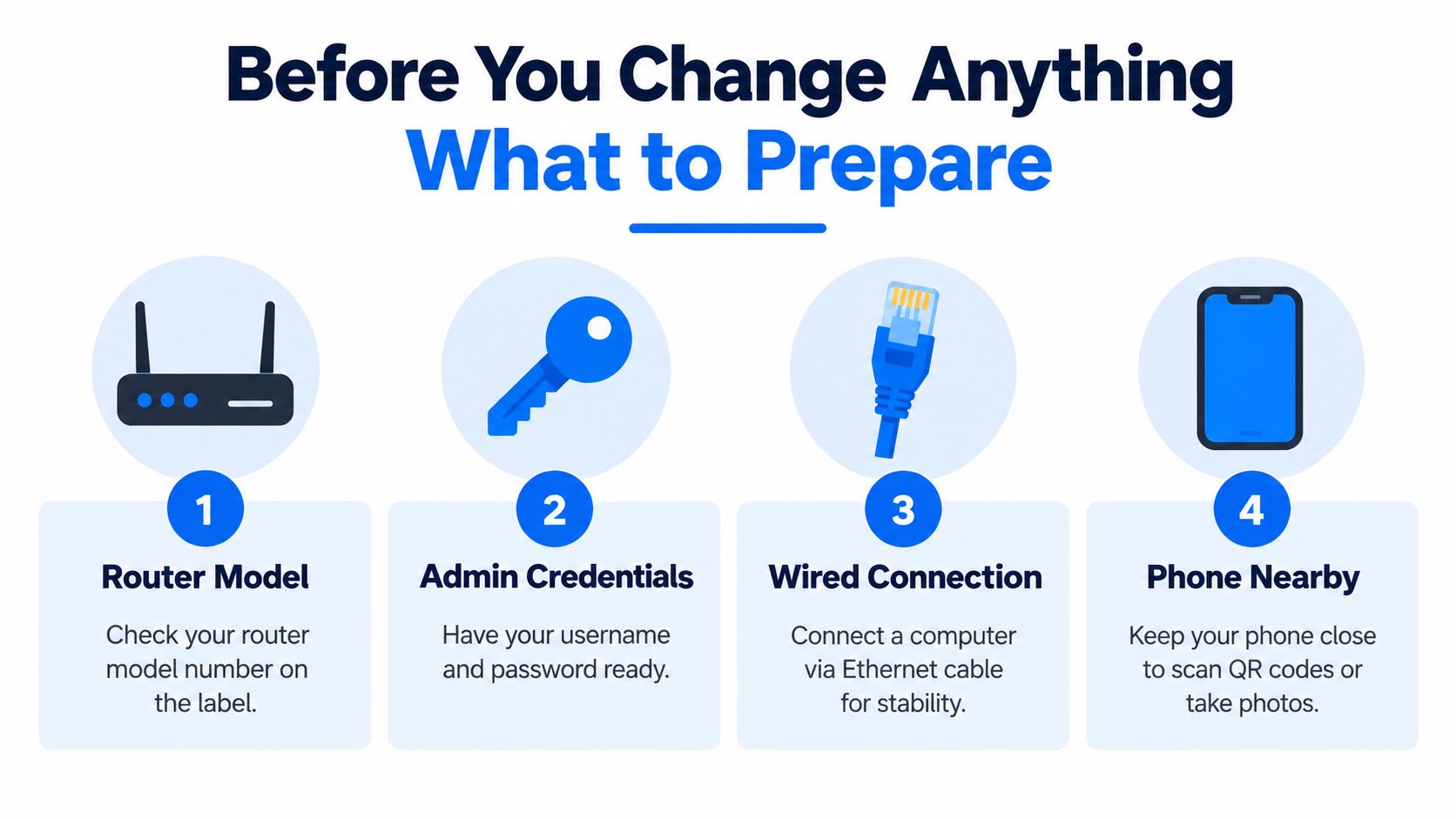
Keep these items ready:
- Admin credentials: Have the username and password used to enter the router's settings page. This is separate from the password used by phones, laptops and other devices to join WiFi.
- Wired connection: If possible, connect a computer by Ethernet while making changes. It removes the risk of losing wireless access halfway through an update.
- Phone nearby: A phone helps you photograph existing settings, scan setup codes and test the network from different rooms.
- Recovery details: Know how to restore the router if a change fails. A factory reset may erase the internet connection details, so check your ISP's recovery process first.
The two-password distinction matters. UK police cyber-protection guidance explains that routers have one password for joining the WiFi network and another for entering the administrative settings area, and recommends changing both from their defaults. The Metropolitan Police guidance also describes reaching the settings page through a local address such as 192.168.0.1.
Write down the current WiFi name, encryption mode, channel settings and operating mode before you alter them. If you're running an ISP router with a separate mesh system, record whether the second device is in router mode or access point mode. That detail determines whether you risk creating double-NAT later.
Change the administrator password before experimenting. Use a unique password that isn't shared with the WiFi network, email account or business systems. If the router uses an app rather than a browser, secure the account behind the app as well.
How to Access Your Router Admin Safely
Connect to the router, open a browser and enter its local management address. Don't search the web for the login page, because a search result may lead to a manufacturer support page rather than your own device. The correct address is often printed on the router label, shown in the ISP's instructions or listed as the default gateway in your device's network details.
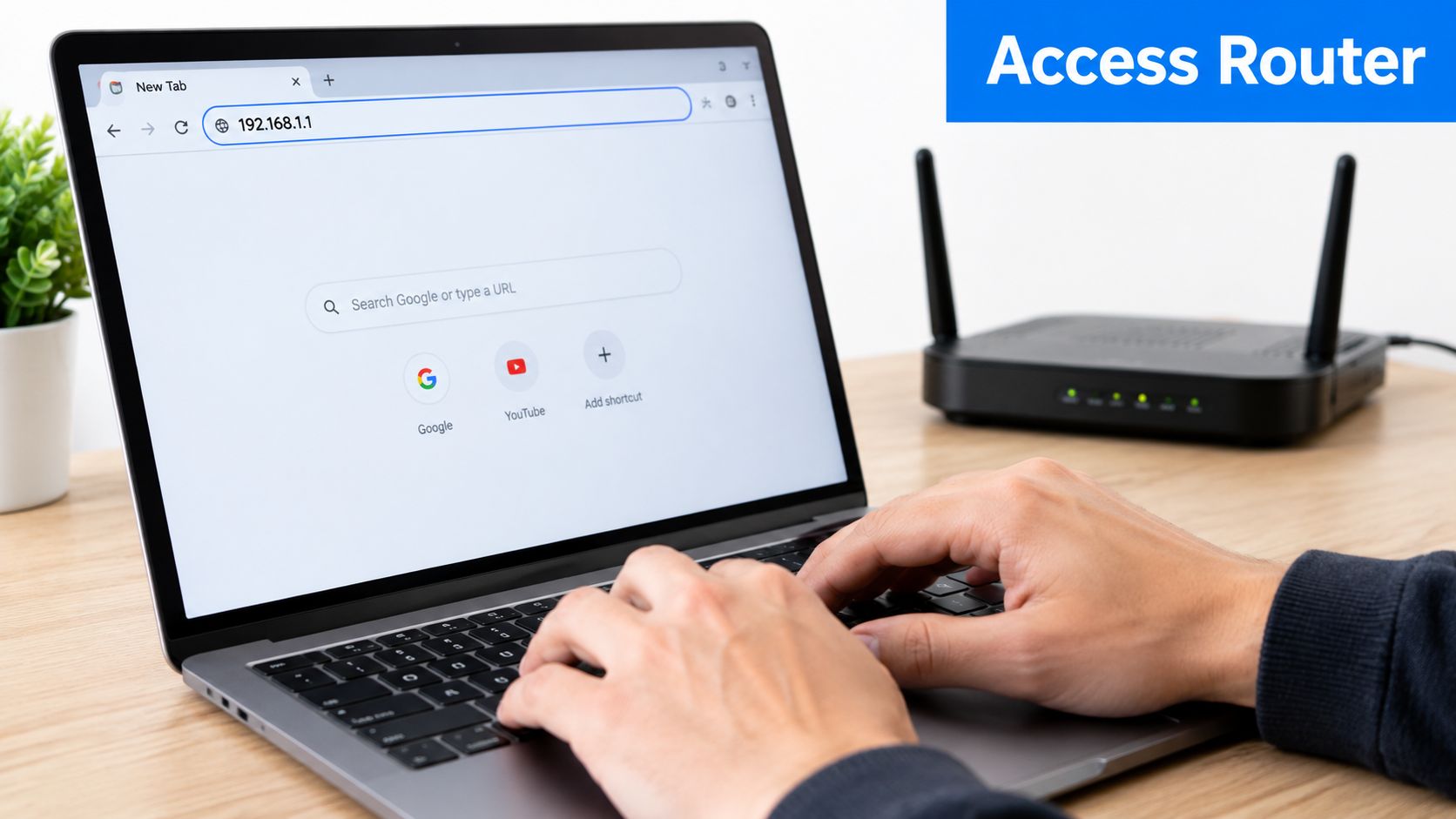
Log in locally, preferably over Ethernet. Confirm that the page belongs to your router, then change the administrator password before opening wireless or advanced menus. Avoid saving that password in a browser profile used by several people, particularly in a small office or shared home computer.
Check the operating mode before adding hardware
ISP routers usually combine the internet connection, routing, firewall, DHCP and WiFi functions. If you add a second router without changing the design, both devices may try to route traffic and assign local addresses. That arrangement is called double-NAT. It can interfere with inbound services, remote access, some online games, device discovery and certain business applications.
You normally have three sensible choices:
- Keep the ISP router as the router. Put your additional wireless equipment into access point or bridge mode. The ISP device continues to handle routing, while the new equipment supplies coverage.
- Use modem or bridge mode on the ISP equipment. Let your own router handle routing, firewall and wireless services. This suits people who need more control, but confirm that the ISP connection and telephone services still work.
- Use a managed access-point system. In a larger home or small office, several access points can provide one coordinated wireless network without creating separate routing domains.
Don't choose a mode because it sounds more advanced. Choose one device to perform routing and keep the other wireless equipment in access point mode unless you have a specific reason to redesign the network.
Set the wireless identity and encryption
Choose a clear SSID, which is the name people see when selecting a network. Don't include your address, surname or room number. Use a separate name for a guest network rather than exposing the same credentials to visitors.
For encryption, select WPA3 where every important device supports it. For mixed homes containing older printers, smart plugs or cameras, WPA2 may provide better compatibility. Some routers offer a transitional WPA2/WPA3 mode. It can be useful, but test older devices rather than assuming they'll connect.
Update firmware if the router offers a trusted update from its own administration page or the ISP's official process. Firmware can alter menu names and restart the device, so complete that task when nobody depends on the connection.
Essential WiFi Security Settings to Configure First
Wireless security starts with four decisions: the network name, encryption, the WiFi password and whether convenience features should remain enabled. These settings protect the network itself, while the administrator password protects the control panel.
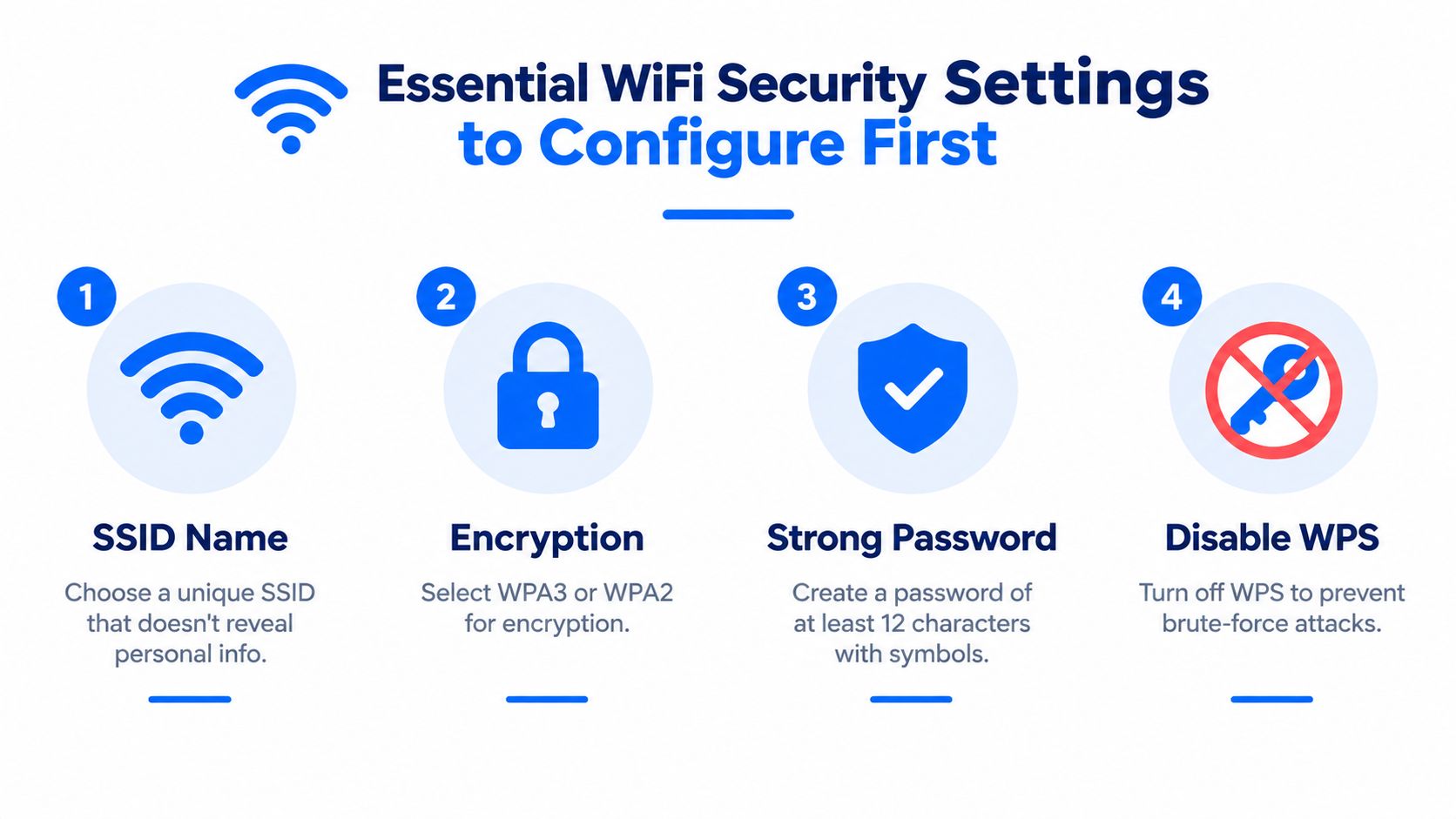
Choose a useful SSID
Use a name that helps you identify the correct network without revealing personal information. Avoid naming it after the router model, your family or the exact property. If you have a mesh system, use the same SSID and password across its nodes when the system is designed to coordinate roaming.
Changing the SSID disconnects every existing device. Keep a list of equipment that needs reconnecting, including printers, televisions, cameras and smart-home hubs. In a small office, schedule the change outside working hours because a renamed network can interrupt laptops, phones and wireless tills.
Select the strongest practical encryption
WPA3 is the preferred choice when your devices support it. WPA2 remains the sensible compatibility option for older equipment. Don't use WEP, and avoid older WPA modes unless a particular legacy device gives you no alternative. The Northern Ireland Cyber Security Centre wireless security advice recommends WPA2 or WPA3 and identifies WEP and WPA as older, less secure choices.
The UK's security direction has also moved away from universal defaults. The Product Security and Telecommunications Infrastructure Act has been in force since 29 April 2024, and commentary on its requirements states that in-scope consumer connectable products can't use universal default passwords, as reported by Broadband.co.uk's router security research. Existing routers still need your attention, particularly if they were installed years ago.
Create separate credentials
Use a long, unique WiFi password that isn't reused elsewhere. Don't print it on a public noticeboard or send it through an unmanaged group chat. Keep the administrator password different again, because anyone who obtains it may change the entire network configuration.
Disable WPS if you don't need push-button or PIN-based joining. It saves time during setup, but it also adds another method of accessing the wireless network. Check whether your router has separate WPS controls for each band, because turning off one toggle may not disable every implementation.
For a visual walkthrough of the wireless concepts, use the following reference material:
Tuning Performance With Bands Channels and Smart Features
Modern routers often advertise several bands, but each band solves a different problem. 2.4GHz travels further and passes through obstacles more readily, but it's more crowded and usually slower. 5GHz generally provides more capacity at normal indoor distances. 6GHz, where supported by the router, client and regulatory configuration, can offer a cleaner space for compatible WiFi 6E or WiFi 7 devices, but its shorter practical reach means placement matters.
Start with automatic channel selection. Good routers can scan local conditions and choose a suitable channel. Manual selection is useful when a neighbour's network causes persistent interference, but don't set a channel once and forget it. Wireless conditions change as nearby networks appear, disappear or alter their own settings.
Channel width is a trade-off, not a speed guarantee. Wider channels can improve throughput when the air is clean, but they occupy more spectrum and can become less reliable in dense flats, terraces and offices. If a wide setting causes dropped connections, reduce the width and test again. A stable connection with slightly less peak speed is usually more useful than a fast connection that repeatedly retransmits data.
Band steering can encourage dual-band devices towards 5GHz or 6GHz while leaving 2.4GHz available for longer-range and legacy equipment. It works well when clients roam sensibly. Some older devices behave better when bands have separate SSIDs, so use that arrangement only when steering creates connection problems.
| Premises type | Recommended band setup | Channel approach |
|---|---|---|
| Small flat | Use 5GHz as the main band, with 2.4GHz for older or distant devices | Start with automatic selection, then test manually if interference is persistent |
| Larger house | Use coordinated mesh or access points, with 2.4GHz for reach and 5GHz for normal client traffic | Keep nodes sensibly separated and avoid excessive channel overlap |
| Home with WiFi 6E or WiFi 7 devices | Enable 6GHz where supported, while retaining 5GHz and 2.4GHz for compatibility | Leave selection automatic initially and verify coverage room by room |
| Small office | Put business devices on the managed main network and isolate visitors | Prefer stability over maximum channel width, especially in dense premises |
QoS, or Quality of Service, should be configured around real priorities. Give voice calls, video meetings or point-of-sale traffic preference if your router supports reliable device or application rules. Don't prioritise every device, because a priority list with no lower-priority traffic is effectively no prioritisation.
Mesh systems need careful placement. A node that communicates wirelessly with the main router still consumes airtime for the backhaul, so placing it at the edge of a dead zone often gives poor results. Put it where it can receive a solid connection, then let it serve the weaker room.
Guest Networks QoS and Final Optimisation Checklist
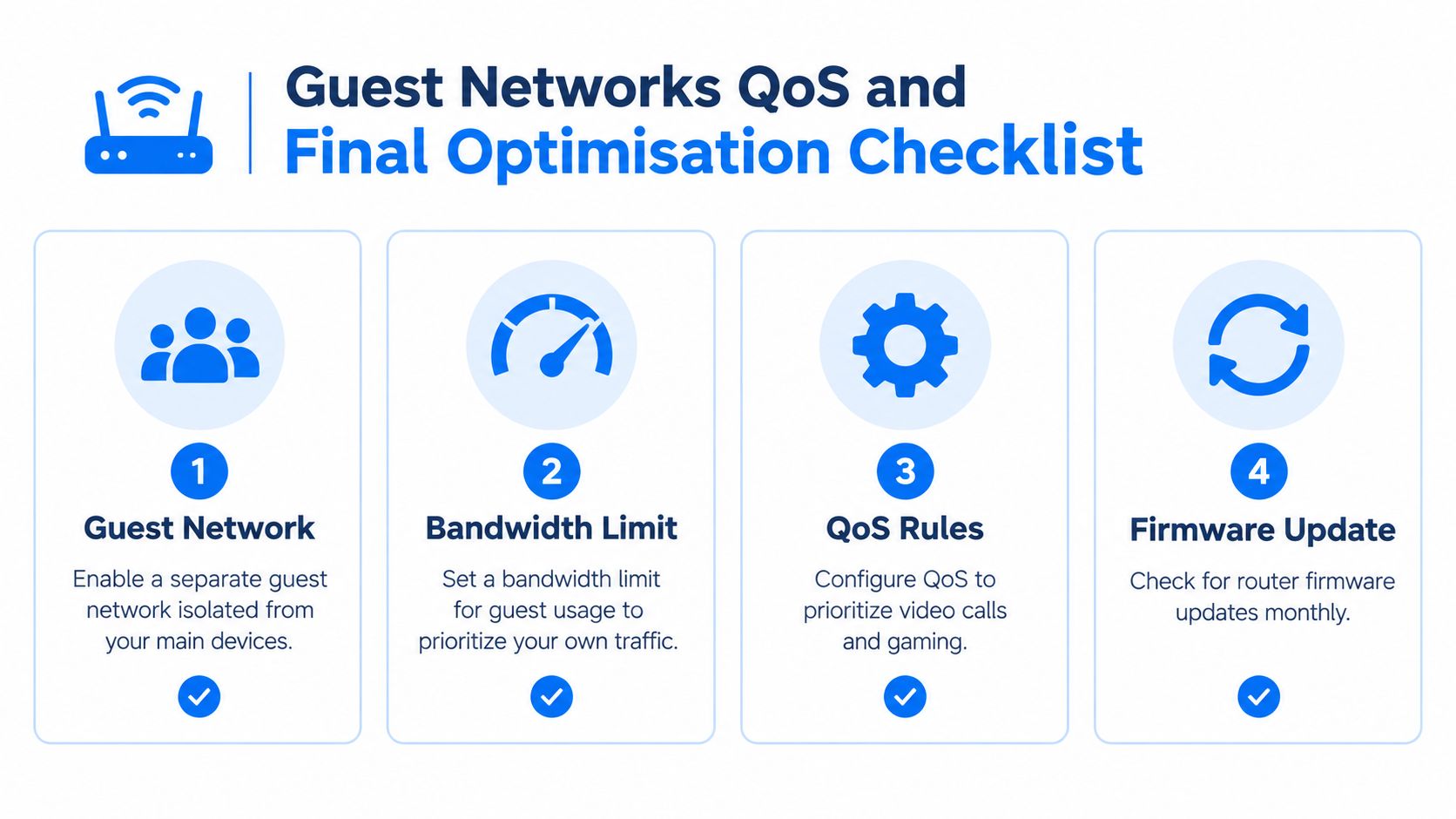
A guest network should be separate from the private network, not merely a second password on the same unrestricted LAN. Enable guest isolation where the router provides it, prevent access to local devices and give visitors a different SSID and password. That protects shared folders, printers, cameras and other equipment from casual access.
Bandwidth limits can stop guest activity overwhelming household or business traffic. Set a reasonable ceiling if your router supports it, then review the effect during busy periods. In an office, keep visitors away from internal systems and use a separate staff or operations network where the equipment supports proper segmentation.
QoS is most useful when you define a small number of priorities. Video calls and voice services usually deserve protection from large downloads, while gaming benefits more from low latency than from maximum throughput. Test the rules with normal activity. If enabling QoS reduces overall performance or creates strange device behaviour, disable it and address the underlying wireless or internet bottleneck instead.
Keep a simple maintenance routine
Review the network after major changes, such as adding a mesh node, replacing an ISP router or introducing a new smart-home platform. Check firmware through the official router or ISP interface, confirm the administrator password remains unique and remove guest access when it's no longer needed.
Use this checklist:
- Confirm placement: Keep the main router open and central rather than inside a cupboard or behind large electrical equipment.
- Test each room: Check work calls, streaming and normal browsing where people use them.
- Review bands: Keep older devices on the band they handle reliably and avoid forcing every client onto the newest option.
- Check isolation: Verify that guest devices can reach the internet without reaching private equipment.
- Record changes: Note what you changed and what improved, so a later fault doesn't become guesswork.
- Escalate complex faults: Seek help when you need multiple access points, structured cabling, VLANs, managed firewalls or business-critical resilience.
If the router still struggles after sensible tuning, the issue may be coverage, cabling, hardware limits or interference rather than a hidden checkbox. A site survey and properly positioned wired access points often solve problems that repeated channel changes won't.
Networking2000 provides practical router configuration, wireless network design, managed firewalls, WiFi troubleshooting and Cat5e or Cat6 cabling for homes and businesses across London and Essex. Visit Networking2000 to arrange jargon-free advice that matches your premises, devices and connectivity needs.

