The screen freezes just as you're trying to send an invoice, a pop-up says something unhelpful, or the laptop refuses to start before a meeting. In that moment, it's easy to assume the machine has “gone wrong” in some mysterious way, but most errors on computers are more ordinary than they look. They usually point to a fault in the device, the network, the software, or the environment around it, and that means there's a sensible order to fixing them.
If you've ever felt stuck between restarting everything and calling for help, this guide is for you. It's written for home users, small businesses, and anyone in London or Essex who'd rather understand the problem than guess at it. Read it top to bottom, or jump to the kind of error you're seeing right now.
Table of Contents
- Why Errors on Computers Feel So Confusing
- What a Computer Error Means
- The Errors You Are Most Likely to See
- A Step-by-Step First Response You Can Run in Minutes
- How an Engineer Reads a Real Error
- When the Real Problem Is the Network, Not the PC
- Prevention Habits That Stop Errors Coming Back
- When to Call Professional IT Support
Why Errors on Computers Feel So Confusing
The worst part is rarely the failure itself. It's the silence after it, the little pause where you're left staring at a screen that says something vague like “An error occurred” or won't move at all. If you're in a busy office in Romford, a home office in Chelmsford, or dealing with a laptop in the kitchen between school runs, that kind of interruption feels personal because it stops real work right now.
Many users assume errors on computers are random. They're not. A computer is reacting to something it expected but didn't get, and that usually means one of a small number of things has gone wrong, even if the message doesn't make that clear.
Practical rule: the more generic the message, the more important it is to note the exact wording, the timing, and what you were doing just before it appeared.
That approach matters because the message itself is often only the surface. A frozen browser tab, a failed printer job, a laptop that reboots itself, and a cloud app that won't open can all look like “computer errors”, but they don't sit in the same place. One may point to the device, another to the network, another to an application, and another to the surrounding environment.
The rest of this guide treats the problem like a triage conversation with an engineer. You'll learn how to read the message, sort the fault into the right bucket, and try the cheapest safe fix first. If you've got a home PC, a small office network, or a team in London or Essex that needs to keep moving, that's the fastest way to avoid wasting time.
What a Computer Error Means
A computer error is a signal that something expected did not happen. The message might appear as a pop-up box, a blue stop screen, a frozen app, a failed print job, or a programme that refuses to open. The form changes, but the meaning stays the same, the machine has lost track of the next safe step.
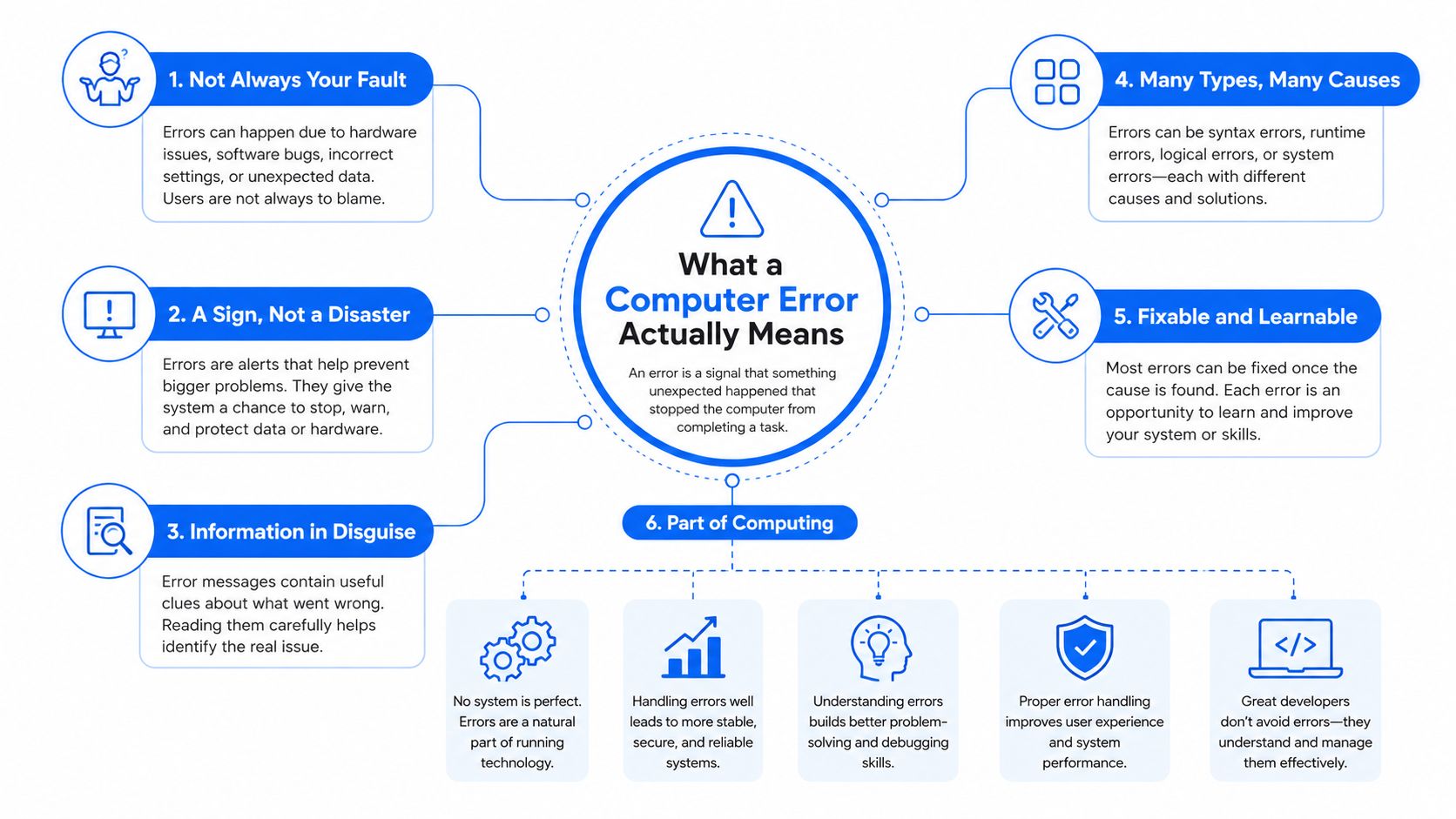
Hardware errors
Hardware faults come from the physical machine. Power, heat, cables, storage, memory, and other parts can age, loosen, or become unstable. A desktop may seem dead because a cable slipped out, a laptop may freeze because it is overheating, and a PC may crash because one component is no longer reliable. Computer Hope notes that power problems, loose connections, and heat can all damage or destabilise hardware over time, which is why a machine may fail now and then before it fails completely. Computer Hope's hardware fault guidance matches what engineers often see, because a hardware fault can first look like a software problem.
Software errors
Software errors happen when the operating system, drivers, or applications misbehave. Microsoft's Windows crash analysis says 70% of stop-code crashes are caused by third-party driver code, while only 10% are attributed to hardware and 15% stay unclassified because the memory dump is too damaged to analyse. That points to a simple lesson, many “my PC is broken” incidents are really update, driver, or compatibility problems rather than failed hardware. Microsoft's stop-code troubleshooting notes points in the same direction.
Communication errors
Communication errors sit between the device and something else, such as Wi-Fi, broadband, a cloud service, a printer, or a business app. The laptop may be fine, but the connection it depends on is not, so the result still feels like a computer fault. A printer that will not respond, a cloud file that will not load, and a browser that cannot reach a site can all point to the same sort of break in the chain. For example, if you need to resolve Nginx access denied errors, the problem may be in the web server or permission path rather than the laptop in front of you.
A dashboard warning light works the same way. It does not show the fault itself, it points you toward the system that needs attention.
The Errors You Are Most Likely to See
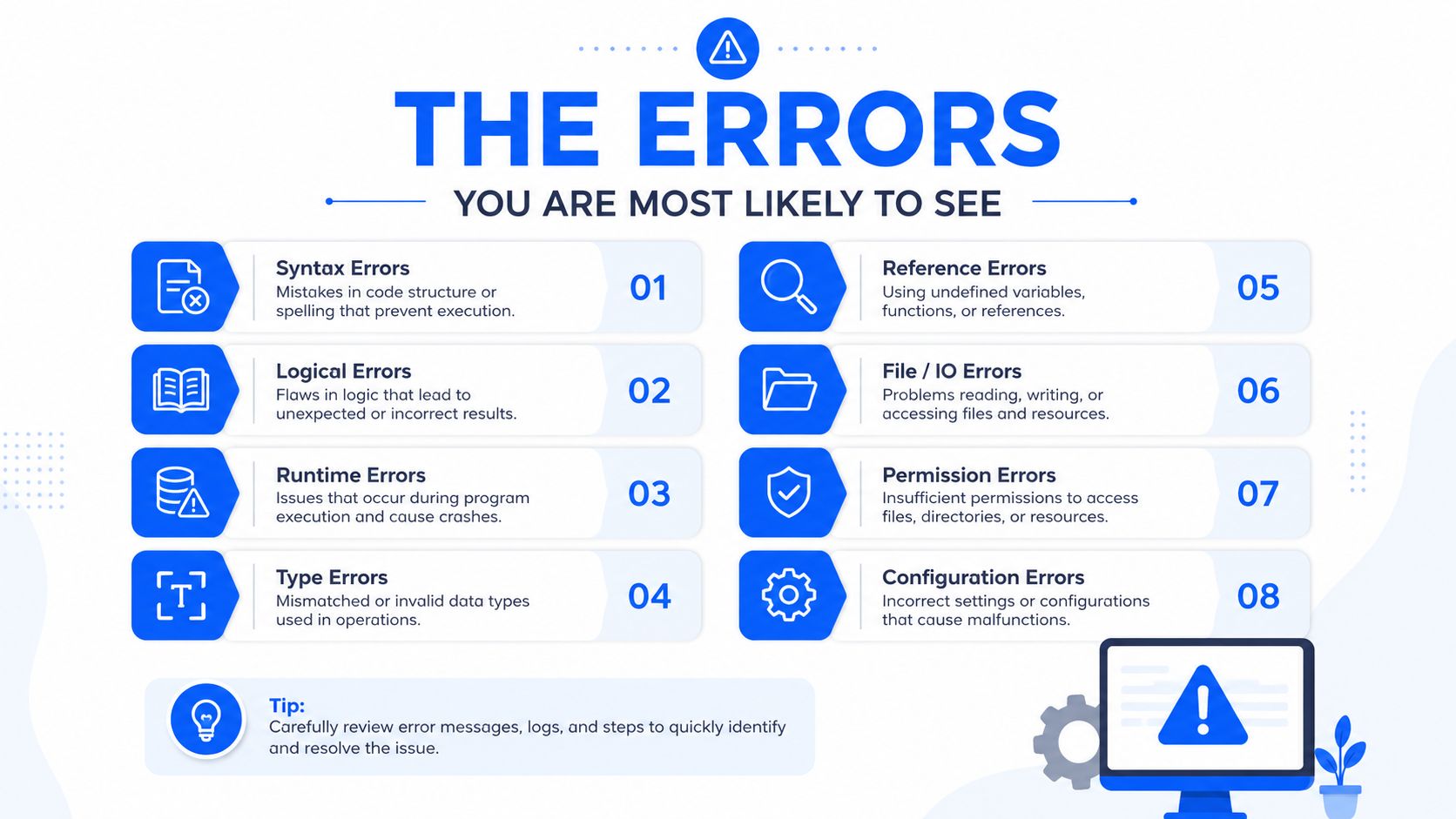
Some errors get all the attention because they look dramatic, but the useful skill is learning what each one usually points to. A blue stop screen, a stubborn app, a painfully slow laptop, or a printer that only fails on one machine all mean something slightly different. If you can sort the symptom first, you're already halfway to the fix.
Stop screens and crashes
A blue screen or sudden restart usually means the system has hit a fault it can't safely ignore. On Windows machines, the driver layer is often the first place to look, especially if the problem started after an update, a new peripheral, or a new piece of software. If the machine boots again, check whether the same crash happens after unplugging recent hardware or after rolling back the newest change.
Application crashes are different. If one programme closes while the rest of the computer behaves normally, the fault may sit inside that app, its add-ins, or its local user profile. If it happens only in one browser tab or one cloud app, that's often a clue that the issue is in the application layer, not the PC itself.
Slow performance and boot problems
A computer that has become slow can be overloaded, but it can also be signalling that storage is struggling, updates are unfinished, startup programmes are piling up, or background services are fighting each other. Boot problems are similar, though they tend to reveal themselves earlier, when the machine is trying to start but can't complete the process cleanly.
If the laptop runs badly only after logging in, the issue may be tied to what loads with the user account. If it struggles before you even reach the desktop, the fault is more likely in the system layer, a recent update, or the machine's basic hardware health.
Network, printer, and security warning signs
A printer that only fails on one laptop, or a shared folder that opens on one network but not another, often points away from hardware and towards permissions, drivers, or connectivity. For web-facing errors, it's worth checking whether the same problem shows up in another browser or on a phone using mobile data, because that tells you whether the issue is local or external.
For web apps, service pages, and access problems, a useful technical explainer is the guide to resolve Nginx access denied errors, because it shows how an access problem can sit on the server side rather than on the device.
A different cluster of symptoms can point towards malware, especially if pop-ups multiply, browser settings change on their own, or security tools keep being disabled. That doesn't prove infection on its own, but it's a clear reason to stop installing random fixes and slow down.
A Step-by-Step First Response You Can Run in Minutes
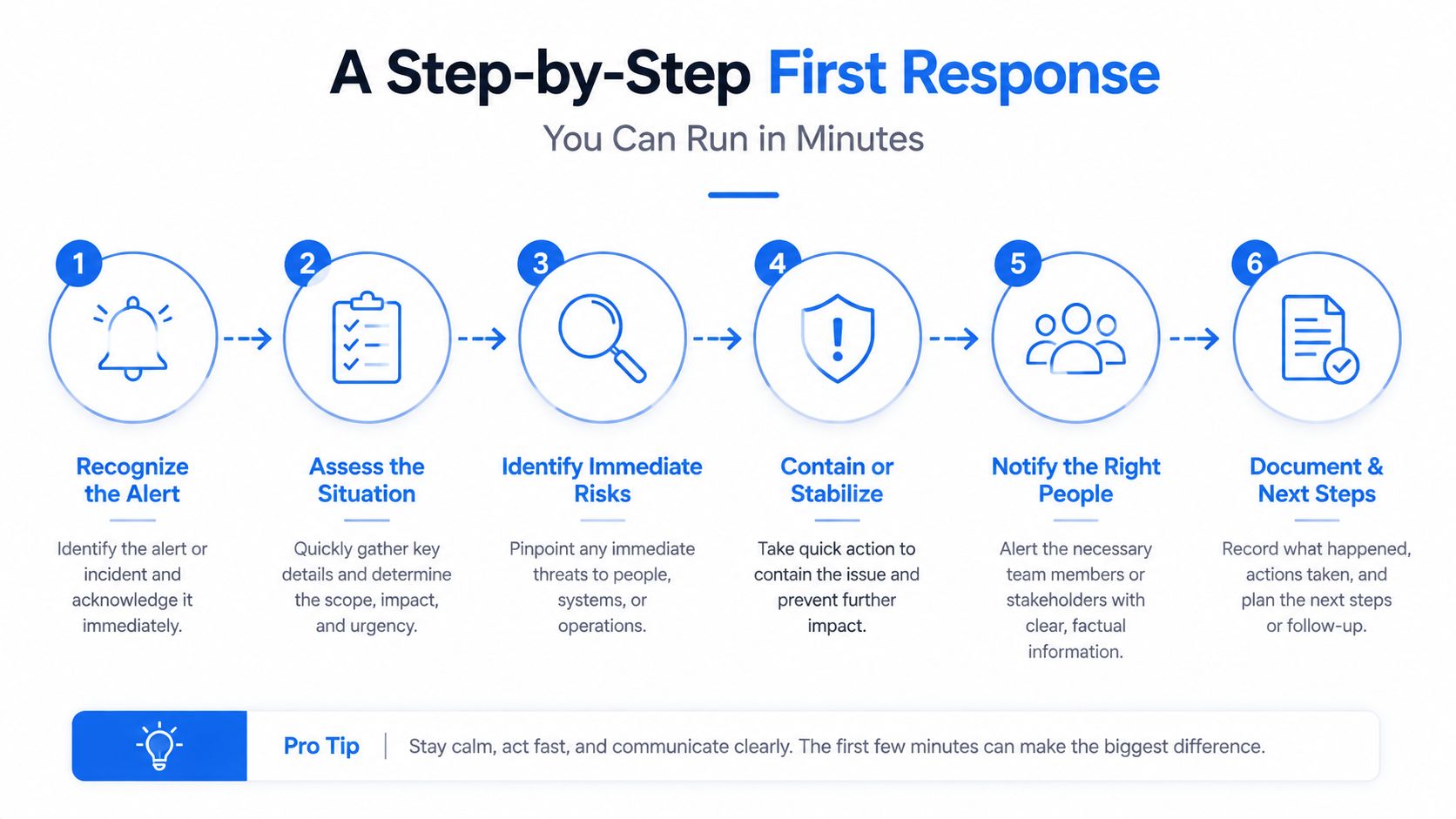
Start by writing down the exact error text before you click anything else. The wording matters because “cannot connect”, “access denied”, and “server not found” all point to different places in the chain, even if the screen looks equally annoying. If the message appears at a specific moment, note that too, because timing tells an engineer whether the fault happens during startup, login, launch, or saving.
Then do a clean restart, not just a sleep-wake cycle. A restart clears temporary states, releases stuck connections, and makes it easier to tell whether the fault is persistent or just a one-off glitch. If the same error comes back immediately, you've learned something useful.
Next, check whether the operating system and drivers have pending updates. That matters more than many users realise, because software errors often come from a mismatch between old components and new ones. If the issue started after an update, that's also information, since the update itself may be the trigger.
Practical rule: change one thing at a time, then test again. If you change five things at once, you won't know what actually fixed it.
After that, use any built-in troubleshooter that matches the symptom, especially for network, sound, printer, and update issues. Those tools won't solve everything, but they can clear the obvious cases quickly. If the fault still appears, test it in a different environment, another browser, another user account, safe mode, or a second device on the same network.
If you need a plain-English example of how access problems are handled elsewhere, the article on HTTP Error 403 for Australian businesses is a useful reminder that “denied” doesn't always mean “broken”, it can mean permission or policy is blocking the request.
Before you ring support, gather screenshots, the exact time it happened, and anything you changed just beforehand. If Windows Event Viewer has an entry tied to the time of the failure, that can save a lot of back-and-forth. A good support call starts with evidence, not guesswork.
How an Engineer Reads a Real Error
A small business laptop in Essex opens a line-of-business app, then throws a connection failure. The user says the machine is “playing up”, but that's not where an engineer starts. The first question is simple, does it happen on another laptop?
If the answer is yes, the machine probably isn't the main problem. The engineer will then ask whether it happens on another network, because a connection that fails at home but works in the office points to a local broadband or Wi-Fi issue. If it fails on every network, the next question is whether another user gets the same result, because that shifts suspicion towards the account, the app, or the service itself.
The same logic applies inside the browser. Does it fail in one browser only, or in all of them? Does it happen after login, or before the app even loads? A failure at login often suggests permissions, session state, or identity services. A failure after login may point to the app's own backend or the user's role inside the system.
The engineer then checks logs, not because logs are magical, but because they preserve the sequence of events. If the error appears at the same point every time, that narrows the fault path. If it moves around, the environment is changing and the fix may need to be more careful.
In a case like this, the right question is never “How do I make the computer stop complaining?” It's “Which layer is refusing the request?”
When the Real Problem Is the Network, Not the PC
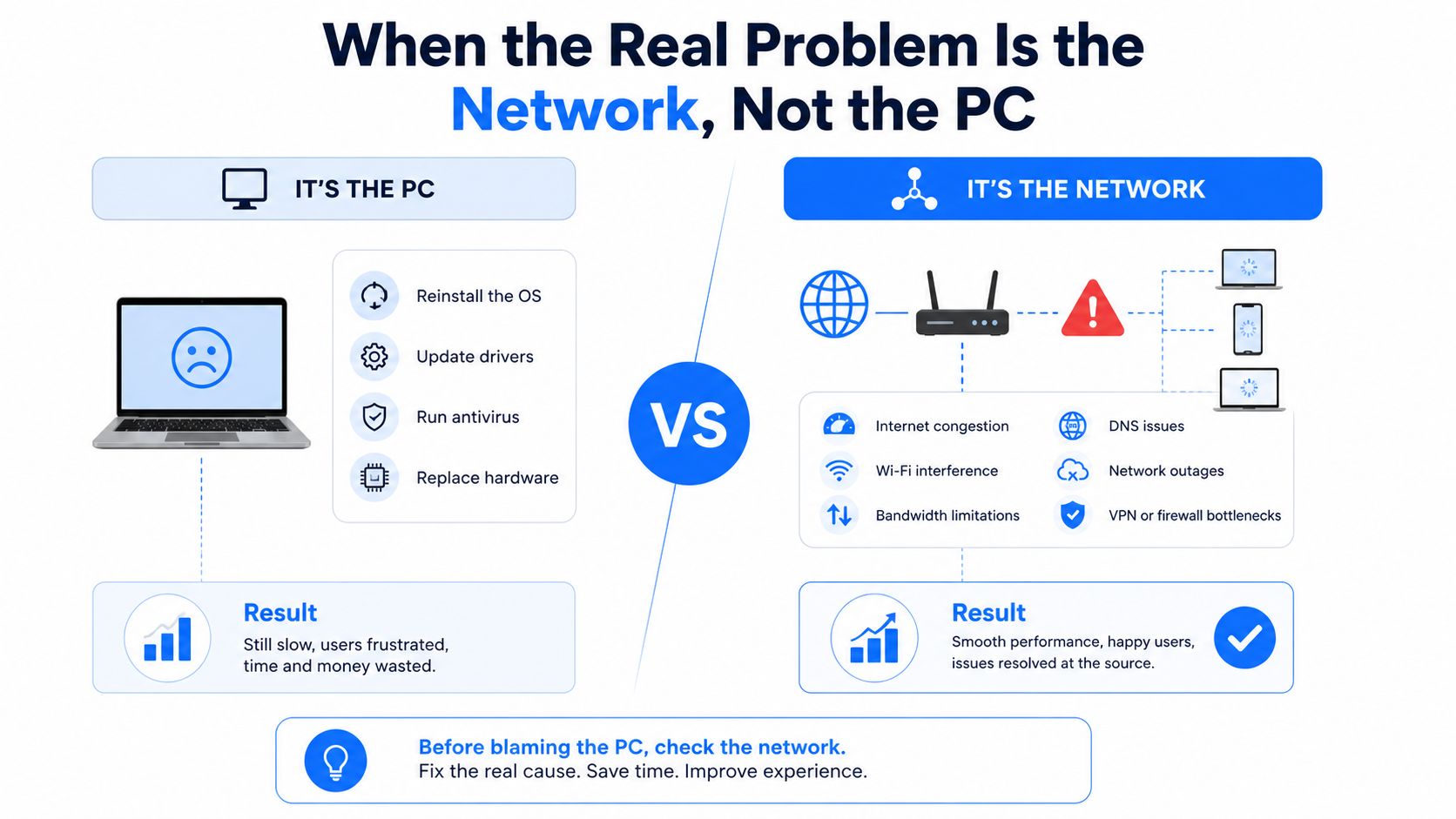
A lot of errors on computers are really communication errors dressed up as device faults. The PC may be fine, but the app can't reach its service, the browser can't resolve the name, or the VPN has dropped mid-session. That's why so many support conversations start with a machine blamed for a problem it didn't create.
A simple test is to try the same service on a phone using mobile data. If the app works there but not on the office laptop, the fault is probably local to the device or the office network. If it fails everywhere, the issue is likely broader, such as a service outage or an account problem.
Narrowing the fault
- One device only: the issue sits on that laptop or desktop, possibly the browser, profile, or local security software.
- One network only: the issue is more likely Wi-Fi, broadband, DNS, firewall, or the router.
- One app only: the service or its permissions are more likely than the whole computer.
- One browser only: cache, session, or browser extensions become the first suspects.
For a practical reference on network-side faults, the guide from Throughwire on IP configuration failures is a useful example of how connection problems can look like computer errors when they're really about communication.
Ofcom's Connected Nations reporting has long shown that broadband experience varies by geography and technology mix, so the same symptom can mean something very different in one place than another. That's why a laptop in a London flat and one in an Essex office might show the same error for completely different reasons.
If the app only breaks on Wi-Fi but works on mobile data, don't rush to replace the machine. The cheapest fix is usually the one that starts with the network path, not the laptop.
Prevention Habits That Stop Errors Coming Back
The easiest way to deal with errors on computers is to make repeat failures less likely in the first place. Keep the operating system updated, keep drivers current, and don't leave important machines sitting on old, unsupported software for long periods. In practical terms, that means fewer compatibility surprises and fewer “it used to work yesterday” moments.
Backups matter because even a small error can become a bigger problem once files are involved. If a system update, crash, or corrupted profile damages data, a recent backup turns a stressful recovery into a normal repair. For desktops, surge protection or a UPS is worth having because power dips and abrupt shutdowns can damage both hardware and open files.
Ventilation matters too. Dust, blocked airflow, and overheated cases make failures more likely, especially in compact offices or home spaces with poor circulation. Security habits count as well, keep antivirus or endpoint protection active, avoid attachments you weren't expecting, and be careful with browser downloads that promise a quick fix.
A short routine is enough for you. Check updates, make sure backups are running, keep the machine cool, and be suspicious of anything that asks for urgent clicks. That won't prevent every fault, but it does reduce the odds that one small error turns into downtime.
When to Call Professional IT Support
A one-off glitch is frustrating. Repeated blue screens, files that suddenly won't open, or an error that keeps returning after you've already restarted and updated the machine is a different matter. If the problem involves data loss, signs of corruption, or anything that looks like malware, stop improvising and get help before you make recovery harder.
The same applies after a failed update. If the system was fine before, then started looping, freezing, or refusing to boot after a patch, the fix may involve rollback, repair, or deeper diagnosis that's safer in experienced hands. When the issue only clears briefly and then returns, that usually means the underlying cause is still there.
For small businesses, a wider pattern is the clearest trigger. If more than one user is seeing the same fault on the same network, or a printer, VoIP line, file share, or cloud app is failing for the whole office, that's no longer a simple PC problem. It's a service issue, a network issue, or an infrastructure issue, and those need a coordinated response.
Home users in London and Essex often want the same thing: plain language, predictable pricing, and someone who can look at the problem without turning it into jargon. Businesses in Romford, Hornchurch, Rayleigh, Brentwood, Wickford, and Chelmsford usually need the same thing plus fast remote help and support hours that match working day pressures.
Networking2000 provides IT support for home and business, managed firewalls, networking, remote support, and related services such as connectivity, VoIP, and phone system maintenance, so it fits naturally when DIY triage has reached its limit. If the error is affecting work, slowing a team down, or creating uncertainty about data and security, that's the point to bring in a support engineer who can trace the fault properly.
Quick answers people still ask
How can I tell hardware from software? Hardware faults often show up as power issues, overheating, or crashes that don't depend on one app. Software faults usually follow an update, a driver change, or a specific programme, which is why the earlier sections focus on location and timing.
Is it safe to keep using a computer that blue-screens occasionally? Sometimes yes for a short time, but only if you've backed up your files and the crash is rare. If it starts happening more often, treat it as a warning, not an inconvenience.
What should I do first if a laptop won't start at all? Check power, leads, charging, and whether any lights or sounds suggest the machine is actually receiving power. If it still won't wake up, that's the point to stop guessing and call for support.
Is a slow computer really an error, or just age? It can be either. If the slowdown is new, sudden, or tied to one app or login, treat it like an error and investigate the cause rather than assuming the machine is simply old.
If you're dealing with repeated computer errors and want a calm, jargon-free fix, Networking2000 can help with home and business IT support, remote troubleshooting, networking, firewalls, and connectivity across London and Essex. Visit Networking2000 to get practical help from engineers who can sort out the fault, explain what's happening, and get your systems back to work.

