You're halfway through a work call at the kitchen table. The video starts freezing. Someone upstairs is streaming. The printer goes offline just as you need to send a signed form. Your laptop fan sounds like it's preparing for take-off, and the smart TV later refuses to connect for no obvious reason.
That's normal life in a modern home. It's also why home IT support has changed. It used to mean “fix my computer”. Now it often means keeping a whole digital household running: broadband, Wi-Fi, laptops, phones, printers, tablets, smart speakers, streaming boxes, backups, and basic security.
In the UK, that shift is easy to see. Ofcom reported that 94% of UK homes had internet access in 2023, up from 52% in 2006 (reference). When almost every home is connected, reliable tech stops being a nice extra. It becomes part of daily life, like heating or hot water.
Good home IT support isn't just emergency repair. It's ongoing maintenance for your digital home, so small faults don't turn into stressful evenings, missed meetings, or security problems.
Table of Contents
- When Your Smart Home Outsmarts You
- The Core Services of Home IT Support
- Six Signs Your Home Tech Needs Professional Help
- Understanding Pricing and Service Packages
- How to Choose a Great Local IT Support Provider
- Quick DIY Troubleshooting Tips Before You Call
- Home IT Support FAQs and Your Next Step
When Your Smart Home Outsmarts You
A lot of support calls start the same way. “Nothing's working.” In reality, one thing has failed, then three others seem to follow.
A weak Wi-Fi spot in the kitchen becomes a dropped Teams call. A smart thermostat loses connection and suddenly the broadband gets blamed. A child's tablet won't join the network, so everyone assumes the router is dying. Most homes now have enough connected kit that one small fault can ripple through the whole place.
That's why modern home IT support is less like mending a single appliance and more like looking after a small household system. Your router is the utility cupboard. Your Wi-Fi is the plumbing. If pressure drops in one corner of the house, the answer usually isn't to replace every tap.
Many homes also have awkward layouts that make simple advice useless. Thick internal walls, kitchen appliances, loft conversions, garden offices, and old extension wiring all affect how well devices connect. If you're struggling with dead zones where daily life happens, Everblog's guide to fixing kitchen WiFi is a sensible read because it focuses on placement and practical fixes rather than magic settings.
Home tech feels chaotic when each device is treated separately. It settles down when someone looks at the whole setup as one system.
The reassuring part is this. Most household tech issues are understandable once they're broken into pieces. Is the broadband line live? Is the router healthy? Is the wireless signal strong enough where you're using it? Is one device struggling, or all of them? Good support brings order back to that process.
The Core Services of Home IT Support
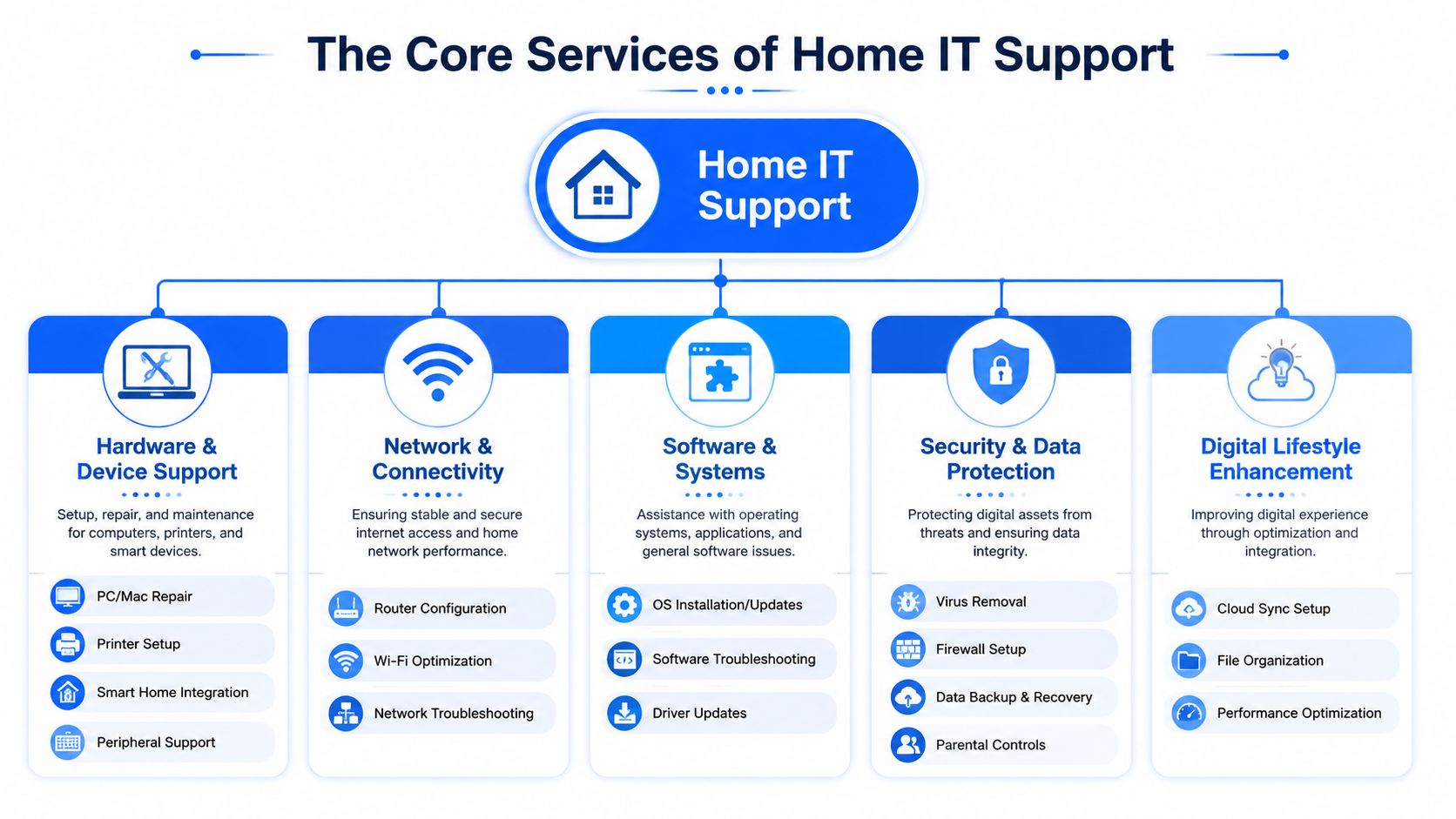
Home IT support usually falls into three jobs. Keep the network stable, keep devices usable, and reduce the chance of security or data problems before they interrupt the household.
Networking that works where people actually use it
A fast broadband package does not guarantee a good experience in the spare room, kitchen, loft, or garden office. The line coming into the house can be healthy while the wireless setup inside the house is doing a poor job of distributing it.
That is why good support starts with the layout of the property, the position of the router, the number of connected devices, and the way the household uses them day to day. Streaming in one room, video calls in another, and smart devices constantly chatting in the background all place different demands on the network.
A networking visit often includes:
- Router placement: Moving it into a more central, open position and away from thick walls, TVs, cordless kit, and metal surfaces.
- Wi-Fi design: Deciding whether the home needs a single router, a mesh system, or wired access points.
- Signal and interference testing: Checking where speed drops off and whether neighbouring networks or household appliances are causing trouble.
- Fixed connections where they help: Using Ethernet for TVs, desktop PCs, or work devices when wireless is the weak link.
For households that care about guest access, user identity, or managed connectivity, Purple's identity-based networking solutions show the same principle at a larger scale. Networks behave better when access is planned and controlled, not left to chance.
Device support that keeps everyday tech dependable
Most homes now run a mix of older and newer kit. A Windows laptop used for work, a family iPad, a wireless printer no one trusts, a smart TV, maybe a hand-me-down MacBook for school. Problems rarely arrive one at a time.
Support here covers setup, software issues, driver problems, email configuration, printing faults, update failures, and cloud sync problems. It also includes the less glamorous but very useful checks, such as spotting a hard drive that is starting to fail, removing bloated startup apps, or confirming whether a machine is worth repairing at all.
Sometimes the best fix is not a repair. If a device is too old to run current software safely, spending money on another patch-up job can be false economy. A decent engineer should say that plainly.
Practical rule: If a device is used for work, school, bills, banking, or family photos, maintain it before it fails.
Security and data protection as preventative maintenance
Emergency clean-up is expensive in time and stress. Prevention is usually simpler.
Home IT support in this area includes updating routers and devices, checking antivirus and firewall settings, improving passwords, setting up multi-factor authentication, and making sure backups can be restored. That last point matters more than people expect. A backup that has never been tested is just a theory.
The wider risk is well documented. The UK government's Cyber Security Breaches Survey reports that many organisations continue to deal with breaches and attacks each year. At home, the stakes are different but still personal. Email accounts, banking access, stored documents, schoolwork, and photos all sit on the same small network.
Proactive support often includes:
- Update management: Closing known weaknesses on routers, laptops, phones, and smart devices.
- Password and MFA setup: Reducing the risk from reused passwords and weak logins.
- Backup checks: Confirming that documents, photos, and device data can be recovered.
- Basic network separation: Keeping work devices, family devices, and some smart-home kit from sharing more access than they need.
That is the true value of home IT support. It fixes faults, but the better service reduces how often those faults happen in the first place.
Six Signs Your Home Tech Needs Professional Help
People often wait too long because each issue seems small on its own. A bit of buffering here. A printer tantrum there. A laptop that “just needs a minute”. The primary clue is repetition.
The pattern matters more than the single fault
If any of these sound familiar, it's usually time to stop guessing.
The Wi-Fi argument never ends
If one room always struggles, or certain devices drop off for no clear reason, the problem is rarely “bad luck”. It's usually layout, interference, poor placement, or a mismatch between your router and your home.Your computer feels old every single day
Slow startup, laggy apps, noisy fans, and freezing during simple tasks usually point to a maintenance or hardware issue. Rebooting buys time. It doesn't solve the underlying drag.You keep adding smart devices and each one creates a new headache
Doorbells, cameras, smart plugs, speakers, TVs, and thermostats all compete for stable connectivity. Homes become messy when devices are added one by one without any thought for the network behind them.Printing has become a superstition
Wireless printers are famous for looking connected while doing absolutely nothing. If printing only works after repeated restarts, there's usually a fixable cause. It just needs proper diagnosis.
When DIY becomes expensive in time
Two more signs tend to get ignored because they don't feel urgent at first.
You're not confident about security
If you don't know whether your router is updated, whether backups are working, or whether family accounts use strong sign-in protection, that uncertainty is the issue.Nobody in the house knows what's normal anymore
This is common in busy homes. People adapt to bad tech. They avoid certain rooms for calls, leave one laptop permanently plugged in, or keep old workarounds alive because “that's just how it is”.
If you've built routines around broken tech, the problem has moved beyond convenience.
A good engineer doesn't just fix the visible fault. They work out whether the root cause sits with the broadband handoff, the wireless layout, the device, the application, or the user setup. That's why professional help often feels faster than another evening spent watching videos, changing random settings, and hoping for the best.
Understanding Pricing and Service Packages
One reason people put off home IT support is uncertainty about cost. That's fair. Nobody wants to invite someone in for “a quick look” and end up with a vague bill.
The better providers make pricing easy to understand. Not cheap-sounding. Clear.
What you're actually paying for
Modern support is often delivered remotely first. A tiered workflow, diagnosing the issue by phone or remote desktop before sending someone onsite, is usually the most efficient model because many “internet down” problems turn out to be local Wi-Fi or device issues rather than a line fault (reference).
That shapes how services are priced.
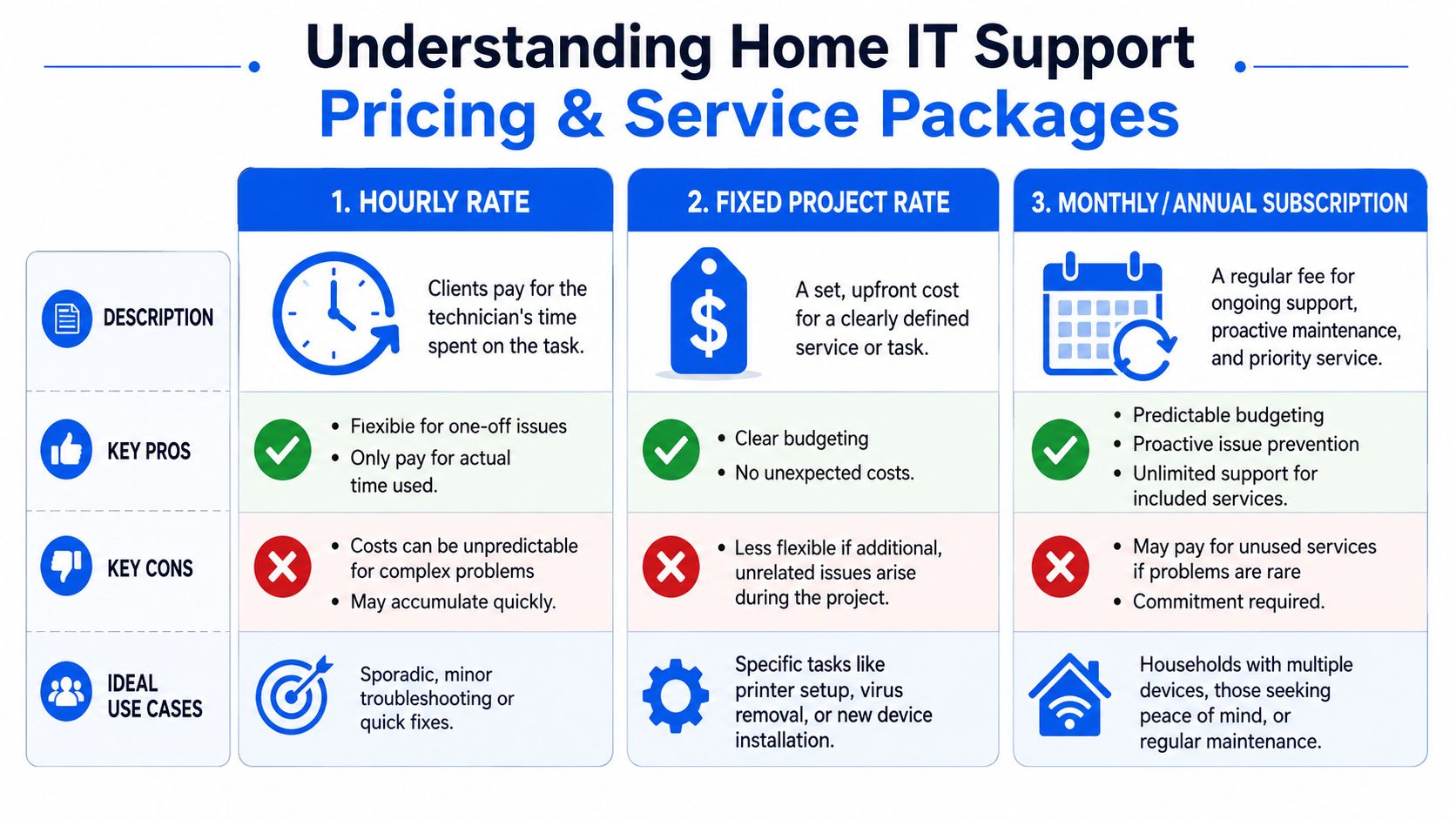
| Package type | Best for | Trade-off |
|---|---|---|
| Hourly or ad-hoc support | One-off faults like a misbehaving printer, email issue, or laptop cleanup | Flexible, but unpredictable if the problem spreads |
| Fixed project pricing | Defined jobs such as new router setup, mesh installation, device migration, or smart-home tidy-up | Clear scope, but extras usually sit outside the quoted work |
| Ongoing support plan | Households with multiple devices, remote workers, or anyone who wants maintenance as well as fixes | Predictable and calmer, but only worth it if you value ongoing support |
The remote-first approach usually benefits the customer because it filters simple cases quickly. If the engineer can confirm the broadband is live, identify that only one device is affected, or spot an update issue without travelling, you save time and often money.
Which model suits which household
A retired couple with one laptop and occasional printer issues might be fine with ad-hoc support. A family with school devices, home working, streaming, gaming, and smart-home gear usually benefits from a more structured arrangement. A home office setup often sits somewhere in the middle. Not a business contract, but more than emergency-only help.
It can help to think about IT support the same way people think about alarms, locks, or cameras. You can wait for an incident, or you can budget for peace of mind. If you're comparing household technology spending more broadly, Securitec Security's 2026 cost guide is useful as a parallel because it shows how homeowners weigh upfront installation against ongoing protection.
The cheapest support model is often the one that prevents repeat faults, not the one with the lowest starting price.
Before agreeing to any package, ask what counts as remote support, what triggers an onsite visit, whether follow-up is included, and how the provider handles faults that turn out to be outside your home, such as an ISP-side problem.
How to Choose a Great Local IT Support Provider
Choosing a provider isn't about finding the person who sounds the most technical. It's about finding the one who can diagnose properly, communicate clearly, and turn up when needed.
A lot of households make the same mistake. They focus only on price or only on reviews. Both matter, but neither tells you enough on its own.
Look for clarity not just credentials
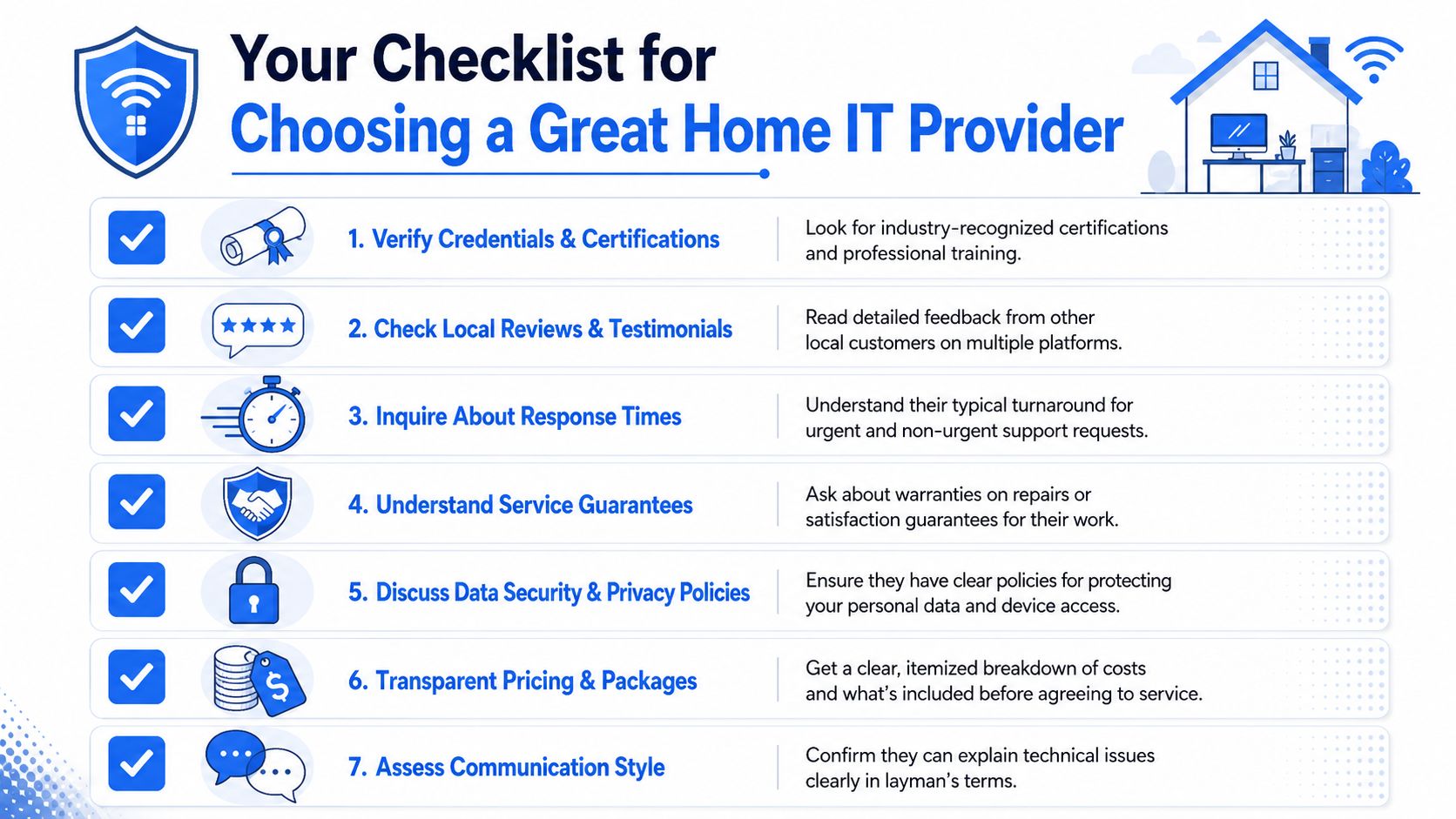
Qualifications and experience matter. So does local presence. But in home IT support, communication is often the most telling factor.
A solid provider should be able to explain things in plain English. Not “your endpoint failed DHCP renewal on the WLAN segment”. More “the broadband is fine, but this laptop isn't picking up a proper local address, so it can't join the network properly”.
Look for these signs:
- Clear language: They answer questions without trying to impress you.
- Defined response windows: They can tell you what urgent and non-urgent support usually looks like.
- Practical scope: They handle the kind of faults homes experience, not just workshop repairs.
- Respect for privacy: They explain how they access devices and what they do with your data.
Questions worth asking before you book
These questions sort experienced providers from vague ones very quickly.
Ask this before you commit:
- What happens first, remote diagnosis or onsite visit?
- Do you support Wi-Fi, printers, laptops, smart-home devices, and backups, or only computers?
- How do you protect customer data when working remotely?
- What's included in the quoted work, and what isn't?
- If the issue returns, what follow-up do you provide?
- Can you explain the likely cause in plain English before making changes?
You're not trying to interrogate them. You're checking whether they work methodically.
What a good provider does differently
The best local engineers tend to share a few habits.
They ask about symptoms in context. Which room? Which device? What changed recently? Does the issue happen all day or only in the evening? They don't jump straight to replacing hardware because that's the easy answer.
They also understand trade-offs. A mesh system can improve coverage, but poor placement can make it underperform. A cheap printer can become expensive in wasted time. An old laptop may be repairable, but that doesn't always make it sensible if the rest of the system is holding you back.
Here's a useful way to compare options:
| What to check | Weak answer | Strong answer |
|---|---|---|
| Diagnosis approach | “We'll have a look when we arrive” | “We'll narrow it down remotely first if possible” |
| Pricing | “It depends” | “Here's what's included and when extra charges apply” |
| Communication | Heavy jargon | Straight explanation with next steps |
| Support range | Only PCs | Network, devices, software, and security |
| Trust | No privacy process mentioned | Clear process for access and handling personal data |
A provider earns trust by being organised before they touch your equipment.
Local support also matters more than many people think. Homes don't need a giant outsourced helpdesk. They need somebody who understands real houses, awkward Wi-Fi layouts, and the fact that family tech issues rarely arrive one at a time.
Quick DIY Troubleshooting Tips Before You Call
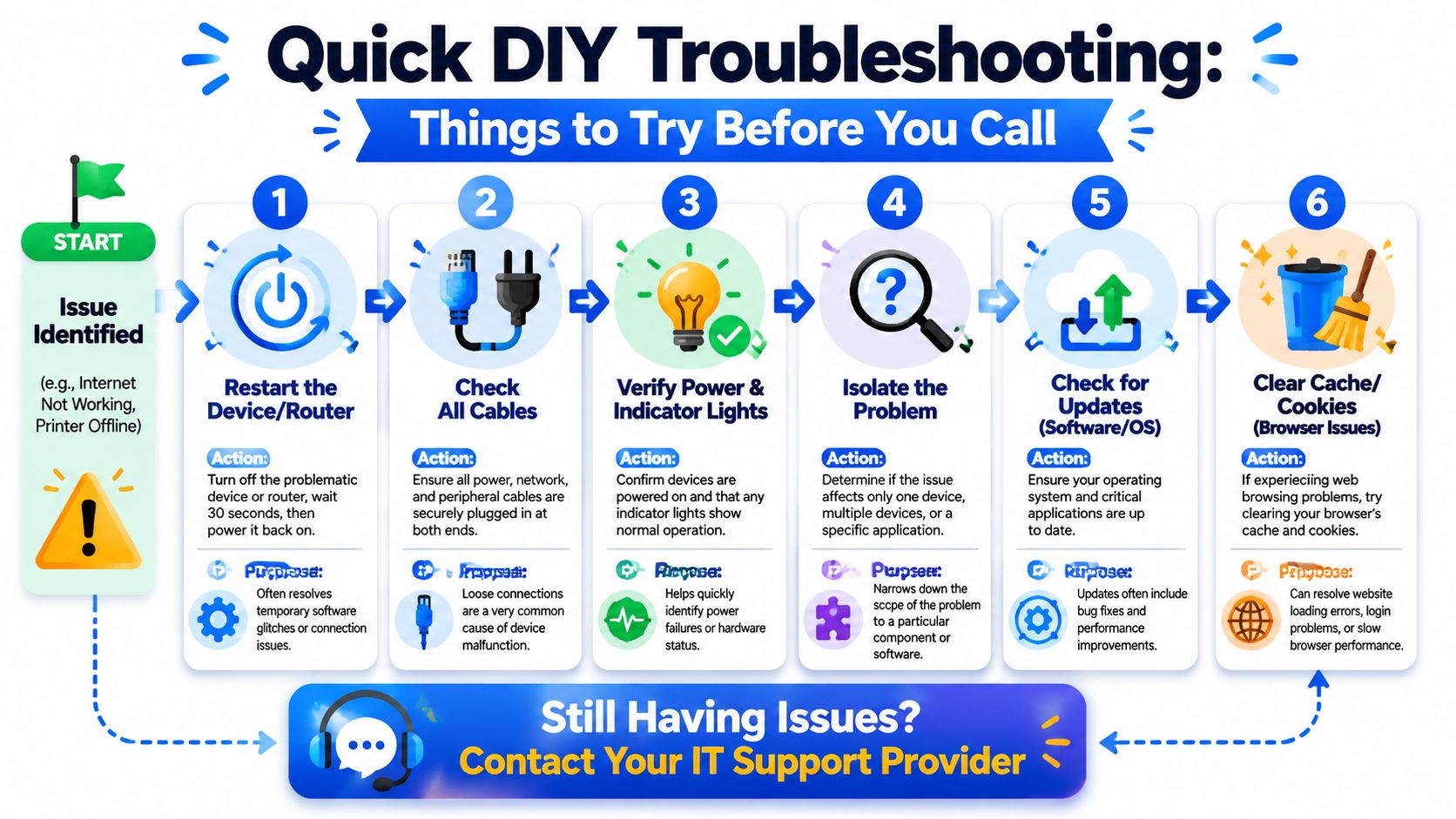
A short check at home can save you an unnecessary visit, and it often makes a later support call faster because the fault is already narrowed down. The goal is not to guess. The goal is to work out whether you are dealing with one awkward device, a Wi-Fi issue, or a wider problem in the house.
Start with scope not assumptions
The biggest DIY mistake is picking a cause before checking the basics. “The internet is down” often turns out to be one laptop that dropped off Wi-Fi. “The printer is broken” often means it has gone to sleep, lost its network connection, or is waiting on an update.
Work through this checklist in order:
Restart the right thing
Restart the affected device first. If several devices are affected, restart the router and any mesh units in a sensible order. Then wait. Home network gear often needs a few minutes to settle properly.Check cables and power
Loose power leads, half-fitted printer cables, and switched-off extension sockets cause more faults than people expect.Test another device
If your phone goes online but your laptop does not, you are looking at a device-specific issue, not a whole-house outage.Move closer to the router
If the problem improves straight away, coverage or interference is more likely than a broadband failure. Wi-Fi works a lot like plumbing. The farther it has to travel through thick walls and busy rooms, the weaker the flow can get.Check for recent changes
A moved router, a new smart speaker, fresh antivirus software, or a broadband package change can all upset a setup that was working fine last week.Update the obvious things
Operating system updates, browser updates, and printer software updates often clear faults that look more serious than they are.
Check whether the device is the source of the problem
People often blame the network for slow performance that starts inside the computer itself. Common device guidance recommends at least an Intel i5/Ryzen 5-class CPU, 8 GB RAM, and a 500 GB SSD, with stronger specifications preferred for heavier use (reference).
That matters in practice. A tired laptop with too little memory or a slow drive can make web browsing, video calls, and cloud apps feel unreliable even when the Wi-Fi is fine. From the user's seat, both problems feel the same. From a support point of view, they are very different jobs.
A quick sense-check helps:
- Lagging everywhere, even offline: likely a device performance issue.
- Only web pages or streaming struggle: more likely network or browser related.
- One old device suffers, newer ones don't: the bottleneck may be the device, not the broadband.
- Problems mainly on 2.4 GHz in a busy home: wireless congestion may be the primary cause.
If only one ageing laptop feels “slow on the internet”, the router may have nothing to do with it.
DIY checks are useful because they reduce guesswork and stop small issues becoming weekly annoyances. Once you are changing random settings, reinstalling software without a clear reason, or repeating the same reboot every few days, it is time to get help. Good home IT support should not just fix the symptom. It should find the cause and stop the problem coming back.
Home IT Support FAQs and Your Next Step
A lot of home tech problems start small. The Wi-Fi drops once in the back bedroom. A laptop takes longer to wake up. A printer only works after a restart. None of that feels urgent until it all piles up on the same Monday morning.
Good home IT support keeps those small faults from turning into lost time, missed calls, and avoidable stress. In practice, that means checking the setup before it becomes unreliable. Home networks work a lot like plumbing. If the pressure is poor, the pipework is messy, or there is a slow leak somewhere, the symptoms show up all over the house.
Common questions from households
Is my old computer worth fixing?
Sometimes. If the problem is limited to storage, memory, battery life, or software clutter, a repair can give the device a useful extra stretch of life. If it already struggles with basic daily tasks, replacement is often the cheaper decision over time.
Can home IT support help with smart-home devices?
Usually, yes. Smart speakers, TVs, cameras, doorbells, thermostats, and plugs often go wrong because of Wi-Fi coverage, setup mistakes, app permissions, or account mix-ups. Those are support jobs, not necessarily hardware failures.
What is a computer MOT?
It is a routine health check. An engineer reviews updates, startup load, storage health, backups, security settings, and general device condition. It works like servicing a boiler before winter. The point is to catch wear, risk, or bad settings early.
Do I need regular support if nothing is broken right now?
If your household relies on tech for work, school, banking, streaming, or security, regular maintenance usually pays for itself in fewer interruptions. The best support visit is often the one that stops the next problem from happening.
A well-run home setup should feel pleasantly uneventful. Video calls stay stable. Files open where you left them. The Wi-Fi reaches the rooms that matter. Devices behave consistently, and if something starts slipping, someone spots it before it becomes a bigger repair.
If you want practical, jargon-free help with home IT support, Wi-Fi issues, device problems, or household digital security in London and Essex, Networking2000 is a sensible place to start. They support homes as well as businesses, handle networking and communications alongside IT support, and offer extended hours from 6am to 10pm, seven days a week. If your home tech has become unreliable, or you want a proper health check before the next failure catches you out, get in touch and talk the setup through with an engineer.

