Your email stops syncing just before a client reply is due. Teams won't sign in for two people in sales. One user gets an “unlicensed product” message even though you're paying for Microsoft 365 every month. At that point, most businesses aren't asking abstract questions about cloud productivity. They want to know who can fix it, how fast, and whether the same problem is going to come back next week.
That's why Microsoft Support 365 is really a business continuity question. Microsoft 365 sits at the centre of day-to-day work for a huge number of organisations. Independent reporting in 2026 estimates nearly 345 million paid subscribers, around 321 million active users, and more than 320 million monthly active users in Microsoft Teams worldwide, according to SQ Magazine's Microsoft 365 statistics roundup. When a platform at that scale has an issue, there's usually a route to help. The harder part is choosing the right kind of help for your business.
Some problems are easy self-service fixes. Some belong with Microsoft because they involve the platform itself. Others are better handled by a managed IT partner who already knows your users, devices, licensing, and security setup.
Table of Contents
- When Your Critical Business Tools Go Down
- Navigating Microsoft's Self-Help and Free Resources
- Contacting Microsoft Direct Support
- Common Microsoft 365 Issues and Quick Fixes
- Why Your SMB Needs a Managed IT Support Partner
- Your Local Microsoft 365 Partner in London and Essex
When Your Critical Business Tools Go Down
When Microsoft 365 breaks, work doesn't just slow down. It fragments. Email queues up, Teams calls fail, shared files go out of sync, and staff start trying random workarounds that often make the original issue harder to diagnose.

That pressure is exactly why support choices matter. If the issue is a broad Microsoft-side outage, checking the service health view and opening a ticket with Microsoft may be the right move. If it's a user, device, permissions, licence, or authentication problem inside your own setup, waiting for a generic vendor response can waste valuable time.
Practical rule: The best support route depends on where the fault lives. Platform problem, go to Microsoft. Environment problem, fix it inside your own tenant, devices, and policies.
For many UK businesses, the mistake isn't using the wrong tool. It's assuming every Microsoft 365 problem has the same owner. In reality, support sits in layers. There's self-help for quick checks, Microsoft direct support for service-level faults, and managed IT support for the day-to-day running of the whole environment.
A sensible support plan doesn't start when something goes wrong. It starts before the next disruption, with a clear view of who handles outages, who handles user issues, and who keeps the system organised enough that minor faults don't keep repeating.
Navigating Microsoft's Self-Help and Free Resources
Microsoft gives you several ways to troubleshoot without speaking to an engineer. Used properly, they're useful. Used as your only support model, they can leave a small business stuck in research mode while staff wait for access.
Start with the Microsoft 365 Admin Centre
The Microsoft 365 Admin Centre is the first place an administrator should check when users report a sudden problem. It's the most practical starting point for things like service health, user status, licence assignment, and basic tenant alerts.
Use it for quick checks such as:
- Service health status: See whether Exchange Online, Teams, SharePoint, or other services are showing a known issue.
- User account review: Confirm the account is active, licensed, and not blocked from sign-in.
- Message centre updates: Check for platform changes that may explain a feature behaving differently.
- Basic admin actions: Reset passwords, reassign licences, and review impacted users.
If several people have the same issue at once, the Admin Centre often tells you whether the problem is local or broader. That distinction saves time.
Use Microsoft Learn for product detail
When the problem isn't urgent and you need to understand how something should work, Microsoft Learn is often the better option. It's useful for policy behaviour, app features, role permissions, and admin procedures.
This works well when you need answers to questions like:
- Feature behaviour: Why is a retention policy affecting a mailbox this way?
- Configuration guidance: What's the supported route for enabling a setting?
- Role boundaries: Which admin role is required for the task?
It's less useful when someone can't work right now. Documentation explains the product. It doesn't diagnose your environment for you.
If the clock is ticking, reading product documentation usually means the business has already lost too much time.
Forums help with edge cases, not urgent incidents
Community forums can help with niche errors, awkward app behaviour, and odd edge cases that don't show up clearly in standard documentation. They're often most useful when an issue is annoying rather than critical.
Their limitations are obvious in live business support:
- No ownership: Nobody is accountable for fixing your issue.
- No tenant context: Advice is generic because forum users can't see your setup.
- No urgency: A response might come quickly, slowly, or not at all.
- Mixed quality: Some replies are excellent. Some are outdated or incomplete.
Self-service is a good first line of defence when the issue is narrow and low-risk. It's not a complete support strategy for a business that depends on Microsoft 365 every day.
Contacting Microsoft Direct Support
When self-help stops being efficient, direct Microsoft support becomes the official route. For UK businesses, Microsoft lists a dedicated technical support line at 0800-032-6417 and states that technical support for business and enterprise customers is available 24 hours a day, seven days a week on its Microsoft 365 business support options page. The same page also notes that billing support is handled separately during weekday business hours in English.
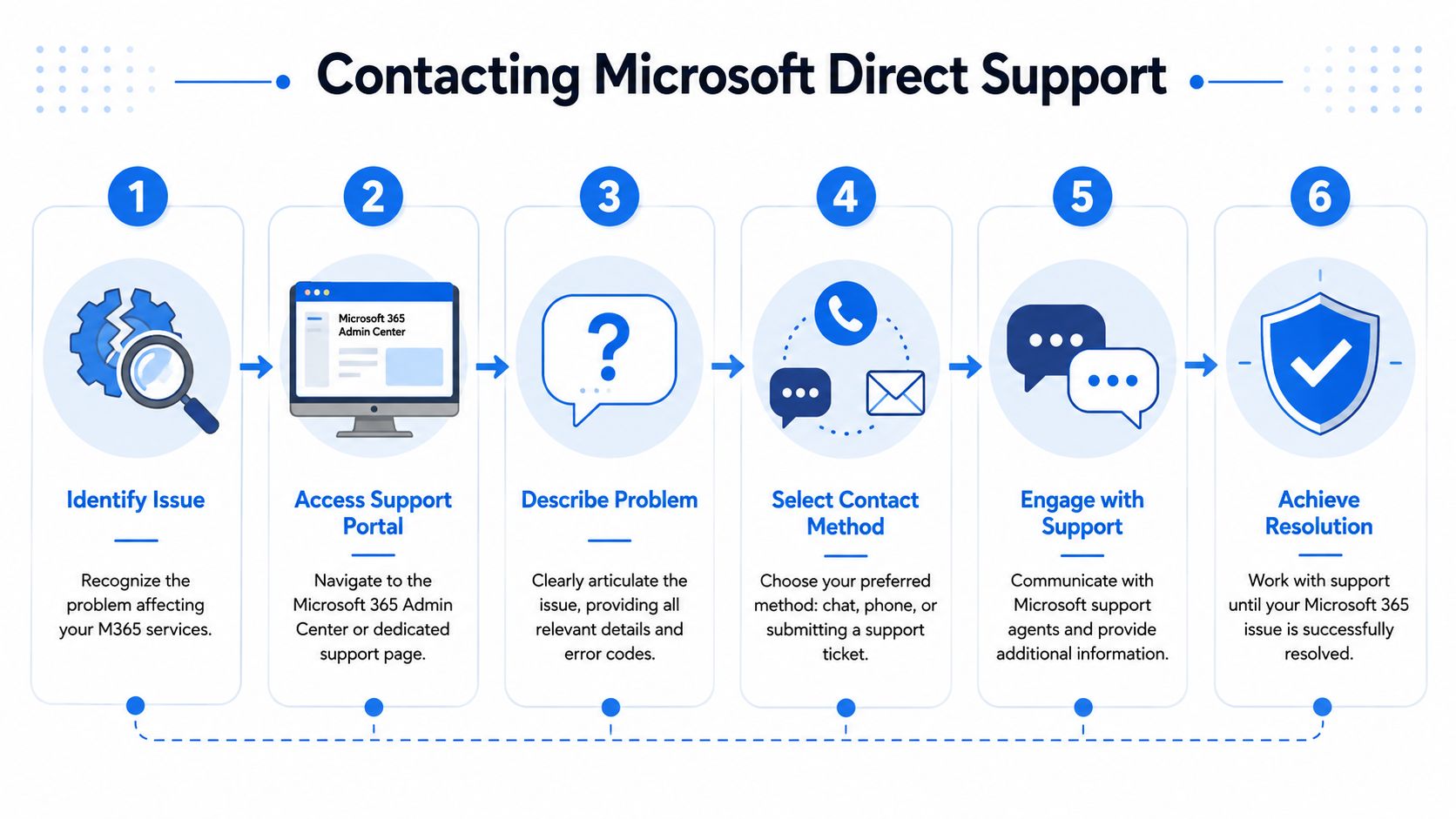
That tells you something important. Microsoft 365 isn't just boxed software with a help article attached. It's an operational cloud service with formal support channels behind it. For genuine service incidents, that matters.
When direct Microsoft support makes sense
Direct support is usually the right option when the issue points to Microsoft's side of the platform or needs vendor-level investigation.
Examples include:
- Service outages: Exchange Online, Teams, or SharePoint appears degraded across multiple users.
- Backend faults: A feature behaves inconsistently even though your configuration is correct.
- Tenant-level issues: Something in the service needs escalation beyond what local admins can see.
- Subscription administration with Microsoft: Billing and account-side issues that sit with the vendor.
In those cases, raising a formal support request is sensible because Microsoft can inspect service telemetry and platform behaviour that your internal team can't access.
How to raise a Microsoft 365 support request
The best ticket submissions are boringly clear. That's a good thing.
A clean support request should include:
- What is failing: Name the service, app, or function.
- Who is affected: One user, one team, or many users.
- When it started: Approximate timing helps correlate with service events.
- What changed: New device, policy, licence, or app update.
- What you already tested: Password reset, re-sign in, profile check, licence review, and so on.
- Any visible error wording: Exact messages are far more useful than paraphrases.
A vague ticket such as “Outlook broken” slows everything down. A specific ticket gets routed and worked faster.
Later in the process, video walkthroughs can also help if the admin portal is unfamiliar:
Where direct support falls short
Microsoft support is necessary, but it isn't designed to run your business environment for you. That's the trade-off.
A Microsoft engineer typically works the case in front of them. They don't know your staff, your device estate, your onboarding process, your mailbox permissions model, or which users need which apps. They'll focus on resolving the reported fault. They usually won't step back and ask whether the setup itself is creating repeat incidents.
Direct vendor support is reactive by design. It exists to resolve faults, not to manage your day-to-day operation.
That's why businesses often feel a gap between “support exists” and “support feels effective”. The platform can be supported around the clock, while the business still struggles with recurring tickets, unclear ownership, and avoidable admin mistakes.
Common Microsoft 365 Issues and Quick Fixes
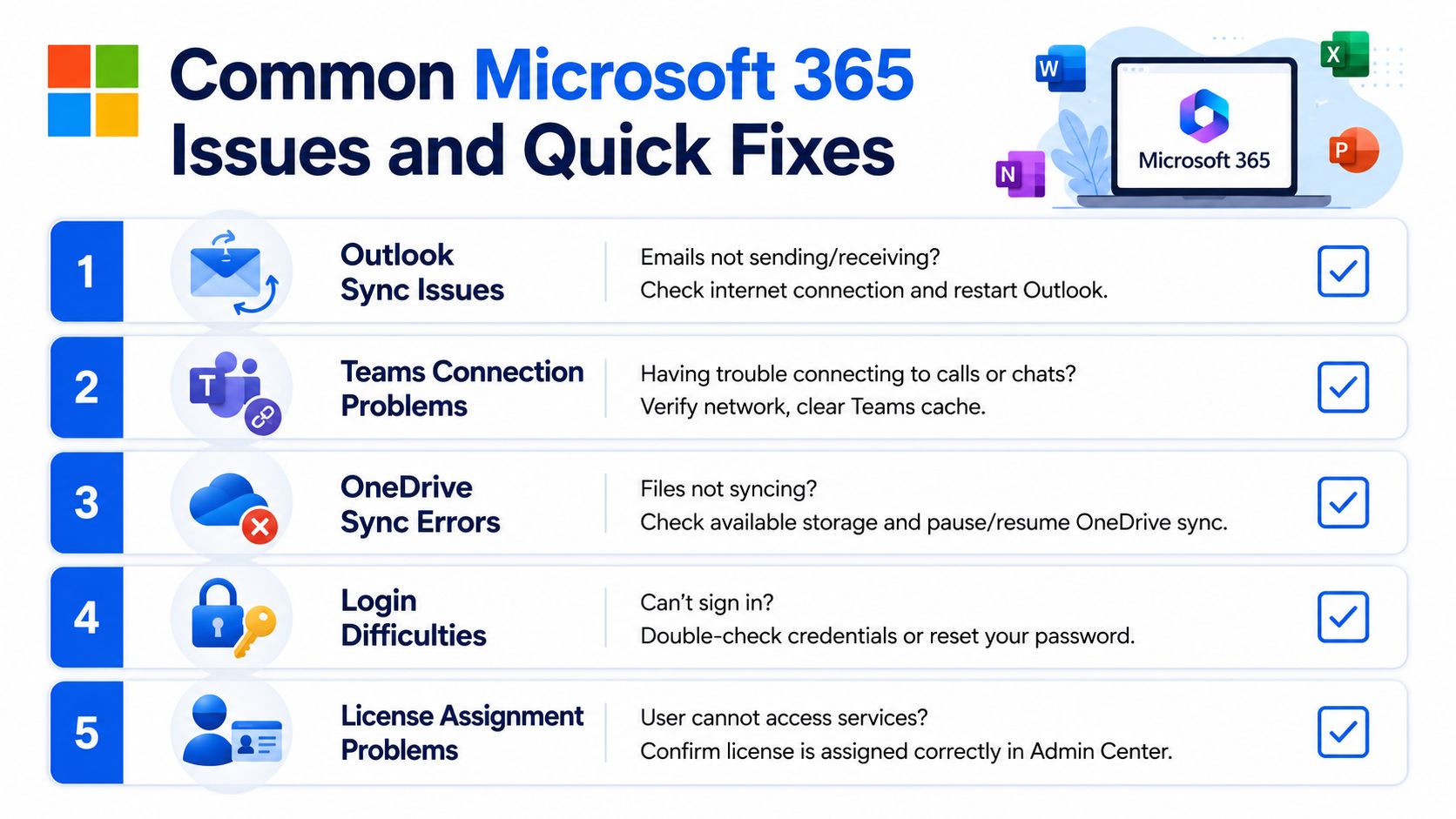
Most Microsoft Support 365 requests from small businesses fall into a handful of patterns. Before you escalate, it's worth checking the obvious items properly. Not because every issue is simple, but because basic checks often reveal whether the problem is local, user-specific, or service-wide.
Email and Outlook issues
If Outlook won't send, won't receive, or keeps prompting for credentials, start by separating mailbox access, desktop app behaviour, and network connectivity.
Try these first:
- Restart Outlook and test webmail: If Outlook fails but Outlook on the web works, the mailbox may be fine and the desktop profile or local app may be the actual problem.
- Check account status in the admin portal: Make sure the user still has the correct Microsoft 365 licence and the account hasn't been blocked.
- Look for service warnings: If several users report the same symptom, stop troubleshooting individual devices and check whether the service itself is affected.
A common mistake is rebuilding profiles too early. If the issue is platform-side or licence-related, profile work just wastes time.
Login and authentication problems
Sign-in failures often look similar to users but come from different causes. Wrong password, stale cached credentials, multifactor prompts, and conditional access policies can all present as “I can't get in”.
Start with the basics:
- Confirm the username: Users often try an old alias, a personal Microsoft account, or a mistyped address.
- Reset the password if needed: Then test sign-in through the browser first before opening desktop apps.
- Check multifactor prompts: If the user changed phone, deleted the authenticator app, or isn't receiving prompts, that's usually an identity issue rather than an app fault.
- Try another device or browser: That helps separate account problems from local device problems.
The fastest way to diagnose sign-in issues is to test the account in a clean browser session before touching the laptop build.
If browser access works and desktop apps still fail, you're usually dealing with local tokens, cached credentials, or app-level corruption rather than an account lockout.
Licensing and subscription errors
“Unlicensed product” messages cause confusion because businesses assume that paying the subscription means every user is automatically configured correctly. That isn't always true.
Check these points:
- Assigned licence: Make sure the user has the expected licence attached.
- Service plan status: The right licence may be present, but a relevant service inside it may not be enabled.
- Recent changes: New starters, role changes, and leavers are where licence mistakes commonly appear.
- Application sign-out and sign-in: After a licence change, the app may need to refresh its entitlement.
This is one area where support and administration overlap. A technical symptom can come from a simple admin mismatch.
OneDrive and SharePoint sync conflicts
Sync issues usually show up as files not updating, duplicate copies appearing, or users seeing different versions in different places. In practice, these are often caused by sync client state, file naming conflicts, or staff editing the same content in conflicting ways.
Useful first checks include:
- Pause and resume sync: This can clear a stuck sync session without rebuilding everything.
- Check local storage and file path issues: If the device is struggling for space or the file structure is awkward, sync can become unreliable.
- Confirm the user is signed into the correct work account: Personal and business OneDrive sign-ins still trip people up.
- Test through the browser: If the file is present and current online, the SharePoint or OneDrive data may be fine and the sync client may be the problem.
A lot of recurring sync pain comes from process, not technology. Too many shared folders, poor file discipline, and unclear ownership create support noise that no vendor ticket can solve cleanly.
Why Your SMB Needs a Managed IT Support Partner
Most small and medium-sized businesses don't need more places to log tickets. They need one place that takes responsibility.
That's the difference between direct vendor support and a managed IT partner. Microsoft can support the service. A managed partner supports your use of the service, which is where most day-to-day disruption lives.
Reactive support fixes faults, proactive support prevents them
One of the clearest examples is licensing mismatch. Guidance highlighted by Apex Digital on hidden Microsoft 365 operational gaps points out a common problem for UK SMEs: businesses often overpay because users are assigned premium licences that don't match their actual role or device usage. Standard Microsoft support doesn't usually audit your user base and recommend who should be on a different licence. A managed IT partner can.
That matters for two reasons.
First, there's cost. Second, there's support quality. When licence assignment is inconsistent, users expect features they don't have, admins make exceptions, and troubleshooting gets messy. A cleaner licensing model reduces confusion before anyone needs to raise a ticket.
This is the broader point. Good support isn't just break-fix. It includes reviewing user roles, cleaning up access, standardising onboarding, managing identity settings, and keeping the Microsoft 365 tenant organised enough that common faults become less common.
Businesses get better outcomes when someone owns the environment, not just the incident.
Microsoft 365 support options compared
| Feature | Self-Help | Microsoft Direct Support | Managed IT Partner (e.g., Networking2000) |
|---|---|---|---|
| Best for | Quick checks and basic admin tasks | Platform faults and vendor-side issues | Day-to-day management, prevention, and escalation |
| Urgent user issues | Limited | Possible, but often case-based and generic | Usually faster and more practical |
| Knowledge of your business | None | Minimal | High |
| Licence optimisation | Manual | Not typically proactive | Proactive review and right-sizing |
| Device and user context | Limited to what you know | Limited to what you explain | Built into ongoing support |
| Strategic advice | No | Narrow | Yes |
| Single point of contact | No | Only for the specific case | Yes |
| Prevention of repeat issues | Weak | Limited | Strong |
This is why many firms end up using all three layers, but leaning on one primary partner. Self-help remains useful. Microsoft remains essential for service-level cases. The managed partner becomes the front door.
What local managed support changes in practice
For London and Essex businesses, local support adds a practical advantage that national or vendor-only models often miss. The issue isn't just whether someone can answer. It's whether they can interpret the problem in the context of how your business operates.
That includes things like:
- Mixed user types: Office staff, mobile staff, directors, and shared-device users rarely need identical licence and security setups.
- Joined-up support: Email, Teams, broadband, phones, endpoints, and security policies affect each other in real life.
- Change control: New starters, leavers, office moves, and handset rollouts create most of the admin errors that later become “support issues”.
If your business is also reviewing calling, collaboration, and licensing together, resources such as this guide to Teams Phone for Australian businesses are useful because they show how quickly Microsoft licensing decisions become operational decisions. The region is different, but the lesson is the same. Phone, user roles, and licence design need to line up before rollout, not after complaints start.
A managed partner earns its value by catching that early.
Your Local Microsoft 365 Partner in London and Essex
If you're based in London or Essex, the support model that works best is usually the one that combines vendor access with local ownership. That means someone can deal with Microsoft when necessary, but you don't have to start from scratch every time a user has a problem.
For businesses in areas such as Romford, Hornchurch, Rayleigh, and Brentwood, that local relationship matters. You want engineers who speak plainly, understand how small businesses operate, and can support the full picture around Microsoft 365. That includes users, endpoints, licensing, collaboration tools, email, and the wider network they depend on.
The biggest benefit is consistency. Instead of moving between self-help articles, generic case queues, and internal guesswork, you get one support path that's grounded in how your business runs day to day. That tends to mean fewer recurring issues, clearer accountability, and less wasted time when something goes wrong.
If your current Microsoft 365 support feels reactive, fragmented, or too dependent on whoever happens to be available, it's worth changing the model rather than waiting for the next outage to force the decision.
If you want practical, jargon-free help with Microsoft 365 support, licensing, email, Teams, security, and day-to-day IT issues, speak to Networking2000. They support businesses across London and Essex with experienced engineers, extended support hours, and advice that aligns with how your organisation functions.

