Wi-Fi Protected Setup is a device-joining shortcut introduced in 2007, not an encryption standard. UK government guidance is not to deploy it on workplace wireless networks.
You're trying to reconnect the office printer, and its screen tells you to press WPS on the broadband hub. Behind the hub, a sticker shows several passwords and codes, while a nearby button looks suspiciously like the reset control. Before pressing anything, it helps to know which connection method you're enabling and what you can use instead.
Table of Contents
- What Wi-Fi Protected Setup Is For
- How Each WPS Method Works
- Why the Eight Digit PIN Is Weak
- Safer Setup for Homes and Small Offices
- When an Old Device Will Only Use WPS
- Myths and Labels That Still Cause Mistakes
- Decide and Know When to Get Help
What Wi-Fi Protected Setup Is For
A broadband hub in a hallway or small office cupboard often has a WPS button, a wireless network name and a sticker carrying setup details. Those details can include a Wi-Fi password, an administrator password and a WPS PIN. They serve different purposes, even when the manufacturer prints them close together.
Say you're connecting a printer with a tiny display and awkward arrow keys. Typing a long password means scrolling through letters, switching between capitals and lower case, and hoping you haven't mistaken a character. WPS offers another way for the printer to obtain the wireless settings it needs.
The controls belong to the same setup process, but they aren't interchangeable.
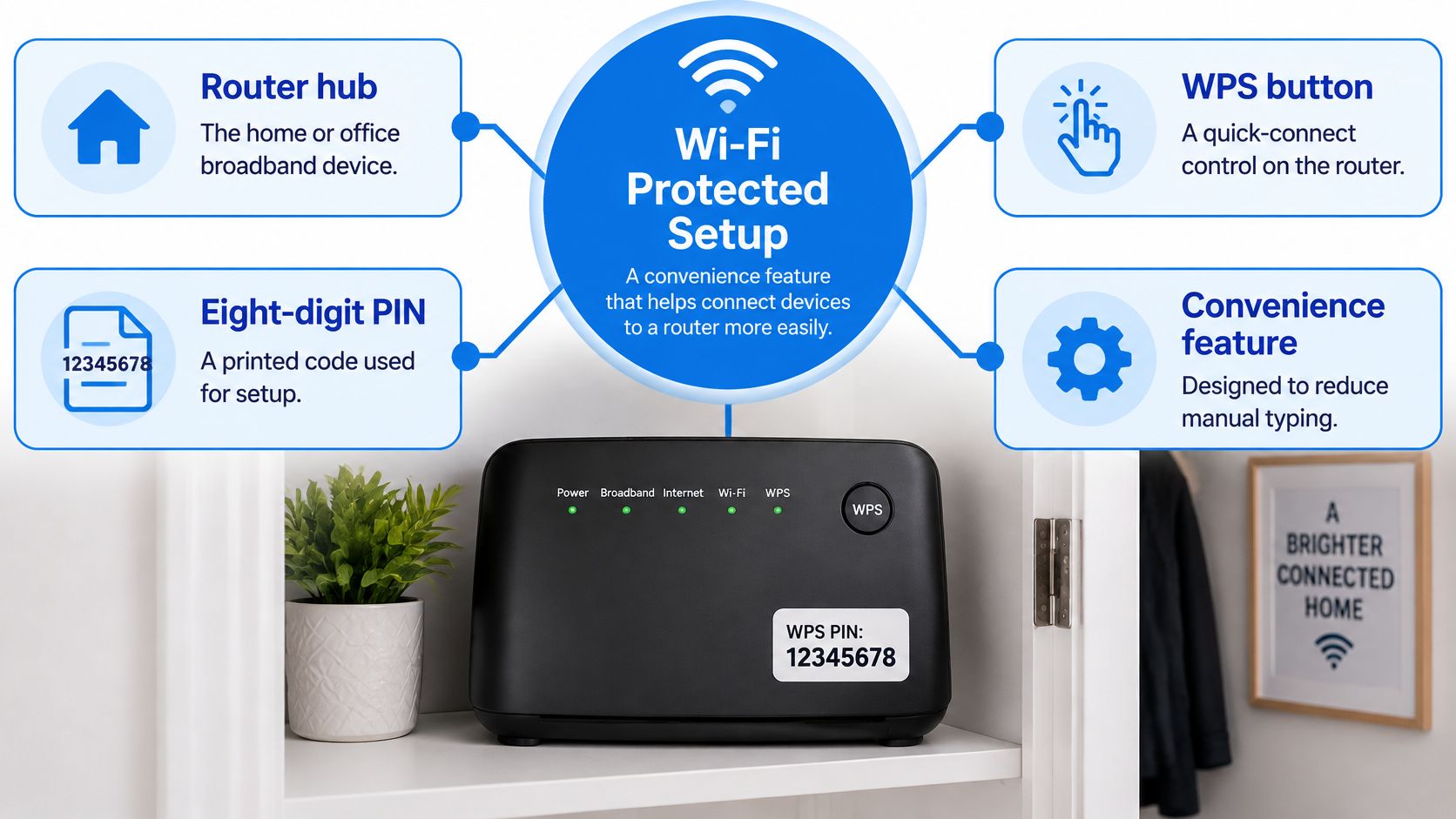
A joining shortcut rather than another lock
Think of WPA2 or WPA3 as the lock on the main door. WPS is a side entrance through which an approved device can learn the key the router already holds. It doesn't replace the lock, strengthen the password or add another layer of encryption.
That distinction answers the common question, what is Wi-Fi Protected Setup protecting? Despite its reassuring name, WPS concerns getting a device onto the network, rather than protecting every subsequent transmission. The router's wireless security settings still determine how the connection is protected.
The shortcut solved a genuine usability problem. Printers, cameras and other equipment without a proper keyboard can be difficult to configure, especially when the alternative is repeatedly entering a complex passphrase.
Read the sticker before using the code
Keep these credentials separate:
- Wi-Fi password or wireless key: The passphrase a device normally needs to join the named wireless network.
- Router administrator password: The credential used to change the hub's settings.
- WPS PIN: An enrolment code used by a particular WPS connection method, not the password to hand to visitors.
A guest asking for Wi-Fi usually needs the guest network's name and passphrase, not a photograph of the entire router sticker. That photograph could disclose settings they don't need.
Also check the button label against the exact router manual. Some hubs combine functions on a control, so holding down an unfamiliar button can have a different effect from a brief press. Don't experiment with a reset button to get a printer online. The useful distinction is between deliberately opening a short pairing window and leaving a PIN-based enrolment interface available.
How Each WPS Method Works
| Method | How you use it | Who must be present | Main risk | Keep it on? |
|---|---|---|---|---|
| Push-button (PBC) | Press WPS and confirm on the device during the pairing window | Someone operating the router's pairing control | A nearby person could attempt to pair during that window | Home use only if PIN enrolment is separately disabled and you accept the exposure |
| PIN | Enter the router PIN from its sticker or settings page | Someone who can reach the PIN interface, not necessarily touch the hub | A successful attempt can disclose the wireless key | No |
| NFC tap | Bring a compatible device against the router's NFC contact point | Someone physically beside the router | Physical proximity doesn't replace control over who enrols devices | Usually unnecessary |
| USB flash drive, legacy | Transfer wireless settings using a USB stick | Whoever holds and can use the stick | Lost credentials and obsolete support | No, retire it |
Choose the method, not just the button
Push-button configuration creates a temporary opportunity to pair. Follow the router's displayed instructions rather than assuming every model uses the same timing or button sequence.
PIN enrolment is different: the printed code authorises setup without requiring someone to press the physical button at that moment. Its validation design is the main security concern.
NFC requires compatible equipment at close range. USB-based setup is a legacy option, not a sensible replacement to introduce into a current home or office.
Decision rule: At home, retain push-button pairing only if you can independently disable PIN enrolment. For workplace wireless networks, leave WPS off.
Look for Wi-Fi Protected Setup, router PIN and external registrar in the menu. A single status light doesn't establish which methods remain available.
Why the Eight Digit PIN Is Weak
An unrestricted numeric PIN offers 100 million combinations, but WPS's grouped validation reduces the effective search space to approximately 11,000 combinations, according to the Government Digital Service's workplace wireless guidance, which also records WPS's introduction in 2007 and advises organisations never to deploy it.
The problem isn't that people choose memorable codes. It's how the enrolment system checks the code, even when the number printed on the sticker looks suitably random.
The illustration shows the difference between the apparent size of the PIN and the protection its validation provides.
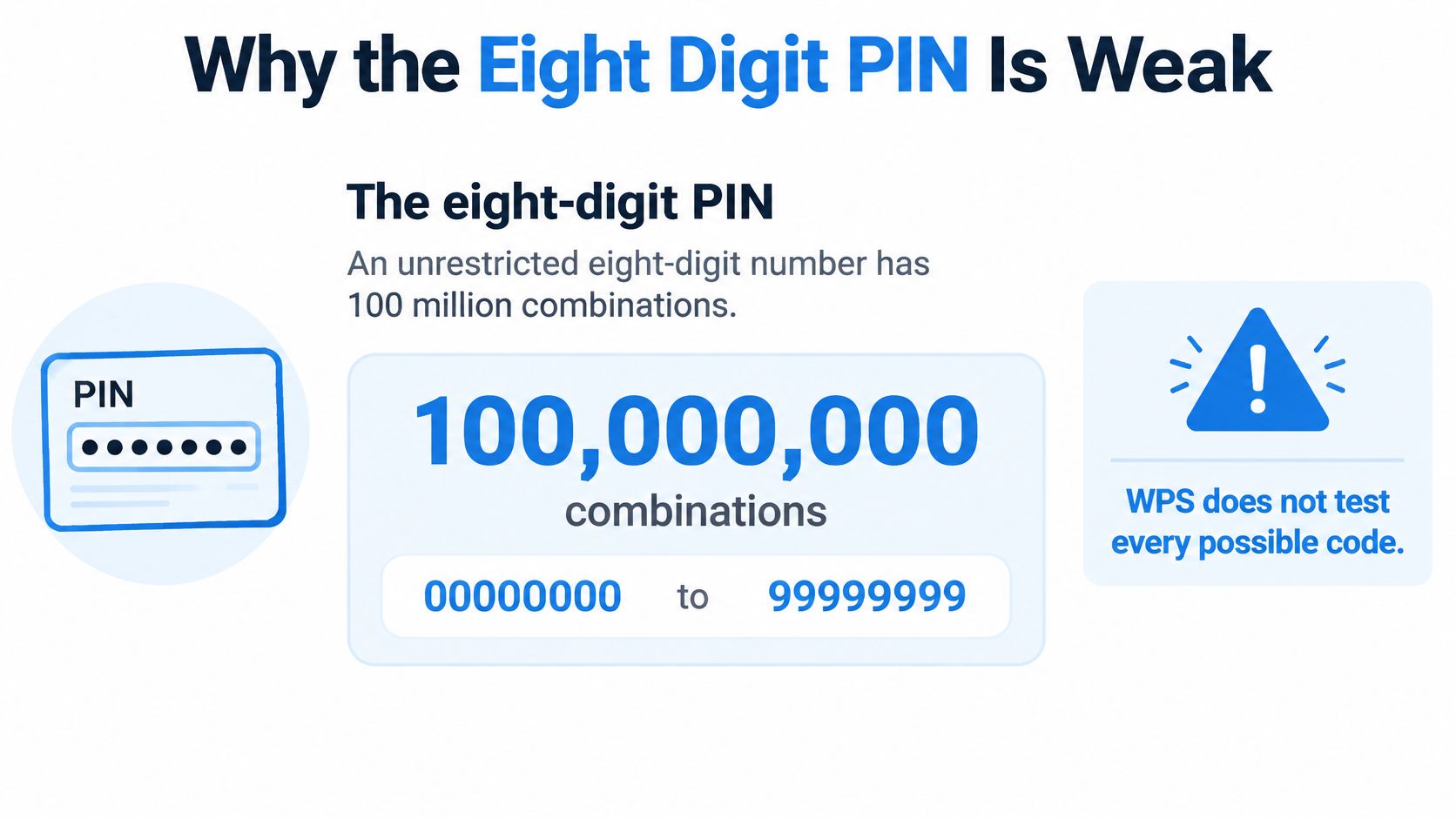
Why splitting the check matters
WPS validates the PIN in separate groups, with a final checksum digit derived from the rest. It doesn't require every possible complete code to be treated as an independent guess. A computer can therefore face a much smaller task than the sticker suggests.
A checksum helps identify an incorrectly entered value. It isn't another independent secret. Counting it as though it added the same protection as a freely chosen digit gives a misleading impression of strength.
This is a design issue, so replacing a short Wi-Fi password with a longer one doesn't repair the PIN mechanism. A strong passphrase remains important, but it shouldn't sit behind an unnecessary enrolment route that can disclose it.
What a successful attempt means
The reward isn't merely a setup code with no further use. An unauthorised person may obtain the underlying wireless network key, then join from within radio range. What they can reach afterwards depends on the network's access controls and the protections on connected equipment.
For a small shop, that could mean an unknown device sharing a network with an office computer, network printer or storage unit. It doesn't mean every file becomes automatically readable, but it creates access that the business never intended to grant.
A strong main password doesn't compensate for a weaker route that hands out the same key.
Push-button pairing presents a different exposure: someone must attempt enrolment during the deliberately opened pairing window. A reachable PIN interface can instead remain available for repeated testing, subject to the router's safeguards.
Some equipment offers failed-attempt lockout. Treat that as a backstop, not permission to keep an unwanted PIN interface enabled. The safer workplace choice is to remove the enrolment route rather than rely on it eventually refusing requests.
For a visual explanation of the setup feature, this video provides an additional walkthrough.
A shop, clinic or small office should apply the workplace recommendation just as a larger organisation would. Keep the underlying protections in place: suitable WPA2 or WPA3 settings, a long unique passphrase, current router firmware and access restricted to people and devices that need it. WPS was never an extra lock on top of those controls.
Safer Setup for Homes and Small Offices
Make router changes from a trusted computer, preferably connected by Ethernet. Keep the router's exact model and administrator credentials nearby, and choose a time when a brief wireless interruption won't stop a payment or an important call.
Before changing anything, record the current wireless network name and relevant settings. Don't factory-reset the hub just because the WPS option isn't immediately visible.
Work through the router settings
Open the hub's administration page or official management app. Use the access instructions on the hub or in its manual. The administrator login is separate from the password used to join Wi-Fi.
Find every WPS enrolment control. Check the wireless and advanced wireless menus for Wi-Fi Protected Setup, router PIN and external registrar. Disable PIN-based access, and switch off the entire feature if the methods can't be separated. For a workplace network, disable WPS altogether.
Secure the administrator account. Replace an unchanged default administrator password with a unique one. Otherwise, someone with settings access could undo your changes.
Check wireless encryption and the passphrase. Choose WPA3 where your equipment supports it, or WPA2-AES for compatible older devices. Don't fall back to WEP or TKIP to make a stubborn gadget connect.
Update, save and verify. Install the correct firmware through the manufacturer's supported process. Reopen the settings afterwards and confirm that your intended configuration remains saved.
These are the main controls to locate on the administration page.
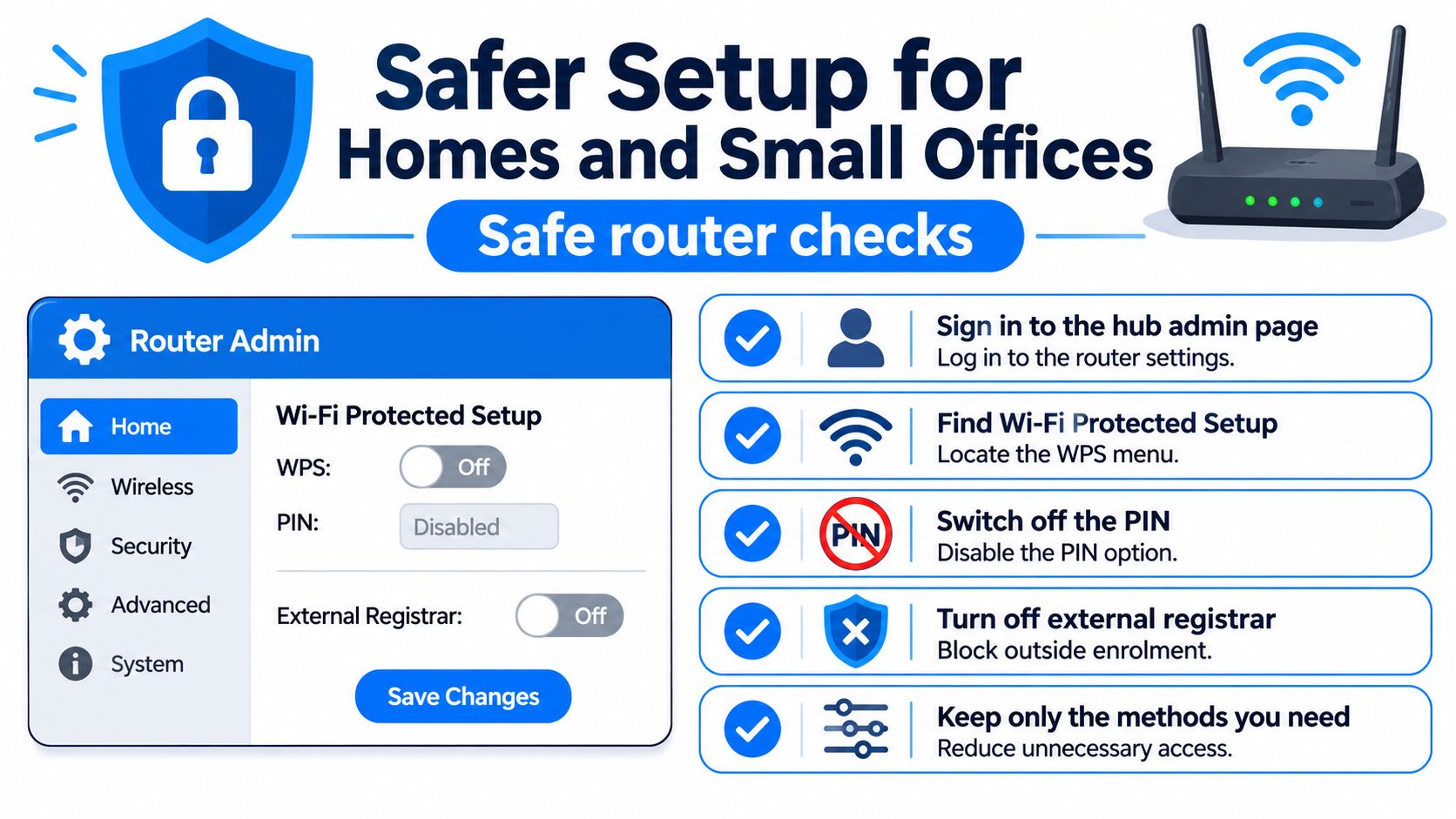
Match access to the household or business
At home, a private network for trusted household equipment and an isolated guest network for visitors is a sensible starting point. Check that the guest service doesn't permit access to private devices, and leave WPS unavailable there too. If you need an isolated network for older smart gadgets, verify that the hub offers that separation.
In a small office, separate staff equipment, visitors and unsupported connected devices. A different network name alone doesn't prove that traffic is isolated. Check whether a guest device can reach office printers, computers or storage, and restrict that access where it isn't needed.
Store the wireless passphrase in an appropriate password manager or controlled staff record. Record who can retrieve or change it, rather than circulating photographs of the hub label. If you change the passphrase, plan which printers and other unattended devices will need reconnecting.
For a wider check of wireless security beyond enrolment, F1Group's guidance on how to reduce Wi-Fi cyber risks provides useful context.
Finish by reconnecting a normal device through its standard Wi-Fi settings and checking that essential equipment still works. A recently supplied ISP hub or newly purchased router still needs configuration checks, not assumptions about its defaults.
When an Old Device Will Only Use WPS
The awkward case is the label printer or camera that's needed tomorrow morning but offers nothing except WPS on its setup screen. Switching off PIN enrolment addresses a security problem, but it doesn't answer how that device will keep doing its job.
Start with the exact model's manual and support page. Check for a supported firmware update, a wired setup option or a full configuration utility that offers more choices than the small display. Don't assume the first setup prompt lists every available method.
Choose a replacement connection path
| Option | Best when | What you need | Security note |
|---|---|---|---|
| Type the Wi-Fi passphrase | A phone, laptop or printer has a screen or keypad | The current WPA2 or WPA3 passphrase | Preferred everyday method |
| Vendor app or QR code | A recent mesh system or printer supports it | A trusted, updated app or supported scanner | Check that it isn't simply invoking WPS PIN pairing |
| Ethernet for first setup | A printer, NAS, camera or desktop has a network socket | A cable and free LAN port | Keep the wired connection where practical |
| Wi-Fi Easy Connect | Both devices explicitly support Easy Connect or DPP | Compatible router and device onboarding | A replacement path, not universal compatibility |
| Guest or IoT network | An old device must remain online temporarily | An isolated network with no access to office PCs | Contains exposure but doesn't repair the device |
| Replace the device | It has PIN-only enrolment and no supported update path | A supported replacement model | Preferable to retaining an unsafe business dependency |
Typing the passphrase is the simplest option when there's a usable keyboard. For app-based setup, download the manufacturer's genuine application and check what the pairing process does. A friendly app screen doesn't guarantee that the underlying enrolment method has changed.
Ethernet can avoid the problem entirely. If the printer works reliably over a cable, there may be no benefit in moving it back to wireless. Where Ethernet is only an initial configuration route, confirm that the manual permits you to enter wireless credentials through that connection.
Wi-Fi Easy Connect, also called Device Provisioning Protocol or DPP, is a newer onboarding route intended as an alternative to WPS. Both ends need suitable support, so don't buy a new hub expecting it to make an incompatible old camera understand the method.
Keep unsupported equipment away from business data
Ofcom's broadband and Wi-Fi advice recommends keeping devices, apps and browsers updated because updates can improve security and performance. Check the manufacturer's support status, rather than assuming a device is maintained because it still switches on.
An isolated guest or IoT network can help contain an unsupported device. However, isolation doesn't make PIN enrolment safe, and it won't create an alternative joining method. If secure onboarding isn't possible, arrange a wired substitute or replacement rather than enabling WPS on the staff network.
Also test the function you need. A printer on an isolated network may no longer be discoverable from staff laptops, and a camera may need carefully restricted access to its recorder.
Don't leave a PIN-only gadget alongside customer records just to avoid a cable or a replacement.
Myths and Labels That Still Cause Mistakes
Not pressing the button doesn't prove WPS is unavailable. A router can expose a PIN-based method separately from its physical pairing control. Likewise, an unlit indicator may mean only that push-button pairing isn't currently running.
Help Net Security's coverage of continuing WPS vulnerabilities highlights why device implementation and PIN behaviour still deserve attention. Check the precise model and firmware, not just the brand name on the front.
A single off switch may not tell the whole story
Menus can distinguish router PIN, external registrar and Wi-Fi Protected Setup, or group them under a general switch. External registrar is a technical label associated with enrolment control, not a guest Wi-Fi setting.
Use the model's documentation to establish what each control disables. If the interface shows separate PIN and button settings, save your changes and reopen the page to confirm the PIN remains disabled.
- A quiet button isn't confirmation: Check the settings, not whether anyone remembers pressing WPS.
- A generic disabled label needs context: Establish which enrolment methods it covers.
- A hidden setting isn't necessarily absent: Look in the advanced wireless menu and the exact model's manual.
Lockout and new hardware aren't substitutes for configuration
Failed-attempt lockout isn't something to assume. Confirm whether the model offers it and what the manufacturer says it protects. Even when present, it doesn't justify retaining a feature you don't need.
A new router also needs checking. Setup wizards prioritise getting the connection working, while optional enrolment methods and guest access still need deliberate decisions. Buying replacement hardware without reviewing its settings can leave the same practical uncertainty.
For a London or Essex household, can the button stay available if the PIN is disabled? Only when the router clearly separates the methods and you accept the temporary pairing exposure. If you don't use the button, leaving it disabled removes an unnecessary choice.
For a shared workplace network, don't treat that home-use exception as the default. Keep enrolment under administrative control and use a supported alternative to WPS.
Decide and Know When to Get Help
At home, disable WPS PIN enrolment. Retain push-button pairing only if the settings clearly isolate it and you deliberately choose to use it. Give visitors guest access rather than access to the hub's setup controls.
In an office, keep WPS off on shared workplace wireless. Give any device that can't join another way a migration decision: supported alternative setup, a wired connection or replacement. An isolated network may be part of that plan, but it isn't permission to ignore insecure enrolment.
Stop guessing when the configuration is unclear
Get the router and its configuration checked when any of these apply:
- The menu is ambiguous: You can't establish which methods a WPS switch disables.
- The sticker PIN appears unavoidable: There's no documented way to disable its enrolment interface.
- Guests and business equipment share unrestricted access: Visitors, cameras, tills or office computers can reach each other without a clear operational reason.
Bring the router model, firmware details and a list of essential devices to that discussion. Include what each device must communicate with, such as a printer receiving jobs from staff laptops or a camera sending footage to a recorder. That gives the installer a usable requirement rather than a vague request to make Wi-Fi safer.
Define what needs to work
Before installing a wireless network, we learn what the customer wants to achieve, then recommend the technology and network package. For a small office, that means understanding guest access, business equipment and awkward legacy devices before deciding how to connect them.
You don't need to know every technical label to set a clear requirement. You should be able to identify who administers the router, who holds the passphrase and how an approved new device gets connected.
Once the settings are verified, keep a short record of the WPS decision and any device awaiting replacement. That makes the arrangement understandable to the next person responsible for the network, rather than dependent on remembering which button someone pressed.
Networking2000 offers wireless and home network installations, router support, and practical training and advice to help you resolve unclear WPS settings or reconnect older equipment. Home support is available through an onsite visit or remote access to a PC or Mac, as appropriate to the work. Visit Networking2000 to discuss your router, the devices you need to keep working, and a safer setup for your home or small office.

