You've signed in, opened your browser and tried to join a call, but the desktop still isn't responding properly. The fan's running, the mouse keeps pausing, and you're wondering whether it's time to replace the computer.
A slow computer is a symptom, not a diagnosis. If you're asking, “Why is my computer running slow?”, the cheapest useful starting point is to identify where the delay happens. A crowded startup list, insufficient memory, a struggling drive and unreliable Wi-Fi need different fixes. Changing settings at random makes it harder to tell which fix worked.
Table of Contents
- Match Your Symptoms to the Likely Cause
- How to Find the Culprit in Task Manager
- Memory, Storage and Startup Problems
- Malware and Unwanted Software Checks
- Updates, Drivers and Recent Changes
- Broadband, Wi-Fi and Cloud Slowdowns
- Decide Whether to Call a Local IT Support Provider
Match Your Symptoms to the Likely Cause
Start with what you can observe, rather than what you suspect is broken. These matches give you a working hypothesis, not proof of a fault.
Symptoms, likely causes and first checks
| Symptom | Likely cause | First check |
|---|---|---|
| Long wait after sign-in before the desktop is usable | Too many startup apps | Review the Startup tab in Task Manager |
| Everything slows once several programmes are open | Memory pressure | Watch memory use while opening your usual apps |
| Disk stays busy and the system freezes briefly | Full or ageing drive, or heavy paging | Check free space and disk activity |
| Slow browser with pop-ups or redirects | Malware or unwanted browser extensions | Review extensions and run a full security scan |
| Slowdown starts after a Windows or app update | Update, driver or search indexing | Compare the start date with recent changes and restart |
| Loud fan and high CPU from an unknown process | Background process or hidden mining | Sort the process list by CPU and investigate unfamiliar names |
| Websites and video calls slow, local apps normal | Broadband or Wi-Fi | Test on a wired connection and on another device |
| Gradual slowdown over several years, no trigger | Hardware age, particularly drive type or low RAM | Check whether the system drive is a hard disk and how much RAM is fitted |
Use the symptom as your starting point
The symptom column is the most useful guide because it describes what happens during your actual work. “The laptop's old” doesn't distinguish between a slow drive and a cloud service that isn't responding. “A saved document opens normally, but the shared copy hangs” gives you something testable.
Try to reproduce the delay with the same task. If it happens when Microsoft Teams joins a meeting, keep that task consistent while checking resource use. Don't uninstall software, change network settings and clear browser data together.
Diagnostic rule: Change something, repeat the original task, and record whether the delay improved. An improvement you can reproduce is more useful than a computer that briefly feels faster.
Also distinguish sudden change from gradual limitation. A machine that became slow immediately after installing software deserves a different investigation from one that struggles only when your workload expands.
Before buying hardware or running a cleanup utility, capture what the computer is doing during the slowdown. Task Manager gives you that starting evidence.
How to Find the Culprit in Task Manager
You don't need specialist diagnostic software to identify the busiest resource. Windows includes Task Manager, which shows whether programmes are competing for processor time, memory or storage access.
Use this visual checklist alongside the live readings.
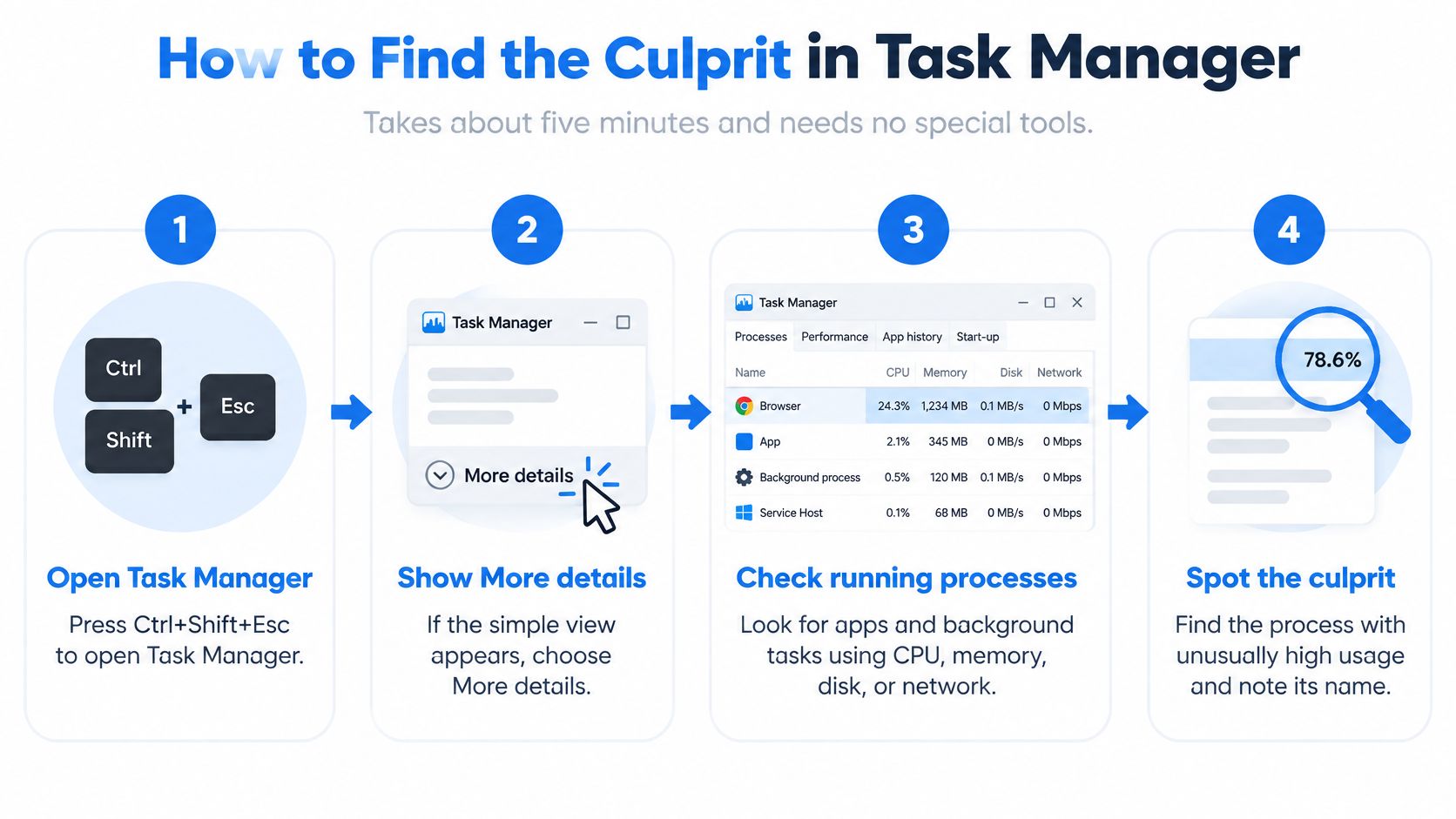
Capture the slowdown as it happens
Open Task Manager. Press Ctrl+Shift+Esc, then select More details if a simple view appears. The layout differs between Windows versions, but you're looking for Processes, Performance and Startup apps.
Repeat the task that feels slow. Leave Task Manager visible while opening your usual browser, document or meeting application. Readings taken when the computer is doing nothing won't necessarily reveal the problem.
Sort by resource use. On Processes, click CPU, then Memory, then Disk. Note which programmes stay near the top throughout the delay, rather than reacting to a brief spike during launch.
Inspect unfamiliar entries carefully. Expand grouped applications and check their publisher or file location where available. Browsers legitimately run multiple processes, so duplicate names alone aren't evidence of infection, and an unfamiliar Windows process shouldn't be ended blindly.
Review Startup apps. Sort by startup impact and identify optional software that loads at sign-in. Disable automatic launch for applications you don't need immediately, but leave security, accessibility and managed workplace tools alone unless their administrator approves.
Write down the bottleneck. Record the process name, the busiest resource and the task you were performing. This separates a processor-heavy application from memory pressure or a storage queue.
Interpret the pattern, not just the biggest number
A single application holding the CPU busy suggests a different problem from many ordinary programmes collectively exhausting memory. Likewise, high disk activity during an update isn't the same as disk activity every time you switch between browser tabs.
On macOS, use Activity Monitor and inspect its CPU, Memory and Disk tabs. Memory Pressure is particularly useful for judging whether the current workload fits comfortably.
A healthy pattern is a brief rise when work begins, followed by activity settling as the task completes. Sustained activity needs an explanation, although it may be legitimate work such as a backup, scan or large export. Record that explanation before deciding to stop anything.
Memory, Storage and Startup Problems
RAM is the desk where your active work sits. When that desk fills, Windows moves less-used material into a drawer on the drive, a process called paging. Repeatedly fetching it can cause pauses when you switch applications.
Memory capacity and contention can constrain performance, an engineering principle examined in the University of Edinburgh's evaluation of persistent-memory systems. That specialist work isn't a desktop diagnostic benchmark: on your PC, the useful evidence is high memory use, busy storage and an improvement when applications close.
Task Manager readings and what they suggest
| Measure | Healthy pattern | Warning sign | Likely action |
|---|---|---|---|
| Memory in use | Working headroom remains during normal tasks | Memory stays close to capacity and closing apps improves response | Reduce application and startup load; consider compatible RAM |
| Committed memory | Demand fits comfortably within available resources | Commit demand exceeds physical memory alongside disk activity | Reduce tabs and background software; investigate paging |
| Disk active time | Activity settles when work finishes | Disk stays saturated during ordinary tasks | Identify the process, check free space and inspect drive health |
| Free space on system drive | Room remains for updates, temporary files and paging | Windows reports low space or updates struggle | Remove unused files or move verified copies elsewhere |
| CPU at idle | Activity settles after background tasks complete | A process remains busy without an understood task | Identify its purpose before changing anything |
Committed memory isn't proof of active paging by itself. Read it alongside the other symptoms.
Reduce demand before buying parts
Close unused tabs, remove unnecessary browser extensions and stop idle meeting applications. Pause cloud synchronisation only as a controlled test, then resume it so files aren't left unsynchronised.
Disable optional startup entries rather than uninstalling useful software immediately. Use Settings > System > Storage to review temporary files and large applications, checking downloads before deleting them.
More RAM helps a memory bottleneck. It won't repair a failing drive or make an overloaded website respond faster.
Upgrade the component that's limiting you
Check the laptop's service documentation before ordering RAM. Some devices have soldered memory, and supported capacity and module type differ between models.
A solid-state drive can improve startup and application loading when replacing a mechanical hard disk. However, clicking, disappearing files or drive-health errors call for data protection before optimisation. MDrepairs' guide to recovering data from a failed hard drive is useful context when ordinary backup or copying is no longer reliable.
If memory and disk behaviour look normal but an unexplained process holds the CPU busy, investigate its legitimacy. If RAM can't be expanded and the computer already has an SSD, reducing the workload or replacing the machine may be more realistic than further tuning.
Malware and Unwanted Software Checks
Malware and unwanted software can consume processor time, memory, storage access and network capacity. Browser redirects, unexplained advertising and unexpected remote-access tools make a security check particularly important.
Don't trust an alarming performance warning because it appears on your screen.
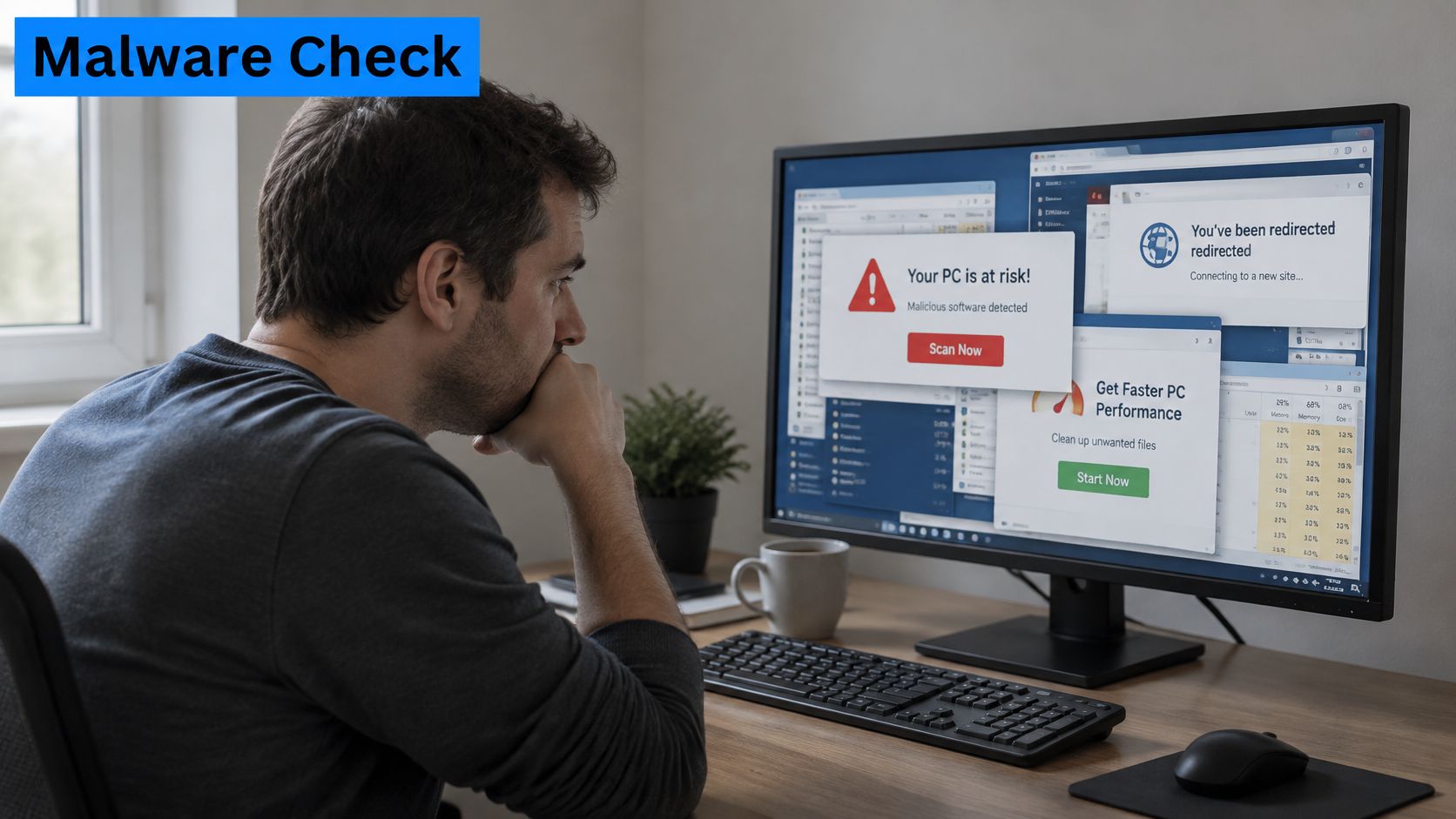
The Office for National Statistics estimated approximately 663,000 computer-misuse incidents in England and Wales in the year ending June 2025. That makes security a sensible diagnostic branch, not proof that every sluggish computer is infected.
Check safely without disabling protection
Update your security tool. Open the installed product directly and update its threat definitions. Don't follow a pop-up offering a faster scan or paid cleanup.
Run a full scan using Windows Security or your organisation's trusted endpoint product. Keep protection enabled, and follow the tool's quarantine and restart instructions.
Review browser extensions. Remove additions you didn't authorise, and check whether the browser's search engine or homepage has changed.
Inspect installed applications for bundled utilities and toolbars. On a managed work machine, confirm unfamiliar software with IT before removing it.
Check remote-access software. A legitimate support tool may be authorised, but an unexplained installation needs investigation. If a business device appears compromised, disconnect it from the network and preserve alert details and logs before attempting removal.
Compare a clean boot. This disables non-essential startup software and third-party services to help isolate a conflict. Don't indiscriminately disable endpoint protection or management services; have IT supervise the test on a work device.
Use the walkthrough as a companion to those checks.
Treat the result as evidence
If a threat returns or can't be removed, stop entering sensitive information and seek technical help. Repeated deletion attempts can remove useful evidence without eliminating the cause.
Speed returning during a clean boot points towards disabled software or services, not necessarily malware. No improvement leaves storage health, hardware and Windows components among the remaining suspects.
Updates, Drivers and Recent Changes
A new update doesn't always make a computer feel faster immediately. Installation, indexing and application migration can create background work, while an incompatible driver can introduce a genuine fault.
Timing is a lead, not a verdict. A slowdown that starts after a change deserves comparison with that change, but automatically removing security updates can create a more serious problem.
Build a short change history
Open Settings > Windows Update > Update history and compare the entries with when the delay began. Check Installed apps, sorted by installation date, and note any new utilities or applications.
- Complete pending restarts. Save your work and use Restart, rather than assuming closing the laptop lid finishes installation.
- Identify active background work. Search indexing, synchronisation and security scans can be legitimate. Check that the relevant process eventually completes and that normal responsiveness returns.
- Use trusted driver sources. Obtain graphics, chipset and network drivers through Windows Update or the device manufacturer's support site. Avoid third-party driver updaters that replace several components without explaining why.
- Keep a reversal path. Note the existing driver version and whether Device Manager offers Roll Back Driver before changing it.
Separate maintenance from an incident
A familiar security process performing a scheduled scan is different from disabled protection, unfamiliar accounts or unexplained sign-ins. The UK Government's Cyber Security Breaches Survey 2025 found that 43% of UK businesses reported a cyber breach or attack during the previous twelve months, which supports treating those warning signs seriously.
Stop condition: If security settings or accounts have changed without authorisation, stop routine performance tuning and investigate access to the device.
Home users should change affected passwords from a clean device and review email and banking activity. Work users should report the symptoms to whoever manages security.
Where the evidence points to an ordinary software regression, remove the recent application or roll back the implicated driver, restart and repeat the original task. Don't remove unrelated updates together, and don't leave a necessary security patch permanently unaddressed.
Broadband, Wi-Fi and Cloud Slowdowns
Sometimes the slow computer isn't the computer. Local delay means applications or saved files respond poorly on the device; network delay means websites, hosted files or calls struggle while local work remains responsive.
The Ofcom Connected Nations UK Report 2025 estimated that around 340,000 UK premises couldn't access decent fixed broadband in July 2025, defined as at least 10 Mbit/s download and 1 Mbit/s upload. Even an adequate connection can perform poorly through weak Wi-Fi or competing uploads.
Compare connections before changing the PC
- Test Ethernet against Wi-Fi. Use the same device and service under comparable conditions, without running competing speed tests simultaneously. A clear wired improvement points towards the wireless connection.
- Check upload activity. Cloud backups and file synchronisation can compete with calls. Inspect what's transferring before assuming the broadband package is inadequate.
- Compare another device or connection. Try the service on another computer, or a phone using mobile data. This helps establish whether the delay follows the device, your network or the service.
- Inspect the local network. Restart the router when it won't interrupt essential work, test nearer it and check cables. Avoid placing wireless equipment inside cupboards or behind metal.
- Check service status. If only a hosted application fails, inspect its provider's status page before changing your router.
Fix the right layer
If Ethernet is reliable but Wi-Fi isn't, investigate coverage, channel congestion and access-point placement. If only a particular computer is slow on both connections, inspect that device's software and network driver.
Network filtering isn't a substitute for adequate connectivity. If you're considering it to reduce unwanted advertising traffic, Purple Shield's guide to deploy network ad blocking safely provides useful context, but legitimate sites and applications still need testing.
A faster PC won't repair an upstream outage. Establish where the delay occurs before spending money.
Decide Whether to Call a Local IT Support Provider
Call for help when a reproducible slowdown survives targeted checks, affects several machines or puts accounts and files at risk. Don't delay for further housekeeping if you suspect compromise or drive failure.
Before contacting support, prepare a short diagnostic note. Useful details let an engineer investigate the actual fault rather than repeat checks you've already completed.
Bring evidence to the diagnosis
- Symptoms and onset. Describe the exact task that fails, when it began and whether it's constant or intermittent.
- Recent changes. List relevant applications, updates, drivers or equipment changes.
- Resource readings. Include the busiest Task Manager resource and the associated process name.
- Connection comparisons. Record whether Ethernet, Wi-Fi and other devices behave differently.
- Backup status. Confirm which important files have a separate, usable copy.
Try self-help first or call a provider
| Situation | Try first | Call a provider when |
|---|---|---|
| Slow only after a new application | Uninstall it and disable its startup entry | The slowdown returns after a clean restart |
| Pop-ups, redirects or unknown processes | Run a full scan with an updated security tool | Threats can't be removed, or accounts may be compromised |
| Slow on every device on the same network | Restart the router and test Ethernet | Problems persist after basic router and Wi-Fi checks |
| Clicking drives, error messages or crashes | Protect important files if safe; avoid cleanup on a suspected failing drive | Drive-health warnings or repeated crashes appear |
| Shared work machine affecting files or email | Isolate the device and note the onset | A breach is suspected or several machines are affected |
Protect data before repair
Back up important files before ordinary repair or removal work. If a drive is clicking or repeatedly disconnecting, stop repeated copying attempts and get advice, because continued use may make recovery harder.
Our home IT support includes computer MOTs, remote support, virus and anti-spyware removal, upgrades, repairs, data backups and home-network installations. The right intervention depends on the evidence, not a standard promise to clean everything.
Run the Task Manager check today and record the result. If you can't explain the sustained activity, or the safe corrective step doesn't resolve it, arrange a diagnostic rather than continuing to change settings.
Networking2000 can investigate slow computers through computer MOTs and remote support, with repairs, upgrades and network help where needed. Visit Networking2000 to discuss your symptoms and arrange support, bringing your Task Manager findings and connection-test results so we can start with the likely cause.

