A business phone with a mobile app in the UK has no single set price. Costs depend on the number of users, the call-handling features they need and how the system is configured. Request a tailored quote based on your requirements.
Look beyond the monthly cost: the right setup should make it easy to take business calls away from a desk. This guide covers pricing factors, setup, call routing and business number display, so you can keep calls organised.
Consider how your team uses mobile data or Wi-Fi and how calls should be handled during working hours. These practical details help you judge whether a system suits your business, not just whether its app looks useful.
Key Takeaways
- Work out which users, call-handling features and number options your business needs before comparing system costs.
- Plan call routing around your working hours, team responsibilities and how you want calls handled when staff are unavailable.
- Check how the mobile and desktop apps fit your team’s devices and the way they connect to the internet.
- Understand how outbound calls can display your business number, helping you keep business and personal calls distinct.
- Compare cloud VoIP with traditional phone systems to see which approach suits your setup and future plans.
Call routing, working hours and do-not-disturb settings
A business phone app should let staff route calls, transfer callers and manage voicemail. Check how its settings handle your working hours, missed calls and calling allowances.
Call routing and working hours
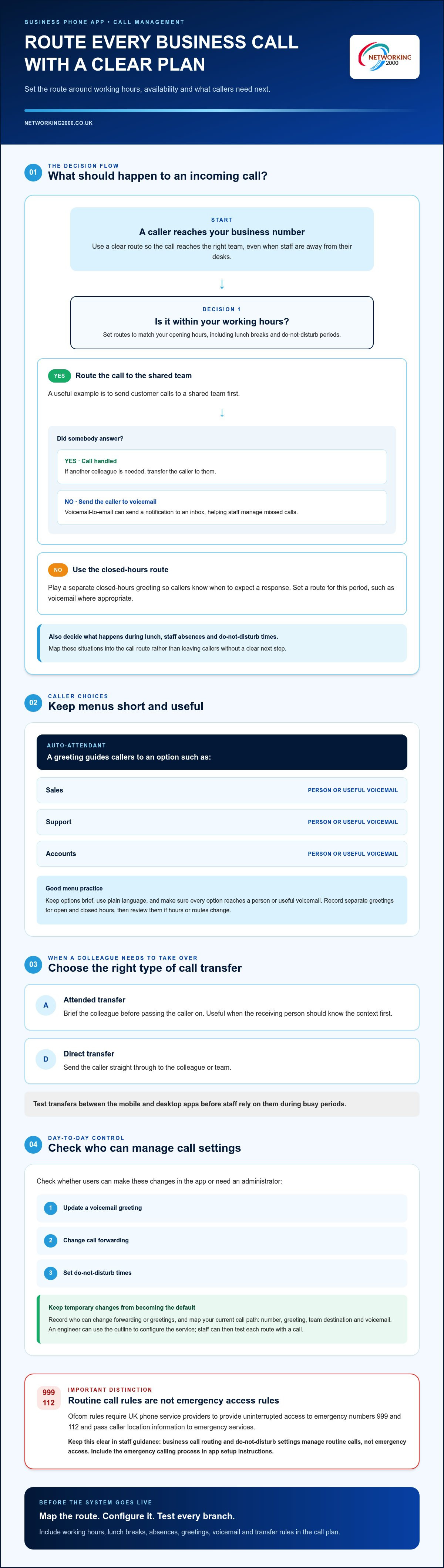
Set a clear route for incoming calls. For example, send customer calls to a shared team first, then to voicemail if nobody answers. Match the route to your opening hours and decide what happens during lunch breaks, staff absences and do-not-disturb periods. A business number can direct callers to the right team even when staff are away from their desks.
Auto-attendants and greetings
An auto-attendant greets callers and guides them through options such as sales, support or accounts. Keep the menu short, use plain language and ensure each option reaches a person or useful voicemail. Record separate greetings for open and closed hours so callers know when to expect a response. Review the wording if your hours or call routes change.
Self-service call settings
Useful account settings include updating a voicemail greeting, changing call forwarding and setting do-not-disturb times. Check whether users can manage these settings in the app or need an administrator to make changes. Voicemail-to-email can send a notification to an inbox, helping staff handle missed calls without repeatedly checking their phones.
Review calling minutes and allowances before choosing a monthly plan. Check which calls count towards the allowance, how usage is displayed and what happens when it runs out. If you plan to port an existing number, coordinate the change with greeting updates and forwarding rules so callers continue to reach the right team.
Call transfer features
Call transfer lets a staff member pass a live caller to a colleague, such as directing an accounts query to the accounts team. Check for both attended transfer, which lets the colleague be briefed first, and direct transfer, which sends the caller straight through. Test transfers between the mobile and desktop apps before staff rely on them during busy periods.
For UK phone services, Ofcom’s rules require providers to provide uninterrupted access to emergency numbers 999 and 112 and pass caller location information to emergency services. Keep this distinction clear in staff guidance: business call routing and do-not-disturb settings are for managing routine calls, not emergency access. Include the emergency calling process in app setup instructions.
Before changing systems, map your current call path: number, greeting, team destination and voicemail. An engineer can use this outline to configure the service, and staff can test each route with a call. Record who can change forwarding or greetings, so a temporary adjustment does not become the default after the working day.
How much should a business phone system cost?
Costs depend on the requirements and are provided in a tailored quote. Key factors include users, call features, number arrangements, setup and any desk phones. To compare options fairly, list who needs access, which devices they will use and how they make business calls. A business phone with a mobile app should suit your team’s everyday calls, whether they work in the office or remotely.
App access can change how a team works, but it is only one part of the system. A sales colleague might use a mobile app while travelling, an office administrator might prefer a desktop app and headset, and another employee may keep a desk phone. Decide which devices people need before comparing plans, then consider how your business number should appear to callers.
Business calling through mobile and desktop apps
A mobile app lets staff handle business calls on a supported smartphone; a desktop app may suit people who spend the day at a computer. For example, a small office could give its customer-facing team both options, while staff who rarely make calls might need only desktop access. Compare the functions people will use, such as making and receiving calls, transferring callers and checking voicemail.
8×8, 3CX, Microsoft Teams Phone and RingCentral are options to compare for business calling apps. There’s no universal “best” choice: match each system to your devices, call habits, number display needs and administration preferences. Ask whether employees can use the same account across mobile and desktop, and how access is managed when someone changes role or leaves. A business phone with mobile app UK firms adopt should also suit their existing devices and working practices.
Compare app compatibility and call allowances
8×8, 3CX, Microsoft Teams Phone and RingCentral provide mobile apps for iOS and Android. Check compatibility for the specific phones and computers your staff use, then test the app’s calling and sign-in process before wider rollout.
For RingCentral, compare the plan’s included minutes with your team’s calling pattern. Review which calls the allowance covers, how usage is tracked and what charges apply if it is exceeded. Make the same checks for any system you consider. A plan suited to regular customer calls may not fit a team that mostly makes internal calls.
Separate recurring and setup costs in your comparison. Include user access, number arrangements, call allowances, any desk phones and the work needed to configure the system. Note which app functions each team member needs, rather than paying for capabilities that do not support their role. This gives you a clear specification for a quote.
To compare options, write down your required devices, users, call types and business number arrangements. A system setup that accounts for those details is easier to assess against your needs. If you’re planning app-based calling alongside wider IT requirements, plan your phone setup around the way your team works.
Setup, device compatibility and system management
Plan the setup around each user’s device, broadband connection and calling role. Business softphone apps can work over Wi-Fi or 4G and 5G mobile data.
VoIP handsets and own devices
A VoIP handset suits a fixed desk, while a mobile app supports staff who move between rooms or work away from the office. With a bring-your-own-device approach, employees use their own mobiles, but agree which business settings they can manage. For example, decide whether staff can change voicemail, forwarding and sign-in settings themselves.
Supported devices and operating systems
Before setup, compare the app’s supported operating systems with the phones, tablets and computers your team already uses. Check each device model and software version, then test sign-in, audio and headset controls. A test call from a mobile and a desktop can reveal compatibility issues before staff rely on the app for customer calls.
Cloud-hosted VoIP device options
A cloud-hosted VoIP system can connect users through an app, a compatible VoIP handset or both. Choose devices by role: a receptionist may prefer a desk handset, while a field-based employee may rely on a mobile. Compare handset functions, headset connections and app controls before standardising equipment across the office.
Set up the system in a clear order. First, create user accounts and assign the right access. Next, connect the chosen devices and test incoming and outgoing calls. Then review call settings, voicemail and business number display. A written device list helps an administrator identify which handset or app belongs to each employee.
Connection quality matters. Test calls on the office broadband and on mobile data, including Wi-Fi, 4G and 5G connections used by staff. A weak wireless signal or congested network can affect call audio, so check the actual work areas where people will speak. For a desk handset, confirm that its network connection and power arrangement suit the workspace.
For ongoing management, keep a simple record of each device, its assigned user and relevant settings. When someone changes role, update their access and call configuration together. If a handset is replaced, test it against the same call tasks as the old one. These steps help keep the system organised as users, equipment and working patterns change.
Mobile app outbound calling with business number display
Choose an outbound caller ID customers recognise, then test how it appears on mobile networks. A clear business number helps staff keep work calls separate from personal calls.
When switching providers, number portability allows a business to retain an eligible number through a transfer arranged with the receiving provider. Ofcom requires UK phone providers to provide uninterrupted access to 999 and 112 and pass caller location information to emergency services. For data protection, limit access to call records and personal details to staff who need them.
Business number display on outbound calls
A calling app can display a selected business number instead of the mobile’s personal number. Before staff start calling, test the setting by calling a colleague’s mobile and checking the number shown. Confirm that the displayed number accepts return calls and reaches the intended team. Repeat the test after a device or caller ID setting changes.
UK number types and choices
Businesses can choose a geographic, freephone or national-rate number, depending on how customers contact them. A Wickford business may prefer a local identity, while a business serving customers across the UK may choose a national presence. Consider who pays for the call and whether the number fits your existing advertising and customer expectations.
Existing numbers may be eligible for transfer when you switch providers. List every number used on signs, invoices, websites and your Google Business Profile, then decide which should remain active. Keeping the same published number can help customers find your business, but the new call setup must still route each number to the right team.
Keeping personal numbers private
Set the app’s outbound caller ID to the business number, not an employee’s personal mobile number. For example, a salesperson can call a customer from their own handset while presenting the work number through the business app. Test the setting on an external call and make sure return calls reach the business, not an individual’s personal voicemail.
Agree a simple staff process: use the business app for customer calls, keep personal calls separate and report a lost device promptly. An administrator can then review the user’s access and caller ID settings. This helps prevent an old account or handset from continuing to display a business number after an employee changes role.
Number portability and calling rules
For a number transfer, record the current provider, account details and every number to retain. Coordinate the transfer with the receiving provider before ending the old service, then plan a test call once the number is active. Check incoming calls, outbound caller ID and voicemail, since a successful transfer alone does not confirm that every setting works as intended.
Keep emergency calling separate from ordinary business routing. Ofcom’s requirements cover access to 999 and 112 and the passing of caller location information; staff should know how emergency calls work on their app and handset. For call records, define who can access them, why they’re retained and how access is removed when responsibilities change.
How do virtual phone systems work?
Cloud VoIP carries calls over the internet, while traditional systems use physical phone lines. The right fit depends on your connection, devices, call handling and existing setup.
Cloud VoIP and traditional systems
A traditional phone system relies on physical lines and on-site equipment; cloud VoIP manages calls through an internet connection and hosted services. A virtual landline usually centres on a number that routes calls to selected devices, rather than a complete office phone system. Compare what each option includes, especially apps, handsets, number handling and call management.
The UK phone network is scheduled to close on 31 January 2027, as analogue services are withdrawn. Businesses using traditional landlines should factor that change into their planning. Cloud VoIP can bring calls to mobile and desktop apps, while compatible desk phones remain an option. The practical difference is where calls are managed and which equipment staff rely on.
Reliability and internet requirements
A business phone app needs an internet connection and a compatible mobile, computer or VoIP handset. Calls may use office broadband, Wi-Fi or mobile data, including 4G and 5G. The drawbacks include dependence on connection quality, device compatibility and account settings. A weak signal can disrupt calls, so test from the places where staff actually work.
For reliability, review the connection used by each team and how calls behave if a device loses internet access. The market advises businesses to look for phone systems with at least 99.9% uptime. Treat that figure as one comparison point, alongside support arrangements, call routing and the system’s resilience. Test audio and incoming calls before moving daily business conversations.
Costs depend on your requirements and are provided in a tailored quote. Factors include users, call features, number arrangements, setup and equipment. Separate recurring charges from one-off setup work when comparing proposals. Also identify which users need apps, desk phones or both, and whether existing numbers and equipment are part of the transition.
To assess potential savings, compare what your business currently pays for lines, equipment and call services with the proposed setup. A virtual system may reduce the need for traditional on-site phone equipment, but the result depends on what you replace and retain. List current services first, then compare them with the functions your team will use.
Before choosing, map the number of users, devices, call routes and internet connections your business needs. Then compare cloud VoIP, a virtual landline and a traditional system against that list. To discuss how a cloud phone setup can fit your wider IT requirements, plan your business phone system.
Networking2000: Managed IT Support
Networking2000 can help businesses bringing mobile app calling into their wider IT setup. Its VoIP Telephony supports organisations reviewing how business calls fit alongside their devices, network and day-to-day systems. Managed IT Support can help keep those systems organised, whilst Managed Firewalls address network security as part of the wider environment.
Consider support when planning a phone system change, coordinating communications with existing IT or reviewing how staff use business devices. Start by outlining your users, call requirements and current setup, so the discussion focuses on your business needs.
Contact Networking2000 to discuss your business phone requirements, or visit networking2000.co.uk.
Make your next phone system decision with confidence
A business phone with a mobile app in the UK should support how your team works now and adapt to changing needs. Before proceeding, decide who will manage user access, device changes and call settings as responsibilities shift. A simple internal plan helps keep decisions consistent without making the system harder to manage.
If you’re ready to discuss the phone setup, Networking2000 offers VoIP Telephony alongside Managed IT Support and Managed Firewalls. This can be a useful next step when you want your communications considered alongside your wider IT environment, rather than as a standalone app choice.
Bring your requirements into the conversation: which staff need mobile access, how you want calls handled and what your existing setup needs to support. From there, you can focus on a practical arrangement for your business. Contact Networking2000 about business phone options and take the next step at your own pace.
Frequently Asked Questions
Can I switch from my current provider without losing my number?
Yes, an eligible business number can be transferred when you move services. List every number you want to keep, including direct lines and numbers printed on invoices or signage. Arrange the transfer with the receiving provider and keep the existing service active until the move is complete. Afterward, test incoming calls, caller ID and voicemail to catch any configuration issues promptly.
Can staff use their personal mobile for business calls?
Yes, staff can use a personal mobile with a business calling app, subject to device support and your organisation’s policy. Set up a separate work account and use the business caller ID for customer calls. Decide how work contacts and call records are handled, and establish a clear process for removing access if a phone is lost or an employee leaves.
Cloud vs on-site: What’s best?
Cloud VoIP suits businesses that want staff to access calls through apps or compatible handsets without relying on an on-site phone system. An on-site system may suit a business that prefers local equipment and has the resources to manage it. Compare who handles updates, how calls work during an internet outage and whether existing handsets or other equipment can remain in use.
Does a softphone work over mobile data?
Yes. A softphone can make calls over Wi-Fi or mobile data, including 4G and 5G. Call quality depends on the connection available where the user is working, so test it in typical locations, such as the office, a customer site or a regular travel route. Also consider mobile data allowances if staff make frequent calls away from Wi-Fi.
What is a softphone?
A softphone is software that lets a compatible computer, tablet or mobile act as a phone over an internet connection. It can support business calls without a traditional desk handset, although a headset may make calls easier in a shared office. Staff sign in to the app and use its controls to make or answer calls and manage conversations.
What is the difference between a virtual landline and Voice over Internet Protocol (VoIP)?
A virtual landline is a business number that routes calls to selected devices, such as mobiles or desk phones. Voice over Internet Protocol, or VoIP, carries voice calls over an internet connection. A VoIP phone system can include apps, handsets and call management, while a virtual number may focus mainly on directing incoming calls.
How much does a UK business phone system with a mobile app cost per user?
There is no fixed per-user price because the total depends on the system and its setup. Cost factors include the number of users, call allowances, features, number arrangements, handsets and installation work. To build a realistic budget, list which employees need mobile or desktop access and which functions they will use. Then compare the full monthly and setup costs, not just the app charge.
Can UK business phone apps use an existing mobile number or port a landline number?
A landline number can be transferred to a compatible phone system if it is eligible for porting. An existing personal mobile number is different: it remains associated with its mobile service, while the business app can display a business caller ID for work calls. Decide whether to retain a published landline, use a separate business number or keep both for different customer needs.

