You're on a work call, the picture freezes mid-sentence, and you end up standing in the hallway where the signal is slightly less awful. Downstairs streams fine. Upstairs is a dead zone. You're paying for fast broadband, you're just not getting it where you need it.
That's not you being bad at technology. It's what happens when people treat the router like a magic box that should cover a whole house from wherever the engineer left it. A good WiFi network for home use isn't about buying the priciest kit. It's about knowing where the problem sits, then fixing that bit and leaving the rest alone.
Table of Contents
- Why Home Wi-Fi Still Feels Frustrating
- The Two Layers of a Home Wi-Fi Network
- Choosing the Right Equipment for Your Property
- Router Placement and Channel Tuning That Actually Work
- Spotting the Real Cause of a Bad Connection
- Securing Your Home Network Without the Jargon
- Speeds, Costs and Getting Help in London and Essex
Why Home Wi-Fi Still Feels Frustrating
Recent UK survey reporting found 53% of adults experienced regular Wi-Fi problems, with frozen work calls and interrupted shopping and streaming among the consequences, and 38% said they walk around the home searching for a better signal, according to UK survey reporting on regular broadband disruption. That hallway shuffle is a design failure, not a personal one.
Internet access is now basic household infrastructure. 96% of households in Great Britain had internet access in January to February 2020, compared with 57% in 2006, and earlier data showed fixed broadband was used by 91% of households with internet access in 2014, according to Office for National Statistics household internet access data. Almost every home is connected. Almost every home then spreads that connection through one wireless router to phones, laptops, TVs, tablets and smart kit.
Who This Hits Hardest
It's the home worker in Romford taking calls from a back bedroom. It's the family in Hornchurch trying to stream in one room while someone games in another. It's a tenant in Chelmsford with a home office in the coldest, furthest corner, and a multi-device household in Brentwood where everything works until teatime when everyone is online at once.
The pattern is the same each time. People feel a wireless problem, assume the broadband is at fault, and spend money in the wrong place.
Keep it simple. If the connection is fine in one room and dreadful in another, don't start by changing provider. Start by looking at what's happening inside your walls.
The Distinction That Saves You Money
Your home has two separate jobs to do. First, your provider delivers broadband to your router. Second, your Wi-Fi carries it from the router to each device. Those jobs can fail independently.
Once you've got that split in your head, the rest gets practical. You can test each layer, choose kit for your actual property, put it in a sensible place, and secure it without needing a networking qualification. No jargon for its own sake. Just decisions, in the right order.
The Two Layers of a Home Wi-Fi Network
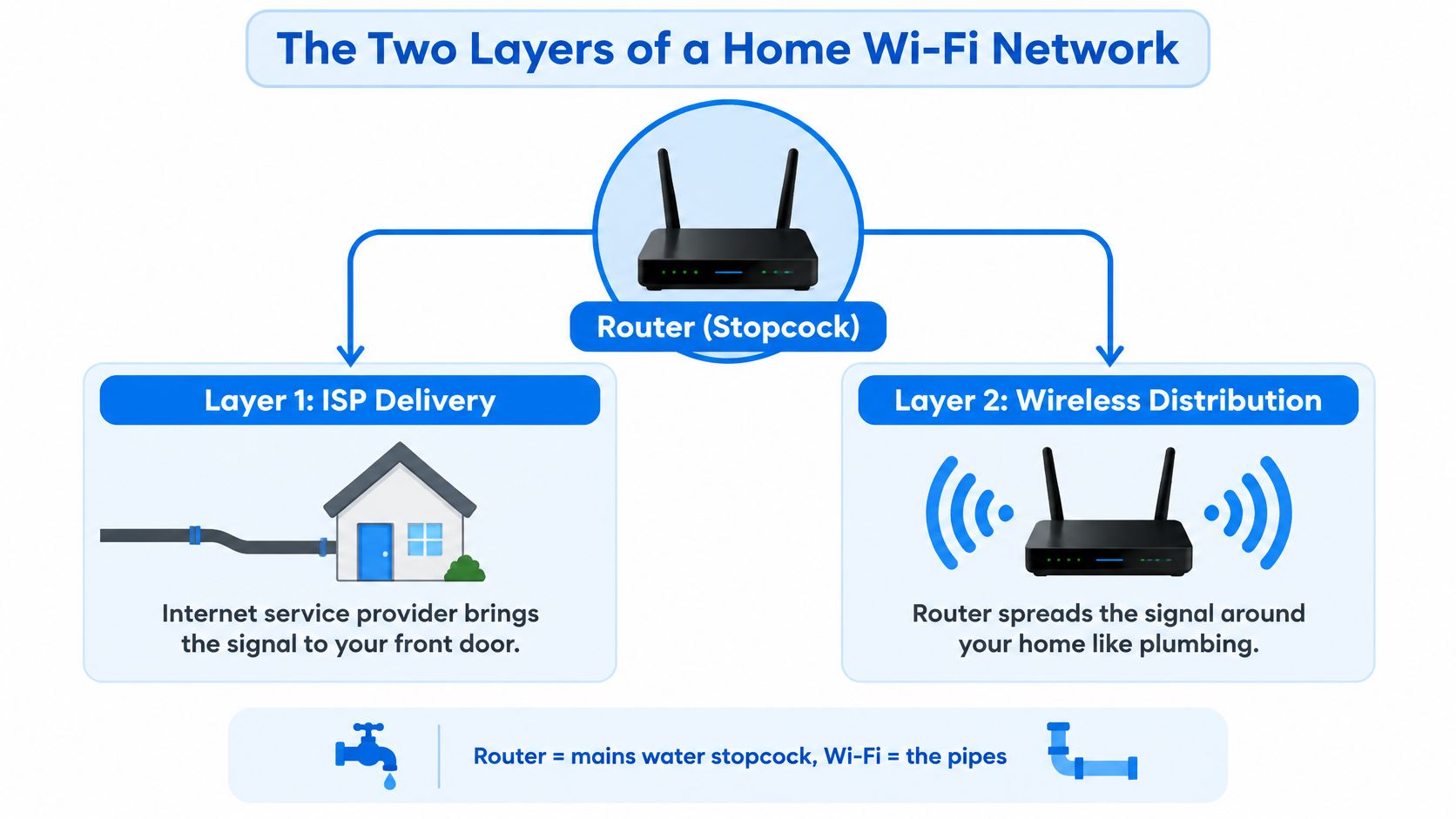
Think of your router as the mains water stopcock and your Wi-Fi as the plumbing. The stopcock controls what comes into the house. The pipes decide whether you get decent pressure in the bathroom or a miserable trickle. A bigger mains supply won't fix kinked pipes.
That analogy is the picture below.
Layer One Is Delivery to the Router
Layer 1 is your internet service provider bringing the connection to your front door and into the router. If this layer fails, everything fails, wired and wireless, throughout the house. That's a provider or line problem.
Ofcom measures residential broadband performance at the customer's router, not over Wi-Fi, so device performance can be lower because of Wi-Fi propagation, in-home wiring, simultaneous-device contention, client hardware and remote-server limitations, according to Ofcom guidance on measuring home broadband performance at the router. Its measurement base included 3,207 observations, but it still doesn't represent the complete in-home Wi-Fi experience. A brilliant result at the router can coexist with an unusable bedroom.
Layer Two Is Distribution Around the Home
Layer 2 is the wireless link from the router to your laptop, TV or phone. That's affected by distance, walls, floors, neighbours' networks, and how many devices want airtime at once. If this layer fails, one room suffers while another is fine.
A few terms are worth pinning down in plain English:
- Bandwidth: How much data the connection can carry at once. Bigger pipes help when lots of people stream or download together.
- Contention: Devices queuing for the same wireless airtime. You feel this as slowdowns when the house is busy.
- Latency: The delay before data starts moving. You feel this on calls and gaming, not so much when reading email.
- SSID: The name of your Wi-Fi network. It's just the label you pick from the list on your phone.
If you're reading wider material on how to optimize home internet coverage, keep asking which layer any given tip addresses. That question alone stops most wasted spending.
Upgrading the broadband package fixes Layer 1. It does nothing for a dead zone caused by distance or a router hidden behind the TV.
Learn to tell whether the fault is at the wall socket or in the air and you've got the single most useful skill in home networking. Every equipment and placement decision that follows hangs off it.
Choosing the Right Equipment for Your Property
Marketers want you to believe you need mesh, Wi-Fi 6E, and a router that looks like a spaceship. Most homes don't. Match the kit to the building, not to the advert.
The Four Realistic Options
Sticking with the ISP router is fine for a small flat where you're rarely more than one room away. It's free, it's supported, and in that setting it's often adequate. The honest downside is that ISP routers are built to a price. Weak radios and basic software make them the weakest link in most larger setups.
A quality standalone router suits a compact house or a large flat with a sensible central spot. Look for dual-band as a minimum, so you get both 2.4 GHz and 5 GHz. Wi-Fi 6 is worth having for busy multi-device homes. Wi-Fi 6E adds a 6 GHz band, but only helps if your devices support it and you're close to the router. Don't pay for it by default. MU-MIMO matters when several devices transfer at once, because the router can talk to more than one at a time. Check you've got gigabit Ethernet ports for anything you'll wire in.
Powerline adapters send data over your mains wiring to a far room, where you can plug in a device or a small access point. They're a decent fallback when you can't run cable. Performance depends heavily on your wiring, so treat them as a compromise, not a plan A.
Mesh systems use two or more nodes that work as one network. They shine in a three-bed semi in Rayleigh or a house spread over floors. Tri-band mesh, with a dedicated band for nodes talking to each other, performs better than basic dual-band mesh. But mesh nodes still need a decent signal between them. Scatter them too far apart and you've bought expensive weak links.
If you're comparing specifications and prices more widely, including router options for GCC shoppers, use the same checklist. Bands, Ethernet ports and Wi-Fi generation matter. Glowing lights and gaming branding don't.
Matching Kit to the Building
| Property type | Best equipment choice | Why it works |
|---|---|---|
| One-bed or studio flat | ISP router, placed centrally | Short distances mean one radio covers the space |
| Two-bed flat or small terrace | Quality standalone router | Stronger radio and better software than the ISP box |
| Three-bed semi or family house | Mesh system, ideally tri-band | Multiple nodes cover floors and far bedrooms |
| Victorian terrace with thick walls | Wired access points with Ethernet backhaul | Cable bypasses walls that wireless signals struggle through |
| Home office in a far room or extension | Wired access point or powerline plus access point | Gives that room its own reliable source of signal |
A Victorian terrace in Chelmsford is the classic trap. Thick internal walls defeat a single router and weaken mesh links between nodes. Running a cable to one well-placed access point usually beats adding a third or fourth mesh node that's shouting through brick.
My verdict is blunt. Keep the ISP router in a small flat. Replace it in most houses. Choose wired backhaul over wireless backhaul whenever running a cable is remotely practical. It's less glamorous than mesh. It works better.
Router Placement and Channel Tuning That Actually Work
Where you put the router matters more than which router you bought. A good router in a cupboard loses to an average router on a shelf.
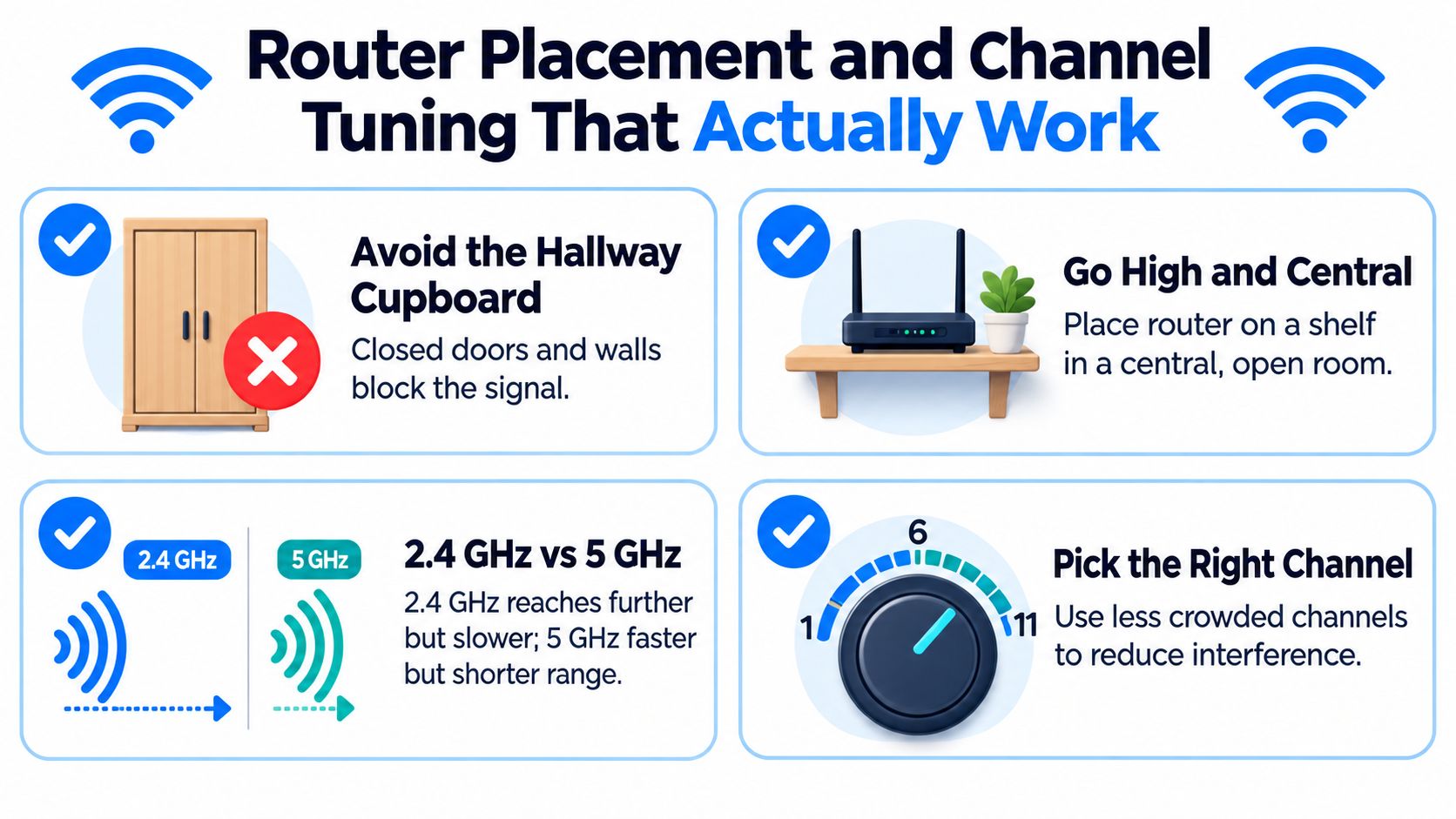
The checklist below covers the placement rules that deliver the biggest improvement for most households.
High Central and Out in the Open
The hallway cupboard, the floor behind the sofa, and the corner by the front door are the worst spots in the house. Doors, walls and furniture all block and absorb signal. Put the router high, central and open. A shelf or the top of a bookcase in the middle room beats a tidy hidden corner every time.
Keep it away from thick walls, metal objects, fish tanks and other electronics where you can. You're not chasing perfection. You're removing obvious obstructions.
The short video below walks through the same placement basics visually, which helps when you're deciding where a node or access point should sit.
The 2.4 GHz and 5 GHz Trade Off
Ofcom notes that 2.4 GHz generally provides better coverage per access point cell, while smaller channel availability and use by many other applications increase congestion and interference risk, and 5 GHz offers additional capacity but attenuates more quickly through walls and distance, according to Ofcom analysis of 2.4 GHz and 5 GHz home Wi-Fi behaviour.
In plain terms:
- 2.4 GHz: Reaches further and copes better with walls. Use it for distant or low-bandwidth kit such as smart plugs, doorbells and older IoT devices. Set 20 MHz channel width here to reduce overlap with neighbours.
- 5 GHz: Faster over short distances. Steer laptops, phones, TVs and work devices onto it when they're in the same or next room.
In dense London and Essex housing, neighbouring access points eat your airtime even when your broadband line is healthy. Use your router's channel settings or a Wi-Fi analyser app to pick a less crowded channel rather than leaving everything on a congested automatic choice. Check signal strength and channel utilisation in each room where you work or watch. Advertised coverage figures tell you nothing about your house.
Practical rule. Reposition first. Retune channels second. Buy hardware third. Change broadband package last.
Fixing a Dead Zone Properly
If one room still struggles, don't buy a cheap wireless repeater. A repeater shares the same weak wireless link it's trying to fix, so it repeats a bad signal slowly. An Ethernet-connected access point or an Ethernet-connected mesh node removes that bottleneck. It's the right answer for a room that needs reliable calls or sustained file transfers.
Try this in an afternoon. Move the router out of the cupboard, raise it, split your devices sensibly between bands, change to a quieter channel, then retest in the problem room. You'll likely see a real improvement before spending anything.
Spotting the Real Cause of a Bad Connection
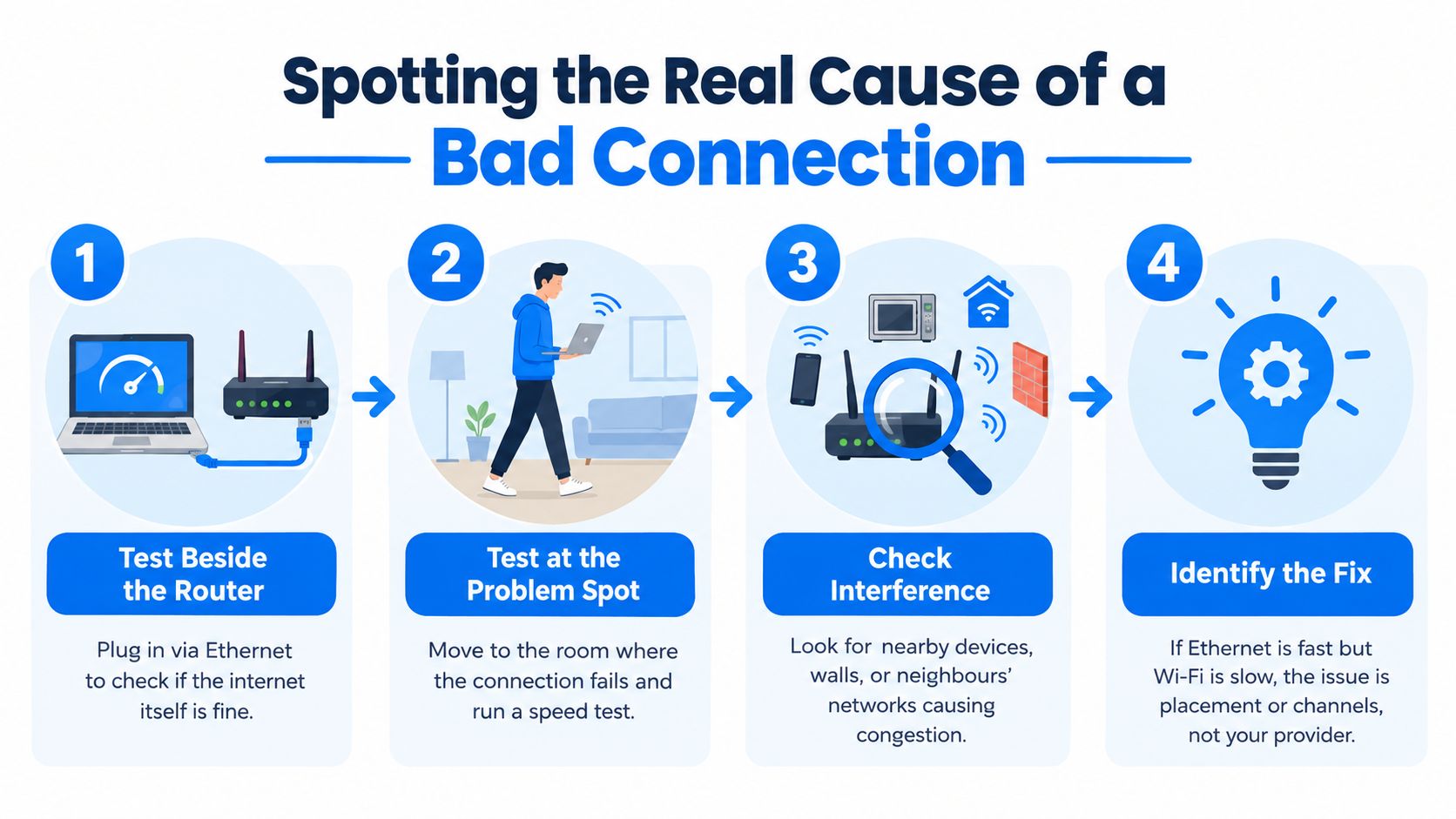
Most home Wi-Fi problems are not solved by buying new kit. They're solved by finding out which layer is failing, which takes four tests and about twenty minutes.
The flow below is the diagnosis I'd walk any neighbour through before letting them spend money.
The Four Step Test
- Test beside the router on Ethernet: Plug a laptop directly into the router and run a speed test. This tells you what your provider is delivering.
- Test beside the router on Wi-Fi: Stay in the same spot, unplug, and test wirelessly. A small drop is normal. A collapse points at the router itself.
- Test at the problem location: Run the same test in the bedroom or office where it fails, at the time it usually fails.
- Compare and decide: If wired is fast and the far room is slow, your broadband is fine and your wireless distribution isn't. If wired is slow too, take that result to your provider.
Also notice the pattern. If all devices fail simultaneously, suspect the line, the router overheating or overloading, or a faulty router. If one device fails while others are fine, suspect that device, its age or its drivers. If it only fails in the evening, suspect congestion from your household or your neighbours.
Why a Faster Package Won't Fix Dead Zones
Faster lines are widely available now. Ofcom reported full-fibre was available to 20.7 million UK homes, equivalent to 69% of 30.1 million households, by July 2024, and gigabit-capable broadband covered 25 million homes, or 83%, according to Ofcom Connected Nations reporting on full-fibre and gigabit availability. That capacity arriving at your front door still has to survive your walls.
People waste the most money here. They blame the ISP when the router is poorly placed. They blame Wi-Fi when the broadband line is overloaded at peak times. They replace a perfectly good laptop when channel congestion is the cause.
If an Ethernet test near the router approaches the rate you're paying for but the back bedroom is substantially slower, upgrading the package will not help. Fix placement, add a wired access point, and keep nearby high-throughput devices on 5 GHz.
Do the diagnosis once and write down the results. You'll stop living with the problem and you'll have evidence if you do need to call your provider.
Securing Your Home Network Without the Jargon
Security advice tends to swing between panic and paralysis. Ignore both. There's a short list of things every household should do, and you can finish it this weekend.
The router in the photo below looks harmless on a side table. It's still the front door to every device you own.
Do These Five Things First
- Change the router admin password: The admin password controls the router's settings and is separate from your Wi-Fi password. Too many routers still run on the default printed underneath. Change it and store it in a password manager.
- Install firmware updates: Firmware is the router's own software. Turn on automatic updates if available, or check manually every few months.
- Use WPA3 where available: This is the current standard for securing the wireless link. If older devices won't connect, a mixed WPA2 and WPA3 mode is a reasonable compromise.
- Set a strong Wi-Fi password: Long beats clever. A few random words strung together are easier to type and harder to guess than a short jumble of symbols.
- Disable remote admin: You don't need to manage your router from the internet. Leave that setting off unless you know exactly why you need it.
Separate Guests and Gadgets
Smart speakers, cameras, TVs and cheap IoT gadgets are the weakest devices on most networks. They're rarely updated and you have little control over them. Put them and your visitors on a guest network if your router offers one.
That separation, sometimes called device isolation, means a compromised smart plug can't easily see your laptop or your files. It also means handing out Wi-Fi to guests doesn't hand out access to everything in the house. In flats where networks sit close together, it's good hygiene in both directions.
Parental controls and screen-time scheduling live in the same settings area on many routers and mesh apps. Use them if they're useful to your household, but treat them as convenience tools rather than security. They don't replace the five steps above.
You don't need enterprise grade certificate systems at home. You need current software, sensible passwords, WPA3, and separation between trusted devices and everything else. That's proportionate, and it's enough for almost every household.
Speeds, Costs and Getting Help in London and Essex
Money helps in specific situations. Paying for a faster line helps when several people stream high-quality video at once, when you shift large cloud backups, or when your work can't tolerate delays. It does very little for a single household doing ordinary browsing and email, and it does nothing at all for a room your Wi-Fi can't reach.
Availability is no longer the usual barrier. What matters more often is affordability and confidence. UK government figures published in 2025 identified 1.6 million people living offline and around a quarter of the population struggling to use online services, and reported that BT had connected more than 300,000 digitally excluded households through social tariffs, according to UK government reporting on digital exclusion and social tariffs.
So don't assume premium kit is the entry ticket. If you're on certain benefits, ask providers about social tariffs. A provider router in a central spot, on an affordable tariff, covers a small flat perfectly well. Reusing an old router as an extra access point can work too, provided it's still receiving security updates. If it isn't, retire it.
DIY is realistic when you're repositioning a router, changing channels, or setting up a mesh kit from an app. Get professional help when you need cable run through walls, access points fitted across floors, or a proper site survey in a thick-walled house. Networking2000 offers wireless and home network installations for home users, including diagnosing Wi-Fi problems and selecting single-router, mesh or wired access point setups.
Your next action is simple. Run the wired test, then decide. Spend once, in the right place, and stop walking the house hunting for signal.
If your tests show the fault is inside your home rather than at the line, Networking2000 can survey your property, sort router placement and interference, and install a single-router, mesh or wired access point setup that fits the building. Get in touch through the website to book home network help across London and Essex, and get the speeds you're already paying for into the rooms where you use them.

