Only 24% of UK consumers have changed their Wi-Fi password, and just 23% have changed the router password, so securing a home network starts with replacing those defaults. That simple change matters, but it won't protect a home filled with smart TVs, cameras, speakers, thermostats and other devices that share the same connection.
You may have installed your broadband router years ago, connected a phone and laptop, and never opened its settings again. Since then, the television, doorbell, printer, games console and smart speaker have joined the network, often without anyone checking what they can access or whether they still receive security updates.
A secure home network isn't a single password. It combines router administration, modern Wi-Fi encryption, firmware maintenance, device visibility and sensible separation between trusted equipment and lower-trust smart devices.
Table of Contents
- The Connected Home Security Gap
- Hardening Your Router and Wi-Fi
- Segmenting Devices and Managing IoT
- Maintaining Firmware and Software Updates
- Monitoring and When to Seek Expert Help
- Your Home Network Security Checklist
The Connected Home Security Gap
You change the Wi-Fi password, the laptops reconnect, and the job feels done. In a typical UK home, that same router is also carrying traffic for smart TVs, speakers, cameras, thermostats, printers, doorbells and whatever else has been added over the years. A 2020 briefing from University College London's Dawes Centre for Future Crime reported approximately 15 Internet of Things devices per average UK household, found that only 10% of IoT device manuals or associated online materials advised consumers how to protect a device against cyber risks, and noted that 90% of consumers were worried about data security and crime risks arising from insecure devices according to this summary of the briefing.
That mix is the actual gap in home security. The weak point is often not the phone or laptop you use every day. It is the cheaper or older device sitting in the background, still signed in, still online, and rarely checked after setup.
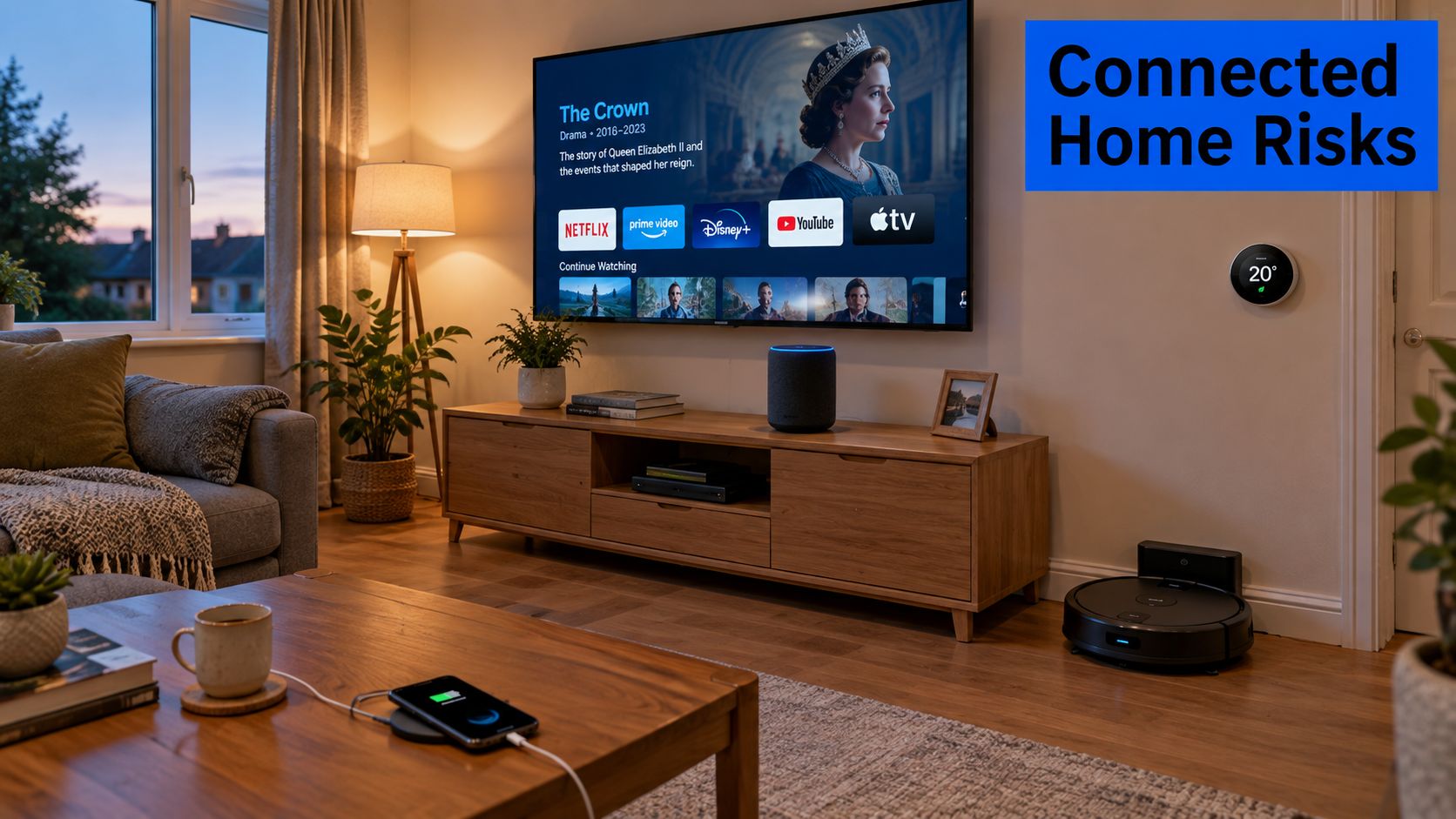
In practice, I see the same pattern again and again in busy homes and flats. The broadband hub was installed for a couple of phones and a laptop. Then came the television, games console, baby monitor, smart speaker, heating control and a video doorbell. Each one may have its own app, login, update process and privacy settings. Very few people get clear guidance on what to change, what to disable or how long the manufacturer will keep supporting it.
Why the router alone isn't enough
A good Wi-Fi password helps keep strangers off the network. It does not fix a camera with old firmware, a smart plug that still uses its default login, or a television that no longer gets updates. If the device itself is poorly secured, it can still expose accounts, data or the rest of the home network.
The practical rule is simple.
Practical rule: Treat every connected product as a small computer. Give it only the access it needs, keep it updated where possible, and remove it when the manufacturer no longer supports it.
That is why home network security in the UK now has to cover two things at once. You need to lock down the router properly, and you need to manage the growing pile of connected devices hanging off it. In a home with lots of IoT kit, those devices are often the part general guides miss.
Hardening Your Router and Wi-Fi
Start inside the router's administration app or web interface. The exact names vary between BT, Virgin Media, Sky, Asus, TP-Link and other equipment, but the controls are usually grouped under wireless, security, advanced or administration settings.
Research found that 91% of UK consumers owned a Wi-Fi router or internet hub, yet only 24% had changed their Wi-Fi password and 23% had changed the router password in UK government consumer research. The two passwords serve different purposes. The Wi-Fi passphrase admits devices to the wireless network. The administrator password controls the router itself, so use separate, unique values for both.
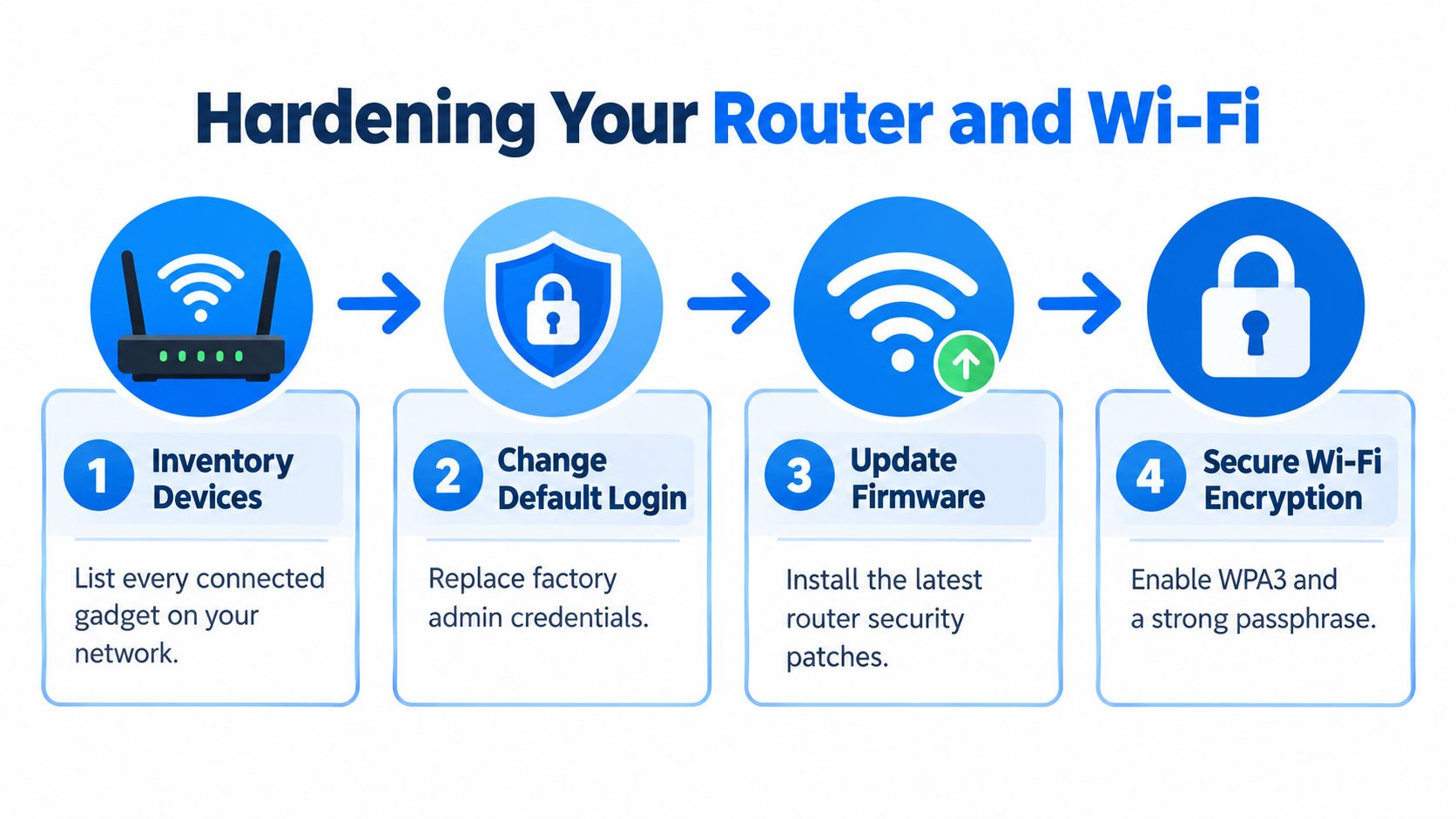
A practical hardening sequence
Inventory first. Open the router's client or connected-device list and identify every entry. Rename recognised equipment where the interface allows it, remove old devices and investigate anything unfamiliar before changing settings.
Change both credentials. Replace the administrator login and Wi-Fi passphrase. Don't reuse an email, banking or work password. A long, memorable passphrase is easier to manage than a short password that you write on the router label.
Choose modern encryption. Select WPA3-Personal if all important devices support it. If older equipment won't connect, use WPA2-Personal or a WPA2/WPA3 transition option where available. Disable obsolete WEP and older WPA modes.
Close easy entry points. Turn off WPS, remote administration and any internet-facing router management unless you have a specific, well-understood reason to use them. WPS is convenient, but typing the passphrase into a new device is the safer domestic choice.
Review exposure. Remove port-forwarding rules you no longer need, disable unused UPnP where practical, and check that the router firewall is enabled. If you need a deeper explanation of the control, this guide shows how to configure your network firewall without treating the firewall as a substitute for updates and strong credentials.
Watch the settings video below for a visual walkthrough of the general process. Menus differ, so use your router manufacturer's instructions for the exact labels.
Write down the router model and firmware version before you finish. That record makes future checks much easier, especially if your broadband provider replaces the hardware or you need to ask a support engineer what has changed.
Segmenting Devices and Managing IoT
A guest network is useful because it gives visitors and lower-trust devices somewhere separate from computers that hold personal, financial or work information. It isn't magic, though. Check whether your router offers client isolation, and test the arrangement rather than assuming that a second network automatically blocks every device-to-device connection.
Begin with a room-by-room inventory. Walk through the house and record the television, streaming box, camera, doorbell, speaker, printer, thermostat, lighting hub, games console and appliance connected to Wi-Fi or Ethernet. The exercise often reveals forgotten equipment, duplicate apps and devices that no longer serve a purpose.
Only 31% of UK respondents in a 2025 survey reported checking which devices were connected, despite the average household having 12 internet-enabled devices according to UK-focused survey reporting. Device visibility comes before segmentation. You can't protect equipment you haven't identified.
A simple three-group arrangement
Keep your main network for phones, laptops, tablets and other devices that store sensitive data. Put smart-home equipment on the router's guest network where supported, especially cameras, televisions, speakers and inexpensive plugs or bulbs. Use a separate visitor network for guests, with client isolation enabled if the router provides it.
Some IoT products need local discovery for casting, printing or smart-home control. Moving them away from the main network can therefore cause a device to disappear from an app. When that happens, check whether the router supports controlled access between networks, or place only that particular device on the trusted network while you assess the trade-off.
Cameras deserve particular care. A camera may need remote viewing, but opening direct access to the router isn't the first solution. Review the manufacturer's account security, update status and remote-access design. If you're assessing a professionally managed system, an overview of a manager's remote camera overview can help clarify how remote viewing and monitoring are normally handled.
Put sensitive computers on the network you trust most. Put devices that are difficult to update, unnecessary for local work or exposed to visitors somewhere less privileged.
Don't add smart devices just because they are available. Every connected product creates another account, update cycle and possible route into the network. A basic appliance with no internet connection may be safer and easier to maintain than a connected replacement that has already stopped receiving patches.
Maintaining Firmware and Software Updates
Router firmware is the software that controls the gateway between your home and the internet. A new Wi-Fi password can't correct a router flaw, and replacing the router won't protect a camera, speaker or television that still runs old software.
Turn on automatic router updates if the manufacturer or broadband provider offers the option and explains how it works. If automatic updates aren't available, add a recurring manual check to your household routine. Apply updates to phones, computers and smart-home apps as well, because the router is only one part of the network.
Who is responsible for patching
The broadband provider may supply the router, the manufacturer may develop its firmware, and you remain responsible for checking that the equipment in your home is still supported. Ofcom identifies network security and resilience as an ongoing regulatory responsibility for telecoms providers, while the UK's Product Security and Telecommunications Infrastructure regime introduces security requirements for internet-connected products as described in Ofcom's plan.
Those responsibilities don't remove the need for household action. A product can meet its obligations when supplied and still need an update later. A provider can maintain its network while you leave remote administration enabled or keep an unsupported camera connected.
Use this maintenance loop:
- Check support status: Confirm that the router and each important IoT product still receives security updates.
- Patch promptly: Install router, operating-system and device firmware updates through official applications or manufacturer channels.
- Retire unsupported equipment: Replace products that no longer receive patches, or disconnect them and remove their accounts.
- Recheck after changes: Review the connected-device list and network separation whenever you add equipment or change broadband hardware.
Monitoring and When to Seek Expert Help
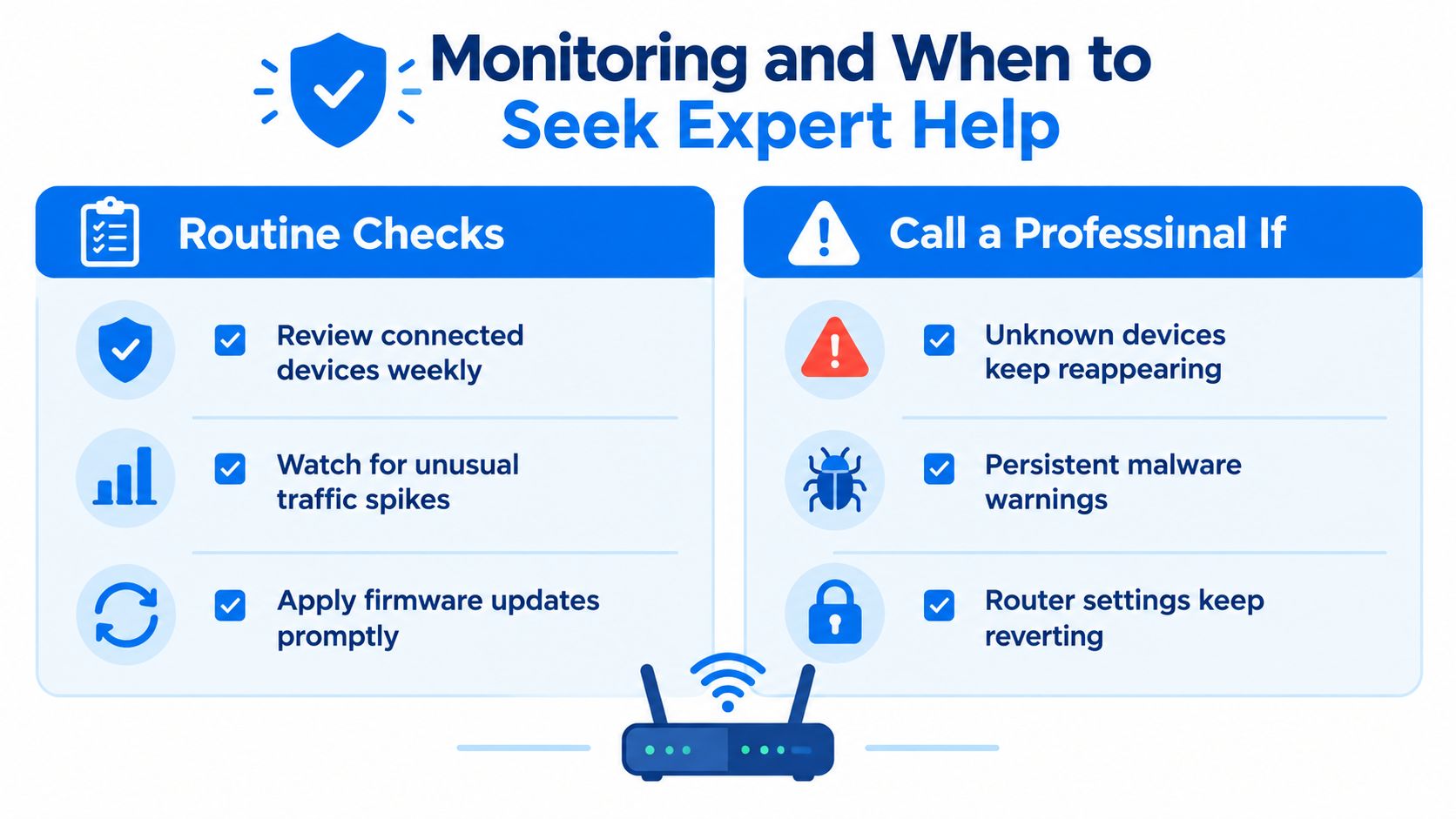
A homeowner can handle many routine checks. Log into the router occasionally, review connected clients, confirm that WPS and remote administration remain off, and look for settings that have changed unexpectedly. Keep an eye on devices that repeatedly disconnect, generate persistent security warnings or behave differently after an account or firmware change.
DIY monitoring is inexpensive and gives you direct knowledge of your setup. Its limitation is interpretation. A router may show a device name you don't recognise, but it won't always explain whether that device is harmless, compromised or just using a generic manufacturer label.
Choose the right level of help
| Situation | Sensible first response |
|---|---|
| You have a few familiar devices and clear router menus | Inventory them, apply updates and harden the settings yourself |
| You work from home and share the connection with family devices | Separate work equipment from IoT and consider managed firewall support |
| Unknown clients return after removal | Change credentials, check firmware and ask a qualified engineer to investigate |
| Settings revert, malware warnings persist or remote access is unclear | Stop experimenting and seek professional assistance |
Home workers and microbusinesses need a stricter boundary because one connection may carry both personal and company traffic. A compromised router can expose more than streaming accounts, particularly when work laptops, printers and storage devices share the same local network.
Don't confuse a security product with a security process. A monitoring service can be useful for cameras or premises protection, and you can choose a provider for video verification when visual confirmation is part of your security plan. It won't, however, replace router patching, administrator-password changes or IoT isolation.
Networking2000 is one UK support option for households and small businesses that need practical help with wireless networks, routers, managed firewalls and connected security systems. Professional assistance makes sense when you can't identify devices, when a home office needs separate access policies, or when settings keep reverting after you secure them.
Your Home Network Security Checklist
Use this checklist as a baseline whenever you set up a new router, add a smart device or change broadband provider. The aim isn't to create an enterprise network in a living room. It's to remove avoidable weaknesses and make the remaining risks visible.
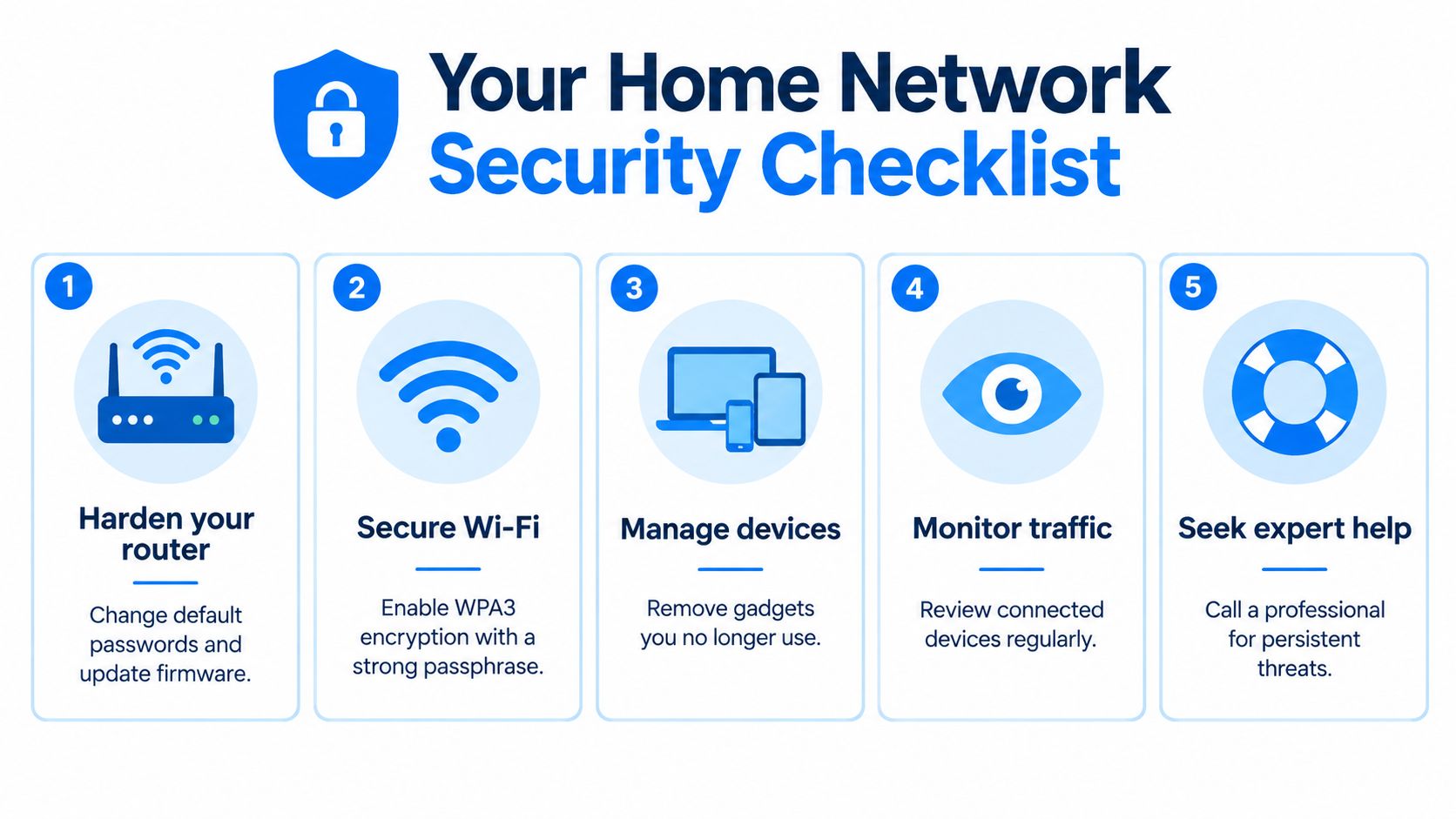
The five checks that matter
- Harden the router: Record the model and firmware, change the administrator password, disable remote administration, remove unnecessary port forwarding and review UPnP.
- Secure Wi-Fi: Use WPA3-Personal where supported, or WPA2-Personal when older devices require it. Replace the factory passphrase with a unique value.
- Manage devices: Check the router's client list, remove equipment you no longer use and investigate anything you don't recognise. Put lower-trust IoT devices and visitors on a separated network where possible.
- Maintain updates: Enable automatic router firmware updates or perform a regular manual review. Patch phones, computers, cameras, televisions and other connected products through official channels.
- Monitor the result: Confirm that authorised devices reconnect, guest clients can't reach primary devices where isolation is intended, WPS is off and no unwanted external services remain exposed.
A good completion test is simple. You should know what is connected, which network each device uses, who can administer the router and whether the important equipment still receives updates. If you can't answer those questions, the network isn't finished just because the Wi-Fi password has changed.
Call an expert when an unknown device returns, malware warnings continue, router settings change without explanation or your work equipment shares an unmanaged network with vulnerable smart-home products. The right support should explain the risk in plain English, document the changes and leave you with a setup you can maintain.
Networking2000 provides home and business IT support across London and Essex, including router configuration, wireless networking, managed firewalls and practical security advice. If you want an engineer to review your devices, firmware, segmentation and home-office exposure, visit Networking2000 and request help with your network.

