What if the Wi-Fi problem isn’t a lack of access points, but a network that wasn’t planned around how your office works? Dropped calls, dead zones and slow cloud tools can disrupt the day, whilst simply adding more equipment may not solve the cause. Reliable corporate office wi-fi depends on planning coverage, capacity and security together.
You need a connection that works across desks, meeting rooms and shared spaces, with enough capacity for staff, visitors and business devices. You also need to manage access appropriately and protect business systems without making everyday work harder.
This guide explains how to plan office Wi-Fi around your people, premises and working patterns. You’ll learn what affects access point placement and network capacity, how to approach security with standards such as WPA3, and what to consider when planning for newer Wi-Fi generations. We’ll also look at how managed IT support and firewall protection fit into a dependable, secure network plan, so you can make practical decisions with confidence.
Key Takeaways
- Corporate office wi-fi needs to support how your team works, not just provide a signal near the router.
- Compare a single router, multiple access points and mesh-style arrangements against your office layout, user numbers and plans for change.
- Map meeting rooms, shared spaces, busy areas and staff routes to identify where coverage and capacity matter most.
- Plan Wi-Fi as part of your wider business network, including how devices connect and how access is kept secure.
- See how managed IT support and firewall protection can help businesses in Wickford and Essex maintain a joined-up IT environment.
Why corporate office Wi-Fi needs more than a standard home router
A workplace network has a different job from the wireless set-up in a typical home. It may need to carry video meetings, cloud software, staff mobiles and business equipment at the same time, across several rooms and changing work areas. Corporate office wi-fi should be planned around who uses it, which devices connect and what the network needs to support.
Coverage is where a usable signal reaches, capacity is how well the network handles demand, and security is how access and data are protected. These factors work together. A strong signal in a meeting room won’t prevent calls breaking up if too many devices are competing for capacity. A fast connection still needs appropriate security.
What makes office Wi-Fi different from home Wi-Fi?
A household network usually serves a smaller group of people and devices. In an office, staff may connect laptops and mobiles whilst business equipment uses the network too. Several people could be on video calls, accessing cloud files or using online systems simultaneously. That concurrent demand can make a home-oriented router struggle, even if it seems adequate when only a few devices are connected.
Buildings add another variable. Walls, floors and partitions can weaken or obstruct wireless signals. A busy shared area may also have more devices competing for a connection than a nearby desk. So a signal that works well beside the router may be unreliable elsewhere. For background on how wireless networking operates, see this Wi-Fi technology overview.
Internet speed and local Wi-Fi performance are related, but they’re not the same thing. Your broadband connection brings internet access into the premises; the wireless network carries it from the network equipment to devices around the office. A fast internet service can’t resolve a weak local signal or a congested wireless connection.
Which everyday business tasks depend on reliable wireless?
Cloud platforms need a stable connection to load files, update shared work and keep applications responsive. Video meetings depend on consistent network performance for clear sound and picture. If the connection drops or fluctuates, staff may miss parts of a conversation, reconnect repeatedly or resort to a workaround that slows the task down.
Coverage also needs to follow the working day. Someone moving from a desk to a meeting room should be able to stay connected, rather than discovering that a call or document access fails in a particular corner. Mapping these routes can reveal gaps that a quick check beside the router might miss.
- Staff devices: laptops and mobiles need dependable access wherever people work.
- Visitors: guest access may need to be considered separately from staff connectivity.
- Business equipment: connected devices may have different access and reliability needs from a staff laptop.
Weak office Wi-Fi is more than an inconvenience. Interrupted work, unreliable calls and repeated workarounds can affect everyday operations. Start by identifying the users, spaces and tasks that matter most, then assess whether coverage, capacity or both are causing the problem.
How corporate office Wi-Fi delivers coverage, capacity and secure access
A workplace wireless network relies on several components working together. Access points connect wireless devices to the wider business network, whilst switches, routers and other network equipment carry traffic to the right destination. Planning these parts as a system helps avoid assuming that adding Wi-Fi equipment will automatically solve every problem.
Access point placement affects coverage because walls, floors, furniture and distance can weaken or obstruct the wireless signal. A unit tucked away at one end of an office may leave rooms or busy areas with a weak connection. Positioning access points around the layout and use of each area can help provide a more consistent signal.
How access points and Ethernet work together
An access point is a connection point for wireless devices such as laptops and mobiles. It typically links back to network equipment over Ethernet cabling, which carries data between the access point and the rest of the business network. These wired links give wireless devices a route to shared systems and the internet, so their quality and capacity matter too.
Adding access points without reviewing their placement, wired connections and the network behind them can leave the original bottleneck in place. Extra wireless coverage, for example, won’t resolve congestion on an overloaded network link. A sound design considers both where access points are needed and how they connect to the wider infrastructure.
Why capacity and secure access matter
Coverage is the area where devices can connect; capacity is how well the network handles demand in that area. A strong signal doesn’t guarantee smooth service if staff are making calls, downloading files and using cloud applications at the same time. Capacity planning considers the number and type of devices, the work they do and when demand is likely to peak.
Security also depends on managing who and what can connect. WPA3 is a Wi-Fi security standard designed to protect wireless connections. A VLAN, or virtual local area network, separates devices into distinct sections of a network. For example, a business might give staff and visitors separate network access, helping limit which systems each group can reach. The right arrangement depends on the wider network and should stay aligned with current security guidance.
For organisations providing public Wi-Fi, the UK Public Wi-Fi Safety Standard offers information about the UK Government-initiated Public Wi-Fi Safety Assurance Standard. It’s a useful reference when considering guest access, alongside the separate security needs of business systems.
Reliable corporate office wi-fi comes from balancing signal reach, shared capacity and controlled access, not simply choosing the newest equipment. Managed firewall protection can complement this design by helping protect the wider business network. Businesses in Wickford can connect wireless planning with managed IT support and consider how devices, network access and security are managed together.
How to compare corporate office Wi-Fi options without overengineering
The right set-up depends on the workplace, not the number of features on a router’s specification sheet. Compare options against the areas staff use, the devices they connect and how the business may change. A newer Wi-Fi generation can offer useful capabilities, but it won’t automatically fix a poorly placed access point, an obstructed signal or a congested network.
Use this comparison as a starting point. It highlights typical trade-offs rather than prescribing a design for every office.
One-router set-up
Coverage: May suit a compact, open space where users work near the router. Users and layout: Less suited to busy areas or buildings with several rooms and signal obstacles. Management and change: Simpler to manage, but may offer less flexibility as teams or premises expand.
Multiple access points
Coverage: Can extend wireless access across different rooms or areas. Users and layout: Placement can reflect where staff work and where demand is highest. Management and change: Offers scope to adjust coverage, though access points and their network connections need to be planned and managed.
Mesh-style arrangement
Coverage: Uses connected units to extend wireless reach. Users and layout: May suit spaces where running wired connections is difficult, depending on the system and site. Management and change: Consider how units communicate and whether the arrangement can support expected use as the office changes.
For a fair comparison, consider coverage, expected users, building layout, management needs and room for change. An open-plan office may have different needs from a multi-room premises with meeting spaces and busy shared areas. Avoid choosing by floor area alone: the materials and layout between devices and access points can affect the signal.
When might an office need multiple access points?
Multiple access points may be worth considering where staff regularly use separate rooms, floors or areas, or where the building layout creates weak spots. There’s no reliable fixed rule for how many a site needs. Placement should reflect the environment and actual use. Mapping signal conditions and problem areas before equipment is added or moved can help identify what needs to change.
How should a business weigh Wi-Fi standards and mesh options?
Wi-Fi 6, Wi-Fi 6E and Wi-Fi 7 are generations of wireless capability, not promises of a particular speed or coverage. Their benefits depend on compatible devices and a suitable network design. Mesh-style equipment can extend access without the same layout of wired access points, whilst wired links provide a direct connection to network equipment. The best fit depends on the premises, device mix, user demand and future plans.
Match capability to business needs. If staff devices don’t support a newer generation, they may not use its full features; if the building has persistent dead zones, newer equipment alone may not resolve them. Consider planned growth too, such as more users, connected devices or changes to working areas. This keeps corporate office wi-fi practical, rather than more complex than the business needs.
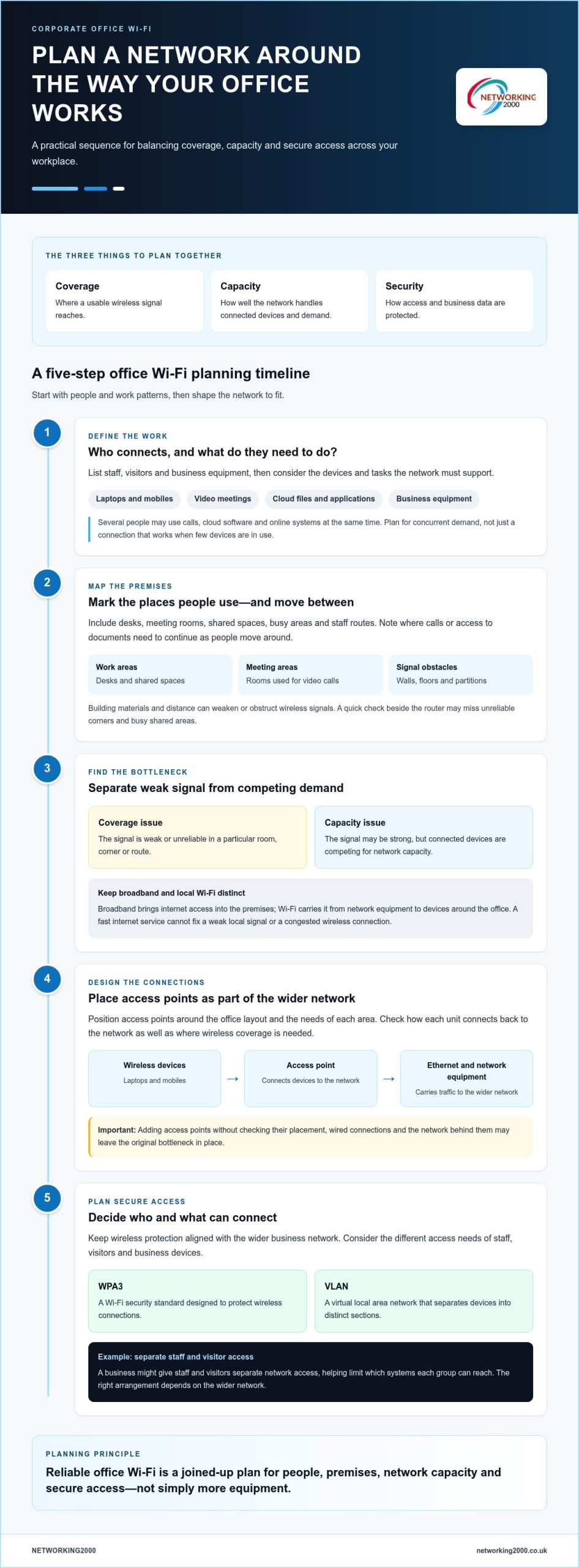
A practical corporate office Wi-Fi planning checklist for UK businesses
A useful Wi-Fi plan starts with evidence, not equipment choices. Record how the office operates, where connections fall short and what the business expects to change. This gives staff and IT teams a shared picture of the problem before decisions are made.
Work through this sequence:
- 1. Map users and spaces. Mark desks, meeting rooms, shared spaces, busy areas and the routes staff regularly take between them. Include spaces used by visitors.
- 2. Identify problem areas. Record dead zones, intermittent connections and the places where calls or online work are disrupted. Note when issues occur, such as during busy meetings.
- 3. Assess devices and activities. Estimate the usual number and types of connected devices, including staff laptops, mobiles and business equipment. List the tasks that depend on wireless access.
- 4. Set priorities. Decide which areas and activities matter most to day-to-day operations. Consider security needs for staff, visitors and business devices, without assuming every organisation needs the same access arrangement.
- 5. Plan review. Note expected changes, such as staff growth, room alterations or new connected equipment. Review performance after changes and revisit the plan as working patterns evolve.
What should an office Wi-Fi assessment record?
Alongside a floor plan, note typical device numbers, the work taking place in each area and staff reports of connection problems. Flag meeting rooms and shared spaces where demand may rise at particular times. Record future changes too. A team expansion or room move can alter where coverage is needed, so including these plans helps keep the assessment useful beyond the immediate fix.
How can a business reduce disruption when improving Wi-Fi?
Start with the issues that affect important work most, rather than trying to change everything at once. Plan equipment or network changes around business operations, and tell staff in advance if they should expect an interruption. After the work, gather feedback and note recurring connection problems. This helps establish whether the change has addressed the issue or simply moved the weak spot.
Wireless access is one part of network security. Consider how staff, visitors and business equipment connect, and how those connections relate to the systems they need to reach. A managed firewall can form part of wider network protection, alongside access controls suited to the organisation. The plan should reflect the office’s users, devices and security priorities.
A clear assessment makes it easier to connect Wi-Fi decisions with wider IT planning. To discuss how managed IT support can help your business plan and maintain its IT environment, speak with Networking2000.
Bringing office Wi-Fi into a managed business network in Wickford
Office Wi-Fi works best as part of a joined-up business network, not as a standalone fix. The wireless connection links people and equipment to business systems, but its performance and security also depend on the devices connecting, how network access is managed and how the wider infrastructure is maintained.
A connection problem can have more than one cause. A dropped call might point to weak wireless coverage, but it could also involve a device, a network link or another part of the IT environment. Looking at these elements together helps businesses investigate issues in context instead of treating every disruption as a Wi-Fi fault.
How managed IT support fits around office connectivity
Managed IT support helps businesses maintain and plan their wider IT environment, including the systems and devices staff rely on each day. A clear support relationship can also help coordinate connectivity concerns with other IT issues, such as device access or network security. For broader perspective on how technology providers structure end-to-end network management, resources such as carolinaitg.com illustrate how managed IT solutions keep business operations running smoothly.
Security is part of that picture. Wireless access should sit alongside appropriate protection for the wider business network, rather than being considered in isolation. Managed firewall protection can contribute to that wider approach by helping safeguard business systems. The right plan reflects how the organisation works, which devices need access and how its IT environment may develop.
What should the next step look like for a Wickford business?
Before discussing changes, gather a simple picture of the current situation. Note the office locations, the people and devices using the network, the work that depends on connectivity and any persistent problems. Include when and where issues occur. This gives a practical starting point for considering whether the concern sits with Wi-Fi coverage, network access or another part of the IT set-up.
Networking2000 is based in Wickford and provides managed IT support for small and medium-sized businesses. A conversation about your requirements can put connectivity into context alongside your wider IT needs and help identify practical next steps.
To discuss your business IT requirements, speak with Networking2000. Sharing your locations, users, devices and ongoing connectivity issues can make that discussion focused and useful.
Turn your connectivity priorities into a clear plan
Your next step doesn’t need to be a major network overhaul. Start with one practical question: what should staff be able to do reliably in every part of the workplace? Use that priority to guide decisions about corporate office wi-fi, then review the plan as your team, devices and working patterns change.
A focused conversation can help connect wireless requirements with the wider IT environment, including the systems people depend on and the security controls that protect them. Networking2000 supports small and medium-sized businesses with managed IT support, firewall protection and IT security. Keep technology decisions grounded in how your business operates and what staff need from the network.
Discuss your business IT requirements with Networking2000. Share your connectivity priorities and wider IT needs to start a practical conversation.
Frequently Asked Questions
Does office Wi-Fi need a separate guest network?
A separate guest network is often a sensible way to give visitors internet access without placing them on the same network as staff systems. A visitor may need to check email, for example, but shouldn’t need access to shared business files or printers. The exact set-up depends on what your organisation needs to protect and which devices visitors should reach. Review guest access as part of your wider security planning.
Can office Wi-Fi support video calls and cloud applications at the same time?
Yes, if the network has enough usable capacity for the number of people and devices active at once. A team meeting with several staff on video, alongside cloud file syncing and routine application use, creates more demand than a quiet office. Consider your busiest working periods, not just average use. If calls regularly falter at peak times, record when it happens and which applications are affected before investigating.
How can staff move between office rooms without losing Wi-Fi?
Staff can usually move between rooms more smoothly when wireless coverage overlaps and their devices can switch between access points. Both access points and client devices influence that handover, so a layout alone can’t promise seamless roaming. Test the route staff actually take, such as from a desk to a meeting room during a call. Note where devices disconnect or pause, then use those observations to guide adjustments.
Is Wi-Fi 7 necessary for a small office?
Not necessarily. Wi-Fi 7 may be useful where compatible devices and demanding work can make use of its capabilities, but it isn’t a requirement for every small office. Older devices won’t gain all the benefits simply because the network equipment supports a newer standard. For a small business in Wickford, consider the devices staff use now, likely replacements and actual performance problems before deciding whether an upgrade is worthwhile.
Why is office Wi-Fi slow when the broadband connection is fast?
A fast broadband service doesn’t guarantee that every device receives a fast wireless connection. The cause could be a weak signal, interference, a busy access point, an older device or a local network issue. Compare performance near the network equipment with performance where staff notice the slowdown. If only one device is affected, start with that device; if several are, note the location and time to help narrow down the cause.
Can a business use mesh Wi-Fi in an office?
Yes, mesh Wi-Fi can suit some offices, particularly where extending a wired connection is difficult. Its performance depends on the equipment, building and how mesh units connect to each other. In a busy workplace, consider whether that connection can handle expected use and whether wired access points would better suit the layout. Test the arrangement where staff rely on it, rather than judging it only by signal strength near a mesh unit.
How often should a business review its office Wi-Fi?
Review it when something changes, such as a team growing, a room being repurposed or new equipment being added. It’s also useful to check staff feedback periodically, even if no major change is planned. Keep a brief record of recurring dropouts, affected areas and busy periods, then compare it with earlier notes. This helps spot a developing issue before it becomes a regular obstacle to work.

