More than 300,000 UK companies use Microsoft 365, and the platform holds about 47.9% of the office productivity suite market. A dependable Microsoft 365 setup is less about installing software and more about choosing the right plan, preparing your domain, and establishing security before users start working.
That distinction matters when you're running a business in London, Essex, or anywhere else in the UK. A typical transition starts with an owner who has email spread across an old hosting account, files saved on individual laptops, Teams installed but unused, and several personal Microsoft accounts filling the gaps. The business needs better control, but it can't afford a day of lost email or a rushed migration that leaves staff unable to work.
Microsoft 365 can bring email, files, meetings, identities, devices, and security into one organised environment. It can also create a confusing tenant, weak sharing permissions, and preventable support calls if the first decisions are made in the wrong order. The practical approach is to plan the operating model first, then configure the technology around it.
Table of Contents
- Laying the Groundwork for a Successful Deployment
- Choosing the Right Plan and Preparing Your Domain
- Migrating Email and Setting Up User Accounts
- Configuring Core Tools and Security Essentials
- Integrating Devices and Managing Windows
- Ensuring Long-Term Resilience and Support
Laying the Groundwork for a Successful Deployment
A business owner rarely starts with a clean technical brief. More often, the starting point is a conversation about a departing employee who still has access to files, a mailbox that is nearly full, or a laptop that contains the only copy of an important client document. Those problems point to the same underlying issue: nobody has defined how the business should use Microsoft 365.
The first task is to map the current environment. List every user, mailbox, shared address, device, file location, domain, and application that staff rely on. Include the awkward items, such as a director's personal OneDrive, an old POP mailbox, or a spreadsheet stored on a receptionist's desktop. A setup plan that ignores those dependencies will fail during migration, regardless of how well the tenant itself is configured.

Build the project around decisions
A clean deployment usually follows this sequence:
- Assess the working environment: Identify how people communicate, where they store information, and which devices need access.
- Choose the subscription model: Match licences to job roles rather than assigning every available feature to every person.
- Prepare the tenant and domain: Confirm ownership, establish administrator access, and plan the DNS changes before moving mail.
- Create identities and security controls: Set up named users, separate administrative accounts, MFA, and access policies.
- Migrate in a controlled window: Move email and files after testing, then verify delivery, permissions, mobile access, and shared resources.
- Hand over an operating routine: Document who manages users, how access is removed, where files belong, and how incidents are reported.
This sequence prevents a common mistake: creating a tenant just because the sign-up screen is available. The tenant name, initial administrator, domain strategy, and licensing choices affect later administration. Changing them after users and mailboxes are active creates avoidable rework.
Microsoft 365 has a particularly strong UK footprint. The UK is described as its second-largest market globally, and another UK-oriented source reports that the country represented 10.3% of the matched global company base using Microsoft 365 in 2026. Those figures help explain why standardised onboarding, email migration, Teams configuration, SharePoint permissions, and security hardening are such familiar requirements for UK businesses. UK Microsoft 365 adoption context and market data
Practical rule: Treat the tenant as a business system, not as a disposable trial account. Decide who owns it, who administers it, and how the business will recover access before inviting the first user.
Choosing the Right Plan and Preparing Your Domain
The right Microsoft 365 plan depends on how people work, not on which package has the longest feature list. Start by separating user roles. A desk-based employee who needs Outlook, Teams, OneDrive, and shared documents has different requirements from a warehouse worker, a contractor, a meeting-room account, or a director who needs stronger device and security controls.
Make the licence decision role by role
Write down the applications each role needs, then check whether the selected business plan includes them. Consider these questions:
- Core productivity: Does the user need installed desktop applications, or will browser and mobile access be sufficient?
- Collaboration: Will the role work in Teams, SharePoint, and OneDrive, or only receive and send email?
- Telephony: Is Teams Phone required, or will the existing phone system remain separate?
- Security and administration: Do the business's risk and compliance requirements justify advanced identity, device, email, or information protection controls?
- Growth: Can new starters, seasonal users, and contractors be added without creating a confusing collection of exceptions?
Avoid buying licences based solely on headcount. A small organisation can still need a carefully designed combination because roles differ. Equally, assigning premium features to everyone without a business reason increases cost and complicates administration.
Prepare the domain before the cutover
Your domain is the visible address customers use to reach you, so it needs careful handling. Confirm who owns the registration, who can change its DNS records, and whether the current website, email service, online forms, or third-party systems depend on that domain.
Microsoft 365 will ask you to verify domain ownership. Complete that verification while the existing email service is still working, then record the required DNS changes and the order in which they'll be applied. Email delivery depends on more than one setting, so include the records used for mail routing and sender authentication in the migration plan. Don't change everything at once without documenting the previous state.
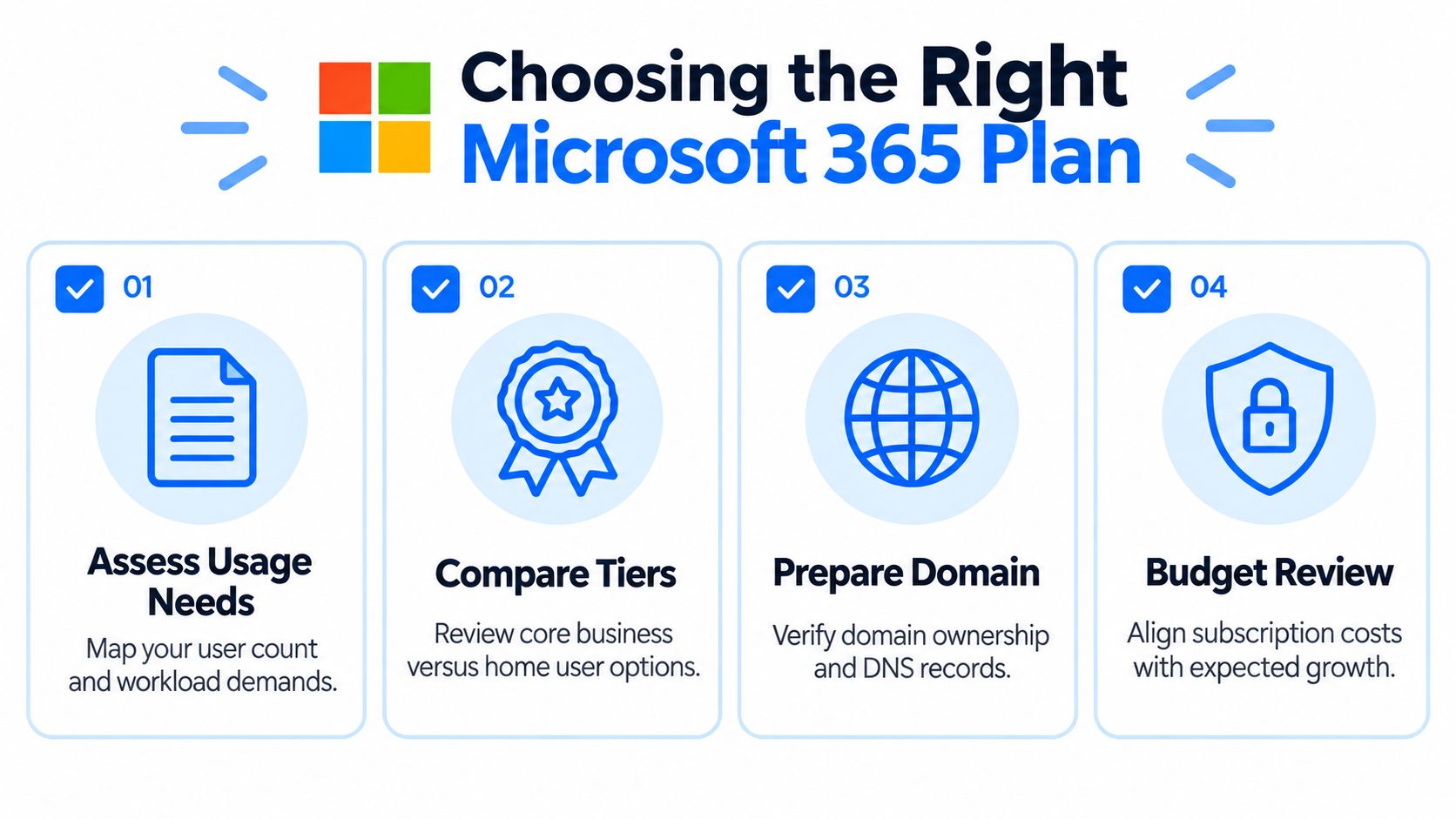
Microsoft's UK setup guidance presents both a full cutover and a gradual approach. The sensible choice depends on your technical capability, the applications you need, and whether Microsoft's data-processing arrangements fit your organisation. Microsoft's UK setup planning guidance also supports a staged sequence that introduces users and applications before expanding into Teams, OneDrive, and SharePoint.
For a small business with limited internal IT time, a staged rollout often reduces operational risk. A full cutover can be quicker when the current environment is simple and well documented. Neither approach is automatically superior. The wrong choice is starting the migration before you know which systems must continue working during it.
Migrating Email and Setting Up User Accounts
Email migration is where a technically tidy project meets real business history. Mailboxes contain years of conversations, contacts, folders, attachments, calendar entries, and forwarding rules. Before creating accounts, decide what must move, what can be archived, and who needs access to shared addresses such as sales, accounts, or enquiries.
Create named user accounts rather than relying on generic logins. Each person should have an individual identity, an assigned licence, and a clear role. Shared addresses should normally be represented by shared mailboxes or controlled groups, not by a password that several people know. This makes leavers easier to manage and gives administrators a clearer record of access.
Create identities in a controlled order
Use a small test group before importing the whole workforce. Select people who use different devices and work patterns, then confirm that they can sign in, access Outlook, send and receive messages, join Teams meetings, and open the files they need. Test accounts should represent the business, not just the easiest users.
Before communicating the change, prepare:
- User records: Confirm names, job roles, primary addresses, aliases, departments, and required licences.
- Access details: Provide a secure method for first sign-in and explain how users register their authentication methods.
- Mailbox structure: Document shared mailboxes, distribution groups, forwarding rules, and delegated access.
- Mobile access: Check Outlook and Teams on the devices staff use, including personally owned phones if permitted.
- Support instructions: Tell people where to report a failed sign-in, missing folder, undelivered message, or suspicious email.
Match the migration method to the source
An IMAP migration can move email messages from many older hosting platforms, but it generally doesn't reproduce every part of a modern Exchange environment. Calendar data, contacts, permissions, rules, archives, and folder structures may need separate treatment. Test the source first and set expectations with users before promising that their mailbox will look identical on the first morning.
A move from an existing Exchange environment can support a richer migration, but it brings its own dependencies. Check identities, mailbox permissions, mobile devices, autocomplete data, shared calendars, and applications that send mail through the old service. Line-of-business systems, website forms, scanners, and accounting platforms are frequent causes of post-cutover surprises.
Keep the old service available until delivery has been tested from outside the organisation and every important sender has been checked. Change the mail routing only after the tenant, users, and authentication process are ready. Then monitor delivery, quarantine, bounce messages, and user reports closely during the first working period.
Do not send passwords in ordinary email. Give staff a short, plain-language briefing that explains the sign-in address, the expected MFA prompt, the date of the change, and how to identify genuine support messages. Clear communication prevents users from responding to fake “Microsoft 365 migration” emails at exactly the moment they are most likely to trust them.
Configuring Core Tools and Security Essentials
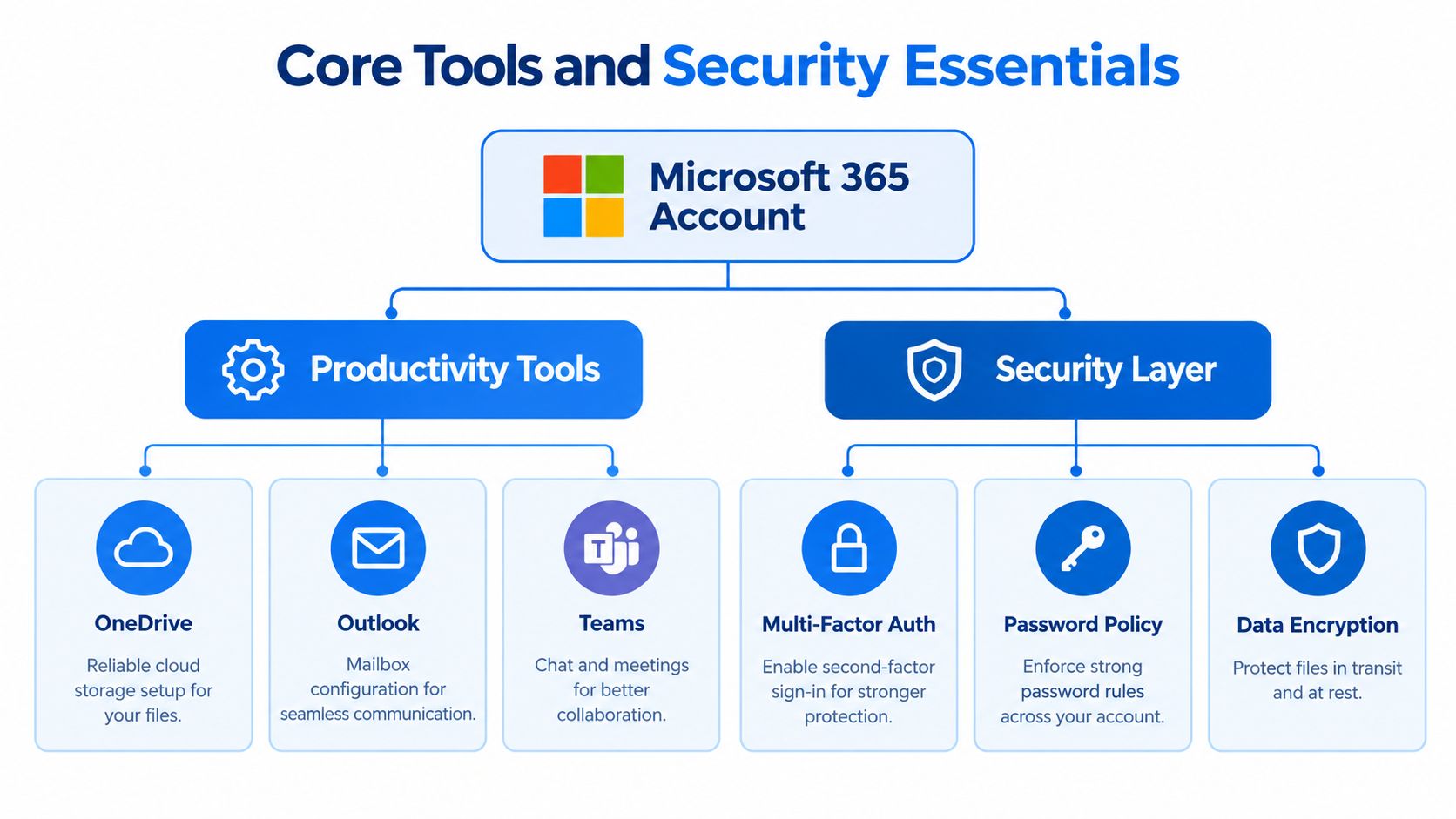
The most productive Microsoft 365 tenant still needs boundaries. OneDrive, SharePoint, Teams, and Outlook each solve different problems, and users need a clear answer to a simple question: where should this information live?
OneDrive suits an individual's working files and controlled sharing. SharePoint suits departmental or project information that the business owns. Teams provides conversations and meetings, but its channels can become a poor substitute for a filing system if nobody defines the relationship between Teams, SharePoint, and OneDrive. Outlook remains the right place for mailbox and calendar work, not a permanent document repository.
Set useful defaults before inviting everyone
Create a small information architecture before staff start making Teams and SharePoint sites. Name sites consistently, decide who can create new Teams, and define whether external sharing is allowed for each type of information. Set retention, deletion, and ownership expectations in language employees can understand.
A sensible baseline includes:
- OneDrive: Enable known-folder protection where appropriate, review sync behaviour, and explain what should not be stored locally only.
- SharePoint: Create sites around departments or projects, assign owners, and restrict broad sharing by default.
- Teams: Establish naming and channel conventions, then configure meeting and guest policies to suit the business.
- Outlook and Exchange: Review mailbox permissions, mail flow rules, anti-spam controls, and sender authentication.
- Information protection: Consider DLP, retention, and access controls for personal, financial, client, or confidential material.
Security should begin with identity, not with a complicated dashboard. UK implementation guidance describes MFA and Conditional Access as capable of reducing unauthorised access risk by up to 99.9%, which is why identity hardening belongs at the front of the deployment rather than at the end. UK Microsoft 365 security implementation guidance
Harden the tenant in the right order
Create separate administrator accounts and protect them more strictly than ordinary user accounts. Enforce MFA across the tenant, block legacy authentication, and apply Conditional Access based on device state, sign-in risk, location, and the sensitivity of the resource. Test exclusions carefully so that an emergency administrator account remains usable without becoming an unmanaged back door.
Then review Defender for Office 365, SPF, DKIM, DMARC, external sharing, privileged access, and data loss prevention. These controls work as a system. MFA cannot compensate for an overly permissive SharePoint site, and a secure mailbox can still leak information through an unreviewed guest link.
For a wider view of how Exchange, Teams, SharePoint, identity, and connected services fit together, the enterprise M365 integration guide is a useful technical reference. It helps teams avoid treating Microsoft 365 as one application with one control panel.
Secure Score gives administrators a practical remediation queue. UK benchmark guidance places the industry average around 50%, describes a score above 70% as well hardened, and identifies 65% to 80% as a mature, compliant range for many UK firms. UK Secure Score and Microsoft 365 security benchmark guidance provides useful context, but the score should guide decisions rather than become the only measure of security.
Microsoft 365 Copilot also shows why setup now includes governance and adoption. In a UK government pilot, 1,000 licences were available for a three-month trial from October to December 2024. Average daily active use was 21%, rising to 30% when weekends and bank holidays were excluded, while weekly active use averaged 64%. The UK government's Microsoft 365 Copilot evaluation reported that Word, Teams, and Outlook were the most-used applications, with daily use in each by around 10% to 15% of licence holders. The lesson for a smaller organisation is practical: licence allocation, permissions, training, and usage review need to be planned together.
Integrating Devices and Managing Windows
A cloud identity is only as useful as the devices that use it. If staff sign into Microsoft 365 from unmanaged Windows computers, administrators have limited ability to enforce updates, encryption, screen-lock settings, or access rules. Device management should therefore be part of the Microsoft 365 setup, not an afterthought.
Start with an equipment register. Record each computer's owner, operating system, age, encryption status, local administrator access, and business purpose. Remove unknown devices from the process rather than adding them to the new environment. A clean device is easier to manage than one carrying years of unrelated accounts and software.
Join and enrol devices deliberately
For a new or rebuilt Windows computer, use the organisation's work account during setup and join it to the Microsoft Entra ID environment. For an existing machine, confirm that the user has backed up important data, remove unnecessary personal accounts, and check that the device meets the organisation's security requirements before joining it.
Device enrolment should allow administrators to apply policies centrally. Configure, test, and then enforce settings such as:
- Encryption: Protect data if a laptop is lost or stolen.
- Updates: Set a managed approach to Windows and application patching.
- Endpoint protection: Confirm that Microsoft Defender or the chosen security platform is active and reporting.
- Local privilege: Remove everyday administrator rights where the business can operate without them.
- Compliance: Use device status as a condition for accessing sensitive services.
- Recovery: Store recovery information where authorised administrators can retrieve it.
A staged device rollout is safer than enrolling every machine at once. Start with an administrator and a small group of users, test printers, line-of-business applications, VPN access, mapped resources, and meeting-room equipment, then expand. Keep a break-glass procedure for a device that loses access to the tenant, and document how the helpdesk will verify identity before changing access.

The office network still matters. Wireless coverage, router configuration, firewall rules, structured cabling, DNS resolution, and internet resilience all affect Teams calls and cloud access. A compliant laptop cannot compensate for a congested wireless network or a router that blocks required traffic.
Keep cloud and physical infrastructure under the same operational plan. When a user reports that Teams is failing, check the device, identity, client version, wireless connection, router, and service status rather than assuming the tenant is at fault. That joined-up approach is particularly valuable for businesses spread across offices, home workers, and sites in London or Essex.
Ensuring Long-Term Resilience and Support
A Microsoft 365 setup becomes dependable when the business can operate it after the project team leaves. That means documented ownership, tested recovery, monitored alerts, and a clear route for resolving problems. Configuration alone doesn't provide resilience.
Start with the data. Decide which information belongs in OneDrive, SharePoint, Teams, Exchange, or an approved business application. Then confirm how each location is protected against accidental deletion, unwanted changes, compromised accounts, and a user leaving the company. Microsoft 365 retention features and version recovery are useful, but they don't remove the need to define what the business must recover and how quickly it needs to do so.
Treat backup as an operational control
Cloud synchronisation isn't the same as an independent backup. If a user deletes a file, corrupts a document, or synchronises an unwanted change across devices, the same change may reach every synchronised location. Build a recovery plan that covers individual files, mailboxes, SharePoint sites, Teams-connected content, and a wider tenant incident.
A practical review asks:
- Recovery scope: Can the business restore a single file without restoring an entire site?
- Administrative protection: Can an attacker who compromises a global administrator also remove recovery options?
- Retention: Do recovery periods match contractual, legal, and operational requirements?
- Testing: Has someone restored data and confirmed that it opens, retains permissions, and makes sense to the user?
- Ownership: Does a named person know how to start recovery outside normal office hours?
Keep an approved record of the backup product, retention policy, administrator access, alert destination, and last test. Review that record when staff, applications, or regulatory obligations change. A backup that nobody can locate or restore is only an assumption.
Monitor the service and the people using it
Monitoring should focus on signals that require action. Review risky sign-ins, impossible travel alerts, repeated MFA failures, administrator changes, new guest access, suspicious mailbox rules, mass file activity, and unusual sharing. Configure alerts so they reach someone who can respond, rather than creating a dashboard that nobody checks.
Set a regular service review covering:
- Identity: Remove leavers, review privileged accounts, and verify MFA registration.
- Devices: Check encryption, patch status, compliance, and inactive computers.
- Data: Review external sharing, inactive sites, retention, and backup test results.
- Email: Inspect quarantine, forwarding rules, spoofing protections, and reported messages.
- Licensing: Match subscriptions to current roles and remove unused assignments.
- Adoption: Identify whether Teams, SharePoint, OneDrive, or Copilot is being used as intended.
The UK government Copilot evaluation illustrates why adoption data belongs in an operational review. Licence allocation alone doesn't show whether employees can use a tool safely or whether the organisation has configured it around real work. Measure useful behaviour, such as whether staff store documents in the right location, use approved sharing methods, and report suspicious messages.
Troubleshoot by isolating the layer
When a user can't sign in, don't immediately reset the password. Check whether the account is blocked, whether MFA is failing, whether Conditional Access is rejecting the device, and whether the device has network connectivity. A sign-in log often explains the decision more clearly than a user-facing error message.
For missing email, test the sender, recipient, mailbox, mail flow, quarantine, and DNS state separately. For Teams problems, compare the desktop client with the browser, check the user's licence and meeting policy, then investigate device audio, camera permissions, wireless coverage, and firewall behaviour. For missing files, identify whether the user is looking in OneDrive, a SharePoint site, a Teams channel, or an old local folder before changing permissions.
Keep a post-setup record
The handover should contain:
- Tenant and domain ownership details
- Administrative account responsibilities
- Licence assignments and renewal ownership
- Mailbox, shared mailbox, and group inventory
- SharePoint and Teams ownership
- Device enrolment and recovery procedures
- Security policies and approved exceptions
- Backup, retention, and restore-test records
- Supplier contacts and escalation routes
- A plain-language user guide
Local support can add value when the problem crosses between cloud services and the office itself. A London or Essex business may need someone to examine a Microsoft 365 policy, a Windows device, a wireless access point, a router, and a meeting-room setup during the same incident. Networking2000 offers IT support, Microsoft 365 assistance, managed firewalls, email services, connectivity, VoIP, wireless networking, routers, and structured cabling for businesses and home users across the region.
The most reliable Microsoft 365 setup is not the one with the most features switched on. It's the one with clear ownership, restrained permissions, recoverable data, managed devices, and staff who know what to do when something changes. Build those habits into the handover, then review them as the business grows.
If your London or Essex business needs help planning licences, preparing a domain, migrating email, securing Microsoft 365, or connecting cloud policies with local networks and devices, Networking2000 can provide practical support from initial assessment through ongoing administration. Visit the team to discuss your current setup and create a migration plan that keeps day-to-day work moving.

