You're halfway through a Teams call when the audio cuts out. A BBC iPlayer stream buffers during the scene, or a teenager's PS5 drops an online match for no obvious reason. The symptoms look identical on a phone or laptop, but the fault may sit in two completely different places.
The first question is simple: is Wi‑Fi failing, or is the broadband connection behind it dropping? In many UK homes and small offices, FTTC, FTTP and cable services connect through a single combined modem-router. That makes a line fault, router fault and wireless fault appear to be the same problem.
This distinction matters. A 2025 Uswitch report recorded 22.4 million people, or 41% of people in Britain, experiencing at least one broadband outage in the previous 12 months, with 238.7 million hours lost and an estimated £1.4 billion in lost work hours (Uswitch broadband outage report). Rebooting the router repeatedly won't repair a failing broadband service. The method below separates the layers first, then applies a targeted fix.
Table of Contents
- Why Your Wireless Network Keeps Disconnecting
- Diagnose Wi‑Fi vs Broadband in Five Steps
- The Four Common Causes of Wi‑Fi Dropouts
- Practical Fixes for Each Disconnect Cause
- Choosing the Right Coverage Solution
- Testing Tools That Confirm the Fix
- When to Escalate to Managed IT Support
Why Your Wireless Network Keeps Disconnecting
A laptop can show a strong Wi‑Fi signal while the broadband connection behind it has failed. In a combined ISP hub, the wireless network may still accept devices even though the WAN connection has lost synchronisation. Websites, cloud applications and streaming then stop responding, while the Wi‑Fi icon appears normal.
A different fault produces the opposite result. Ethernet can remain stable while a bedroom device loses its wireless association because of distance, interference or poor coverage. The same spinning icon appears in both cases, so restarting the router repeatedly wastes time.
The router isn't always the culprit
An ISP hub may terminate the broadband line, obtain a public connection, issue local IP addresses and provide both 2.4 GHz and 5 GHz Wi‑Fi. Its status lights can help separate those functions. If the broadband or internet light changes state during the dropout, check the WAN status and event history for lost synchronisation, authentication failures or repeated reconnects. If those indicators remain steady while one device disappears from Wi‑Fi, investigate the wireless side instead.
A wired device gives you the clearest comparison. During the next dropout, check whether an Ethernet-connected laptop can still open a website or reach the router's management page. A working wired connection with a failed distant client points towards Wi‑Fi coverage or interference. A wired failure at the same moment points towards the broadband service, ONT, modem or router WAN connection.
Practical rule: Don't change channels, replace the router or buy a mesh kit until you know whether Ethernet stays online during the dropout.
Ofcom's coverage information uses performance and availability measures that help put home results in context, including decent broadband defined as at least 10 Mbit/s download and 1 Mbit/s upload (Ofcom Wi‑Fi performance and coverage information). That does not identify an individual fault. Local line conditions, provider equipment, congestion and in-home wireless performance can still cause intermittent failures.
Record the time, affected device, router-light pattern and whether Ethernet failed. Then compare a second client and inspect the event log. Those details give an engineer usable evidence instead of a pile of reboots.
Diagnose Wi‑Fi vs Broadband in Five Steps
A dropout reported as “Wi‑Fi” may be a broadband fault. Separate those two possibilities before changing channels, replacing equipment or buying a mesh system. Test one variable at a time, and record what happened.
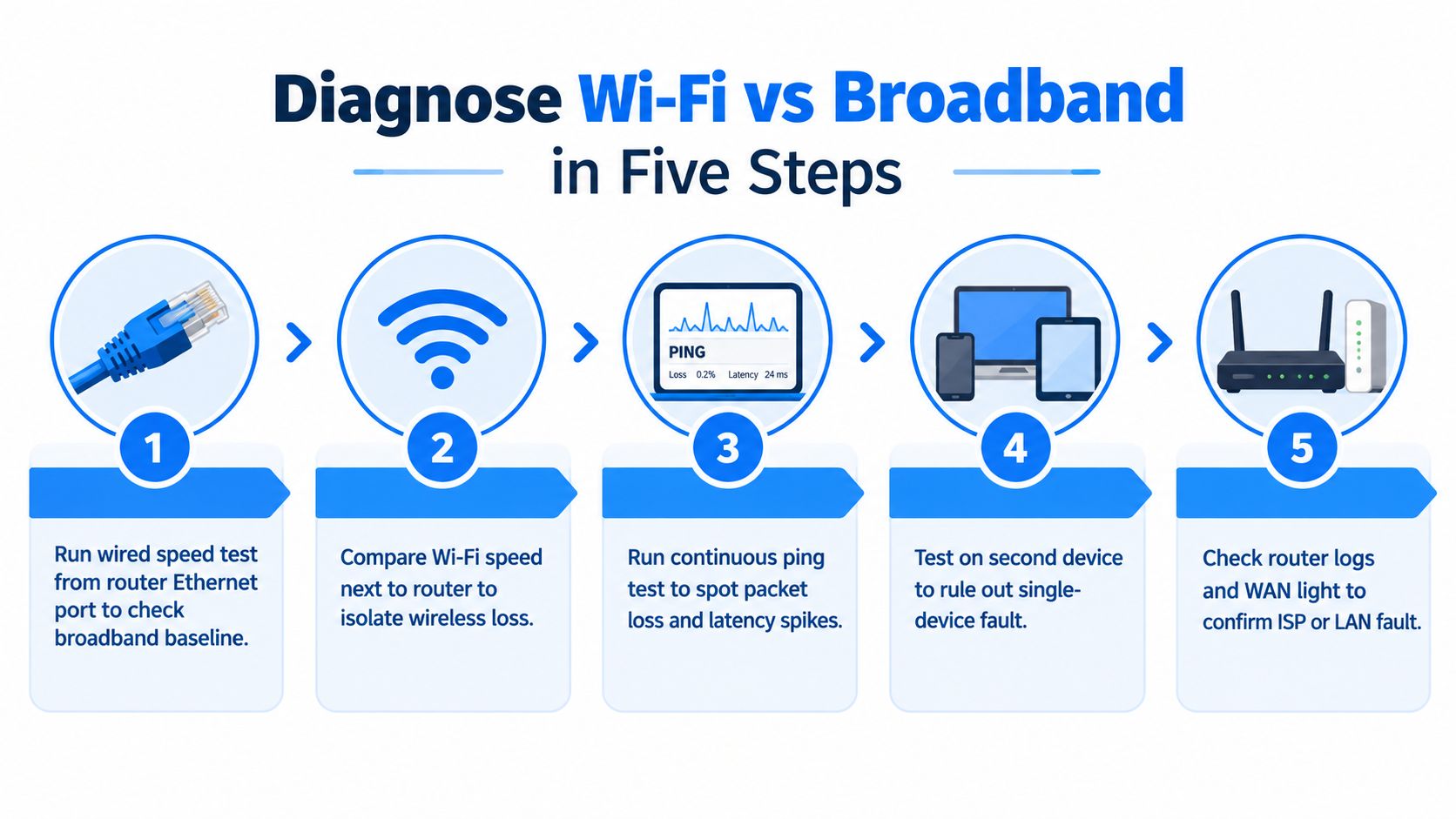
1. Establish a wired baseline
Connect a laptop to a LAN Ethernet port on the router using a known-good cable. Turn off the laptop's Wi‑Fi, then run the ISP's speed test or another reputable test. Record latency, download performance and upload performance.
A stable wired result makes an immediate broadband failure less likely, although an intermittent fault can still appear later. If Ethernet and Wi‑Fi fail together, examine the broadband service, ONT, modem and router WAN connection.
2. Repeat beside the router
Turn Wi‑Fi back on and test from close to the router, using the same service and test server. Ofcom-style testing compares short-range performance with results at 5 m and 10 m, and checks both 2.4 GHz and 5 GHz. Its testing of 15 home broadband routers found meaningful variation between router models and bands (Ofcom-style Wi‑Fi testing guidance).
Wi‑Fi that works beside the router but fails in the usual room points towards coverage, attenuation or interference. If it fails even beside the router while Ethernet stays reliable, check wireless settings and the client device.
3. Watch for packet loss
Run a continuous ping to the router's local address and, separately, to a reliable public host. Look for timeouts and latency spikes rather than relying only on speed-test results. Loss to both destinations suggests a local wireless or device problem. Loss beyond the router, with the local ping stable, points more towards broadband or upstream connectivity.
4. Read the router log
Check for DSL or fibre synchronisation loss, WAN reconnects, DHCP events and firmware warnings. A WAN loss at the same time as the dropout supports an ISP-side or access-line fault. A wireless disassociation affecting one client indicates a different fault path.
5. Swap the client
Test another laptop or phone in the same location. If only one device disconnects, update its operating system and wireless driver, remove the saved network profile, then reconnect. Windows users can follow this practical guide to fix Windows WiFi connection issues.
For a visual walkthrough, use this video:
Classify the result before taking action. All devices, including Ethernet, fail, so give the provider the WAN and timing evidence. Ethernet works while distant wireless clients fail, so investigate Wi‑Fi coverage or interference. One client fails while others remain stable, repair that device before changing the network.
The Four Common Causes of Wi‑Fi Dropouts
Once the wired test and router WAN status are stable, the fault usually sits on the wireless side. These four patterns cover most Wi‑Fi-only complaints I see in London homes and small offices.
Interference and channel contention
In a dense London block, neighbouring routers compete for airtime, especially on 2.4 GHz. Microwaves, Bluetooth equipment and older wireless devices can add noise or occupy the same channel. The usual pattern is a connection that works beside the router, then becomes unreliable at busy times or in one particular room.
Run a Wi‑Fi analyser from the affected location. Check overlapping networks and channel use rather than relying on the signal bars alone. A strong reading only shows that the device can hear your router. It does not show whether the channel is clear, so the client may still wait behind several nearby networks.
Firmware and client drivers
Router firmware faults, outdated laptop drivers and damaged saved profiles can produce repeated disassociations. If the problem affects one operating system or one laptop model while other devices remain connected, treat it as a client-side fault first.
Check the router's firmware release notes and the manufacturer's support page. Update in a controlled window, then forget and rejoin the network on the affected device. Improvement after those two changes is useful evidence, although it does not prove the firmware was the only cause.
DHCP, IP and DNS conflicts
A second router, extender or badly configured mesh node may issue local addresses when it should not. Devices can remain connected to the SSID while losing access, or reconnect with a different gateway. This often starts after new equipment is installed rather than after a broadband change.
Compare the gateway, IP address and DNS details on a failing device with those on a working device. Multiple DHCP servers or inconsistent gateway information point to a LAN configuration problem. DNS faults normally prevent name resolution, whereas duplicate addresses can interrupt wider local communication.
Weak coverage and attenuation
A router hidden behind a television, left on the floor or installed at one end of a long Victorian terrace may not cover the property reliably. 5 GHz travels less effectively through dense walls than 2.4 GHz, and foil-backed insulation can weaken both bands. Garden offices, loft conversions and upstairs bedrooms are common dead spots.
| Cause | Visible symptom | Diagnostic evidence |
|---|---|---|
| Interference | Drops at busy times or in one room | Overlapping networks or noisy channels in an analyser |
| Firmware or drivers | One device or model disconnects | Stable peers, outdated software or repeated client errors |
| DHCP or IP conflict | Connected status with lost access | Conflicting gateways, duplicate addressing or rogue DHCP |
| Poor coverage | Failure with distance or walls | Stable service beside router, weak signal farther away |
The expensive mistake is blaming the ISP for a local radio problem. Changing Wi‑Fi settings is equally wasteful when the router log shows repeated WAN loss. Keep those fault paths separate before replacing equipment or changing the broadband service.
Practical Fixes for Each Disconnect Cause
Start with the fault path, not the router reset. A device that loses Wi‑Fi while another remains stable points towards the local wireless network. If every device loses access together, check the broadband connection and router event log before changing radio settings. Apply one reversible change at a time, test the same device and room, and record the result.
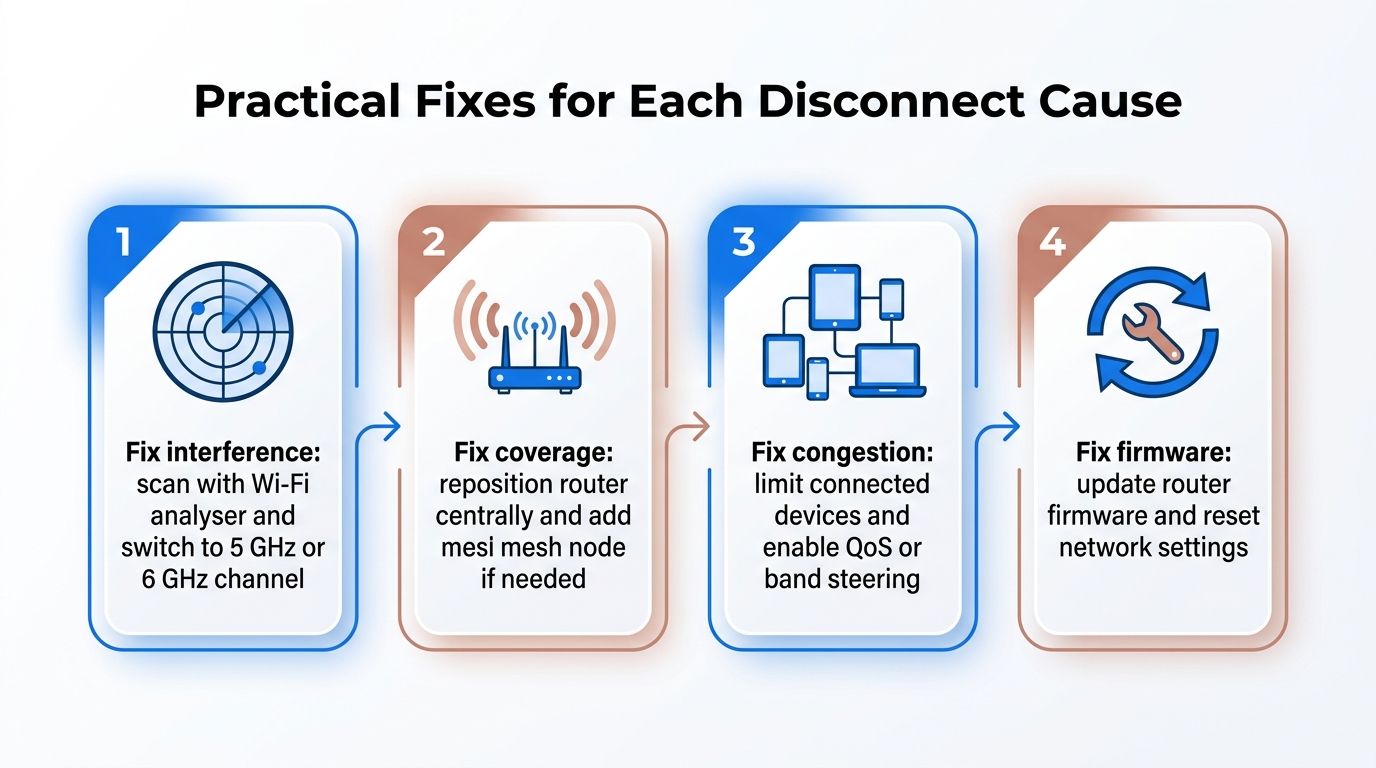
Reduce interference before increasing power
Run a Wi‑Fi analyser from the affected room. Where the router permits it, select a less congested non-overlapping channel, then test again. Use 5 GHz, or 6 GHz where supported, for nearby compatible devices. With older equipment, temporarily disable band steering so each band can be tested separately instead of allowing the router to move clients between radios.
Avoid maximum channel width in a crowded area. A narrower, cleaner channel can be more reliable than a wider congested one, even when a speed test beside the router reports a lower result.
Remove address conflicts
After adding a mesh node, extender or second router, confirm that only the primary router provides DHCP. Set the additional router to access-point mode where available. Compare the gateway and IP details from ipconfig on Windows, or the equivalent network information on macOS and Linux, with a working device.
Use a static lease for a printer, camera or server where changing addresses causes a problem. Extending the DHCP pool can help a busy small office, but do not assign static addresses at random, as that can create another conflict. This checklist of simple internet dropout fixes covers related checks.
Update the software stack
Download router firmware from the manufacturer's official support site. Export or photograph the current configuration first, then update during a quiet period. Install the current wireless driver from the laptop or chipset manufacturer, and apply pending system updates to phones and tablets.
After updating, forget the saved SSID and join it again. That clears stale security or profile data without immediately resetting every router setting.
Improve the radio environment
Move the router onto a central shelf, above floor level, and away from televisions, metal cabinets and large electrical equipment. Survey the affected room and use -65 dBm or better as a practical signal target. Treat that figure as guidance, because the client, building materials and application affect the result.
Replace hardware when it is the clear limitation. An ageing router, single-band N150 equipment or an ISP hub restricted to WPA2 may no longer suit a modern home or small office. Keep the existing configuration until the replacement has proved stable.
Choosing the Right Coverage Solution
A faster broadband package won't fill a dead spot. Match the wireless design to the building, wall construction and where people work.
| Building type | Recommended solution | Typical cost (£) | Notes |
|---|---|---|---|
| One-bedroom flat under 60 square metres | Single modern router | Qualitative | Place it near the main use area with clear airflow and minimal obstruction |
| Three-bedroom semi with solid internal walls | Two or three-node mesh | Qualitative | Prefer Ethernet or dedicated wireless backhaul where practical |
| Home with garden office or upstairs extension | Mesh with suitable node placement | Qualitative | Check floor-to-floor and outbuilding coverage before buying |
| Small office or multi-storey premises | Ceiling access points with PoE switching | Qualitative | Better roaming and more predictable coverage than several unrelated extenders |
A single router suits a compact flat when it has a reasonably clear path to the working and streaming areas. It becomes a poor choice when the signal must cross several solid walls, travel between floors or reach an external office.
Mesh is convenient and usually easier to deploy than cabling. Its trade-off is that wireless backhaul consumes airtime and can reduce consistency when nodes sit too far apart. Ethernet-backed nodes avoid that weakness, provided the property has suitable cabling.
Don't place a mesh node in the dead zone. Put it where it still receives a strong, stable connection from the main unit.
Ceiling-mounted access points connected through a PoE switch are the professional answer for offices, converted lofts and buildings with RSJ beams or multiple floors. They cost more to design properly, but central management, predictable roaming and wired backhaul make troubleshooting easier.
UK buildings introduce awkward variables. Victorian plaster and brick absorb signal, foil-backed insulation can block radio paths, and dense internal layouts create room-specific dead spots. ISP hubs are often perfectly adequate as modems but less effective as the only access point. Bridge or modem-only mode with a dedicated router can improve control, but only if the service supports that arrangement.
For a useful overview of extension options before choosing equipment, consult this guide by Celmin. Buy for the floorplan, not the headline wireless speed.
Testing Tools That Confirm the Fix
Start with evidence from the router rather than another reboot. Check wireless association events, WAN reconnects, signal levels and firmware status. Run a wired laptop test from the router at the same time, and check the ISP's service-status page. If the wired connection drops too, investigate broadband before changing Wi‑Fi settings.
Ofcom provides broadband and mobile coverage tools, and its Wi‑Fi testing approach supports comparing short-range performance with results farther away (Ofcom coverage and performance resources).
Useful Wi‑Fi tools
- Phone analysers: NetSpot, WiFi Analyzer and Ubiquiti WiFiman show channel use and signal levels.
- Laptop tools: inSSIDer and Acrylic Wi‑Fi offer deeper channel and signal-to-noise information.
- Operating system tools: Windows includes
netsh wlan show interfaces; macOS provides Wireless Diagnostics; Linux users can useiwconfigor wavemon. - Monitoring tools: A Raspberry Pi ping script or PingPlotter trial can graph intermittent loss over time.
A single speed-test result proves little. Test during normal calls, streaming and gaming, then monitor the connection for 48 hours. Record stability on every device, not only the laptop used for diagnosis. This separates a convincing one-off result from a repair that holds under real household use.
When to Escalate to Managed IT Support
DIY checks should stop when the evidence points to a persistent fault but does not identify the cause. Escalate if several users are affected, dropouts continue after wired and wireless testing, or the network carries VoIP, payment systems, CCTV or other business-critical services. A recurring wireless symptom can still originate on the broadband circuit, so keep those two faults separate.
A capable UK managed IT provider should trace the full path instead of replacing the ISP hub. The work may include testing between switches and access points, planning channels across floors, assessing structured cabling, deploying RADIUS or 802.1X, setting monitoring alerts, and coordinating with the ISP during line faults. Ask for findings that distinguish a broadband fault from an in-building Wi-Fi problem.
Managed support cannot repair a failing copper line, remove exchange-side congestion, or overcome heavy insulation through software. If the survey shows that cabling is needed, the provider should explain that requirement rather than sell another extender.
Vet the provider before signing
- Check credentials: Look for relevant CREST or ISO 27001 credentials when the provider will handle security-sensitive systems.
- Read the SLA: Confirm response targets in clock hours, rather than vague business-hours wording.
- Ask for references: Request examples from comparable homes, offices or multi-floor premises.
- Demand clear ownership: Establish who reports broadband faults, manages equipment, and handles work outside the contract.
Networking2000 provides IT support, wireless network installation, routers, managed firewalls, connectivity, VoIP and Cat5e or Cat6 cabling for homes and businesses across London and Essex. If your wireless network keeps disconnecting, Networking2000 can discuss separating the broadband fault from the in-building Wi-Fi problem through a practical assessment and support option.

