You've got a new Microsoft 365 mailbox, Outlook is open, and the password you've used all morning keeps being rejected. Or perhaps the account adds successfully, but calendars, shared folders, or outgoing mail don't work. This is a familiar position for UK home users and small businesses. Email setup in Outlook now depends as much on authentication and Microsoft 365 policy as it does on server settings.
Outlook remains a mainstream UK email client. In Ofcom's 2024 Online Nation reporting, Microsoft Outlook reached 50% of online adults, with Outlook covering the app, Outlook Lite app, and outlook.live.com, while Gmail reached 51% (Ofcom's Online Nation report). Earlier UK figures also placed Outlook and Hotmail at 46.6% of online adults, or about 23.2 million people, in September 2021, with Microsoft's services reaching 65% of 15 to 24-year-olds (UK Outlook usage data). Getting the setup right still matters, but the reliable route depends on identifying the mailbox type first.
Table of Contents
- Why Outlook Setup Trips People Up in 2026
- Before You Open Outlook
- Configuring Outlook Manually with IMAP
- Setting Up Exchange and Microsoft 365 Accounts
- Choosing Between POP, IMAP, and Exchange
- Securing Outlook After the Account Is Added
- Fixing the Most Common Outlook Setup Errors
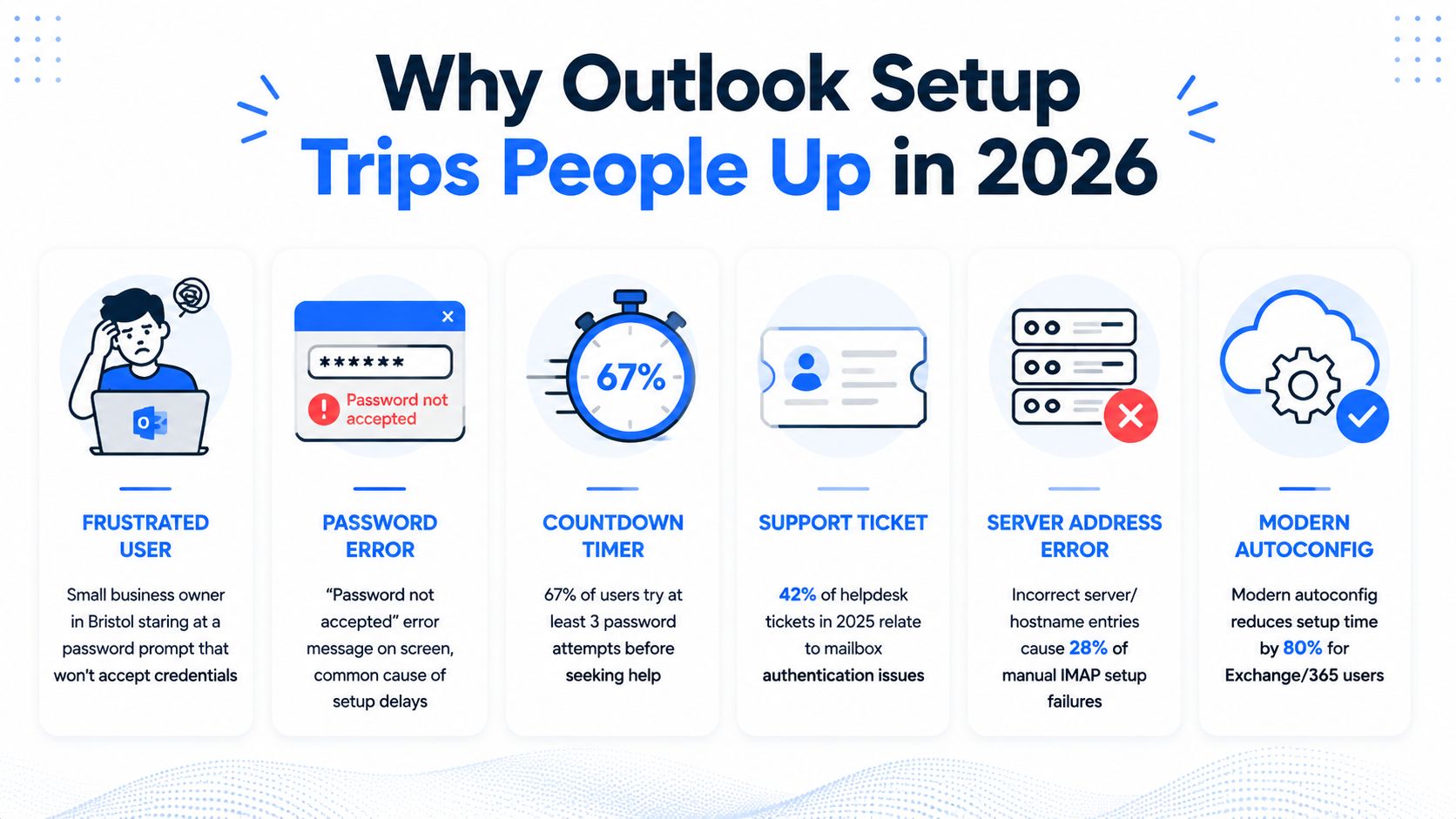
Why Outlook Setup Trips People Up in 2026
A small business owner in Bristol can follow an old Outlook guide perfectly and still end up stuck. They enter the email address, type the familiar password, and wait for the account to connect. Instead, Outlook returns to the sign-in window, or it reaches the server but refuses to send mail.
The problem usually isn't a typing mistake. Microsoft 365 accounts use modern sign-in methods, and a tenant may require multi-factor authentication, apply Conditional Access rules, or block older connection methods. An IMAP and SMTP tutorial that assumes a username and password are always sufficient can therefore lead users towards a dead end.
Practical rule: Treat the sign-in method as part of the account configuration, not as an afterthought.
The failure points tend to fall into a small group:
- Authentication prompts: MFA may require Microsoft Authenticator, SMS, or a security key before Outlook can finish adding the mailbox.
- Protocol mismatch: A Microsoft 365 mailbox added as basic IMAP won't provide the full Exchange experience.
- Policy restrictions: A business tenant may block legacy authentication or SMTP AUTH, even when the same settings appear in an older guide.
- Product differences: Classic Outlook and New Outlook don't expose the same menus or account options.
- Local interference: Stored Windows credentials, VPNs, proxies, antivirus tools, and firewall rules can interrupt an otherwise valid connection.
Microsoft's own guidance for Outlook.com and Microsoft 365 explains the supported IMAP and SMTP values, while also steering users towards modern authentication where available (Microsoft's POP, IMAP and SMTP settings). The practical lesson is simple. Before changing ports repeatedly, establish whether the mailbox should use Exchange, OAuth sign-in, or a provider-specific app password.
Before You Open Outlook
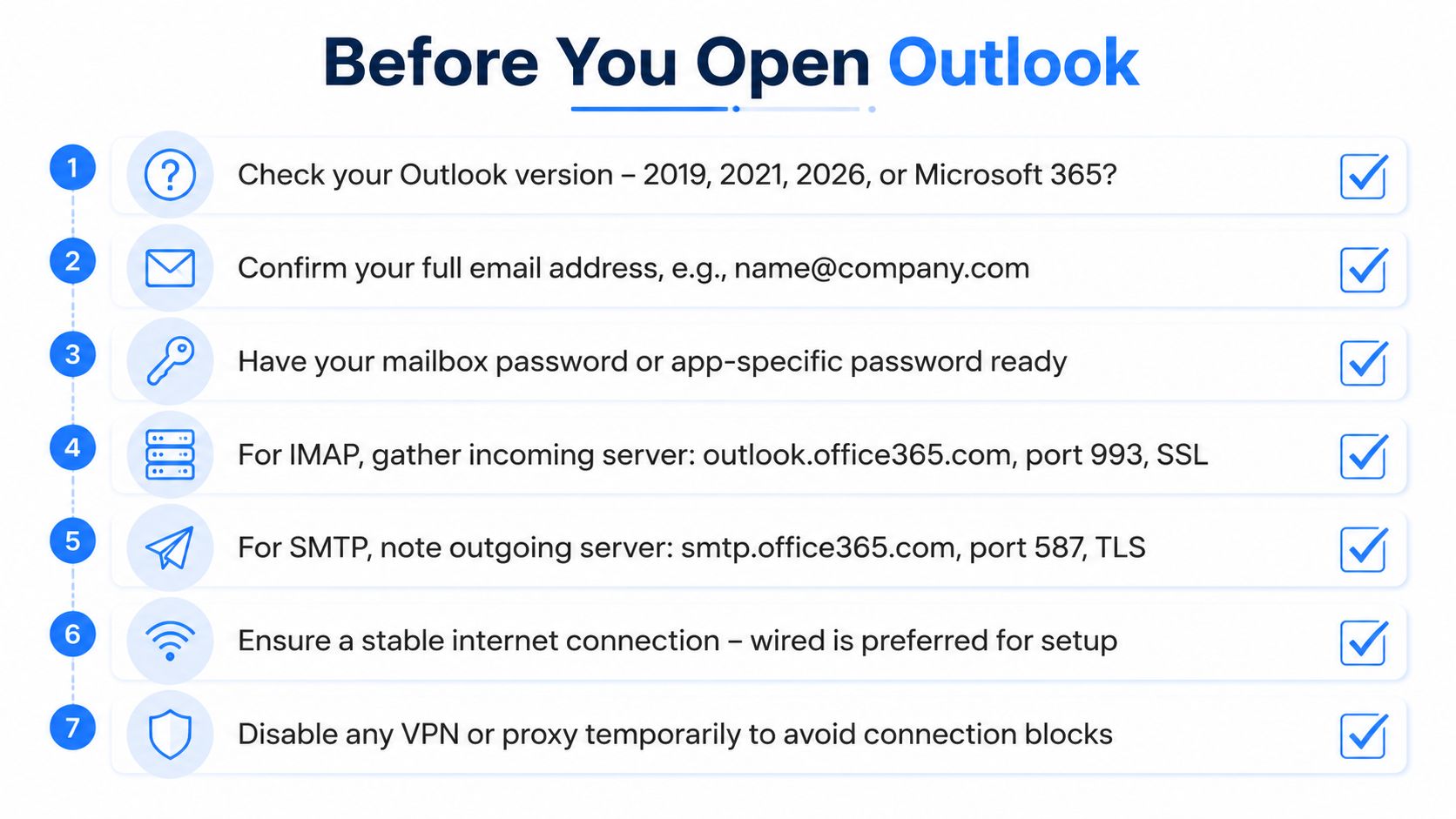
Good setup starts before the first account screen. Collect the details below and you'll avoid changing several variables at once, which makes troubleshooting much harder.
- Identify the Outlook edition: Check whether you're using Classic Outlook, New Outlook, a Microsoft 365 subscription, or a one-time purchase licence. The account menus differ, and instructions for one edition may not match another.
- Confirm the mailbox type: Establish whether the address belongs to Microsoft 365, hosted Exchange, an on-premises Exchange server, Gmail, Yahoo, or a UK internet provider. The domain in the address doesn't always tell you who hosts the mailbox.
- Prepare the correct sign-in method: For Microsoft 365, have the full email address ready and be able to complete MFA. A password alone may not complete the sign-in. For another provider, check whether it requires an app-specific password rather than the normal webmail password.
- Keep server details available: If the provider requires IMAP, record its incoming and outgoing hostnames, ports, and encryption requirements. Don't substitute Microsoft 365 values for a Gmail, BT, or TalkTalk mailbox.
- Check the connection: Use a stable trusted network. A VPN, proxy, captive portal, or restrictive guest Wi-Fi can interfere with sign-in windows and certificate checks. Microsoft 365 access commonly needs outbound HTTPS connectivity to its services.
- Protect existing data: Copy any existing PST files before changing profiles. Record the current Outlook profile name and don't delete an older profile until mail, contacts, and calendar data have been checked.
- Review mailbox security: Confirm MFA status, recovery methods, and any organisation rules that restrict external forwarding or legacy protocols.
If the account connects but messages seem to disappear, check the provider's spam and junk folders before rebuilding the profile. This spam mail checking guide is useful when an expected message has been filtered before Outlook ever downloads it.
Configuring Outlook Manually with IMAP
Manual IMAP setup is useful when automatic discovery fails or a provider supplies specific server details. It suits compatible personal and third-party accounts. For a Microsoft 365 mailbox that supports Exchange, use the Exchange account path instead, because IMAP does not provide the same mailbox features.
In Classic Outlook, open File, select Account Settings, then Account Settings again. Choose New, select the manual setup or additional server types option, and choose POP or IMAP. Enter the complete email address as the username. Some providers reject a shortened username containing only the text before the @.
For a Microsoft 365-compatible IMAP connection, use these values:
| Mail function | Server | Port | Encryption |
|---|---|---|---|
| Incoming IMAP | outlook.office365.com |
993 |
SSL/TLS |
| Outgoing SMTP | smtp.office365.com |
587 |
TLS or STARTTLS |
Enable My outgoing server requires authentication and use the same credentials as the incoming server, unless the provider specifies another arrangement. These settings only work if the tenant and mailbox permit IMAP and SMTP AUTH. MFA or an organisation-wide policy can block the traditional password exchange, even when the server names and ports are correct. An app password may be required where the provider supports one, while some Microsoft 365 tenants require modern authentication instead.
Gmail, Yahoo, BT, TalkTalk, and other providers use their own hostnames and policies. Replace the Microsoft values with the provider's documented settings, and match encryption to the selected port. Stop at any certificate warning. It may indicate a hostname mismatch, an incomplete trust chain, or an incorrect server name.
Run Test Account Settings. If incoming mail works but sending fails, check SMTP authentication, port 587, TLS selection, and whether the provider blocks SMTP AUTH.
The following walkthrough shows the manual configuration flow:
A successful test confirms connectivity, not full mailbox support. IMAP may download messages while calendars, contacts, shared mailboxes, automatic replies, and other Exchange features remain unavailable.
Setting Up Exchange and Microsoft 365 Accounts
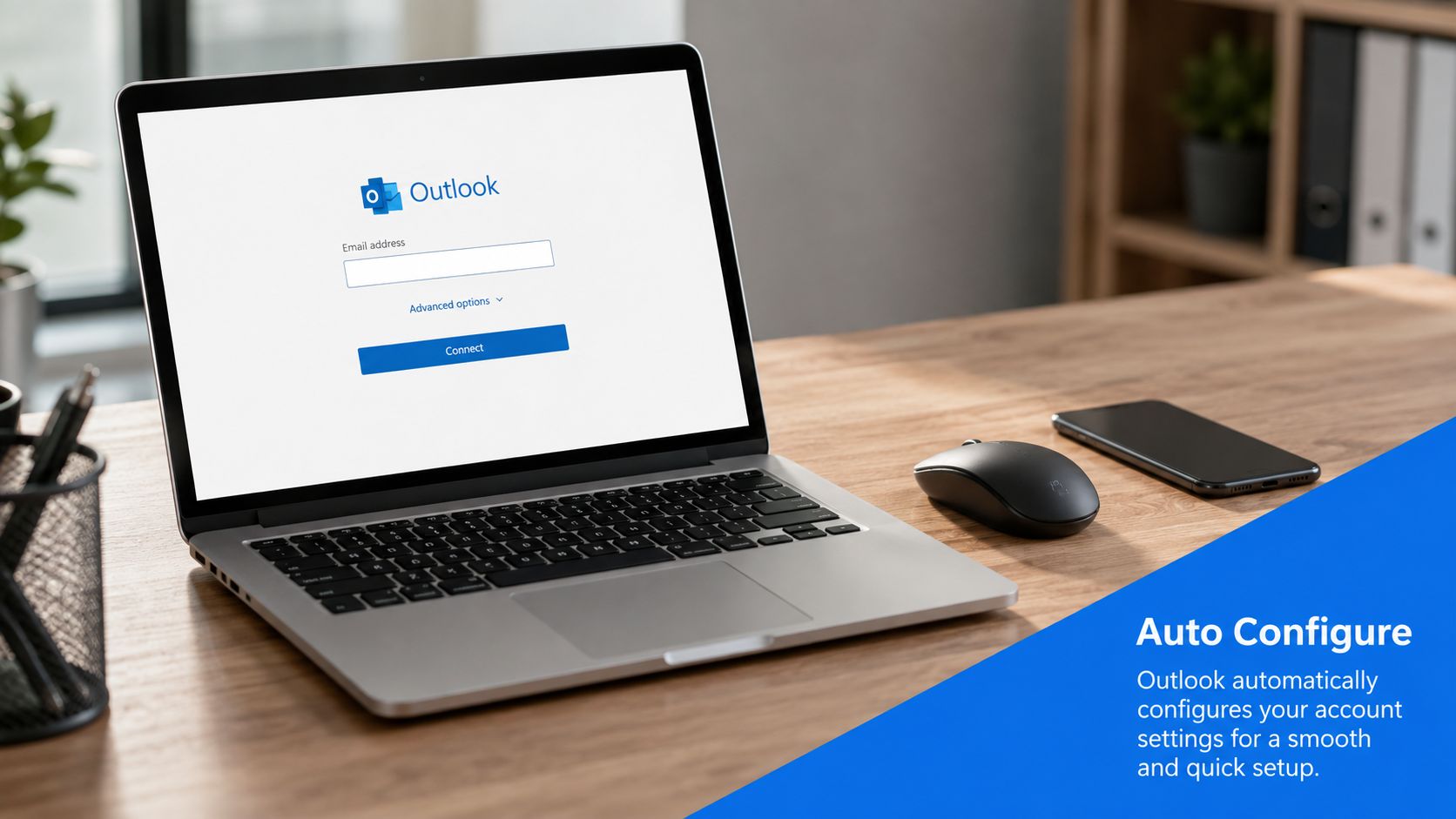
A Microsoft 365 work mailbox can appear to be an ordinary email account, but Outlook should normally add it as Exchange, not IMAP. Exchange supplies the mailbox structure and Microsoft 365 features that business users expect.
In Outlook, select Add Account and choose Microsoft 365 or Exchange when offered. Enter the full work email address, which is usually the user principal name, then continue to the Microsoft sign-in page. Sign-in may open in a separate window. Complete MFA and any Conditional Access checks before Outlook receives the account configuration.
If automatic discovery succeeds, Outlook creates and caches the Exchange profile without asking for incoming or outgoing server details. Exchange uses Microsoft's sign-in process, so an older username-and-password exchange can be rejected before the profile is created. This often looks like a password problem, although the tenant may be requiring modern authentication.
Choosing IMAP because the address resembles a personal mailbox is a common setup error. Basic sending and receiving may work, while search, shared calendars, delegate access, contacts, rules, and Out of Office behave differently or are unavailable. That trade-off rarely suits a business mailbox.
If a Microsoft 365 mailbox repeatedly requests a password, stop retrying it. Verify the sign-in identity, complete the MFA prompt, and ask the administrator whether a tenant policy blocks the Outlook client or its authentication method.
Hybrid Exchange environments require closer checking. Outlook may need to find the organisation's on-premises Exchange service through its configured autodiscover service rather than connect as a cloud-only mailbox. Confirm the user's licence and Outlook edition before treating a missing feature as a server fault. Microsoft 365 Apps for Business and the standalone Outlook product can have different entitlement and update behaviour, which affects what the user can access and how the client is maintained.
Choosing Between POP, IMAP, and Exchange
The protocol determines what Outlook can synchronise and how safely it supports multiple devices. Choosing the wrong one can create problems that look like missing mail, even though the connection itself works.
| Protocol | Best For | Key Trade-Off |
|---|---|---|
| POP | A narrowly defined, single-device or offline workflow | Mail is downloaded locally, so multi-device access and server-side folder synchronisation are poor fits |
| IMAP | Personal or third-party mailboxes used across devices | Mail folders and read states synchronise, but calendars, contacts, shared resources, and some mailbox features aren't included |
| Exchange | Microsoft 365 and hosted Exchange accounts | Requires the correct modern sign-in and organisation policies, but provides the broadest Outlook integration |
POP is the legacy choice. It can suit a controlled workflow where one computer receives and stores mail locally, but it becomes awkward when a user also checks messages on a phone or through webmail. Depending on the provider's settings, downloaded messages may no longer remain available on the server.
IMAP keeps the mailbox on the server and synchronises folders, flags, and read status. That makes it a sensible choice for many Gmail, Yahoo, and UK ISP accounts, provided the provider supports modern authentication or supplies an approved app password.
Exchange goes further by synchronising the mailbox alongside calendars, contacts, tasks, rules, shared resources, and automatic replies. It's the sensible default for Microsoft 365 and hosted Exchange. A business that selects IMAP because it can enter server values is usually trading away features it expects Outlook to provide.
Choose the protocol from the mailbox service, not from the Outlook screen that appears first.
Securing Outlook After the Account Is Added
A working inbox isn't automatically a secure inbox. The mailbox owner or Microsoft 365 administrator should review authentication, forwarding, phishing reporting, and delegated access after the profile connects.
Strengthen the sign-in
Enable MFA on the underlying account and make sure the recovery methods are controlled by the correct person or organisation. In Microsoft 365, administrators can enforce sign-in requirements with Entra ID Conditional Access. If Outlook displays a modern sign-in prompt, complete it through the approved method rather than looking for a way around it.
Some IMAP providers require an app password when MFA is enabled. Create one only through the provider's official account portal, use it for the specific mail application, and revoke it if the device is retired or compromised. An app password can reduce the protection MFA provides because the application uses a separate credential, so it shouldn't become a permanent substitute for modern authentication where OAuth is available.
Reduce mailbox attack routes
Administrators should disable SMTP AUTH for accounts that don't need it. They should also review external forwarding and block it through the tenant's controls or transport rules where business mail must stay inside approved systems. Silent forwarding can expose messages without producing an obvious Outlook warning.
Enable Microsoft's built-in Report Message or Report Phishing add-in where appropriate, and teach users to report suspicious messages instead of replying or forwarding them manually. The NCSC guidance on configuring the Outlook report phishing add-in covers the deployment considerations.
Review access and attachments
Check delegate permissions and Auto Mapping carefully. A shared mailbox should expose only the folders and actions the colleague needs, and the organisation should review those permissions when staff change roles.
Use approved OneDrive or SharePoint sharing for large or sensitive attachments where that fits the organisation's controls. Keep blocked sender lists current, and consider protecting sensitive drafts before they leave the device. SPF, DKIM, and DMARC alignment also belongs in the wider email deployment, because a secure Outlook client cannot prevent every form of outbound spoofing by itself.
Fixing the Most Common Outlook Setup Errors
Troubleshoot from the symptom, not from a random list of server values. The same password prompt can result from a bad credential, a stale cached token, an MFA requirement, or a tenant policy that rejects the chosen protocol.
Repeated password prompts
First, confirm the full email address and test the same sign-in through webmail. If webmail accepts the account but Outlook loops, close Outlook and inspect Windows Credential Manager for stale entries linked to the mailbox or Office identity. Remove only entries you can identify confidently, then reopen Outlook and complete the modern sign-in again.
Don't delete registry keys as a first response. Rebuilding identity data can affect other Office accounts and may create a second problem.
Connection and sending failures
For an IMAP account using Microsoft 365 settings, verify outlook.office365.com for incoming mail with port 993 and SSL/TLS, then check smtp.office365.com with port 587 and TLS for outgoing mail. Make sure SMTP authentication is enabled and that the account is permitted to use SMTP AUTH. If the provider uses POP, confirm its own documented settings rather than copying IMAP values.
A certificate warning deserves attention. Check that the hostname matches the provider's certificate and that Outlook can validate the trust chain. Never approve an unfamiliar certificate to make the test pass.
Outlook won't open
If Outlook itself fails to start, create a clean profile through Control Panel, Mail, Show Profiles, and Add. Keep the existing profile and PST files until the new profile has been tested. Reinstalling Office rarely fixes a damaged profile and can consume time without addressing the stored configuration.
Before escalating, check these four points:
- Hostname: Does the server name belong to the mailbox provider?
- Port: Does the port match the selected protocol?
- Credential: Are you using the correct full address, password, or approved app password?
- Encryption: Does the selected SSL/TLS or TLS method match the provider's instructions?
These checks resolve many ordinary setup failures. If the mailbox is Microsoft 365, also confirm that Outlook is using Exchange and modern sign-in rather than an outdated manual profile.
For hands-on help with email setup in Outlook, Microsoft 365 authentication, secure mailbox policies, and wider business or home IT issues, Networking2000 provides practical support across London and Essex. Visit Networking2000 to discuss your Outlook configuration and get clear assistance from experienced UK engineers.

