You're halfway through a video call when the picture freezes. Your phone says it's connected to Wi-Fi, but nothing loads. Across the room, the router is blinking amber, red, or not at all. Before you start pressing buttons at random, treat the failure as evidence to collect. The order of your checks can show whether the problem is your device, the router, the line, or the provider, and it can help preserve a clear record if you later need to report a total loss of service.
Table of Contents
- First Checks When Your Router Suddenly Stops
- How Often Router Faults Are Really to Blame
- Power and Connection Checks You Should Try First
- Isolating Wi-Fi Interference From a Line Fault
- Firmware Updates and When to Reset Your Router
- Keeping Your Router Reliable and Knowing When to Call for Help
First Checks When Your Router Suddenly Stops
Start with the router itself. Are any lights on? If every light is off, check the power socket, the adapter, and any switched extension lead before investigating Wi-Fi settings. If the power light is on but the internet or broadband light is red, amber, or unusually dark, the router may be powered correctly but unable to establish the outside connection.
Next, test another device. A phone failing to connect points towards that phone or its saved network settings. If a laptop, television, and phone all fail at the same time, focus on the router, cables, line, or provider rather than repeatedly restarting one device.
Practical rule: One device offline usually calls for a device check. Every device offline calls for a network check.
Make a quick note of what you can see before changing anything. Record the lights, when the problem began, whether the connection drops completely or slows down, and which devices you've tested. That small record becomes useful evidence if you need technical support later.
Most sudden router problems fit into five practical fault families:
- Power: The socket, adapter, or router isn't receiving stable power.
- Connections: A power, Ethernet, telephone, or fibre cable is loose or damaged.
- Firmware: Router software may be unstable or outdated.
- Provider outage: The router works, but the broadband service upstream has failed.
- Interference: Wi-Fi is operating, but walls, nearby networks, or household equipment are affecting the wireless signal.
Don't factory-reset the router at this stage. A reset removes information that may help you identify the fault and can create a new configuration problem before you've proved what failed.
How Often Router Faults Are Really to Blame
A router complaint doesn't automatically mean the router is defective. UK broadband evidence shows that home equipment matters, but provider and power problems are also substantial causes of disruption.
A 2025 UK survey found that 41% of UK adults had experienced at least one broadband outage during the previous year. The same research attributed 27% of outage causes to faulty home equipment, including routers or cables, compared with 37% for provider outages and 33% for power cuts. These figures are reported by Uswitch in its UK broadband outage research.
| Cause of outage | Share of outages |
|---|---|
| Provider outages | 37% |
| Power cuts | 33% |
| Faulty home equipment, including routers or cables | 27% |
The practical lesson is simple. Home equipment is a credible suspect, but the provider remains the more common explanation in that comparison. If you spend an hour rebooting, resetting, and reconfiguring a router during an area outage, you haven't repaired anything. You may only have erased useful settings.
Earlier UK findings point to the same wider pattern. A 2023 survey of 2,000 UK adults found that 22% of respondents who had experienced disconnections blamed a router that wasn't working, while 35% blamed a broadband provider outage and 13% cited routine external cable maintenance. The research estimated that 21.7 million people experienced outages lasting at least three hours over the preceding year, as reported by ISPreview's coverage of the UK broadband outage survey.
That scale changes how you should troubleshoot. Check the router first because it is accessible and can account for a meaningful share of faults, but don't treat it as proven guilty. Power, cabling, wireless conditions, and the provider's network each need to be separated with a deliberate test.
Power and Connection Checks You Should Try First
A surprising number of “dead router” incidents begin with something physical. Someone may have knocked the switch on an extension lead, moved the adapter while cleaning, or loosened a broadband cable while vacuuming. These faults are quick to test, but only if you inspect the complete path from the wall to the router.
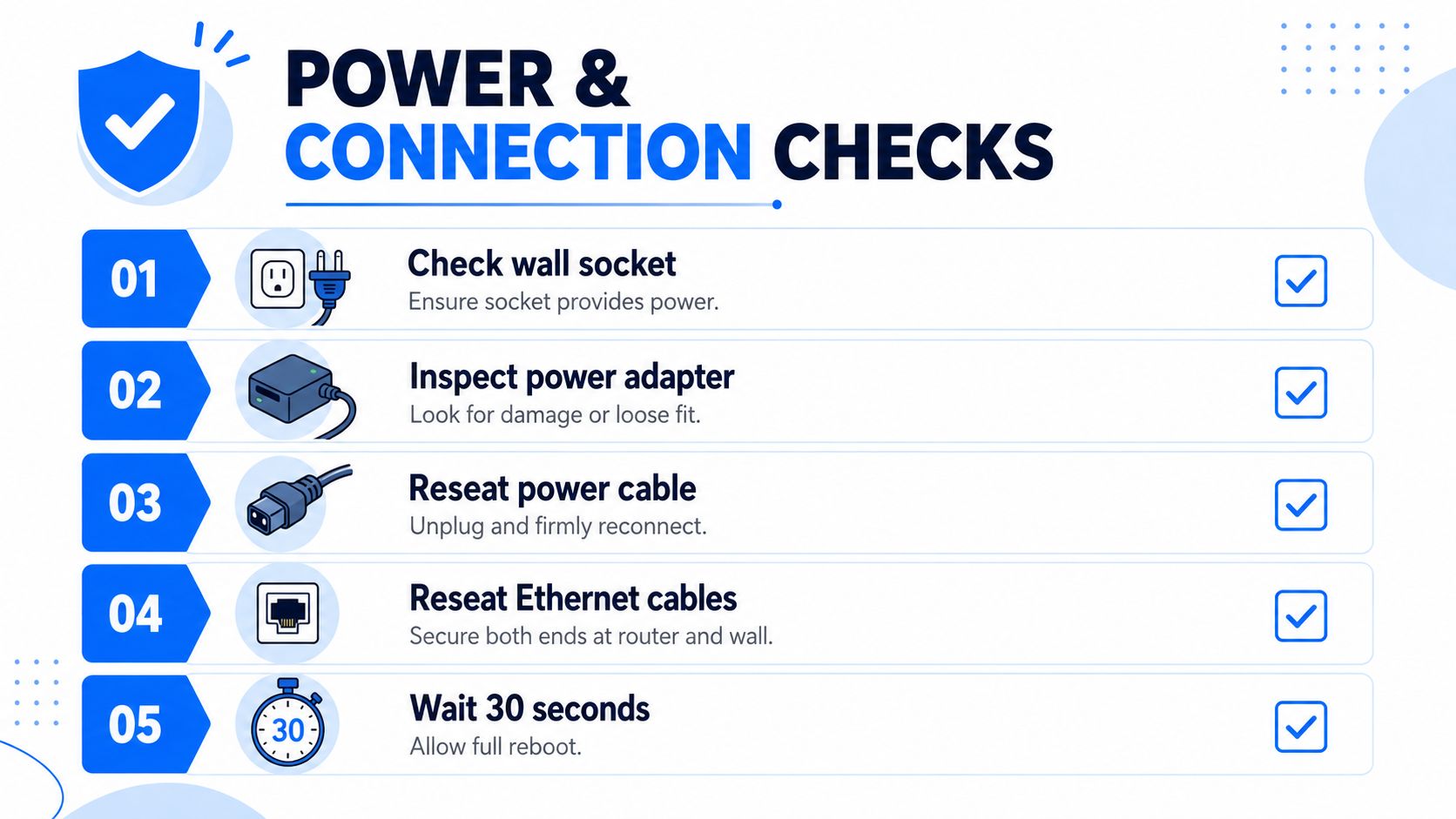
Check the power path
- Test the wall socket. Confirm that the socket is switched on and, if practical, test it with another working appliance. A router with no lights cannot provide useful evidence about the broadband line.
- Inspect the power adapter. Look for cuts, crushing, exposed wiring, or a plug that feels loose. Use the correct adapter supplied for the router. Substituting an unsuitable adapter can damage equipment.
- Reseat the power lead. Unplug it from the router and the socket, then reconnect both ends firmly. Check any inline connector as well.
- Remove unnecessary extension equipment. If the router runs through a switched extension or surge-protection strip, connect it directly to a known working socket for the test.
Check the broadband connection
Follow the cable from the router to the wall connection, modem, fibre box, or phone socket. Reseat it at both ends without forcing the connector. If your broadband uses a microfilter, inspect the filter and its connection too. A loose filter can interrupt the line even when the router itself has power.
Now perform a proper restart. Switch the router off or unplug it, then leave it powered down for at least 30 seconds. That pause allows the WAN session and DSL or fibre state to clear before renegotiation, which can let a transient fault recover cleanly, as explained in ISPreview's router restart guidance.
Power the router back on and wait for its normal lights to settle. Avoid repeating rapid five-second power cycles. If you support a small office, the Finchum Fixes IT network troubleshooting guide offers a useful broader approach to recording symptoms and testing network equipment methodically.
If the router still fails, write down exactly what changed after the restart. “The broadband light stayed red” is much more useful to a provider than “it still doesn't work.”
Isolating Wi-Fi Interference From a Line Fault
Wi-Fi and broadband are connected, but they aren't the same thing. Your device can communicate perfectly with the router while the router has lost contact with the provider. Equally, the broadband line can be healthy while wireless interference prevents devices from using it reliably.
Use Ethernet to bypass Wi-Fi
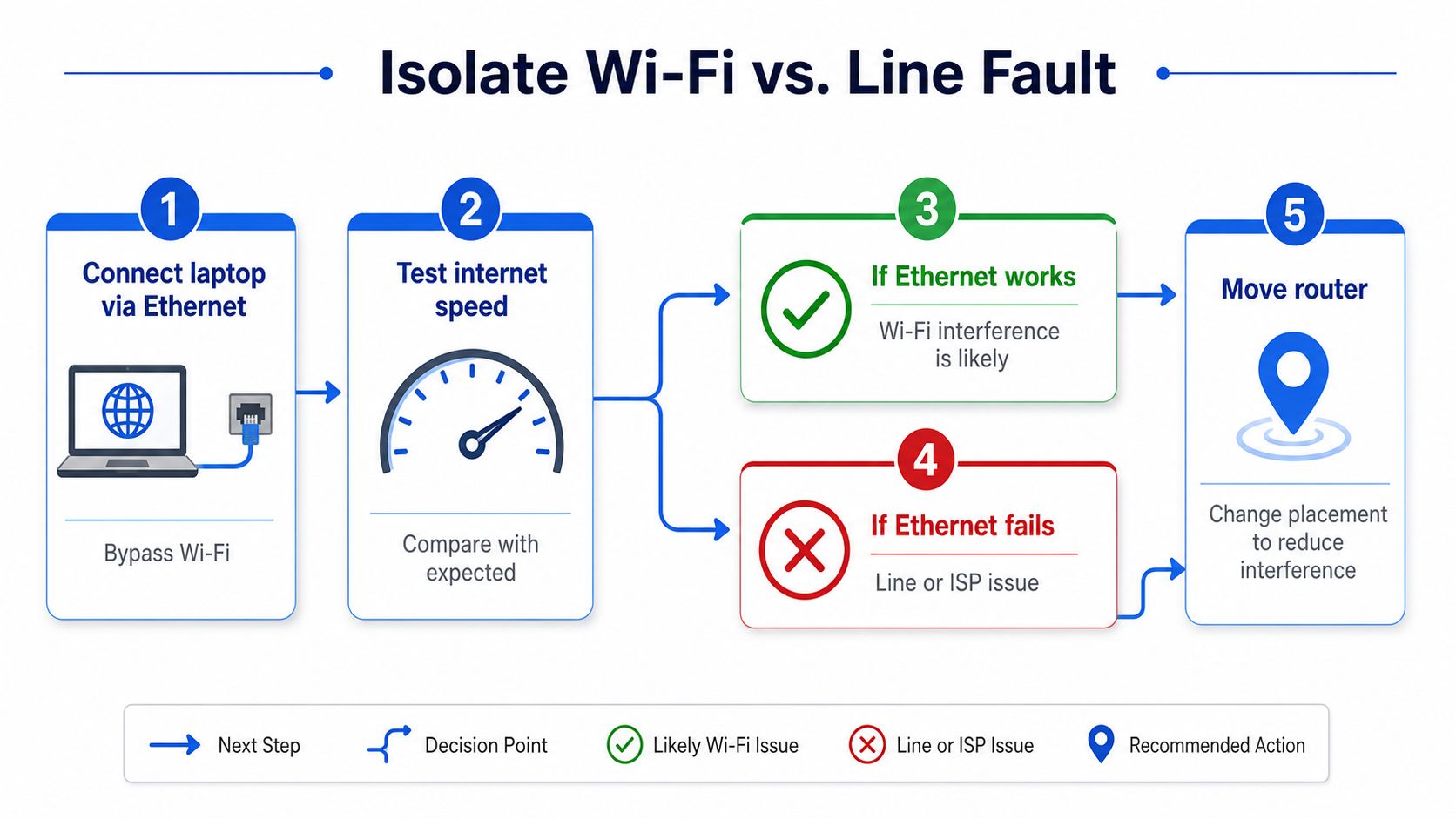
Connect a laptop or desktop computer directly to the router with an Ethernet cable. Disable Wi-Fi on that computer if necessary, then try several ordinary websites or your usual online service.
If Ethernet works while Wi-Fi fails, the broadband line is probably available. Concentrate on the wireless side, including router placement, signal coverage, channel congestion, and the affected device. If Ethernet also fails, test another cable if you have one, then treat the result as evidence of a possible router, line, or provider fault.
Compare devices and locations
Test at least one other device. If only one phone or laptop fails, forget the saved Wi-Fi network on that device, reconnect using the correct password, and restart the device. If every device fails wirelessly but Ethernet works, move one device close to the router and test again. A close-range connection that works, combined with failures in a distant room, points towards coverage or interference rather than a lost broadband service.
Common interference clues include:
- Location pattern: The connection fails in one room but works near the router.
- Time pattern: Performance changes when nearby networks or household equipment become active.
- Physical obstacles: Thick walls, cupboards, large appliances, or the router's position on the floor weaken the wireless path.
- Device pattern: One older or specialist device struggles while newer devices remain connected.
Keep the router in an open position while testing. Don't hide it behind a television or inside a closed cabinet, because that makes a wireless diagnosis harder and can restrict the signal.
Check the provider before changing settings
Look at your provider's service-status page or app for a known area incident. If the provider reports an outage, save the incident details and note the time you checked. If no incident appears, your Ethernet result, router lights, device tests, and cable checks give support staff a much clearer starting point.
Ofcom recommends checking the router status, trying different devices, and connecting directly by Ethernet to isolate whether the issue lies with the router, line, or device. Providers may also be able to access the router remotely to detect technical problems, so preserving the router's configuration and sharing your observations can speed diagnosis. The relevant Ofcom guidance on broadband and landline faults also explains the importance of reporting the problem promptly.
Firmware Updates and When to Reset Your Router
Firmware is the software running inside the router. It controls functions such as wireless operation, connection management, and security, so an update can be a sensible remedy when the router is stable enough to reach its administration page or companion app.
Check the manufacturer's support page or router app for an update that matches the exact model and hardware revision. If the router offers automatic updates, leave that feature enabled unless your provider gives a specific reason not to. Before starting, make sure the router has stable power and don't interrupt it while the update is installing.
Update before you erase
A firmware update can address software faults without removing your network name, password, port settings, or other custom choices. It may still require an administrator login and a short interruption, so schedule it when nobody needs the connection urgently.
A factory reset has a different purpose. It returns the router to its default configuration and removes the settings you've created. That can clear a damaged configuration, but it can also leave you without your broadband credentials, custom Wi-Fi details, guest networks, or other working arrangements.
The reset test: Use a factory reset only after you've recorded the current settings, checked the provider status, completed the cable and Ethernet tests, and confirmed that an update or provider instruction makes it appropriate.
Before pressing the reset button, save or photograph the relevant settings if the router allows it. Find the provider's setup instructions first, and check whether the service requires particular login details. If the router is supplied and managed by the provider, ask support before resetting it, because they may prefer to diagnose or replace it without changing the configuration.
Report the fault with a clean record
Escalate when the service remains unavailable after the physical checks, proper restart, device comparison, and direct Ethernet test. Tell the provider:
- When it started: Give the date and approximate time.
- What the lights show: Describe the power, broadband, internet, and Wi-Fi indicators.
- What you've tested: Include other devices, cables, and Ethernet.
- What changed: State whether the restart restored service temporarily or made no difference.
- What you need checked: Ask them to test the line and router remotely where possible.
Ofcom's automatic compensation scheme can apply to a total loss of service that isn't fixed within two working days after it has been reported, subject to the scheme's conditions. Record the report time, reference number, promised action, and restoration time. UK reporting has also found that 78% of affected users received no compensation, despite the availability of automatic compensation for certain qualifying cases, as covered by Advanced Television's report on UK broadband outages and compensation. Evidence won't guarantee payment, but it gives you a much stronger basis for checking whether the provider handled the incident correctly.
Keeping Your Router Reliable and Knowing When to Call for Help
Good router care is mostly environmental and procedural. Keep the unit open, raised, and away from interference sources, leave firmware updates enabled, and note your Wi-Fi name and important settings before any future reset. A short restart can help with transient problems, but repeated daily dropouts need diagnosis rather than a permanent reboot habit.
If the router works only in certain rooms, test placement before buying replacement equipment. If failures continue across wired and wireless devices, or the equipment is plainly ageing or overheating, ask for a router, line, or network assessment. A small business should escalate earlier when lost connectivity disrupts calls, payments, cloud systems, or staff access.
For wider planning around cabling, equipment, and secure connectivity, this complete network setup guide is a useful reference. Networking2000 supports home and business users across London and Essex with router reconfiguration, wireless networking, connectivity, and wider IT support.

If your router still isn't working after the evidence-led checks above, visit Networking2000 for practical help with router faults, Wi-Fi, broadband connectivity, and network reliability across London and Essex. Their engineers support homes and businesses seven days a week, helping identify whether the issue is your equipment, your internal network, or the provider's line.

