Remote access is the ability to reach your computer, files, or business systems from somewhere other than the office or home, over the internet, in a controlled and secure way. In the UK, home working rose from 4.7% of employees in 2019 to 46.6% in April 2020, before settling into an established hybrid pattern, according to UK remote and hybrid working statistics.
You might be a Stratford marketing manager opening a work laptop before the school run, or a Colchester bookkeeper checking a client folder from the kitchen table on a Sunday. The practical question is the same: how can you use the systems you need without sitting in the office?
Remote access provides that route, but it isn't just “using the internet”. A safe setup identifies the person connecting, checks the device where appropriate, limits what that person can reach, protects the information in transit, and records the session for review. That difference matters whether you're supporting a five-person business in Romford or accessing a home computer from Southend.
Table of Contents
- A Working Definition of Remote Access in Plain English
- How Remote Access Works Behind the Scenes
- The Main Methods and Technologies You Can Choose From
- Real Use Cases for London and Essex Homes and Businesses
- Security Risks and the Controls That Reduce Them
- Managed Remote Access Versus Doing It Yourself
- Practical Steps to Get Started Safely This Week
- Key Takeaways and Where to Go Next
A Working Definition of Remote Access in Plain English
A useful answer to what is remote access starts with a simple comparison. Your office is a building with doors, reception staff, internal rooms, and files. Remote access gives you a controlled way to enter some of those rooms when you're physically somewhere else.
The “building” might be a Windows desktop left switched on at your London office. It might be a file server in an Essex business, a finance application, a cloud-hosted desktop, or a company platform that isn't available directly from the public internet. Your laptop, tablet, or phone sends a request across the internet, then the remote access system checks whether you should be allowed in.
Practical rule: Remote access should open the specific room you need, not quietly hand over the keys to the whole building.
That makes remote access different from opening Gmail or Microsoft 365 in a browser. Those cloud services are designed to be reached online, although they still need strong account security. Remote access usually involves reaching a private desktop, internal network, business application, or device that wasn't intended to be exposed openly.
A secure connection normally has four parts:
- Identity: The system establishes who you are, often with a password and multi-factor authentication.
- Permission: It checks what that account is allowed to use.
- Protection: It encrypts information while it travels between your device and the destination.
- Visibility: It creates records that help an administrator investigate unusual activity or support a user.
The method varies. A VPN may connect your laptop to an office network. Remote Desktop may show you the screen of a particular work PC. Zero Trust Network Access may approve individual applications after checking your identity and device. Cloud platforms may provide access through a browser.
The rest of the decision comes down to which system you need, who needs it, what device they're using, and how much oversight the business requires.
How Remote Access Works Behind the Scenes
A home worker in Essex might need the office PC in London, while a small business owner may need a server without travelling in. Remote access moves that request through several checks before displaying a desktop, opening an application, or joining a private network.
Your laptop or phone is the traveller. The internet is the public road. The remote access service is the guarded entrance, and the work computer, server, or cloud platform is the destination. Each part has a separate job, so a weakness in one can affect the whole arrangement.
The connection and identity checks
Your device first contacts the remote access service. A VPN asks to create an encrypted tunnel. Remote Desktop requests a session with a particular computer. A browser-based service connects to the provider's website over HTTPS.
The service then checks your identity, like reception staff checking photo ID. You might enter a password, approve a sign-in through an authenticator app, use a security key, or present a passkey. The NCSC guidance on device security and modern authentication supports stronger identity controls and recommends passkeys over passwords where available.
Authentication confirms who you are. It does not give you access to every system.
Permission, encryption, and records
Authorisation decides which doors your account can open. A bookkeeper might reach accounting software and client documents, while a sales assistant can use the customer system but not payroll. Keeping these permissions narrow limits the impact of a compromised account.
Encryption protects information while it travels. A VPN tunnel works like a guarded passage beneath a busy street, making the protected session difficult for someone monitoring ordinary internet traffic to read. Encryption cannot make a stolen account or infected laptop safe.
Logging provides a visitor book for the organisation. It can record which named account connected, when the session began, which service it reached, and whether the activity appeared unusual. UK security guidance says remote access should be authenticated, authorised with MFA, encrypted in transit, monitored, and time-limited, particularly for third-party maintenance and administrator use. The NPSA guidance on network-connected security technologies sets out that governance principle.
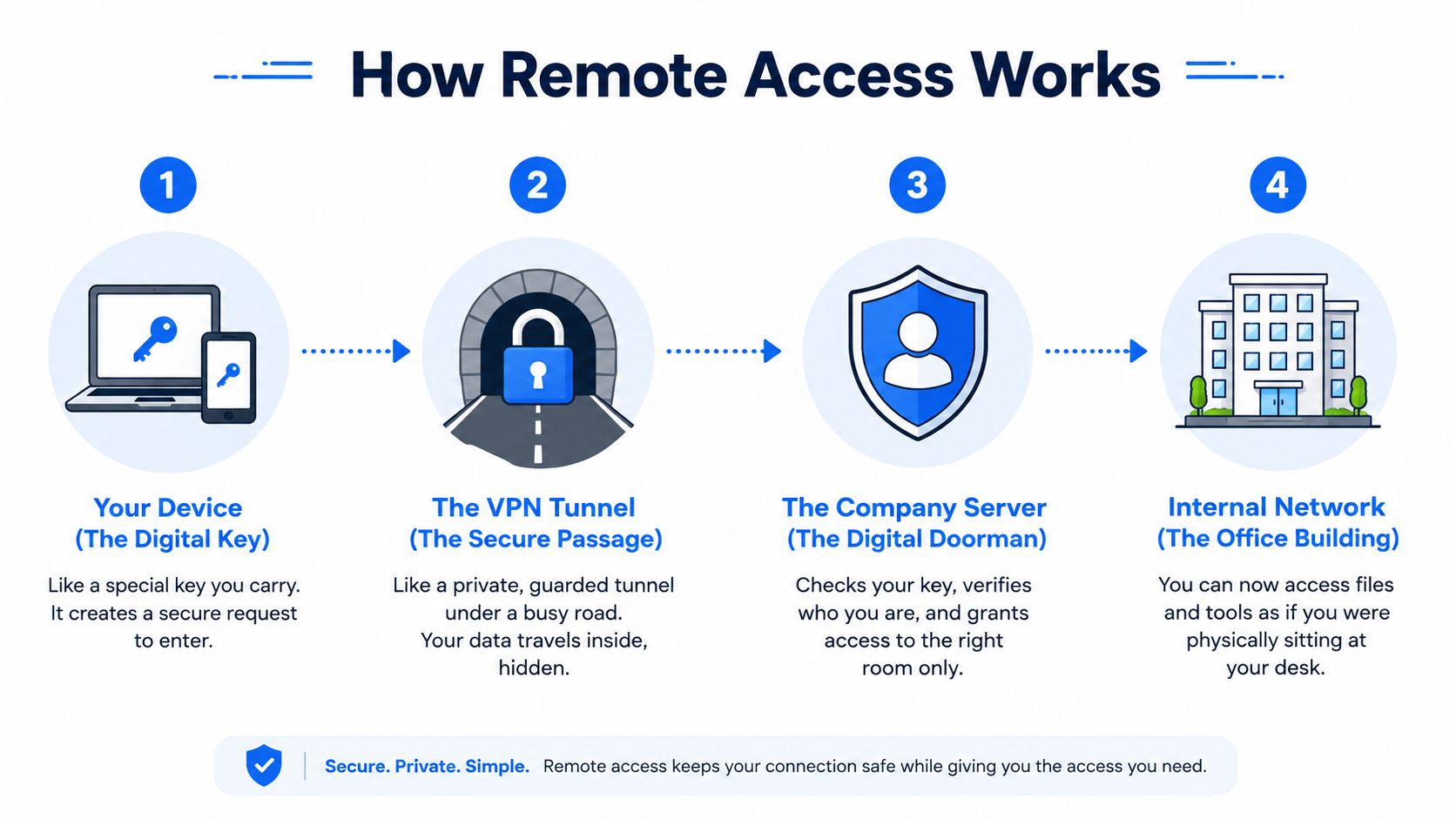
The terms RDP, SSH, and HTTPS describe different communication methods. You only need the sequence: connect, prove identity, check permission, protect the session, and record what happened.
The Main Methods and Technologies You Can Choose From
No single remote access method suits every home or small business. A Romford estate agency with an office server has different needs from a Rayleigh homeworker who only uses cloud applications.
| Method | Typical Use Case | Main Benefit | Key Drawback | Best Fit For |
|---|---|---|---|---|
| VPN | Joining a private office network from a laptop | Creates a protected route into internal services | Can provide broader network access than a user needs if poorly segmented | Businesses with internal servers or legacy applications |
| Remote desktop | Reaching a specific Windows PC or hosted desktop | Gives access to the familiar work environment and installed software | Depends on the host machine and needs careful protection | Users who need Sage, specialist software, or an office desktop |
| Zero Trust Network Access | Reaching approved applications after identity and device checks | Applies access decisions to each request rather than trusting the connection once | Needs planning, compatible services, and ongoing administration | Businesses modernising access and reducing unnecessary network exposure |
| Cloud-based tools | Working in Microsoft 365, Google Workspace, or SaaS platforms | Works through a browser or application without extending the office network | Data and features depend on the cloud provider and account configuration | Small teams built around online documents, email, and collaboration |
VPNs and remote desktops
A VPN is often the familiar starting point. It creates an encrypted connection between the user's device and the business environment, allowing internal applications or file services to behave as though the user has joined the office network. That convenience can be useful, but administrators should still restrict access and keep the VPN gateway patched. The NCSC's secure remote access system design guidance stresses logical separation between networks and bringing home-working devices within Cyber Essentials scope.
Remote Desktop, including Microsoft Remote Desktop and services such as Citrix, works differently. Instead of bringing the whole network to the user, it streams the screen of a particular computer or hosted desktop. A five-person Romford business might choose this for staff who need a fixed office application, while a homeworker in Rayleigh connects to a city workstation and uses the software installed there.
Zero Trust and cloud services
Zero Trust Network Access treats every request as something to assess. It can check the user, device condition, location signals, and requested application instead of assuming that a user is safe because they've connected through a VPN.
Cloud tools are usually the simplest fit for a small team that already works in Microsoft 365, Google Workspace, or another SaaS platform. They reduce the need to expose an office network, but administrators still need MFA, sensible sharing permissions, device controls, and account recovery processes. Convenience doesn't remove responsibility.
Real Use Cases for London and Essex Homes and Businesses
A Chelmsford accountant may need Sage, client records, and a document system while working from the kitchen table during half-term. A remote desktop or secure hosted desktop can provide the same working environment as the office, while a VPN may be suitable if the applications live on a private server. The practical benefit is faster client work without waiting for a trip back into the office.
A Romford independent retailer has a different problem. The owner might need to check CCTV, adjust rota software, or ask someone to investigate a card-terminal issue while travelling on the Central Line. A managed remote support tool, a protected management portal, or carefully restricted access to the relevant system can help resolve the issue without giving a user broad access to unrelated machines.
For sensitive records, the technology is only half the arrangement. Staff also need clear rules for printing, storing, scanning, and sending documents from home. Guidance on secure document handling at home is useful for turning a remote-working policy into everyday habits, particularly where family members share rooms or printers.
A homeworker and a small agency
A Rayleigh homeworker joining a city office through Remote Desktop may use a company laptop, an external monitor, and a home broadband connection. The office computer does the heavy lifting, while the user sees its screen remotely. This can preserve access to specialist software and reduce the need to copy work files onto a personal machine.
A small Basildon marketing agency may keep design files and collaboration workspaces in Microsoft 365 or another cloud service. Staff can work from home, while the business controls accounts and sharing settings centrally. The gain is continuity when people aren't travelling into London, rather than a complicated network tunnel for every task.
Home users apply the same principles on a smaller scale. You might connect to a home PC for personal files, reach a gaming computer, or view a smart-home dashboard while away. A private connection, named accounts, MFA where available, and no unnecessary internet exposure remain sensible foundations.
Security Risks and the Controls That Reduce Them
A Rayleigh employee logging in from a home laptop, or a Basildon owner checking files from a café, creates more than a connectivity question. The key questions are who is connecting, from where, and on what device. Remote access is an identity-and-trust problem, not just a VPN feature.
Weak credentials need stronger proof
A reused password can expose several services if a criminal captures it through phishing. Require MFA for email, VPNs, remote desktops, administration portals, and other important accounts. Use named accounts instead of shared logins, so the business can identify each connection and remove access when someone changes role.
Phishing may arrive by email, Teams, text message, or a false sign-in page. Staff should pause before approving an unexpected authentication request and report suspicious messages through the agreed route. Conditional access adds another check by blocking or challenging unusual devices and sign-ins.
Devices and gateways need maintenance
An unpatched laptop, router, VPN appliance, or remote desktop host can give an attacker a route into the organisation. Turn on automatic updates where appropriate, maintain endpoint protection, encrypt laptops, and disable services nobody needs. The NCSC advises fully patching an existing VPN, while government remote access guidance refers to VPN tunnelling or CASB solutions rather than password-only entry. The UK government remote access security standard sets out that approach.
Do not expose RDP directly to the public internet as a shortcut. Put it behind an approved access layer, restrict who can reach it, require MFA, and monitor attempts. A lost laptop on the Elizabeth Line is a device-security incident. Encryption, screen locking, remote management, and prompt account revocation can limit what the finder can access.
Reduce the blast radius
Shadow-IT file shares make it unclear where information lives or who can open it. Approved cloud storage, clear sharing permissions, tested offline backups, and documented access rights give a small business better control when an account or device is compromised.
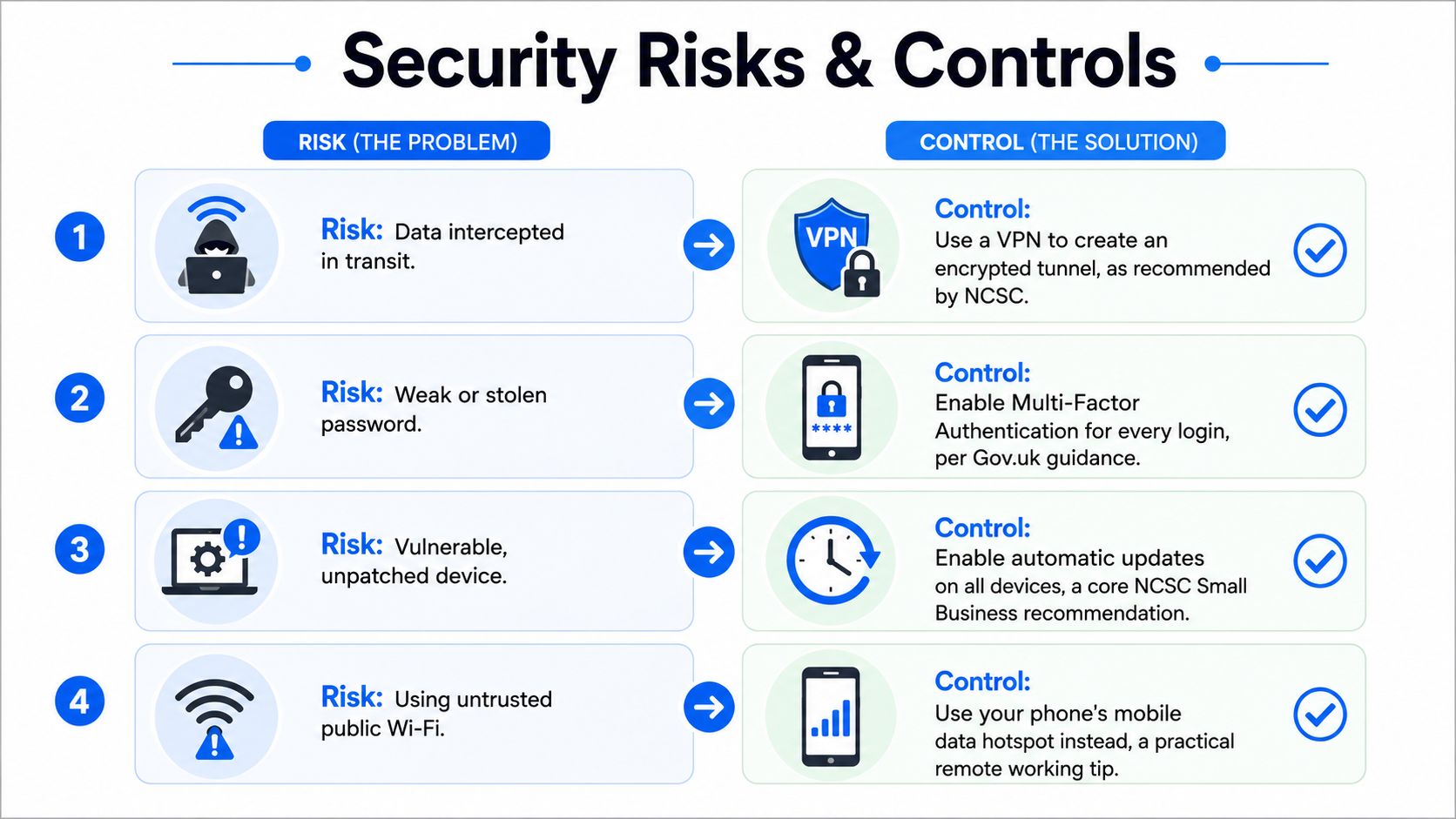
Zero Trust is practical without the label. Don't trust a connection merely because it came through a VPN. Check the identity and device condition, grant the smallest useful permission, separate systems, and keep watching for changes.
Managed Remote Access Versus Doing It Yourself
A technically confident home user can run a personal VPN to reach a NAS, maintain a Raspberry Pi project, or manage a home dashboard. DIY can be rewarding when the owner understands updates, account security, backups, and troubleshooting.
A small business has more at stake. If the person who configured the VPN is unavailable, a certificate expires, or a remote desktop stops working during a client deadline, the apparent software saving can become an operational problem. Managed support combines configuration with monitoring, patching, account administration, endpoint protection, backups, and a route to human help.
| Factor | Managed Remote Access | Self-Managed / DIY |
|---|---|---|
| Cost planning | Usually arranged as a predictable service cost | Software may be inexpensive, but time and emergency fixes are your responsibility |
| Monitoring | A provider can review alerts and access activity | You must check logs and respond yourself |
| Patching | The provider can maintain gateways and managed devices | You need a repeatable maintenance routine |
| Compliance | A provider can help align controls with Cyber Essentials and data-protection responsibilities | You must document and demonstrate your own controls |
| Support | Help is available under an agreed service arrangement | Help depends on your own knowledge or ad hoc assistance |
| Best use | Businesses that need reliable access and accountability | Personal projects and small, well-understood home setups |
For London and Essex SMEs, the sensible choice is often to buy risk reduction and time, not just a VPN licence. A provider such as Networking2000 can support remote access alongside business IT, networking, security, and remote monitoring, giving the organisation one place to coordinate the pieces.
Practical Steps to Get Started Safely This Week
Start with an inventory, not a product. Write down the laptops, phones, tablets, office computers, servers, cloud applications, and file locations that remote users will touch.
A five-point starter check
- Audit devices: List every device that will access work data, including personal devices that staff may use.
- Secure accounts: Enable MFA on the primary work account and then apply it to other important services.
- Update systems: Turn on automatic updates for laptops, phones, routers, applications, and remote access gateways where supported.
- Define use: Record what each person needs to reach, and write a short acceptable-use note for shared household or business devices.
- Test away from home: Disconnect from home Wi-Fi and test the setup using mobile data. Confirm that the right person can reach the right system and that support knows what happened.
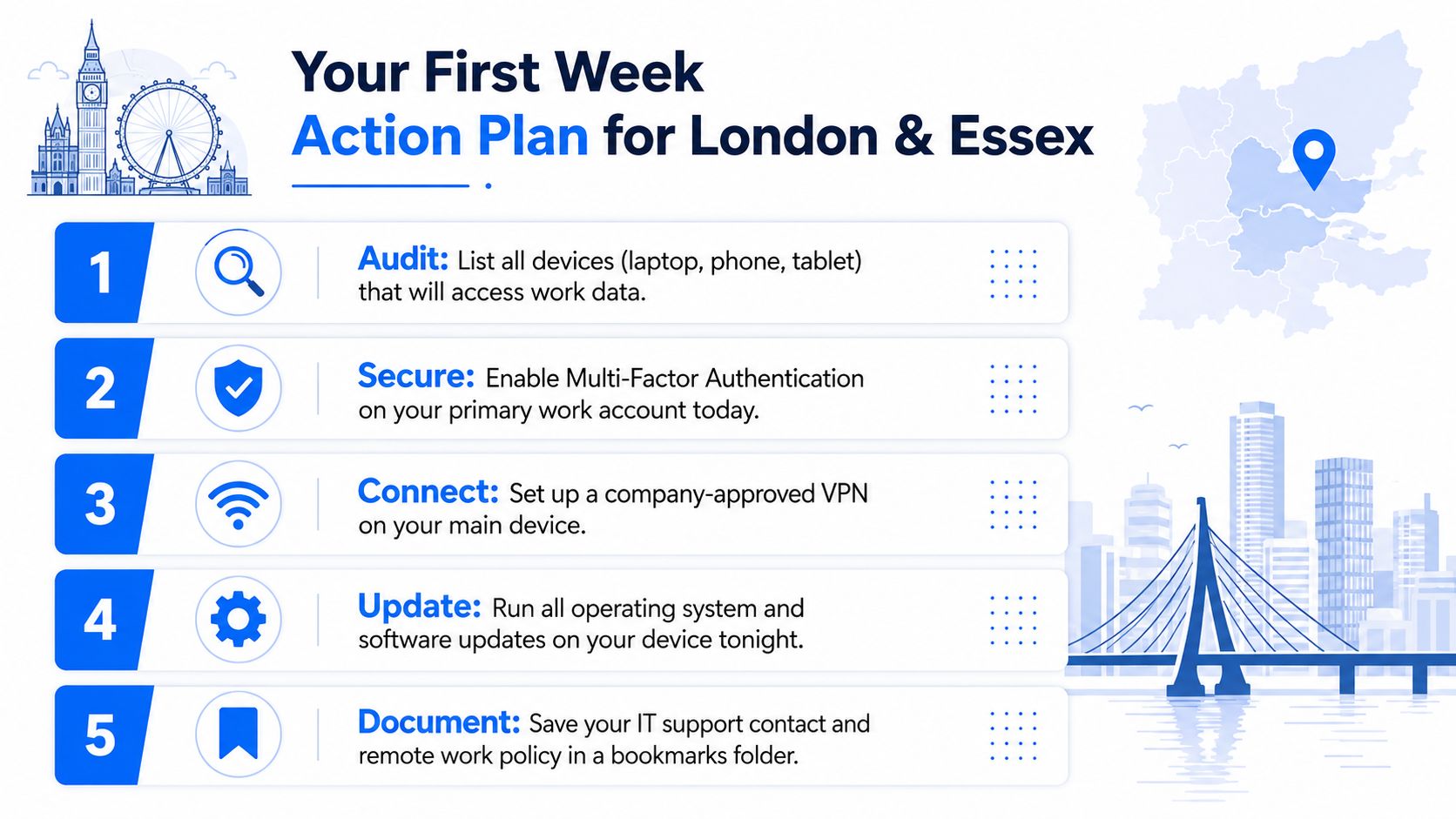
A home user can usually handle account MFA, updates, screen locks, and a basic access test in an afternoon. Don't open router ports or install an unfamiliar remote-control tool just because a search result recommends it. Use the product's official documentation and keep recovery details somewhere secure.
A small business should ask an IT provider:
- Which controls do you use for Cyber Essentials and NCSC-aligned remote access?
- How do you respond when a laptop is lost or an employee leaves?
- What are your support response times for a business in Basildon, Romford, or Southend?
- Is remote access monitored outside normal office hours?
- How are backups tested, and can the business recover without the live network?
For a homeworker in Rayleigh or Southend who only needs basic file access, three quick wins are clear. Use the approved cloud workspace, turn on MFA, and stop storing work files in unapproved personal shares.
Key Takeaways and Where to Go Next
Remote access means using a computer, files, or business systems from another location through a controlled connection. The right choice depends on the systems involved, the user's role, the device's condition, and how closely the organisation needs to monitor access.
Remember four points:
- Identity matters as much as location. A trusted office network doesn't make every user or device safe.
- The method should match the task. VPNs, remote desktops, Zero Trust access, and cloud tools solve different problems.
- Controls matter more than branding. MFA, patching, segmentation, encryption, named accounts, logging, and tested backups do the protective work.
- Support has value. Most SMEs need reliable administration and monitoring, while capable home users can manage smaller setups with care.
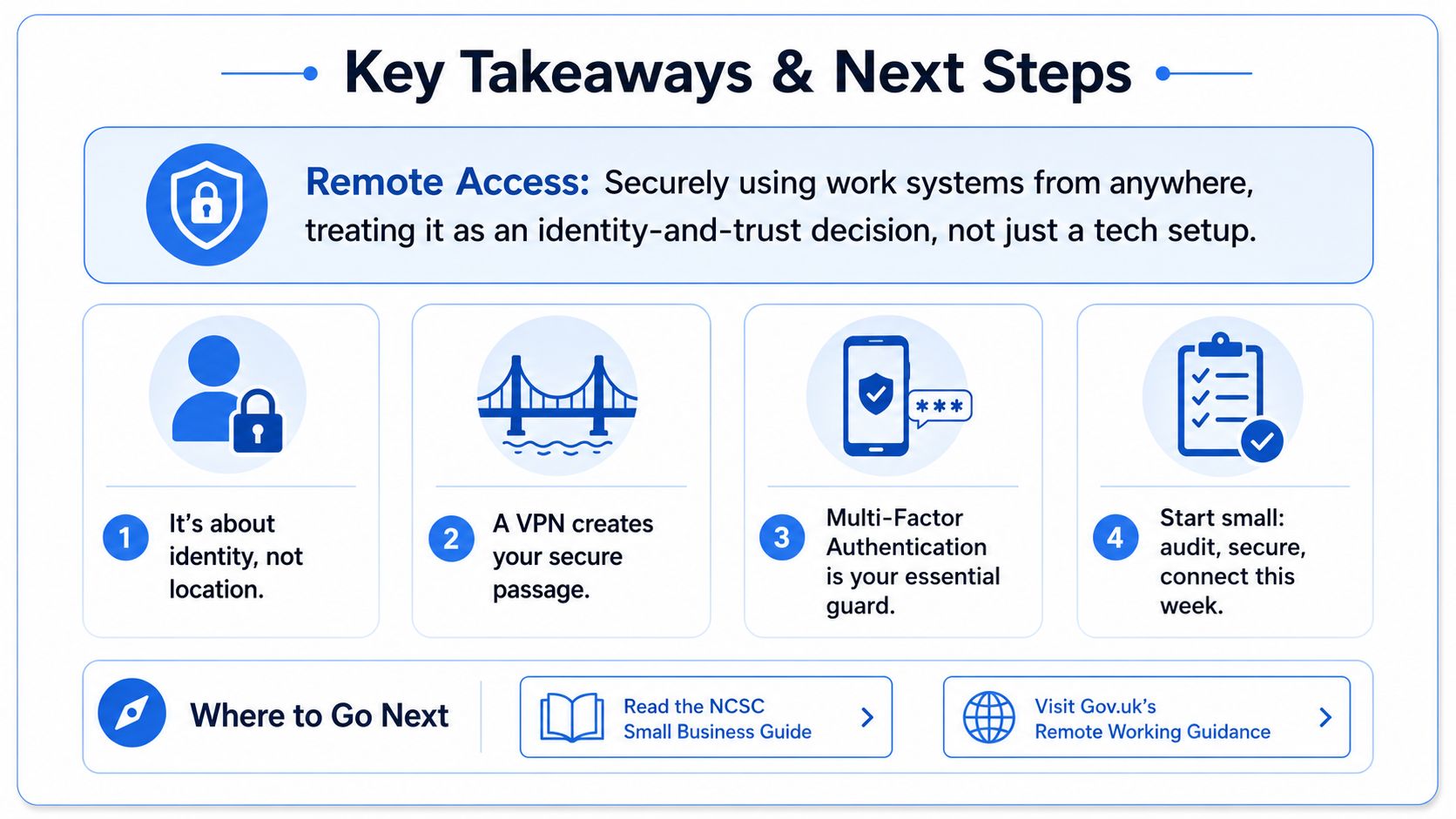
For trustworthy self-guided reading, use the NCSC Small Business Guide and Cyber Essentials guidance. If your setup spans a home office and business systems across London or Essex, arrange a short review before changing access settings.
Networking2000 helps London and Essex homes and small businesses plan, secure, and support remote access, including encrypted VPNs, MFA, secure cloud-hosted desktops, and remote support. Visit Networking2000 to discuss your devices, applications, and a practical access setup with a local IT team.

