A flat office network looks simple until it stops being simple. A staff laptop starts seeing the guest printer, the VoIP phones share airtime with CCTV, and a contractor's tablet ends up one mispatched cable away from the fileserver. That's where VLAN configuration earns its keep, not as a switch trick, but as a design choice that decides what can talk to what, and what stays out.
The useful mental model is old but still current. IEEE 802.1Q became the modern VLAN tagging standard after its first publication in 1998 and formal issue in June 1999. It replaced earlier proprietary approaches such as Cisco ISL and DISL, and its 12-bit VLAN Identifier gives 4,096 possible values, with 4,094 usable VLANs after reserving two identifiers as documented here. That scale mattered because segmented networking became practical on shared switching hardware instead of separate cabling for every department, site, or service.
Modern mixed-vendor deployments also rely on the fact that 802.1Q adds explicit tagging while keeping existing Ethernet infrastructure usable, which is why access ports, trunk ports, and inter-switch segmentation work across different kit as covered in the standard overview here. In real offices, that means you can separate staff, guest Wi-Fi, voice, printers, management, and IoT without rebuilding the building.
Table of Contents
- Why VLAN Configuration Matters in a Small Office
- Planning Your VLAN Layout Before You Touch the Switch
- Configuring Access Ports, Trunks and the Management VLAN
- Enabling Inter-VLAN Routing and DHCP
- Verifying the Build End to End
- Common VLAN Troubleshooting Scenarios
- Security Best Practices and a Pre-Handover Checklist
Why VLAN Configuration Matters in a Small Office
A 15-person office in Essex with one switch is where segmentation gets ignored until the first support call lands. Staff PCs, a VoIP phone system, a guest Wi-Fi access point, and a couple of cameras can all work on the same physical switch, but if they sit in one broadcast domain, every fault is harder to isolate and every change carries more risk than it should.

What Segmentation Gives You
Containment is the first win. Guest traffic can reach the internet without seeing internal shares, printer queues, or admin interfaces. Voice traffic can stay separate from bulk file transfers and random downloads, which keeps phone behaviour easier to predict during busy periods.
Operational clarity is the second win. A dead switch port is easier to diagnose when you already know whether it should carry staff, voice, or guest traffic. That is why vlan configuration starts with trust boundaries, not with typing commands into the switch.
Practical rule: if you cannot explain why a VLAN exists in one sentence, it probably does not belong in the design yet.
Why One Physical Network Can Still Behave Like Several
IEEE 802.1Q is the tagging method that makes this split work on one cable plant. Switches mark frames so the right VLAN receives the right traffic, without forcing separate physical infrastructure for every role, as detailed in this overview of the 802.1Q standard. For a small office, that usually means you get separation without paying for a separate run to every desk.
It also changes how support works. A guest wireless fault, a printer issue, and a phone problem are no longer one vague “network down” event just because they share a switch. Clean segmentation lets you narrow the fault domain faster and avoid disturbing services that are already fine.
The trade-off is simple. VLANs add design discipline, but they do not make the network safe by themselves. If trunking is sloppy or inter-VLAN routing is too open, the segmentation is mostly cosmetic. The rest of the build works best in a straight line, plan the layout first, then configure the ports, then enable routing, then verify every path end to end.
Planning Your VLAN Layout Before You Touch the Switch
Start with roles, not IDs. On a small office build, the useful VLANs are usually staff, voice, guest Wi-Fi, printers, CCTV, IoT, and management, but you don't need all of them just because they sound tidy. The right design is the smallest one that still separates risk and keeps support manageable.
Build the plan in this order
- Identify the business role. Staff devices need access to internal resources. Guests need internet only. Cameras and IoT devices usually need very limited reach.
- Choose the subnet and gateway. Each VLAN needs its own non-overlapping addressing so routing stays predictable.
- Decide on routing. If a VLAN never needs to talk to anything else, keep it isolated. If it needs a printer, a controller, or a server, define that path deliberately.
- Assign ownership. Every VLAN should have a named owner, even if it's “managed by the office manager” or “owned by IT support”.
- Write the naming scheme. Keep names obvious, such as STAFF, VOICE, GUEST, and MGMT, so the config still makes sense after a handover.
That sequence matters because most VLAN mistakes happen before the first command is entered. If the subnet overlaps, the routing plan is vague, or nobody owns the guest network, the switch can be perfectly configured and still be a headache six months later.
A useful habit is to quarantine spare ports. Put unused switch ports into a non-routed VLAN and shut them down. That reduces accidental plugging of unmanaged kit and makes it harder for a random device to join the live network. UK-facing operational guidance also recommends isolating management traffic and turning off unused ports for exactly this reason as outlined here.
A simple one-page worksheet
| Item | What to write down |
|---|---|
| VLAN purpose | Staff, voice, guest, printers, CCTV, IoT, management |
| Subnet | One unique subnet per VLAN |
| Gateway | The SVI or router sub-interface IP |
| Access | Which ports or SSIDs belong here |
| Routing | Allowed destinations, or none |
| Owner | Person responsible for changes |
| Spare ports | Quarantine VLAN and shutdown state |
Before you touch the switch, that sheet should answer every “why” question. If it doesn't, the build isn't ready yet.
One useful companion resource for hardening after setup is secure OpenWrt router after install, especially if your edge device is doing more than simple switching.
Configuring Access Ports, Trunks and the Management VLAN
The cleanest rule is simple, leave one untagged VLAN on an access port, and nothing else. If a device is a desk phone, a camera, or a PC, it should land in the VLAN you intended, not wander in because the port is too permissive. That principle keeps the edge predictable and cuts down on the weird “wrong network” calls.
Cisco IOS commands that match the job
A typical Cisco IOS pattern looks like this:
conf t
vlan 10
 name STAFF
vlan 20
 name VOICE
vlan 30
 name GUEST
vlan 99
 name MGMT
interface range fa0/1 - 12
 switchport mode access
 switchport access vlan 10
 spanning-tree portfast
interface fa0/13
 switchport mode access
 switchport access vlan 20
 spanning-tree portfast
interface gi0/1
 switchport trunk encapsulation dot1q
 switchport mode trunk
 switchport trunk allowed vlan 10,20,30,99
 switchport nonegotiate
end
On the access side, switchport mode access fixes the port in one VLAN, which is what you want for PCs and many endpoints. On the uplink, switchport mode trunk carries multiple VLANs using 802.1Q tags. switchport trunk allowed vlan 10,20,30,99 prunes the trunk so it doesn't forward VLANs that have no business crossing that link. Disabling DTP with switchport nonegotiate stops the port from trying to auto-negotiate into a trunk, which is a bad surprise on a production uplink.
Keep the native VLAN boring and consistent. A mismatch between ends of a trunk is one of those errors that looks small and causes disproportionate pain.
Management VLAN done properly
The management VLAN should be boring, isolated, and documented. Give the switch its management IP there, not on the staff VLAN where every desktop can see it. That keeps admin access separate from user traffic and makes it easier to protect the control plane.
On Cisco gear, the idea is straightforward, even if the exact menu wording changes between models. You create the management VLAN, assign the switch IP to the SVI for that VLAN, and make sure only trusted admin hosts can reach it. The same design works whether the switch is being managed from CLI or a GUI, the point is separation, not the interface you use.
Translating the same intent to UniFi and smart switches
UniFi controllers usually label this as port profile and network assignment rather than raw IOS syntax. You still want the same outcome, a staff access port, a voice-ready port if needed, and a trunk or tagged uplink for the switch or AP. TP-Link and Netgear smart switches often expose the same controls through VLAN membership tables, PVID settings, and tagged or untagged port tick boxes.
The GUI may hide the syntax, but the intent doesn't change. Define which VLAN is untagged on a port, list only the VLANs a trunk needs, and keep management on its own segment. If the switch offers “all VLANs allowed” as a default, don't leave it there unless you genuinely need it.
Enabling Inter-VLAN Routing and DHCP
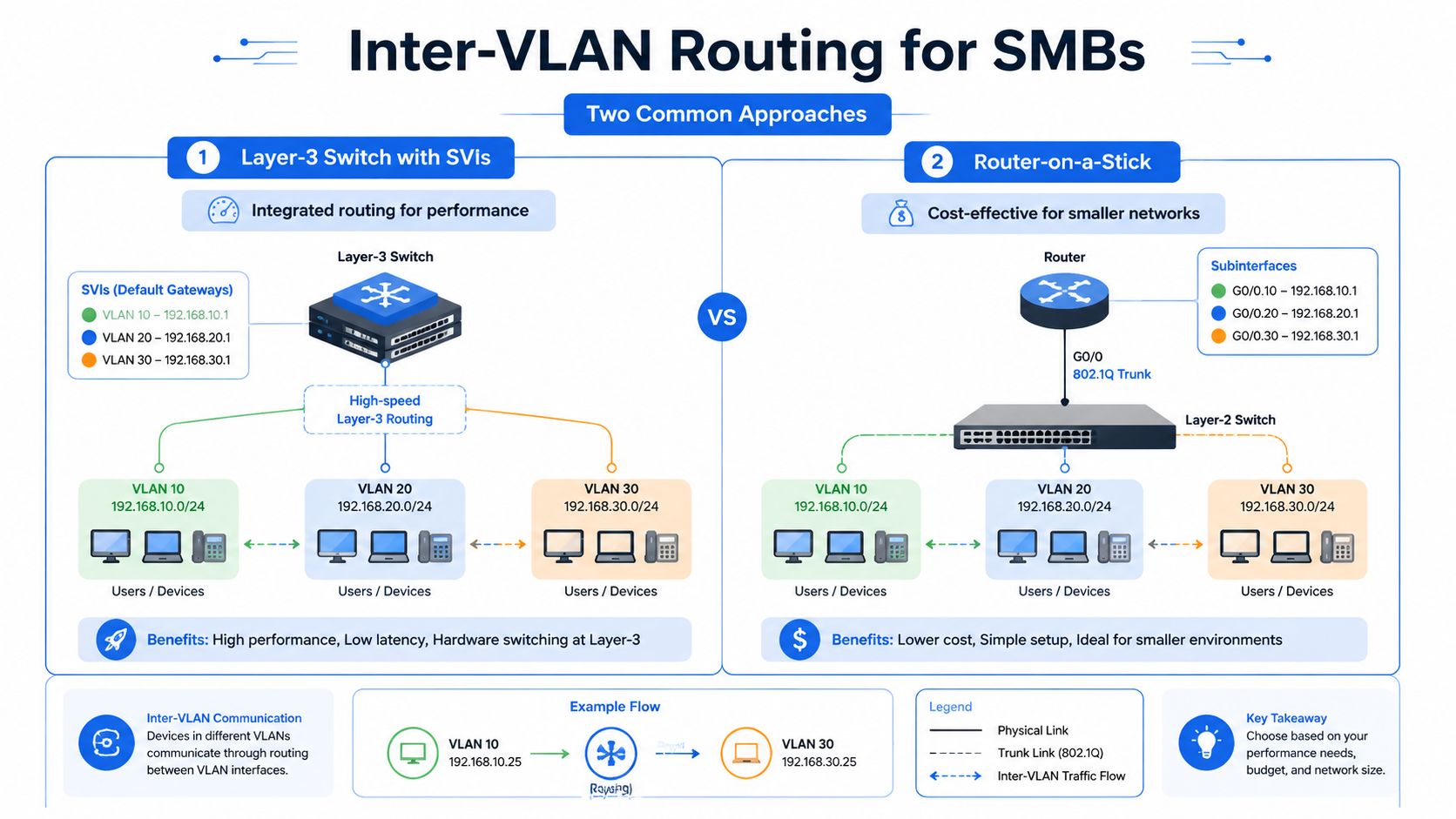
A VLAN that can't reach anything useful isn't finished. Once the access and trunk layers are right, the next question is how traffic moves between VLANs when it's allowed to. In small offices, that usually comes down to a Layer-3 switch with SVIs or router-on-a-stick on the firewall or edge router.
Two practical routing patterns
On a Layer-3 switch, you create switched virtual interfaces, one per VLAN, and use them as the default gateways. That works well when you want fast internal routing and the switch is already doing a lot of the LAN work. On a router-on-a-stick build, the trunk comes into a router or firewall, and sub-interfaces on that link handle each VLAN separately.
Both models work. The right one depends on the kit you already own, how much routing the switch can do, and whether you want the firewall to sit in the middle of inter-VLAN policy. For many SMBs, the simplest answer is the one that uses the fewest moving parts.
Worked layout for a small office
Here's the pattern I'd use for a staff, voice, and guest design:
- Staff VLAN gets the gateway for internal users and the DHCP scope for office devices.
- Voice VLAN is separated so phones don't sit in the same broadcast space as desktop traffic.
- Guest VLAN gets internet access only, with no internal routes unless there's a strong reason.
- Management VLAN stays for switches, APs, and other infrastructure.
On a Layer-3 switch, the configuration normally starts by enabling routing, then creating each SVI and giving it the gateway IP for that VLAN. On a router-on-a-stick design, the router sub-interface gets the 802.1Q tag for each VLAN and the gateway IP on that sub-interface. The client side doesn't care which model you chose, as long as the gateway is reachable and consistent.
DHCP is the next piece. If the DHCP server isn't on the same VLAN as the clients, you need relay behaviour, which is usually an ip helper-address on the SVI or sub-interface. That way, DHCP broadcasts from the client VLAN get forwarded to the server instead of dying at the broadcast boundary.
The practical test is simple. Each VLAN needs a default gateway, each scope needs the correct subnet, and each relay path needs to point at the DHCP server or the router pool you use. If those three pieces don't line up, the network will look “up” while clients still fail to get an address.
Verifying the Build End to End
The first sign of a good VLAN build is boring output. On Cisco IOS, I check show vlan brief, show interfaces trunk, show ip interface brief, and show running-config | section vlan before I trust anything else. That gives you the membership table, trunk state, interface status, and the live config in one sweep.
What working looks like
On a real job, I'd start at the edge and move inward. A staff PC should land in the right VLAN, get a lease, and reach only what it's meant to reach. A guest device should get a lease too, but when it tries to reach the internal side, the traffic should stop where policy says it should.
The useful checks are the ones that prove behaviour, not just config presence.
- Port membership: Confirm the access port is in the expected VLAN and the AP uplink is tagging what it should.
- Trunk state: Check that only the required VLANs are allowed across the uplink.
- IP layer: Verify the client has the right gateway and a valid lease.
- Path tests: Ping a known internal host if routing is meant to work, or confirm it fails if isolation is intended.
- Management reachability: Test that the switch management IP is reachable only from trusted admin locations.
A short validation run that catches silent errors
A good validation sequence is usually: check the switch view, then the client view, then the path. If the staff VLAN pings the default gateway but doesn't get a DHCP lease, the problem is probably helper or scope related. If the guest SSID gets a lease but can still see internal resources, the trunk or firewall policy is wrong. If the management VLAN is reachable from a random desk, the access control around that segment isn't tight enough.
If the config looks clean but the packet path doesn't match, trust the packet path. The live test is the truth source.
UniFi and TP-Link screens can tell you the same story if you know where to look. You want VLAN membership, trunk status, DHCP lease state, and port activity, not just a green dashboard. The point of verification is catching the silent misconfig before the users do, because the users will usually discover it by trying to work around it.
Common VLAN Troubleshooting Scenarios
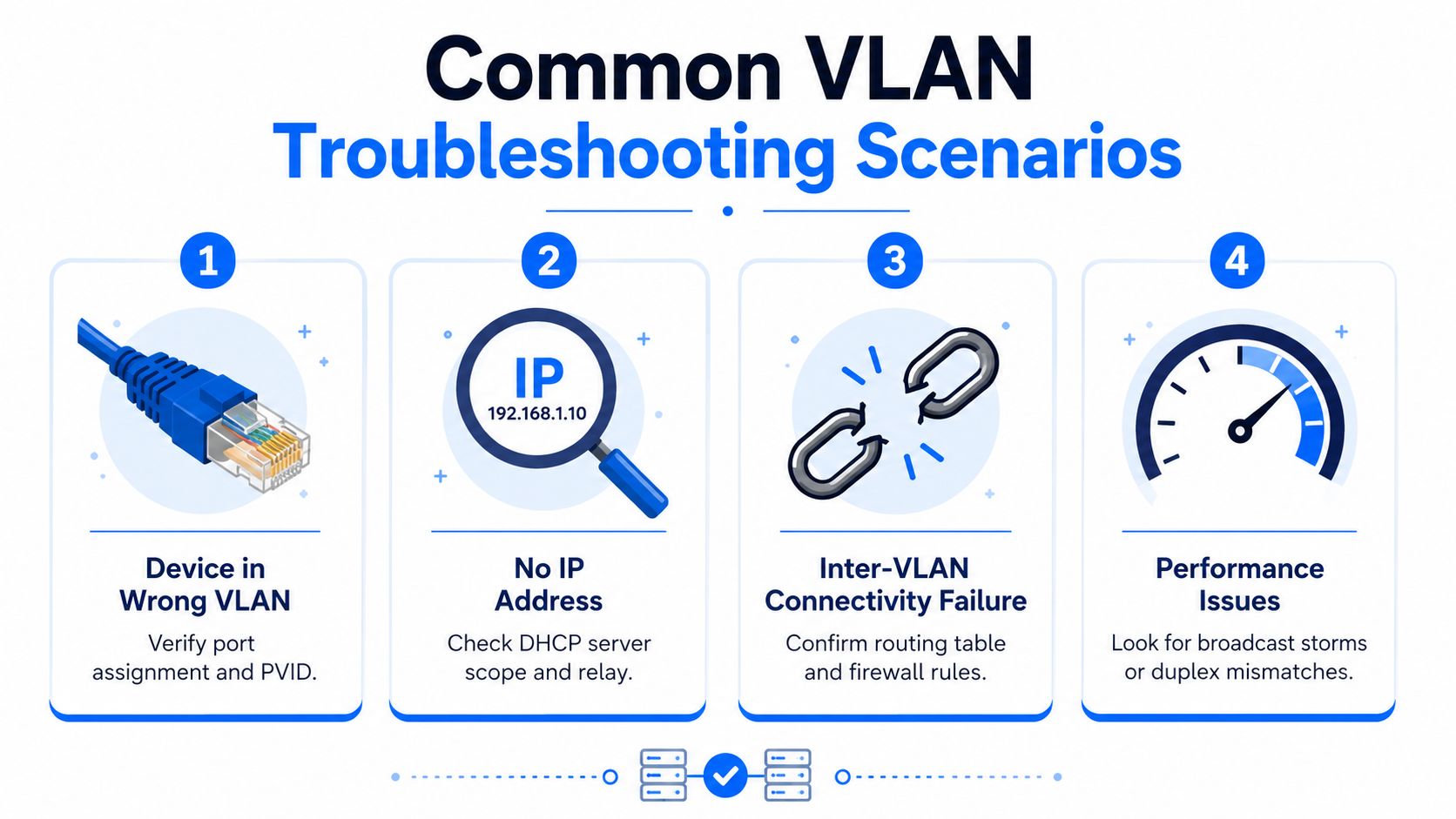
Most SMB VLAN faults collapse into a small decision tree. The symptom appears far away from the cause, which is why people chase the wrong layer first. If you keep the failure mode in mind, the fix gets much faster.
Wrong VLAN on the port
If a device appears on the wrong network, the usual cause is an access port left in the wrong VLAN or a phone tagging traffic differently from what you expected. Check the port assignment first, then confirm the PVID or access VLAN on the switch. On Cisco, show vlan brief and show interfaces switchport are the quickest reality checks.
No IP address
If the device links up but never gets an address, suspect DHCP relay, scope mismatch, or a blocked helper path. First check whether the client VLAN can reach the DHCP server at all, then confirm the helper is applied to the right SVI or sub-interface. If the server is centralised and the relay is missing, the broadcast never leaves the VLAN.
Inter-VLAN connectivity failure
If staff can't reach a server in another VLAN, confirm the gateway, the route, and the firewall rule in that order. A working access port doesn't prove routing is enabled. show ip interface brief, show ip route, and the firewall policy are the commands that tell you whether the packet has anywhere to go.
Native VLAN or trunk pruning problem
If CDP or management behaves oddly after a refresh, suspect a native VLAN mismatch or a trunk that's been pruned too hard. The symptoms are often subtle, strange management reachability, some VLANs working while others disappear, or an AP uplink carrying the wrong tagged and untagged frames. show interfaces trunk will usually show the mistake faster than the dashboard will.
Don't restart everything. Check the port, then the VLAN, then the trunk, then the gateway. That order saves time and stops you from breaking a working segment while chasing a different one.
Security Best Practices and a Pre-Handover Checklist
The hardening steps that matter most are also the least glamorous. Shut down unused ports, move spares into a quarantine VLAN, prune trunks, disable DTP, and keep the management VLAN tightly controlled. Those five habits remove a lot of avoidable exposure without turning the network into a support nightmare.
A second good habit is documenting every change. If a port is meant for a phone, say so. If a spare port is in a quarantine VLAN, record that too. A clean handover note prevents the next engineer from “fixing” something that was already deliberate.
For a wider view of why this still matters, the security conversation around network threats in 2026 is a useful reminder that segmentation is only one layer of defence, not the whole story read the discussion here.
Pre-handover checklist
- Unused ports shut down: Confirm there's no live, unlabeled access sitting on the switch.
- Spare ports quarantined: Put unassigned sockets in a non-routed VLAN.
- Trunks pruned: Allow only the VLANs that need the uplink.
- DTP disabled: Stop ports from auto-negotiating into trunks.
- Management isolated: Confirm only trusted admin hosts can reach it.
- Notes updated: Record VLAN names, ownership, gateway locations, and exceptions.
If voice quality is already suffering, if a third party controls part of the network, or if the build has to bridge multiple sites, bring in an engineer rather than improvising. The complexity climbs quickly once phone systems, guest access, and remote management all meet on the same rack.
Networking2000 helps businesses and homes across London and Essex with network design, support, VoIP, wireless, cabling, and security, so if you want a VLAN build that's planned properly and checked end to end, visit Networking2000 and speak to a team that can turn a messy flat network into something stable and supportable.

