The internet never seems to fail at a convenient time. A laptop shows a spinning wheel, a video call freezes, the printer disappears from the network, and the first instinct is usually to start clicking random things and hoping for the best. That rarely helps. A better approach is to work through network troubleshooting the way an engineer would, calmly, in order, and with enough evidence to know whether the fault is in the device, the local network, or the wider connection.
That matters more in the UK than it used to. The Office for National Statistics reported that in late 2022, 44% of UK working adults did some work at home and 16% were hybrid workers, so a lot more faults now sit across home routers, consumer broadband, VPNs, and corporate services rather than a single office LAN. The same ONS data also showed that 65% of people who had ever worked from home used a computer, laptop, or tablet for work, while 27% used a mobile phone, which means more endpoints can fail and more places can break. In practice, good troubleshooting starts by identifying the affected user, site, and connection type before anything else. Selector AI's UK troubleshooting overview
Table of Contents
- That Sinking Feeling When the Internet is Down
- Your First Response Checklist Before You Panic
- Isolating the Problem Is It Your Network or the Internet
- Essential Commands and Tools for Quick Diagnostics
- Troubleshooting Firewalls and Security Policies
- When and How to Contact Your Internet Provider
- Building a Reliable Network with Preventative Maintenance
That Sinking Feeling When the Internet is Down
The moment is familiar. The Wi-Fi icon looks wrong, pages refuse to load, and everyone in the house or office starts asking the same question at once. Treat it as a diagnosis problem, not a crisis. The fastest way back online is to stop guessing and narrow the fault domain.
Start with the symptom, not the story
A complaint like “the internet is down” is too vague to act on. You need to know whether one device is affected, several devices are affected, or the whole site has gone quiet. That distinction changes the next step. A single laptop problem points you towards device settings, while multiple devices failing pushes you towards the router, ISP, or a shared network policy.
Remote and hybrid working have made these checks part of everyday support, not just office troubleshooting. Basic checks such as IP configuration, DNS validation, ping, and traceroute help separate a local device fault from a provider or application issue before you waste time on the wrong layer. The Office for National Statistics report on home and hybrid working shows how common this setup has become, while ONS data on homeworking device use shows that people rely on different devices to stay connected, which changes what you check first.
Practical rule: If you can describe the problem in one sentence, you can usually test it in one or two steps.
Think in fault domains
A fault domain is the area where the problem could be happening. In a home setup, that might be the laptop, the Wi-Fi link, the router, the broadband line, or the remote service itself. In a small business, the list gets longer because switches, VLANs, firewalls, VPNs, and cloud services can all sit in the path.
Experienced engineers do not rush to the “big fix”. They first ask, “What still works?” If local file shares open but web browsing fails, that says something very different from a complete outage. If the laptop works on mobile hotspot but not on office Wi-Fi, the network is the likely suspect, not the machine.
A calm first pass saves time. It also stops you from restarting five things at once and losing the evidence that would have shown what failed first.
Your First Response Checklist Before You Panic
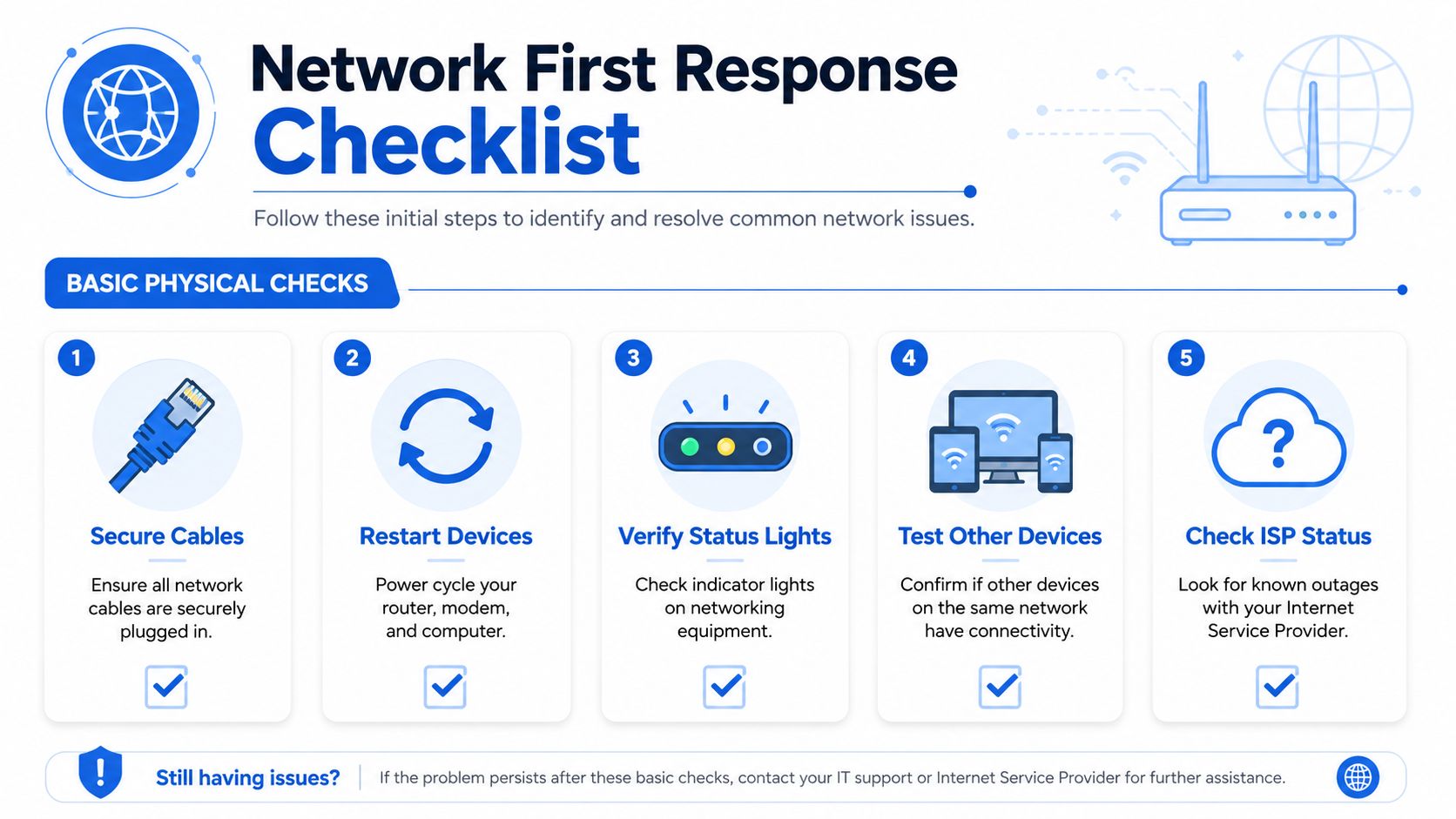
Before you open a browser tab, check the physical basics. A surprising number of calls turn out to be loose cables, bad power, or a device that never fully came back after a restart. The right mindset here is bottom-up. Start at Layer 1, then work upward only if the cables, lights, and ports look healthy.
Check the basics in the right order
First, look at the modem or router and confirm the power light is on and steady. Then inspect the link lights on the Ethernet port, because they tell you whether the physical connection is live. If a cable is loose, damaged, or plugged into the wrong port, you can chase software settings for an hour and never touch the underlying issue.
Reseating or swapping a cable is one of the highest-value tests you can do. It's quick, cheap, and tells you whether the fault follows the cable or stays with the device or port. If you're dealing with a desktop, dock, or switch port, that single swap often separates a physical fault from a configuration fault.
Restart devices in a sensible sequence
Power cycling works best when you do it in order. Turn off the router or modem first, wait a short moment, then restart the device that sits closest to the internet handoff before bringing the computer back online. That gives each layer a clean chance to renegotiate the connection instead of carrying over a stuck state.
A successful reboot doesn't prove the network is healthy, but it does clear a lot of temporary faults that look more serious than they are.
If other devices on the same connection are also offline, that's useful evidence, not just extra frustration. It means the issue is probably shared, which makes the router, broadband line, or ISP far more likely than the laptop or phone in your hand. If only one device is affected, the fault is probably local to that endpoint, its Wi-Fi adapter, or its configuration.
The bottom-up method works because it stops you from interpreting symptoms too early. As noted in the UK-aligned workflow from Netverge, confirm link lights, reseat or swap cables, then move to higher-layer checks only after the physical layer is sound. Netverge's step-by-step network troubleshooting guide
Isolating the Problem Is It Your Network or the Internet
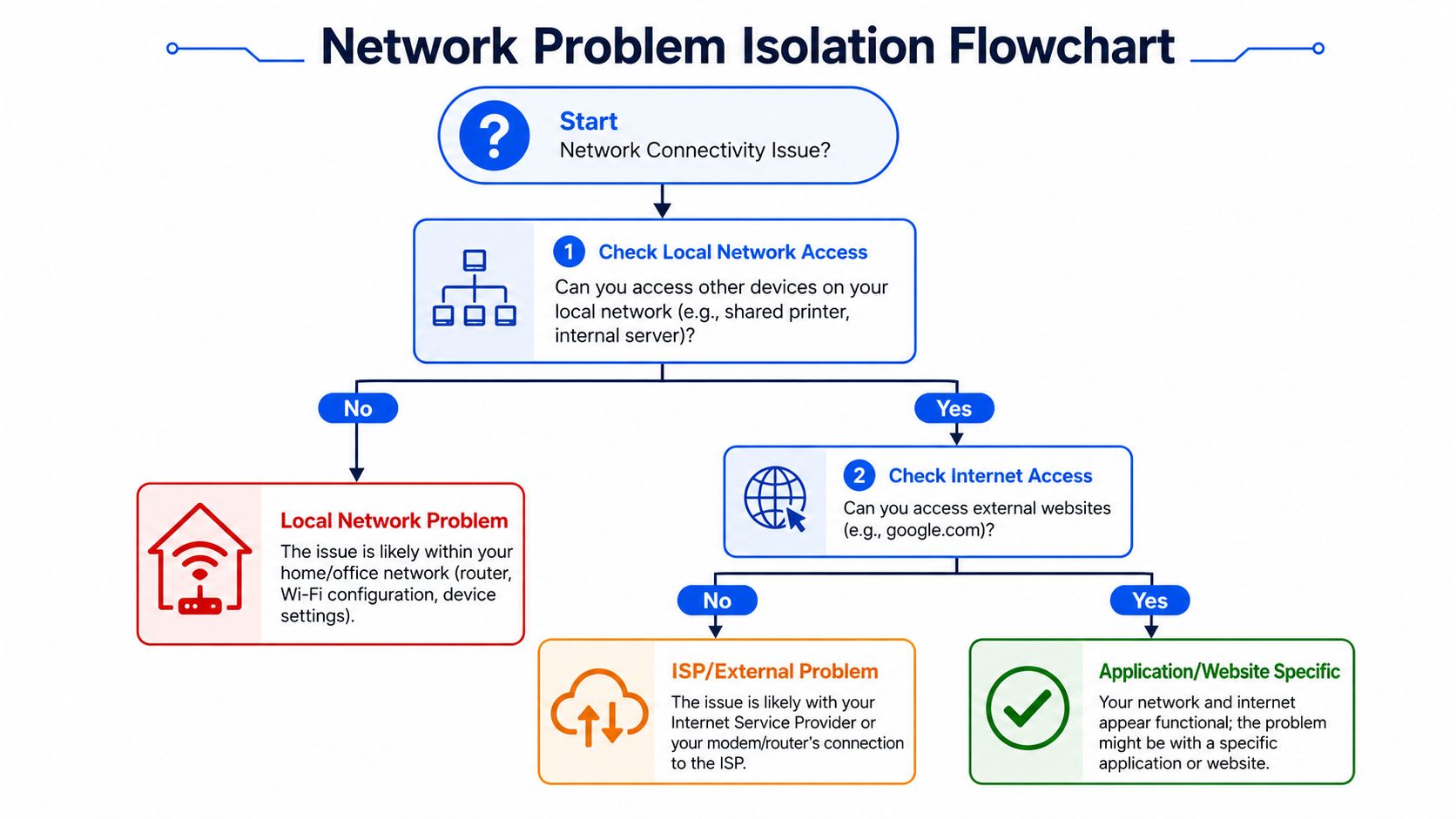
Once the basics look sane, the next job is to separate a local network problem from an internet path problem. That split saves time because the fixes are different. If the local network is fine, no amount of Wi-Fi tweaking will repair an ISP fault. If the ISP path is fine, calling the broadband provider will not help a broken printer or a laptop with the wrong settings.
Use a simple yes or no test
Start with local access. Can the affected device reach another device on the same network, such as a printer, NAS, or internal server? If it cannot, the fault is likely inside the local network, not on the public internet. That points you toward Wi-Fi, the router, VLANs, DHCP, or endpoint settings.
If local access works, test a normal external website. If that fails too, the internet side becomes the stronger suspect. If both local and external access work, the network is probably fine and the issue may sit with one application, one website, or one service.
Compare one device with another
Comparing device performance often gives clearer results than people expect. If one laptop fails but a phone on the same Wi-Fi works, that is a strong clue that the problem is device-specific. If every device behaves the same way, you are looking at something shared, and shared faults are usually easier to reason about once the wrong endpoint stops getting blamed.
In UK homes and SMBs, the path is rarely simple now. Remote work, consumer broadband, and corporate VPNs all add extra layers, so the first question has to be whether the fault is local or external. That is the most useful split in a distributed environment, because it decides whether you troubleshoot inside the building or outside it. Selector AI's UK network troubleshooting guidance
Helpful habit: Test a known-good device on the same connection before you touch settings on the failing one.
If you can, try the affected device on a different network, such as a mobile hotspot. If it works there, the device itself is probably healthy and the issue is tied to your local network or ISP path. If it still fails everywhere, the fault is more likely in the device or its software stack.
Essential Commands and Tools for Quick Diagnostics
Once you have narrowed the fault domain, use the built-in commands to collect hard evidence. These tools are simple, but they are exactly what you want when someone needs a clear answer quickly. They turn a vague complaint into facts, and facts are what move a fix forward.
ping, ipconfig, and traceroute do different jobs
ping checks whether a destination responds and how long the reply takes. On a local network, ping times of 1 ms or less are generally good, while 10 to 50 ms or less are considered good for the internet. That gives you a quick check when you are deciding whether the fault is local, ISP-related, or remote.
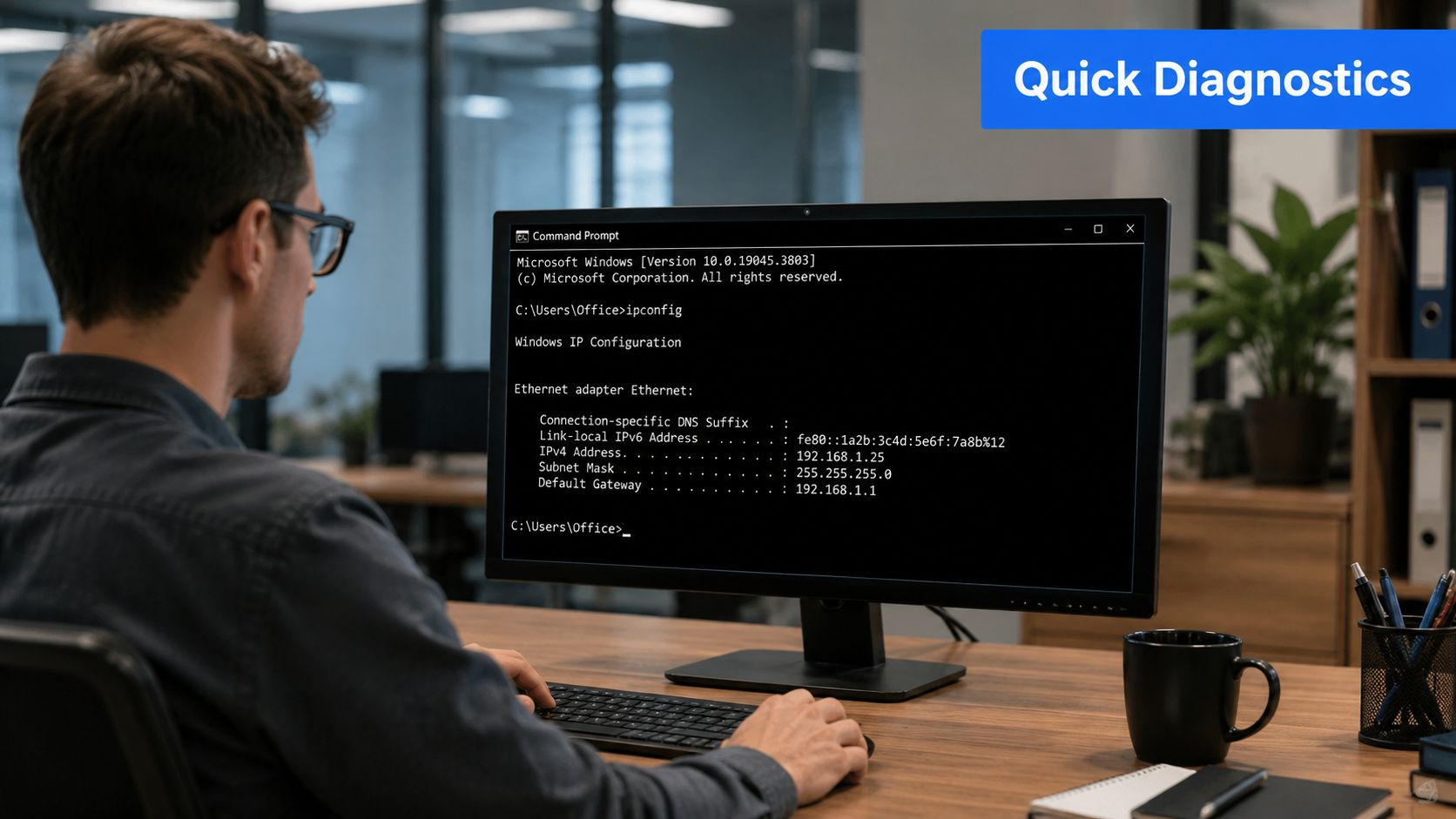
ipconfig on Windows, or ifconfig on macOS and Linux, shows the address details your device has received. Look for a valid IP configuration, because a machine with the wrong address, subnet, or gateway can appear connected and still fail to reach anything useful. That makes this check a better starting point than guessing at the cause.
tracert or traceroute maps the path between your device and a destination. If the first hop fails, the issue is close to home. If the path gets partway out and then stops, that gives you a stronger clue about where the break sits.
Read the output, not just the command result
A lot of people stop at “ping worked” and assume everything is fine. It is not. A ping to the gateway only proves local Layer 3 reachability, not DNS, firewall, routing, or application-port health. That is why the output matters more than the command itself.
For real-time services like voice and video, latency above 150 ms and packet loss over 1% for 5 minutes or longer are major problems. A connection can be “up” and still be unusable for Zoom or VoIP. ManageEngine's network monitoring metrics guide
Good evidence beats a strong opinion. A short set of command outputs is often more useful than a long description of what “felt slow”.
If the local ping is fast but external pings are slow or failing, that is the kind of evidence that helps an ISP focus on their side of the connection quickly. If the route fails before leaving your network, the problem is still yours to solve. University of Illinois network troubleshooting reference
Keep the evidence short and specific
Write down the command used, the device tested, and the first failure point. If the path changes after each test, that matters more than a long list of guesses. Engineers get better results from repeatable outputs than from dramatic descriptions.
The same rule applies when you compare performance over time. Latency, packet loss, and route changes tell a clearer story than feelings about speed. That is how you move from “the network is slow” to “the issue starts after the first hop” or “the service never answers on the expected path”.
Troubleshooting Firewalls and Security Policies
Sometimes the network is working, and a rule is getting in the way. That happens often in business environments, where firewalls, endpoint protection, segmentation, and access policies are set up to stop traffic that looks risky or out of line with company rules. The difficult part is separating a genuine network fault from a control doing exactly what it was meant to do.

A block can look exactly like an outage
A user who can reach the router but not a specific application is often pointing you away from the physical network and toward policy. A firewall rule, an ACL, a segmentation policy, or a security agent can allow basic connectivity while blocking the service port underneath. To the user, it still feels like “the internet is down”.
Security pressure is a major reason companies tighten those controls, and those controls can be blamed for the wrong problem. The UK government's 2024 Cyber Security Breaches Survey found that 50% of businesses reported some kind of cyber security breach or attack in the previous 12 months, and 32% of businesses said they had experienced phishing. That helps explain why firms harden their defences, and why a blocked service can be mistaken for a wider outage. UK government's 2024 Cyber Security Breaches Survey
Separate connectivity from permission
A practical test is simple. Ask whether the host is reachable but the service is not. If a device answers a basic reachability check but the application still will not open, the path may be fine while the service is being filtered. In a security-heavy small business, that is not a small detail. It is the difference between fixing a network fault and adjusting a rule that was meant to protect the environment.
Consistency matters too. If one office can access a service and another cannot, policy or segmentation becomes more likely. If only one user is blocked, endpoint protection, local firewall settings, or a stale profile may be involved instead.
Practical rule: Do not keep changing network settings if the evidence points to a policy block. Collect the logs first.
Central logs make this much easier. They show whether a connection was dropped, denied, or never seen at all, which is far more useful than guessing from the user's symptom. In business settings, the quickest path is often to prove that the traffic is being blocked deliberately, then trace which control is responsible.
When and How to Contact Your Internet Provider
If your local checks are clean and the fault sits outside your network, call your ISP with evidence, not frustration. The conversation goes better when you can show what you tested, what failed, and what still works. That turns a vague complaint into a useful handoff for the provider's support team.
Gather the right details first
Have these points ready before you call.
- What is affected: one device, several devices, or the whole site.
- What still works: local devices, internal services, or nothing at all.
- What your tests showed: ping results, traceroute stops, and any clear failure points.
- What the modem or router shows: link lights, status lights, and any obvious warning indicators.
- What changed recently: new hardware, cabling changes, power cuts, or configuration changes.
If your local pings are fast but external pings are slow or failing, say that clearly. The provider can focus on the part of the connection that leaves your premises. If the connection fails after a particular hop, give them that detail instead of a general complaint.
Keep the call short and precise
Good provider calls are factual. State the symptom, name the devices affected, and give the first failure point from your tests. If you have already proved that the local network works, the ISP can skip basic script questions and move straight to their side of the line.
Timing and evidence matter here. Use clear command output, note whether the failure is complete or intermittent, and avoid guessing at the cause before the provider has had a chance to check their side. When you already have a clean local baseline, it is much easier to show that the fault sits upstream and to ask for the right escalation.
When you speak to them, keep notes. Record the ticket number, the time of the call, and any instructions they give you. If the issue returns, those notes make the next conversation faster. A good internal record also helps if you need to compare the ISP's findings with your own later, which is why a simple runbook matters. Tutorial AI explains runbook vs playbook
Building a Reliable Network with Preventative Maintenance
The best troubleshooting job is the one you never have to do. A reliable network comes from small habits that stop common faults before users notice them. That means keeping firmware current, maintaining clean cabling, documenting changes, and treating the network like a system that needs regular attention rather than a box that should just keep working forever.
Prevent the faults you already know about
Firmware updates matter because routers, switches, and access points all age in software as well as hardware. Strong, unique Wi-Fi passwords matter too, not just for security but because unmanaged access can create instability and support headaches. And tidy cabling reduces accidental disconnections, which are still one of the easiest avoidable causes of downtime.
For businesses, documentation is a force multiplier. A simple record of what changed, when it changed, and which device was involved gives you a head start the next time something breaks. If you want a clean way to think about that difference, Tutorial AI's explanation of runbooks versus playbooks is a useful read because it separates repeatable procedures from broader response planning.
Monitor, don't guess
Basic monitoring tells you when the network changed before users start complaining. Even lightweight logs, interface counters, and uptime checks can help you spot patterns like repeated drops, slow links, or recurring authentication failures. That's far better than relying on memory after the event.
Good documentation doesn't make the problem vanish. It makes the next fix faster, safer, and less disruptive.
The long-term goal is simple. Reduce the number of unknowns, keep the physical layer tidy, and make each change traceable. If you do that, future incidents become shorter, clearer, and a lot less stressful.
If you want a practical second opinion on a recurring fault, or you'd like help setting up a more reliable troubleshooting process for your home or business network, get in touch with Networking2000.

