You're probably reading this because the Wi-Fi says it's connected, but the call still freezes in the back room, the card machine drops out at the worst moment, or the loft office turns into a dead zone every afternoon. That's a familiar story in London flats, Essex semis, and older properties with thick internal walls.
The broadband package is often blamed first. Sometimes that's fair. Often it isn't. In many homes and small businesses, the line coming into the building is good enough, but the wireless signal inside the building is the weak point. That's why one room streams perfectly while the next struggles to load email.
The good news is that better coverage usually starts with practical changes, not guesswork. If you want to know how to improve WiFi coverage, start with the building itself, then the router position, then the wireless settings, and only then look at extra hardware. That's the order engineers use because it avoids wasting money on gadgets that don't solve the underlying issue. If you want a second opinion from a business-focused perspective outside the UK, this guide to Indiana business WiFi solutions makes the same point in a no-nonsense way.
Table of Contents
- Your Wi-Fi Is Bad But It Might Not Be Your Broadband
- Start with a Physical Site Survey and Quick Fixes
- Optimise Your Wi-Fi Channels and Bands
- Choose the Right Hardware Extenders vs Mesh vs Access Points
- The Ultimate Fix Wired Connections and Strategic Upgrades
- When to Stop Tinkering and Call a Professional
Your Wi-Fi Is Bad But It Might Not Be Your Broadband
You open the laptop in the front room and everything works. You walk to the kitchen, the video call breaks up. Upstairs, pages crawl. In a loft conversion or rear extension, the signal can disappear completely. That pattern usually points to Wi-Fi inside the building, not the broadband line coming into it.
Broadband and Wi-Fi are two different parts of the job. Broadband is the service delivered to the property. Wi-Fi is how that connection gets from the router to the rooms where you use it. A fast package will not fix a poor wireless layout, and plenty of people in Essex pay for more speed when the main problem is that the signal is being blocked, absorbed, or scattered around the house.
I see this a lot in London and Essex properties. Solid brick walls, older stonework, chimney breasts, foil-backed insulation, underfloor heating layers, mirrors, and steel appliances all interfere with wireless signal in different ways. Newer plasterboard homes are usually easier. Victorian terraces, 1930s semis, basement flats, and garden offices are not. The physics matter. The router can be working properly while the building itself is doing the damage.
The first clue is consistency. If every device is slow all the time, the broadband line, router, or provider may be at fault. If the connection is good in one room and poor two rooms away, that is usually a coverage or interference problem. Location-based failure is one of the clearest signs that buying a bigger broadband package will not solve it.
This catches out homeowners and small businesses alike. A shop with a card machine near the back wall, a home office in a converted box room, or a café with thick internal walls can all have the same complaint: "the internet is bad." Often, the internet service is fine. The wireless design is what is failing.
If you want a useful comparison of how another specialist approaches this for commercial spaces, have a look at Indiana business WiFi solutions. The building types differ, but the same principle applies. Diagnose coverage first, then choose the fix.
Generic advice like "put the router in the middle of the house" only gets you so far. In a real Essex property, the middle might be a hallway cupboard, beside a consumer unit, under the stairs, or behind a television. All of those are bad spots. Good Wi-Fi depends on placement, building materials, interference, and the right hardware. That is why proper testing saves time. It shows whether you need a small adjustment or a full rethink.
Start with a Physical Site Survey and Quick Fixes
Before changing settings or buying a mesh kit, walk the property. That's what an engineer would do first. You're looking for where the signal drops, what sits near the router, and which walls are doing the damage.

Walk the property before you buy anything
Use your phone and move from room to room. Check the places where Wi-Fi matters most, such as the home office, till area, upstairs bedroom, rear extension, or garden room. Don't just stand next to the router and assume the rest is fine.
Make a simple list:
- Reliable rooms: Places where calls, streaming, and uploads work normally.
- Weak rooms: Areas where pages hang, apps take too long to load, or video becomes unstable.
- Dead zones: Spots where devices drop off entirely or switch to mobile data.
This quick survey tells you whether the issue is one bad corner or a whole layout problem. That matters because the fix is different. One weak bedroom might need better placement. Several weak rooms across thick walls usually need a more serious approach.
Older London and Essex homes often punish Wi-Fi far more than modern builds. According to this guide on boosting Wi-Fi signal in UK properties, legacy solid-stone and brick construction can reduce signal strength by up to 40% compared to modern drywall builds. The same source also points out that stone walls and water-filled fish tanks can behave like signal killers.
If your router sits on one side of a solid wall and the problem room sits on the other, the wall is part of the network problem whether you like it or not.
Fix the easy placement mistakes first
A surprising number of Wi-Fi problems come from bad placement that's easy to correct in ten minutes.
Start with height. In dense office environments, guidance from Cloudswitched's Wi-Fi planning advice recommends keeping routers or access points raised to at least 1 metre, ideally 1.5 to 2.1 metres, with vertical antenna orientation for better horizontal coverage. That same logic helps in homes. A router on the floor pushes signal into furniture, skirting, and clutter instead of out across the room.
Check for these common errors:
- Cupboards and cabinets: A router hidden inside furniture may look tidy, but it usually performs badly.
- TV units and media walls: Electronics, metal, and tight spaces can all interfere with signal spread.
- Near water or large glass features: Fish tanks, mirrors, and glossy partitions can all create trouble.
- At one end of the property: Wi-Fi radiates outward. If the router starts in a front corner, the rear of the building gets the leftovers.
If your router has external antennas, keep them upright for same-floor coverage. That helps spread signal across rooms rather than wasting energy above and below the router. In a single-storey office or a typical ground-floor layout, that simple change can help.
A better position usually means:
- More central, not tucked into the room where the broadband first enters.
- Higher up, not on the floor or bottom shelf.
- Clear of clutter, especially metal and dense objects.
- Away from noisy devices, such as microwaves, baby monitors, or similar electronics.
Don't expect miracles from moving a router three inches. Do expect real change if you move it from a cupboard in the hallway to an open shelf nearer the centre of the property.
Optimise Your Wi-Fi Channels and Bands
A common Essex callout goes like this. The broadband speed test looks fine in the front room, but Teams calls fail in the back office, the Ring doorbell drops out, and the smart TV buffers upstairs. In many London flats, Victorian terraces, and newer timber-frame extensions, that is a Wi-Fi band and channel problem as much as a broadband problem.
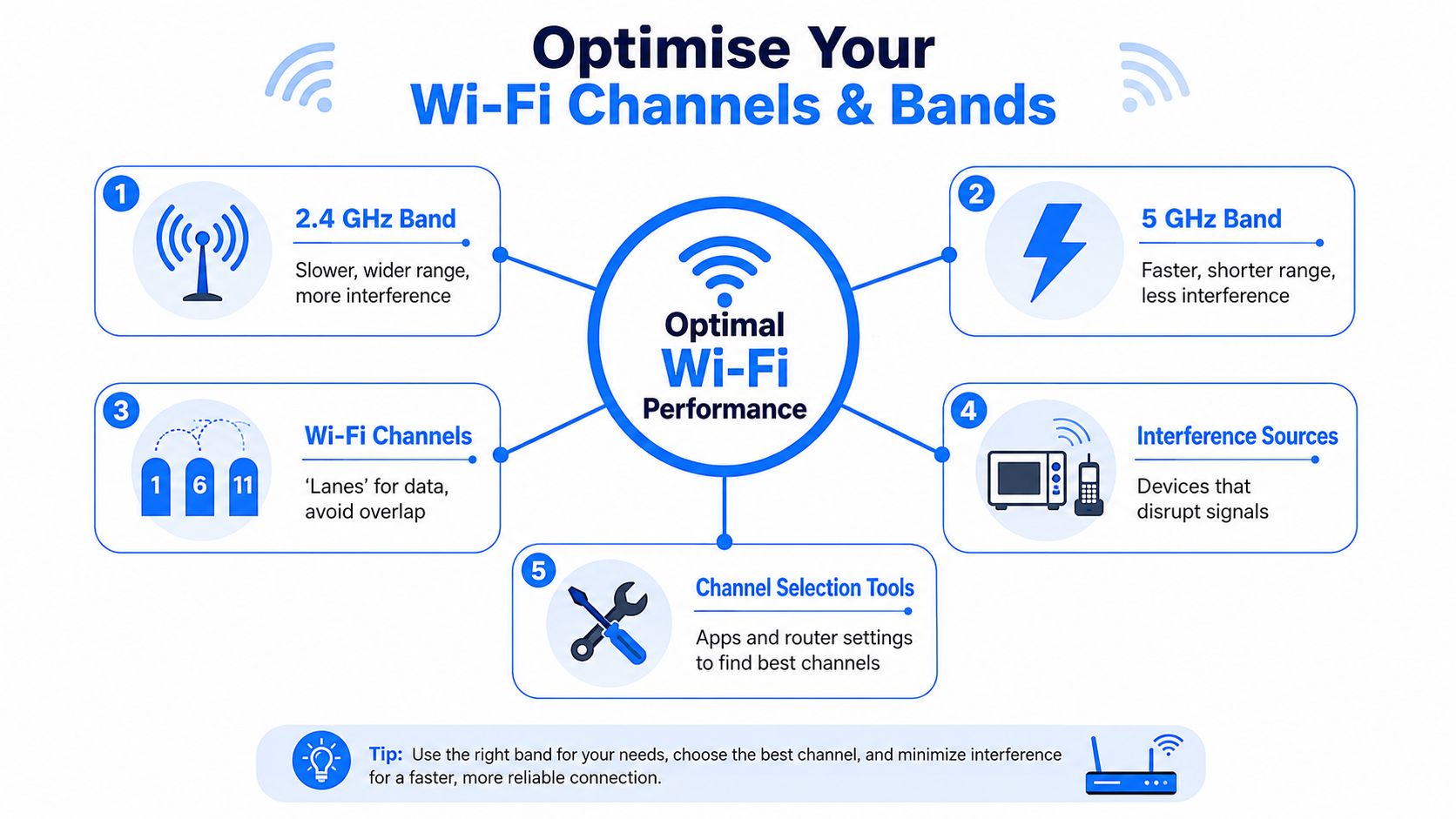
Here's a visual summary before getting into the detail.
Use the right band for the room
Band choice matters more in UK buildings than many guides admit. Brick party walls, old chimney breasts, stonework, foil-backed insulation, and tiled bathrooms all weaken signal. Faster Wi-Fi does not help if the signal cannot get through the wall in the first place.
LB-LINK's guide to Wi-Fi signal coverage notes that denser materials hit 5GHz harder than 2.4GHz, and also recommends using separate SSIDs if devices keep choosing the wrong band. That matches what we see on site.
Use each band for what it does best:
- 2.4GHz for longer reach and awkward routes through walls. Better for printers, cameras, alarms, and smart devices.
- 5GHz for higher speed at shorter range. Better for laptops, streaming boxes, video calls, and busy work areas near the router or access point.
- 6GHz for very fast local performance on supported devices, but only where signal has a clear path and the hardware supports it properly.
Many routers combine everything under one network name and leave band steering to the device. Sometimes that works. Often it does not. A phone may cling to weak 5GHz in the loft instead of dropping to a stronger 2.4GHz signal, or an older printer may refuse to join at all.
Splitting the bands into separate network names gives you control. It is not the tidiest setup, but it makes testing far easier. If the upstairs office works on 2.4GHz and fails on 5GHz, the problem is clearer. If you are still choosing the right WiFi solution, that distinction matters because extender, mesh, and access point setups handle band behaviour differently.
A short explainer can help if you want to see these concepts in action.
Stop leaving channel choice entirely to chance
Channels matter most in crowded areas. That includes blocks of flats in Chelmsford, terraces in East London, and small offices on retail parades where dozens of routers overlap. In those places, interference can drag performance down even when signal strength looks decent.
For 2.4GHz, use channels 1, 6, or 11. Those are the standard non-overlapping choices. Auto mode is convenient, but plenty of consumer routers sit on congested settings for months without adapting well.
A practical process works better than guesswork:
- Scan the airspace with a Wi-Fi analyser app on a phone or laptop.
- Check the problem room, not just the room with the router.
- Set 2.4GHz manually to whichever of 1, 6, or 11 is least crowded nearby.
- Retest at the times you notice trouble, especially evenings when neighbouring networks are busiest.
- Leave 5GHz on sensible channel widths, because extra width can raise interference in dense areas instead of improving real speed.
One point gets missed a lot. Strong signal and clean signal are not the same thing. A laptop can show full bars and still perform badly if it is sitting in a noisy channel shared with half the street.
Manual tuning has limits. It will not punch 5GHz through two solid brick walls or fix a router stuck in the far corner of the house. It does solve a surprising number of slow, unstable connections in built-up parts of London and Essex. If you have tested the bands, set the channels properly, and the dead spots remain, that is usually the point where better hardware or a proper survey saves time.
Choose the Right Hardware Extenders vs Mesh vs Access Points
A lot of people in Essex buy a “whole-home Wi-Fi” kit after one bad week of dropouts, then find the upstairs back bedroom is still poor. The hardware is not always the problem. The building often is. Solid brick, older plaster, chimney breasts, foil-backed insulation, and stone internal walls change what will and will not work.
Here is the blunt version. If the house or office is hard for Wi-Fi to cross, buying another wireless box to repeat a weak signal rarely gives a clean result.
What each option actually does
A Wi-Fi extender rebroadcasts the signal from your existing router. It is cheap, quick to try, and sometimes good enough for one awkward room. The catch is simple. The extender can only repeat what it receives. Put it in a poor spot and it repeats a poor connection.
A mesh system uses multiple units under one network name, so phones and laptops roam more easily around the property. It suits homes where you want simpler day-to-day use and do not want to manage separate Wi-Fi names. In newer builds with lighter partition walls, mesh can work well. In Victorian terraces, converted flats, and long narrow properties, performance depends heavily on node placement and how much wall material sits between them.
A wired access point creates Wi-Fi locally but gets its feed back over Ethernet. That changes the job completely. Instead of stretching one struggling wireless signal through several rooms, it puts a fresh, strong signal where people use devices. That is why access points are the standard choice in offices, schools, and homes where reliability matters more than tidy marketing claims.
Wi-Fi Solution Comparison
| Solution | Best For | Cost | Performance | Installation |
|---|---|---|---|---|
| Wi-Fi extender | One weak area where the existing router signal is still fairly usable | Low | Mixed. Can help, but often inconsistent | Simple DIY |
| Mesh system | Whole-home coverage in properties that don't block wireless too aggressively | Medium | Good when nodes are well placed | Usually easy |
| Wired access point | Businesses, thick-walled homes, larger buildings, and reliability-critical spaces | Higher | Best overall | Best with planning and cabling |
If you want a plain-English second opinion on choosing the right WiFi solution, that comparison covers the same core decision most homeowners and small businesses face.
What works in London and Essex buildings
The right choice depends less on the box and more on the route the signal has to travel.
In a small open-plan flat, mesh is often enough. In a semi-detached house with a router at the front and a home office at the back, a single extender may improve the bars on your phone but still leave video calls unstable. In older Essex houses with dense internal walls, I would usually trust a wired access point before I trusted a wireless hop between nodes.
For small businesses, headcount matters as well as floorplan. Cloudswitched notes that dense offices often need roughly one dedicated access point for every 20 to 30 users, and that wireless backhaul loses far more signal than a wired link in busy environments, which is exactly why meeting rooms and tills often behave badly on all-wireless setups in older buildings. See Cloudswitched's guide to optimising Wi-Fi in dense offices.
Use this rule of thumb:
- Choose an extender for one nuisance area, where the source signal is still decent and expectations are modest.
- Choose mesh for easier roaming across a typical home, if the walls are not especially hostile to wireless.
- Choose wired access points for offices, thick-walled properties, garden rooms, loft conversions, and any setup where dropped connections cost time or money.
The more the building blocks Wi-Fi, the less sense it makes to rely on another wireless relay to fix it.
That is the point where professional design saves a lot of trial and error. A proper layout, with the right hardware in the right places, usually costs less than buying two or three consumer kits that never quite solve the problem.
The Ultimate Fix Wired Connections and Strategic Upgrades
A lot of Wi-Fi problems stop being Wi-Fi problems once the important devices come off wireless.
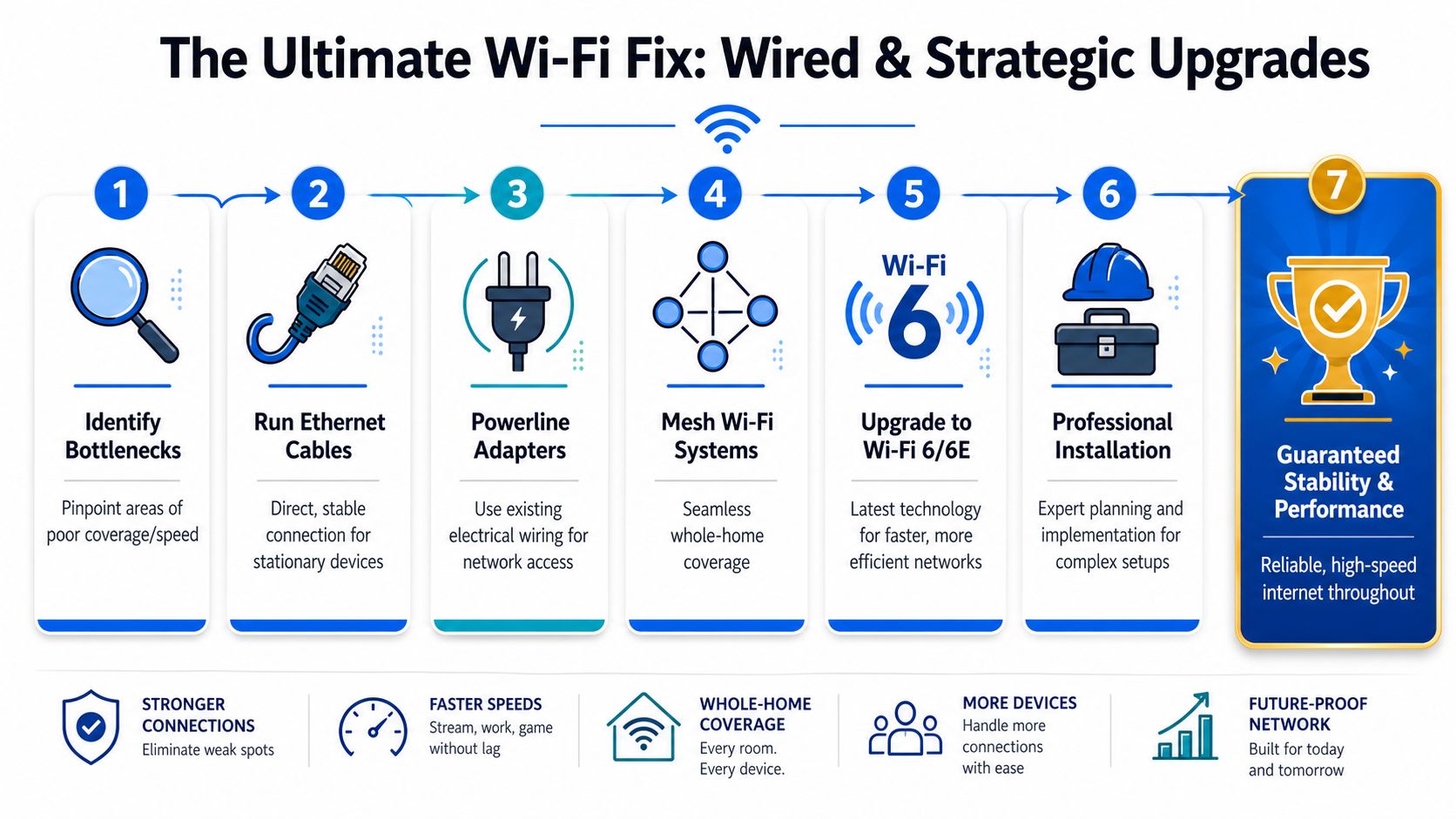
In Essex and London properties, that matters more than many people expect. Solid brick internal walls, older chimney breasts, foil-backed insulation, stone sections, and awkward extensions all weaken signal and add inconsistency. You can have decent broadband at the front of the property and still get poor call quality in the room that matters because the local radio path is the weak point.
When a cable beats every wireless trick
For anything that stays put, Ethernet is usually the cleanest fix. Desktops, VoIP phones, smart TVs, printers, card machines, CCTV recorders, and access points all work better when they are not competing for airtime.
That gives you two practical benefits:
- The device gets a steadier connection with lower delay.
- The Wi-Fi has less traffic to carry, which helps phones, tablets, and laptops behave better.
Often, DIY setups prove insufficient in real buildings. A home office in a Victorian terrace, a till at the back of a shop, or a meeting room behind two thick walls may never become reliable through wireless tweaks alone. If one device supports work, payments, calls, or cameras, it should not depend on whether the signal happens to hold up that day.
Powerline can help as a test or a temporary workaround, but it is inconsistent. Old ring mains, mixed circuits, consumer units, and noisy electrical equipment can all drag performance down. I treat it as a convenience option, not a proper standard for business-critical devices. If uptime matters, structured cabling is the better answer.
As noted earlier, many UK properties now have broadband packages that are faster than the Wi-Fi people experience in the rooms they use most. The line coming into the building is often fine. The bottleneck is inside the building.
When to upgrade the router
Sometimes the router is the problem, and no amount of repositioning will fix that. Older ISP routers often struggle once you add dozens of devices, video calls, smart home kit, guest phones, TVs, and cameras. They may connect everything, but they do not always handle congestion well.
A router upgrade is usually justified when:
- The current router is several years old and has always felt weak on coverage or stability.
- You need better support for newer wireless standards such as Wi-Fi 6.
- The settings are too limited for proper band control, guest access, or basic network management.
- You have already improved placement and tested the obvious fixes but the same weak areas keep showing up.
The trade-off is simple. A better router can improve capacity and control, but it still cannot break through dense walls or make a bad location good. In many London flats and Essex houses, one stronger router is still the wrong answer if the building layout is working against it. In those cases, the right upgrade is a wired access point in the right place, not a more expensive box in the hallway.
For small businesses, router choice also affects how cleanly the network is split. Staff devices, guests, phones, printers, CCTV, and payment systems should not all sit on one flat network if you can avoid it. Better hardware makes that easier to set up and easier to keep stable.
A simple test helps here. If a laptop runs properly over Ethernet in the same room where Wi-Fi keeps dropping, spend less time looking at broadband packages and more time fixing the internal network. That is usually where the answer is.
When the property is awkward, planned upgrades save time. One or two cable runs and properly placed access points often solve in a day what months of repeaters, mesh kits, and router swaps fail to fix.
When to Stop Tinkering and Call a Professional
There's a sensible point where more fiddling stops being productive. If you've moved the router, checked the building layout, cleaned up channels, separated bands, and tested the obvious hardware options, you should have a clear picture by now. Either the problem improved, or the property needs a proper design.
Call for help when any of these are true:
- The building is fighting you. Thick brick, stone, awkward extensions, outbuildings, or multiple floors make DIY trial and error slow and expensive.
- The connection supports work or revenue. If poor Wi-Fi affects calls, bookings, tills, CCTV, or staff productivity, downtime costs more than a proper fix.
- You need coverage in exact places. Garden offices, loft rooms, stockrooms, reception desks, and meeting rooms often need planned access point placement.
- You're tired of buying the wrong kit. Many people spend more on repeaters and mesh experiments than they would have spent on the right installation once.
For homes, that usually means a proper site survey, better router placement, and a decision on whether cabling or access points are needed. For businesses, it can mean structured data cabling, managed Wi-Fi, separate wireless networks, and support that doesn't talk in riddles.
If you're in London, Essex, Romford, Brentwood, or nearby areas and you want a fix that's planned properly rather than guessed, Networking2000 can help with data cabling, business Wi-Fi, router and access point setup, and straightforward on-site support for homes and offices. You'll get practical advice from experienced engineers, not a generic script.

