You're on a Teams call, the audio starts clipping, someone says “you've frozen”, and the file you need from SharePoint won't open. Then, just as everything comes back, it drops again. That's the part that catches people out. Full outages are obvious. The more frustrating internet connectivity problems are the half-broken ones where the connection technically exists, but your calls, cloud apps, VPN, or remote desktop session keep stuttering.
In London and Essex, that pattern is common. Busy wireless environments, older buildings, awkward router placement, worn cabling, and overloaded local infrastructure can all produce symptoms that look random from the user side. The good news is that most problems become much easier to solve once you stop treating “the internet” as one thing and start isolating where the failure sits.
Table of Contents
- Is It Just Me Verifying the Scope of Your Internet Problem
- The First Five Minutes Foundational Fixes for Connectivity
- Wired vs Wireless Diagnosing Your Network's Weak Link
- Advanced Checks for Routers Cabling and Interference
- Probing Deeper ISP Performance and Business-Critical Services
- When to Call the Experts Your Networking2000 Escalation Guide
Is It Just Me Verifying the Scope of Your Internet Problem
The first job is to work out the scope. Is it one device, your whole property, or something beyond your walls?
That sounds basic, but it stops you wasting half an hour rebooting the wrong kit. Between summer 2022 and 2023, 21 million UK broadband customers experienced outages lasting three hours or more, with an estimated £17.6 billion in financial disruption over the year leading to January 2024, according to uSwitch broadband access statistics. If your line is down at provider level, no amount of moving your laptop closer to the router will fix it.
Check whether the problem follows the device
Start with one simple question. Does the issue happen on just one machine?
Try this in order:
- Use a second device. If your laptop won't load websites but your phone works on the same Wi-Fi, the line is probably fine.
- Try a different app or website. A failed video call doesn't always mean broadband failure. It may be the platform itself.
- Turn off Wi-Fi on your phone and use mobile data briefly. If the same service works immediately on mobile, your local network is the stronger suspect.
If one device is affected, look at that device first. Common culprits are VPN clients, security software, bad Wi-Fi drivers, or a machine that hasn't restarted in weeks.
Practical rule: If one device is misbehaving and two others are fine, don't start with the broadband provider.
Check whether the whole building is affected
If every device struggles, the next question is whether the issue is limited to Wi-Fi or affects the whole connection.
Look for these clues:
- Wi-Fi symbol visible but no internet on all devices suggests a router, broadband line, or ISP issue.
- Only devices in one room are poor usually points to coverage, interference, or building materials.
- Wired devices are fine while wireless devices fail points to Wi-Fi, not the incoming line.
A quick glance at the router helps too. If the broadband or internet light is off, flashing unusually, or red, that often means the problem sits upstream of your device.
Check for a wider outage before changing anything
Before you reset everything, check whether your provider is already having trouble locally. Tools like Downdetector and your ISP's service status page are useful for this. If neighbours or colleagues in the same part of London or Essex are reporting the same symptoms, you've already narrowed the search.
Keep a short note of what you see:
- when it started
- whether it affects wired and wireless
- whether all websites fail or only some
- what the router lights are doing
That information matters later if you need to speak to support. It turns a vague “the internet is bad” report into something an engineer can act on.
The First Five Minutes Foundational Fixes for Connectivity
The cliché exists because it often works. But a rushed unplug-and-pray restart isn't the same as a proper reset cycle.
According to uSwitch broadband complaint and reliability data, faults, service, and positioning accounted for 39% of fixed broadband complaints, and dropouts and outages were the most common connection issue, affecting 26% of respondents. So the first few minutes should focus on the basics that clear temporary faults without creating new ones.
Start with the least disruptive checks
Begin with what you can see and touch.
- Check the power supply. Loose power adapters cause odd, intermittent failures. A router that keeps half-rebooting can look like a line problem.
- Press cables in firmly. That includes the broadband cable, Ethernet leads, and any powerline adapters.
- Look for damage. Bent plugs, sharply kinked Ethernet cables, and crushed wires under furniture do matter.
- Disconnect unnecessary extras. If you've got switches, extenders, or old powerline units hanging off the network, simplify the setup for testing.
A lot of home and small office setups have grown in layers. Someone adds a cheap extender, moves a desk, reuses an old cable, and six months later no one remembers what changed.
Here's a quick visual comparison that helps when you're deciding whether the weak point is the cable or the air between your device and the router.
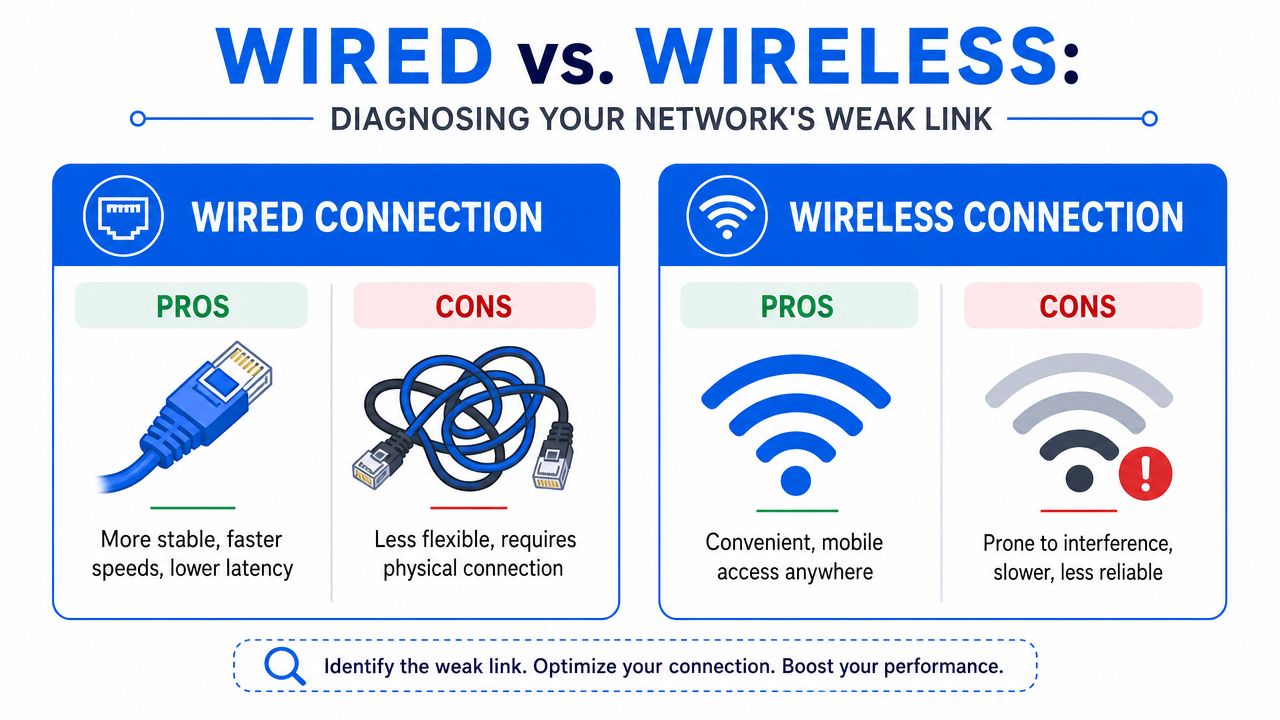
What a proper restart looks like
If the cabling looks sound, restart in the right order.
- Shut down any active work first. Don't reboot the router mid-upload if you can help it.
- Power off the router and modem or ONT if they are separate units.
- Leave them off long enough to fully clear the session. A few seconds is often too quick.
- Power the modem or ONT first, wait for it to settle.
- Then power the router, and give it time to reconnect fully.
- Reconnect one test device first, rather than every device in the building at once.
That sequence matters because the router depends on the upstream device being ready. If you bring them up in the wrong order, you can end up waiting longer or misreading the result.
This short walkthrough is useful if you want a simple visual refresher before you start.
If a restart fixes the issue for a few hours but the problem keeps returning, don't stop at “it's working again”. Intermittent faults nearly always come back.
One more check is worth doing in these first five minutes. Move one important device, even briefly, onto a direct Ethernet cable if you can. That single test often tells you more than ten speed tests over Wi-Fi.
Wired vs Wireless Diagnosing Your Network's Weak Link
A fast fibre package doesn't guarantee fast Wi-Fi in the room where you work. That mismatch causes a lot of confusion.
According to a Computer Weekly report citing a 2024 GWS study, nearly one-third of UK remote workers (32%) experience inadequate connectivity despite fibre upgrades, often because the underlying problem is indoor Wi-Fi planning, not the ISP line itself. That's why the first serious diagnostic step is always to compare wired and wireless performance.
The one test that settles the argument
Plug a laptop directly into the router with an Ethernet cable. Turn Wi-Fi off on that device so you know it's using the cable. Then try the same tasks that were failing before.
If the problem disappears on Ethernet, your broadband line may be fine and your issue is likely inside the property. If the problem remains exactly the same on a wired connection, you're looking more closely at the router, the incoming line, or the provider.
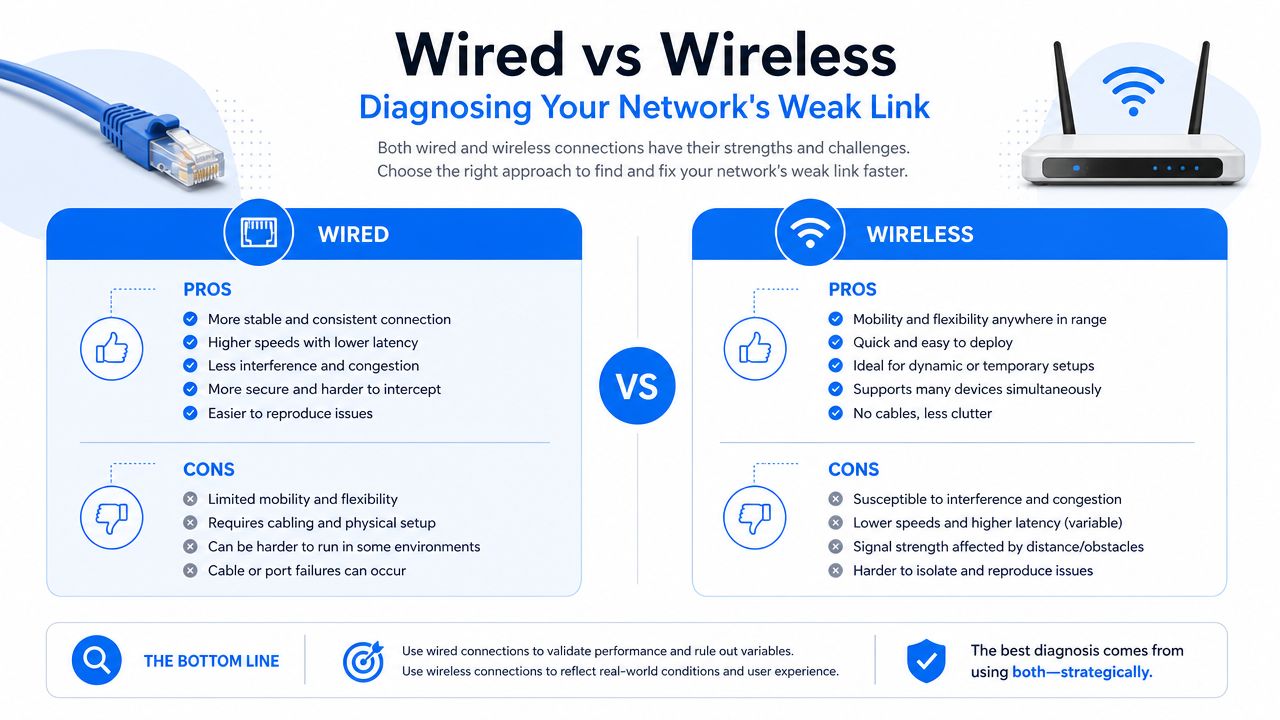
A simple comparison helps:
| Connection test result | What it usually points to |
|---|---|
| Wired good, Wi-Fi poor | Wireless coverage, interference, router placement |
| Wired poor, Wi-Fi poor | Broadband line, router fault, upstream issue |
| Wired stable, Wi-Fi drops randomly | Local radio interference or roaming issues |
| Both work but calls still glitch | Latency, jitter, packet loss, or app-specific issue |
For a plain-language reference on internet and infrastructure topics outside the usual ISP help pages, Southern Tier Resources is one example of a broader technical resource that can help when you're trying to separate service issues from local network issues.
If wired is fine and Wi-Fi is poor
In this context, London flats and older Essex houses often behave differently from the neat diagrams on broadband adverts.
Common wireless troublemakers include:
- Neighbouring networks crowding the airspace, especially on the 2.4GHz band.
- Router placement tucked behind a television, inside a cabinet, or on the floor.
- Thick internal walls that soak up signal before it reaches the office or loft room.
- Cheap extenders that repeat a poor signal instead of improving it.
- Mixed-age devices where one older client drags the experience down for newer ones.
A few fixes work better than others.
Move the router into the open, ideally higher up and away from big metal objects. If your work desk is two rooms away, a wireless access point or a properly run Ethernet cable usually beats a plug-in extender. In homes with converted lofts, garden offices, or thick masonry walls, cabling to the far end of the property is often the cleanest long-term answer.
“My fibre is fast” and “my Wi-Fi is fast where I sit” are not the same statement.
If you upgraded the broadband package and nothing improved in the home office, don't assume the ISP sold you the wrong service. Very often, the bottleneck is between the router and your device.
Advanced Checks for Routers Cabling and Interference
When the easy fixes don't hold, it's time to inspect the parts of the network people rarely think about until they fail.
A surprising number of stubborn internet connectivity problems come from hardware that still sort of works. That's the awkward middle ground. The router powers on, the cable clicks into place, the extender lights up, and yet calls still break up and cloud apps stall.
Read the router before you replace it
Start with the router's status lights and admin page. You don't need to be a network engineer to get useful clues.
Look for patterns such as:
- broadband or internet light changing colour
- repeated reconnect cycles
- a warning about line status
- devices constantly dropping off and rejoining Wi-Fi
Most routers also show basic event logs and connection status in the admin panel. You're not trying to decode every line. You're checking for obvious instability, repeated disconnections, or a WAN link that won't stay up.
If the router has separate bands, test both. Some devices perform badly on one band because of local interference, driver issues, or distance from the access point.
The physical layer causes more trouble than people expect
Real-world sites differ from ideal diagrams.
Older cabling can hold a network back. Legacy Cat5e may still be fine in some installs, but damaged runs, poor terminations, or low-quality patch leads can cause negotiation issues and unstable performance. If a connection works on one cable and becomes erratic on another, don't overthink it. Swap the cable and test again.
Router placement matters just as much. Avoid these positions if you can:
- Next to a microwave in a kitchen office or break room
- Beside a cordless phone base
- Behind a TV or monitor cluster
- Inside a cupboard
- Directly against thick brick or chimney breast walls
Environmental interference doesn't always kill the connection outright. It often creates the nastier kind of fault where websites load eventually, but calls sound robotic and remote desktops feel sticky.
If your issue involves mobile coverage inside the office as well as broadband quality, there are times when the voice side needs separate attention. For businesses dealing with patchy indoor signal, this guide on how to Fix dropped calls in your office is worth reviewing alongside your network checks.
A few hardware habits save time:
- Label the important cables so you know what feeds what.
- Replace one item at a time. If you change three things together, you won't know which one fixed it.
- Test from the router outward. Start close to the core, then move to switches, access points, and endpoint devices.
- Don't trust powerline adapters blindly. They can be useful, but they can also be inconsistent depending on the wiring in the building.
When faults are intermittent, patience matters more than speed. Make one change, test properly, and keep notes. Randomly swapping equipment often creates extra variables instead of answers.
Probing Deeper ISP Performance and Business-Critical Services
Some connections are “up” in the technical sense but still unusable for real work. Email might scrape through while VoIP breaks, your CRM times out, and remote desktops lag for a few seconds at a time.
That gap is where micro-failures live. Recent Ofcom digital disadvantage research notes that while 96% of UK households have access to 50Mbps+ broadband, up to 18% of business users in London and Essex still report weekly disruptions during critical cloud-based workflows, often misdiagnosed as user error rather than routing faults or micro-failures. In practice, that means the line can pass a basic “is there internet?” check and still be bad enough to disrupt work.
Speed is only one part of the story
People usually focus on download speed because that's the biggest number on a speed test. For business use, that's only part of the picture.
When you run a proper test, pay attention to:
- Download speed for large file transfers and media-heavy work
- Upload speed for backups, video calls, cloud sync, and sending files
- Latency which is the delay before data starts moving
- Jitter which is variation in delay over time
- Packet loss where bits of data go missing and have to be resent
Here's the practical interpretation:
| Metric | If it looks bad | What users usually notice |
|---|---|---|
| Download | Slow or inconsistent | Web pages drag, large files crawl |
| Upload | Weak or unstable | Video calls freeze on your side, cloud backups stall |
| Latency | High delay | Clicking feels laggy, remote systems respond late |
| Jitter | Spikes and swings | Choppy audio, robotic voices, broken live sessions |
| Packet loss | Missing traffic | Calls drop words, VPNs disconnect, apps hang |
Field note: A line can have acceptable headline speed and still fail badly for VoIP or cloud software if latency and jitter jump around.
For that reason, test more than once and at different times. If the problem only appears during the working day, a single late-night speed test may tell you very little.
How micro-failures show up in real work
Micro-failures are short bursts of instability. They may last only seconds, but that's long enough to wreck anything real-time.
Typical symptoms include:
- Teams or Zoom audio clipping while video stays present
- VoIP handsets sounding metallic or delayed
- Remote desktop freezing briefly, then catching up
- Cloud accounting or CRM pages hanging before finally loading
- VPN sessions dropping without a full broadband outage
These faults get dismissed because users can still “browse the internet”. But browsing is forgiving. Voice, video, VPN, and cloud apps are not.
This is also where a managed business setup helps. A firewall with better monitoring, properly placed wireless access points, and structured cabling give you more visibility than a single all-in-one ISP router. In London and Essex offices where VoIP and cloud platforms are central to the working day, Networking2000 can be one practical option for investigating those recurring faults across broadband, Wi-Fi, cabling, and edge hardware.
This summary box is a useful reminder of when a problem has moved beyond casual troubleshooting and into escalation territory.
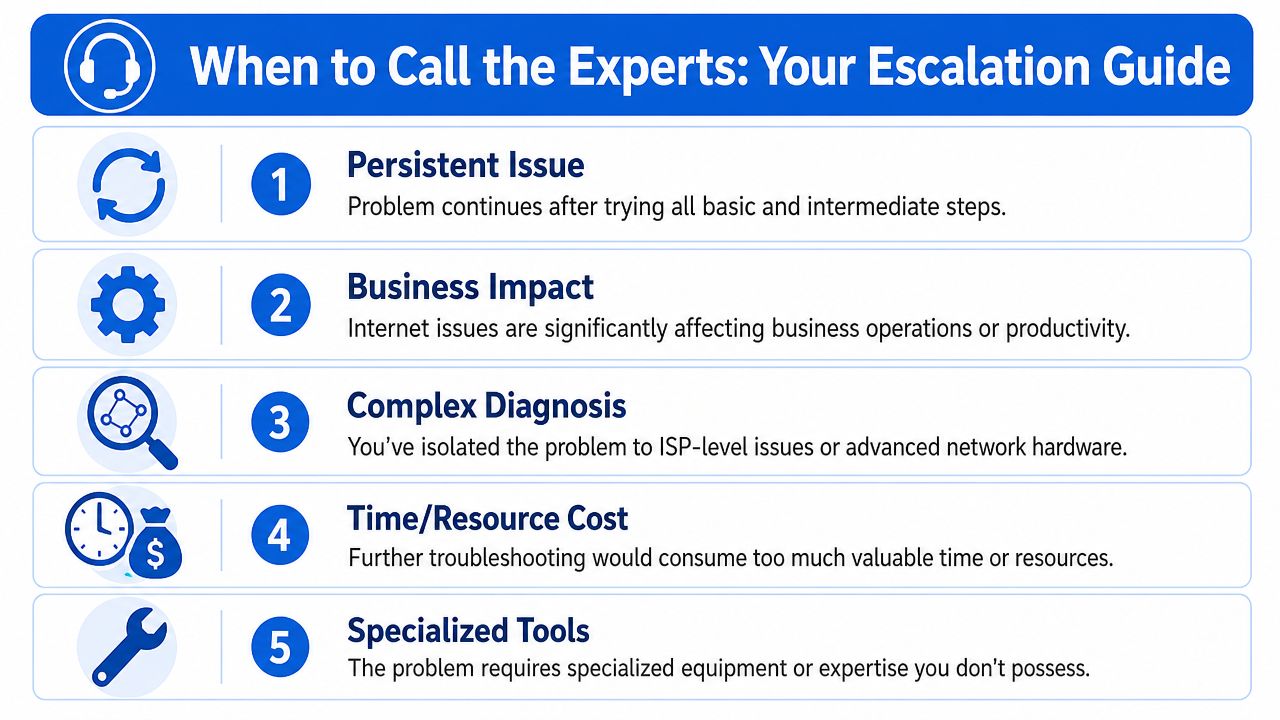
When you speak to your ISP, be specific. “My internet is slow” is weak evidence. “Wired and wireless both show instability, calls clip during office hours, and the issue repeats across multiple devices” is much harder to dismiss.
When to Call the Experts Your Networking2000 Escalation Guide
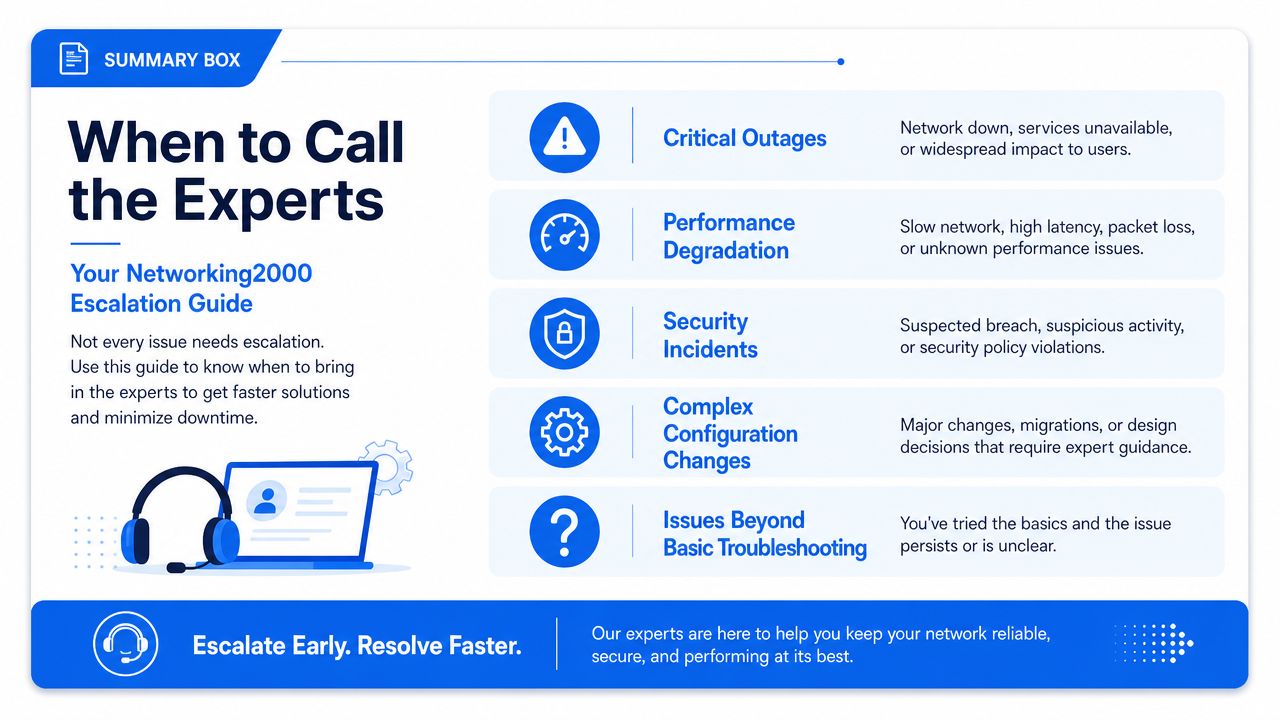
There's a point where more DIY testing stops being productive. If you've isolated the issue and it still won't stay fixed, escalation usually saves time, frustration, and lost working hours.
That's especially true when the fault is intermittent. Those are the hardest problems to pin down without the right tools, because by the time support answers the phone, the line may appear normal again.
Good reasons to stop self-troubleshooting
Call for help if any of these apply:
- The fault keeps returning after restarts, cable swaps, and device checks.
- The issue affects business services such as VoIP, VPN access, shared files, or card payments.
- You suspect internal cabling inside walls, ceiling runs, or structured data points.
- The router logs show instability but you can't tell whether the cause is local or upstream.
- You've proved Wi-Fi is the problem but the fix requires better access point placement or new cabling.
- You've proved Wi-Fi isn't the problem and the line still behaves badly on Ethernet.
Some faults are cheap to ignore right up until they interrupt payroll, customer calls, or a full team working from home.
Professional support is also sensible when the network includes more than a basic router. Once you have switches, VoIP phones, wireless access points, VPN users, CCTV, or managed firewalls on the same environment, one fault can show up in several different ways.
What to have ready before you call
A better support call starts with a short, clear fault report.
Have these details ready:
- when the problem began
- whether it affects one device or many
- whether wired and wireless both fail
- what changes have already been tried
- whether the issue is constant or intermittent
- which apps or services suffer most
That lets an engineer move straight to diagnosis instead of repeating the first round of questions.
If you're in London or Essex and your internet connectivity problems keep circling back, getting a proper diagnosis is usually faster than another week of workarounds. The aim isn't just to get the line back for today. It's to identify whether the appropriate solution involves a provider fault, better Wi-Fi design, cleaner cabling, improved hardware, or a more stable setup for the way you work.
If your home office, small business, or multi-user site needs help tracking down internet connectivity problems, Networking2000 provides practical support across London and Essex for broadband faults, Wi-Fi issues, cabling, VoIP, routers, and managed network infrastructure. If you've already tried the basic checks and the problem still isn't clear, getting an engineer to isolate the fault properly can save a lot of downtime.

