Your laptop won't start. The screen stays black, the mouse freezes, or Windows throws an error message five minutes before a meeting, online banking session, or a child's homework deadline. In that moment, users often do the same thing. They search home computer repair near me and hope the first result can sort it.
That search got far more common when home working became normal. Between March 2020 and December 2021, Google Trends showed a 150% spike in UK searches for “home computer repair near me”, linked to the rise in remote working households, as noted by the ONS home working bulletin. So if you're dealing with a dead PC in Essex or London right now, you're not the odd one out. You're in a very crowded club.
The trick isn't just finding somebody fast. It's finding somebody who can fix the fault, protect your data, explain things in plain English, and leave you in a better position than before. If the issue might be power-related, it's also worth running through a few basic steps to fix your computer quickly before you book a visit, because a charging fault can sometimes look like a much bigger hardware failure.
Table of Contents
- Your Computer Is Broken Now What
- Finding Reliable Local Computer Repair Experts
- Your Pre-Call Vetting Checklist
- Smart Questions to Ask Before You Hire
- How to Prepare for the Engineer's Visit
- After the Repair From Quick Fix to Proactive Protection
Your Computer Is Broken Now What
The first job is to stop the panic from driving the decision.
A black screen doesn't always mean a dead motherboard. A painfully slow laptop doesn't always need replacing. A machine that keeps restarting might be suffering from anything from a Windows update issue to a failing drive, a swollen battery, or overheating from dust build-up. The symptoms often look worse than the actual cause.

I've seen the same pattern for years across Essex homes. Someone loses a morning trying random fixes from forums, installs three “PC cleaner” tools, restarts ten times, and then calls for help after the problem has become harder to diagnose. The machine might still be repairable, but the trail gets messy fast.
First decide what kind of failure you have
That matters because it tells you who to call and how urgently.
- No power at all usually points to charging, battery, power supply, or internal hardware issues.
- Power but no proper startup often means Windows corruption, drive trouble, or memory faults.
- Slow, noisy, or overheating points more towards maintenance, cooling, software bloat, or malware.
- Internet works on your phone but not your PC may be a Wi-Fi adapter, router setting, or local network issue rather than the computer itself.
Practical rule: Don't keep forcing restarts if you hear clicking from a drive, smell heat, or see repeated startup errors. That's when simple problems can turn into data recovery jobs.
What a calm next step looks like
Write down what happened just before the fault started. Was it an update, a spill, a drop, a new printer install, or a broadband change? That detail helps a technician cut through guesswork.
Then narrow your shortlist to local providers who can either visit the home or offer a proper remote session for software issues. In places like Romford, Brentwood, Hornchurch, and Rayleigh, local support is useful for one simple reason. If the first fix doesn't hold, you need someone who can follow up without turning the whole thing into a courier exercise.
A good repair process should leave you feeling more in control, not more confused. If the person you speak to makes everything sound mysterious, keeps things vague, or rushes you straight to replacement, keep looking.
Finding Reliable Local Computer Repair Experts
Typing home computer repair near me into Google is fine as a starting point. It just shouldn't be the only step.
The map results are useful for checking whether a business looks established, has consistent contact details, and serves your area properly. Organic results often tell you more. A decent website shows what the company fixes, whether they handle home visits, what brands they work with, and whether they can deal with wider issues like Wi-Fi, printers, email, and security.
What to look for in search results
A reliable local business usually leaves a clearer trail online.
- A real service area such as Essex, London, Romford, Hornchurch, Rayleigh, or Brentwood.
- Specific service pages for laptop repairs, virus removal, Wi-Fi problems, data recovery, printer setup, or network faults.
- Clear contact options like phone, email, and a proper booking route.
- Signs of continuity such as a long trading history, regular website updates, and consistent branding.
Social media recommendations can help, but take them with a pinch of salt. Local Facebook groups often produce names quickly, but not always context. A mate saying “he fixed mine” doesn't tell you whether the repair was documented properly, whether the data stayed private, or whether the issue came back a week later.
A technician who can explain the difference between a quick patch and a durable repair is usually worth more than the cheapest call-out.
Value matters more than the lowest quote
Repairing often makes far more sense than replacing. In the UK, a home PC or laptop repair typically costs £50 to £150, while replacement usually runs £500 to £1,200, with potential consumer savings of £2.5 billion each year, according to WRAP's right to repair report. That's why it's worth spending a little time choosing properly rather than going with the first cheap option.
The better firms also tend to present themselves better online. If you want to understand how serious local companies make themselves visible in search, this guide on how to attract more local service customers gives a good behind-the-scenes look at what stronger local businesses usually get right.
The difference between a quick fixer and a proper provider
A one-person operation isn't automatically bad. Some are excellent. The concern is resilience. If they don't answer, fall ill, disappear mid-job, or can't source parts, you're stranded.
A more established local provider usually has a clearer process. They book properly, diagnose first, explain the options, and support the repair afterwards. That's what you want when the machine in question runs work files, family photos, passwords, and the Wi-Fi printer everyone in the house relies on.
Your Pre-Call Vetting Checklist
Before you ring anyone, spend ten minutes checking whether they look trustworthy. It saves time, money, and awkward conversations.
The biggest green flag is a diagnostic-first approach. Professional services that work this way reach 89% first-time-fix success rates, while 40% of computers brought in after failed DIY attempts have worsened conditions, according to Thumbtack's repair methodology data. That lines up with what engineers see in real life. Guesswork repairs usually cost more in the end.
Start with the website
A proper repair website should answer basic questions without making you dig.
Look for plain descriptions of what they fix. Not just “computer repairs”, but things like laptop screens, charging faults, virus removal, Microsoft 365 issues, printer setup, Wi-Fi coverage problems, and data backup. If the wording is woolly, the process often is too.
Check whether they explain how jobs begin. If they jump straight to pricing with no mention of diagnosis, that's not ideal. No honest engineer can quote every fault from a two-line phone description.
Read reviews like a technician
Don't just count stars. Read the wording.
Useful reviews mention symptoms, communication, punctuality, and outcomes. Better still, they mention whether the company explained the issue clearly and whether the fix held up. Thin reviews that say only “great service” don't tell you much.
Watch for patterns:
- Repeated praise for explanation suggests the company talks like humans, not manuals.
- Mentions of follow-up support suggest they don't vanish after payment.
- Consistent local references show they really serve your area.
- Reviews across time are stronger than a burst of recent comments with similar phrasing.
If a business has been around since 1998, that doesn't guarantee quality on its own. But in IT support, longevity usually means they've handled enough odd faults, awkward setups, and urgent call-outs to stay useful when things get messy.
5-Point Vetting Checklist Before You Call
| Check | What to Look For | Why It Matters |
|---|---|---|
| Trading history | A clear “established” date or long-standing local presence | Older firms have usually seen more fault types and have settled processes |
| Service detail | Specific repairs listed, not vague promises | Specificity suggests real hands-on experience |
| Diagnostic language | Mention of inspection, testing, or root-cause diagnosis | Good repairs start with evidence, not guesses |
| Contact clarity | Phone number, email, service area, and booking method | Clear contact details suggest accountability |
| Review quality | Detailed reviews describing symptoms, communication, and results | Detailed feedback is harder to fake and easier to trust |
A shortlist of two or three strong candidates is enough. You're not looking for perfection. You're looking for professionalism, consistency, and signs that your computer will be treated like more than just another ticket number.
Smart Questions to Ask Before You Hire
Once you've got someone on the phone, don't waste the call by asking only “How much do you charge?”
That question matters, but it won't tell you how they work. A cheap hourly rate can still become an expensive job if the engineer guesses wrong, keeps returning, or doesn't protect your data properly. The call should help you decide whether this is a safe pair of hands.

Questions about the job itself
Ask these in a normal, conversational way.
How do you diagnose the fault before starting the repair?
You want to hear a process, not a guess.Do you offer remote support for software issues and home visits for hardware or Wi-Fi faults?
That tells you whether they choose the right method for the problem.What's included in the quoted price?
Ask about diagnostics, labour, parts, call-out charges, and whether VAT is included if relevant.Will you contact me before replacing any part or doing extra work?
Good firms ask permission before costs change.Do you guarantee the repair or give any comeback if the same issue returns?
Even a simple answer tells you a lot about confidence and accountability.
A decent engineer won't be annoyed by these questions. If anything, they'll usually answer more clearly because they can see you're paying attention.
Questions about privacy and the bigger picture
Your computer isn't just a machine. It's your email, banking access, photos, browser history, saved passwords, cloud accounts, work documents, and family information. So ask directly:
- How do you handle customer data during repair?
- Will you need my password, or can I provide access to the machine only when needed?
- Do you recommend a backup before work starts?
- If the problem is linked to my Wi-Fi or router, do you check the whole setup or only the device?
This is also where you separate basic repair firms from broader technology partners. Many local services are siloed and focus only on the device itself. Asking about integrated help such as network security, VoIP, or managed firewalls can reveal whether a provider can support your wider setup, as discussed in this piece on integrated services beyond device fixes.
Some faults don't begin inside the laptop at all. They start with poor Wi-Fi, a tired router, weak password habits, or no backup routine.
If you work from home, ask one more question: “Can you help stop this happening again?”
That single question often changes the conversation from a one-off repair to practical advice about updates, backups, device health, Wi-Fi coverage, and account security.
The right answer won't be a sales pitch. It'll be specific. Keep the laptop ventilated. Replace the failing battery. Clean startup software. Sort the backup. Secure the router. Check the email account. That's the voice of someone who fixes causes, not just symptoms.
How to Prepare for the Engineer's Visit
A repair visit goes better when the customer does a bit of preparation first. It protects your files and gives the engineer a cleaner starting point.
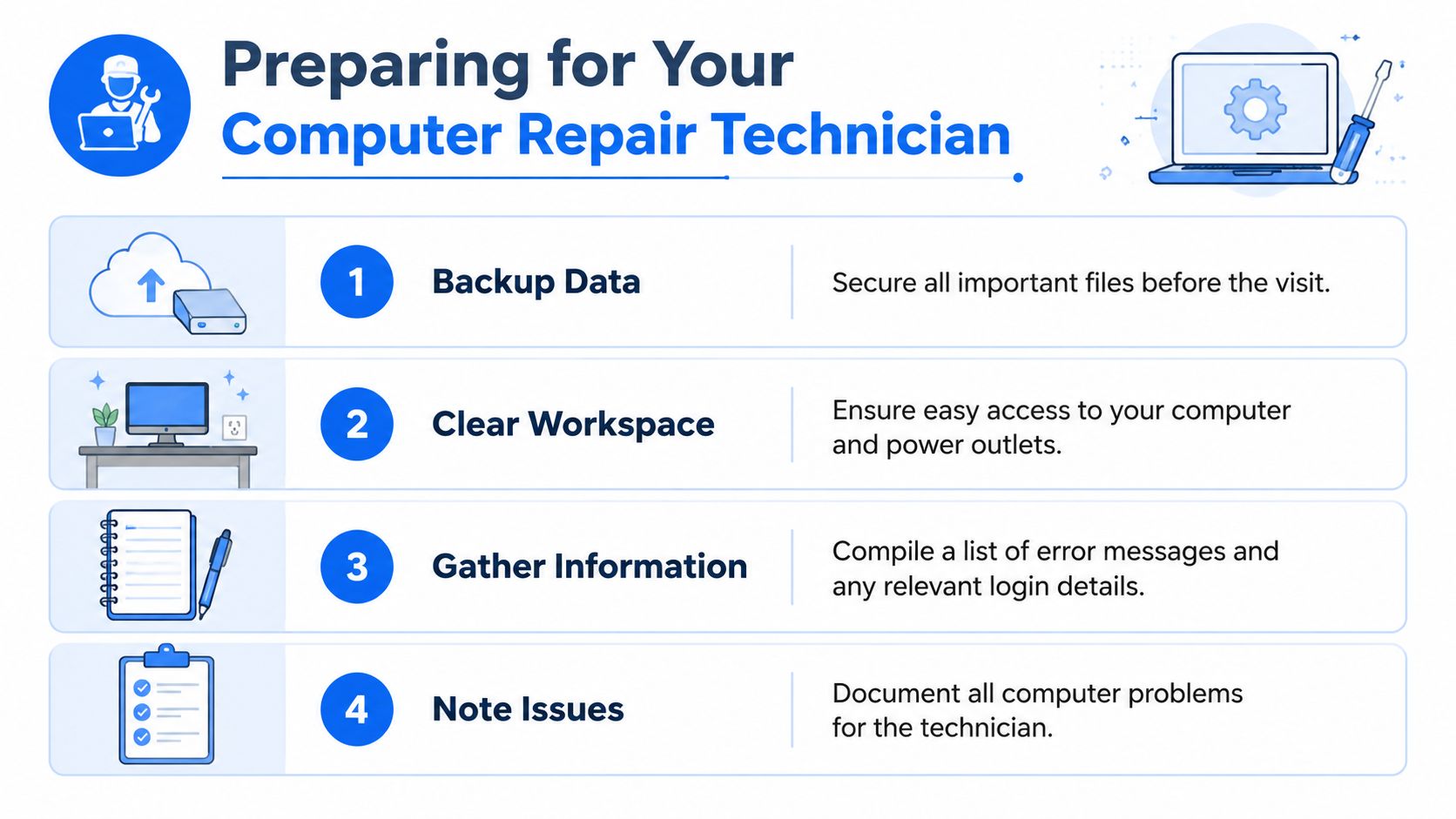
The most important job is your data. If the computer still powers on, back up the files you can reach before anyone touches the machine. Photos, documents, desktop folders, email archives, bookkeeping files, and browser bookmarks matter more than is often appreciated once a system stops booting.
Protect your files first
If you use OneDrive, Google Drive, iCloud, or Dropbox, check what has synced. Don't assume everything is already safe. A folder icon with a cloud next to it doesn't always mean the latest version is backed up properly.
A simple prep list helps:
- Back up priority files to an external drive or trusted cloud account.
- Log out of sensitive websites such as banking, HMRC, and shopping accounts if the machine still works.
- Remove handwritten passwords from the desk area. Keep them with you, not stuck to the monitor.
- Know your Microsoft or Apple account details in case the engineer needs you to authorise something.
The engineer doesn't need your entire digital life. They need just enough access to test, repair, and confirm the machine works.
Make the visit easier and faster
A crowded desk slows everything down. So does a computer buried under paperwork, cables, and half-connected gadgets.
Before the appointment:
Clear a workspace near a power socket.
The engineer may need room for tools, spare cables, or a test monitor.Write down the symptoms in order.
Include when the issue started, what the machine does, any error messages, and whether the fault is constant or intermittent.Gather related kit such as the charger, docking station, printer cable, external drive, or router details if the issue involves the network.
Keep children and pets away from the work area for a little while.
It sounds obvious, but it makes on-site troubleshooting much smoother.
If the fault only appears during a specific task, say so. “It crashes when I open Zoom” is more useful than “it's broken”. “The printer disappears after sleep mode” is better than “the internet is funny”. Specific symptoms save time, and on hourly work, time matters.
After the Repair From Quick Fix to Proactive Protection
Once the machine is running again, don't rush straight back to normal and assume the job is done. Test the repair while the details are fresh.
Open the programs that mattered before the fault. Check Wi-Fi, printing, email, browser logins, sound, webcam, charging, and any folders that were previously inaccessible. If the computer was slow, use it for a bit. A machine that behaves for two minutes but struggles after twenty hasn't really proved itself yet.
Check the machine before the engineer leaves
Ask for the issue in plain English. Not the dramatic version. The useful version.
You want to know three things:
- What failed
- What was done
- What you should watch next
Also ask for an itemised invoice or written summary. That matters later if the problem returns, if a part is under warranty, or if another engineer ever needs the repair history. Good records reduce repeat diagnostics and stop everyone starting from scratch.
Turn one repair into a calmer setup
Computer repair is often treated as a fire brigade job. The laptop dies, the internet drops, the printer disappears, and only then does support get called. That's understandable, but it's not the best long-term approach.
A lot of online content focuses on reactive repairs. There's far less discussion of prevention, even though proactive remote monitoring can prevent costly downtime, which is especially useful for home users and small businesses in Essex and London who can't afford to be offline.
That doesn't mean turning your house into a corporate IT department. It means basic, sensible protection:
- Regular backup checks so files are recoverable
- Health checks on ageing laptops before they fail at the wrong moment
- Router and Wi-Fi reviews if devices keep dropping off
- Update and security routines that aren't ignored for months
- A go-to engineer or provider who already understands your setup
The best repair is the one you never need because someone spotted the warning signs early.
A good local engineer can become more than a one-off fixer. They can help you keep the laptop stable, the Wi-Fi reliable, the printer visible, the accounts safer, and the home office usable. That's what is sought when someone searches for home computer repair near me. Not just a quick save, but fewer future problems.
If you want help from an experienced local team that supports homes and businesses across London and Essex, Networking2000 offers practical, jargon-free IT support, computer repairs, networking, communications, and security services. If your issue starts with one broken laptop but really involves Wi-Fi, email, backups, or wider protection at home or work, they can help you sort the immediate fault and put a more reliable setup in place.

